
Instructions
Step-by-Step Guide to Installing and Activating Microsoft Project
This guide shows how to install and activate Microsoft Project, so you can use all its project management features. It works for a new product key or for reactivating an existing license, and it covers each stage from downloading the software to entering your activation key.
Need a key? See Project Professional 2024 or Project Professional 2021.
1. Redeem Your Microsoft Project Product
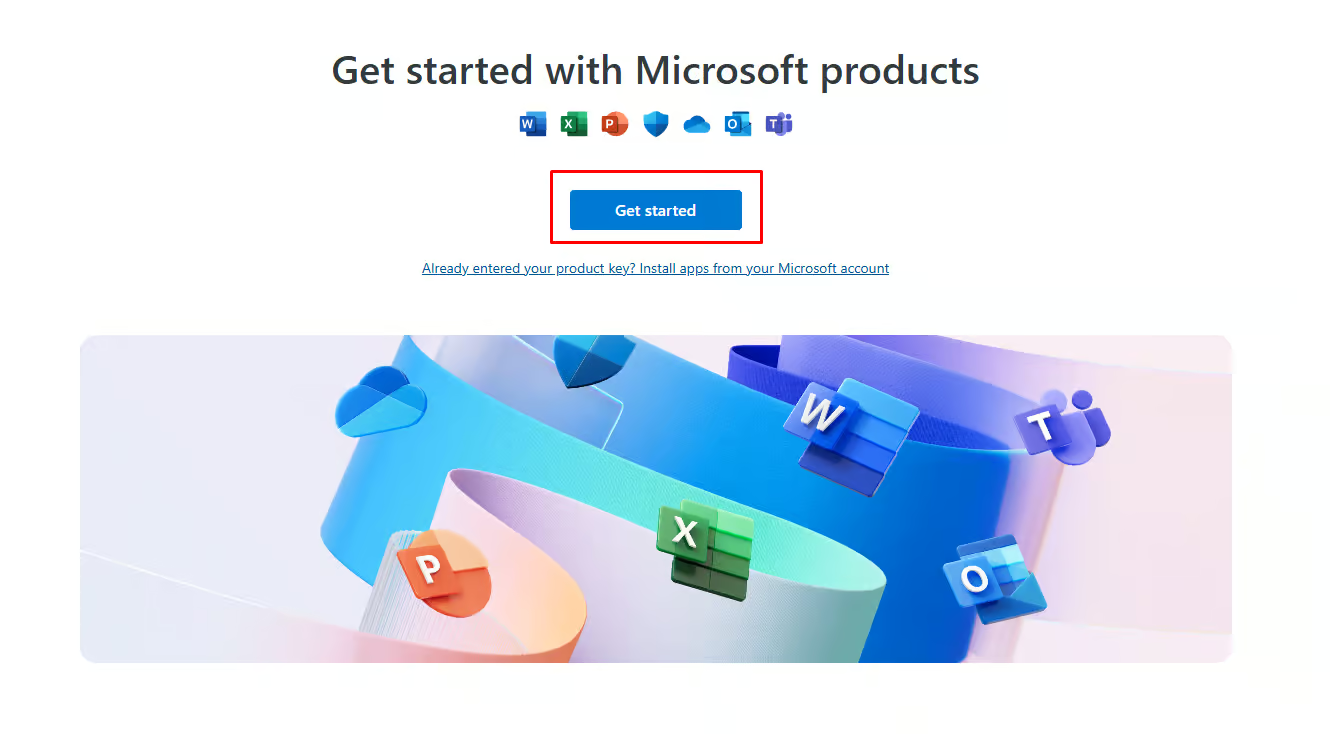
Go to https://setup.office.com and select ‘Get Started.’
- Sign in with your Microsoft account.
- Redeem your product key.
- Download the Project software.
- *Note: For easy installation, you can download the Project Professional ISO file for your version directly from the links below.
2. Setup Instructions for setup.office.com
After clicking “Get Started,” sign in with your Microsoft account and follow the steps below:
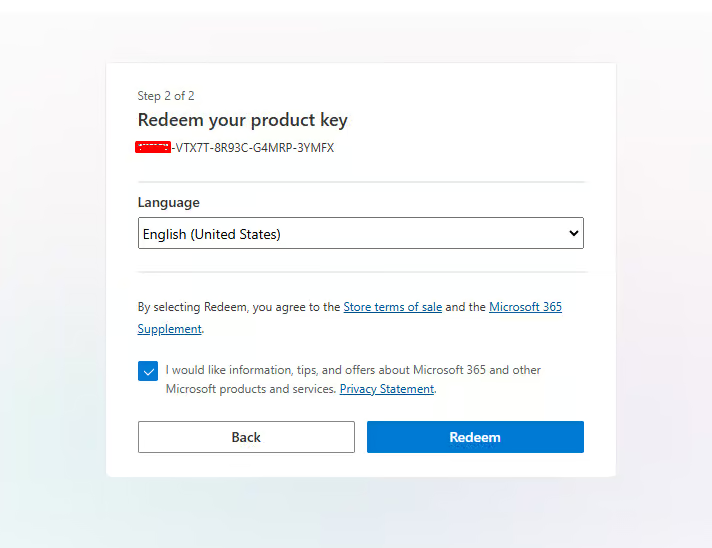
- Enter your Project product key and click “Next.”
- Select your preferred language and click “Redeem.”
- The download will begin automatically. Once completed, open the setup file to start installation.
3. Activating Microsoft Project
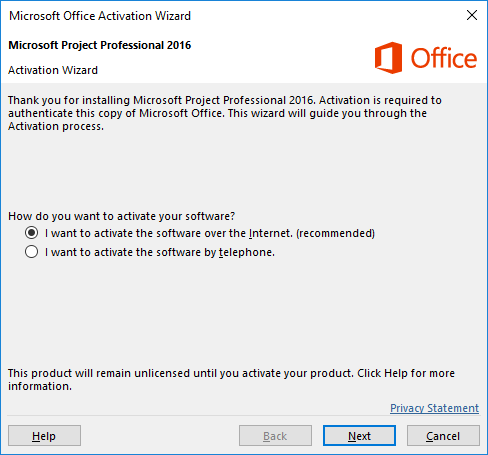
Once the installation is complete, follow these simple steps to activate Project:
- Open Project.
- The activation wizard will appear shortly.
- Select “I want to activate the software over the Internet” and click “Next.”
By following these steps, your Project software will be activated and ready for use.
Troubleshooting and Activation Support
If you experience any issues during activation or need assistance, our support team is here to help. Reach out to us anytime via live chat at https://officedigital.io/ or email us at [email protected]. We’re available 24/7.