
Instructions
Windows Evaluation to Full Version: A Simple Convert Guide
If you’re running a Windows Server evaluation version and want to convert it to a fully licensed version, this guide shows the steps. After the upgrade you can continue using your server with all its functionalities.
1. Upgrade Guidelines
Before proceeding, consider the following upgrade limitations:
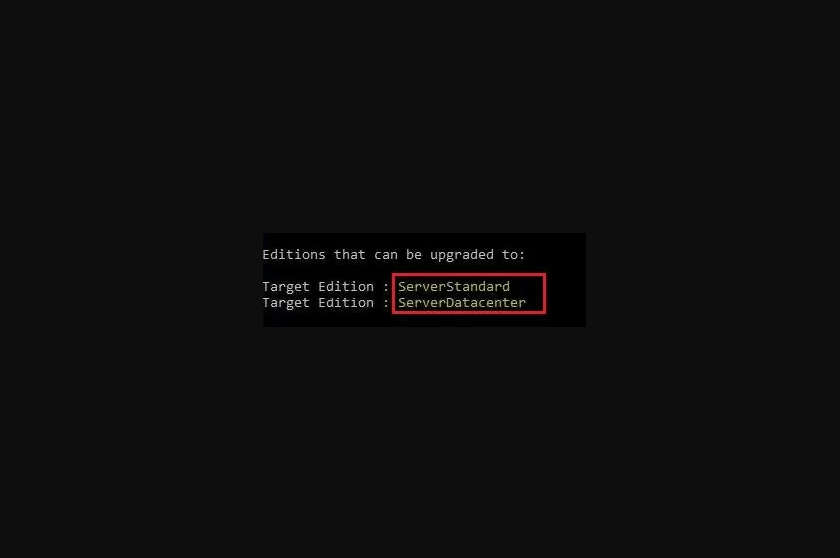
- You can only upgrade to the same or higher edition of Windows Server. For example, an evaluation copy like ServerStandardEval can be upgraded to either ServerStandard or ServerDatacenter.
- Upgrading a host with the Active Directory Domain Controller (AD DC) role is not recommended. To upgrade, demote the DC to a member server first. Make sure your domain has at least one additional DC to transfer FSMO roles.
- If NIC Teaming is set up on the server, it must be disabled before initiating the upgrade process.
2. Check the Current Server Edition
To check which version of Windows Server you are running, use these steps:
- Press Windows + X and select Command Prompt (Admin) or Windows PowerShell (Admin) from the menu.
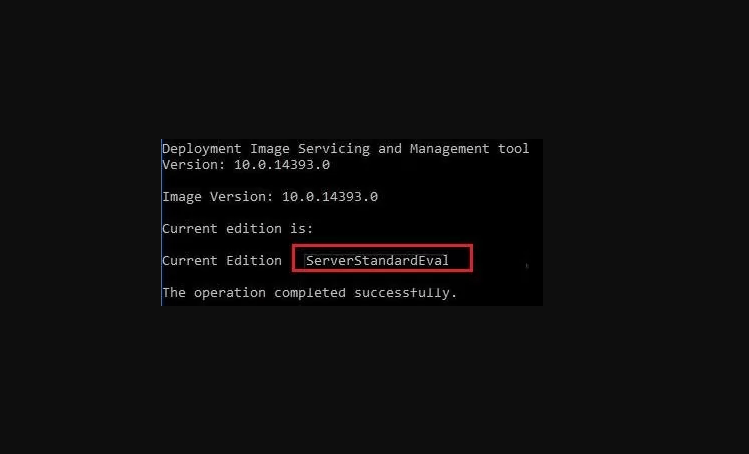
- In the prompt window, type the following command and press Enter:
DISM /online /Get-CurrentEdition. - The result will indicate your current Windows Server edition. If it’s an evaluation version, it will be clearly mentioned.
3. Enter Full Version Key and Activate
To convert from the evaluation version to the full version:
- Open Command Prompt or PowerShell with admin rights.
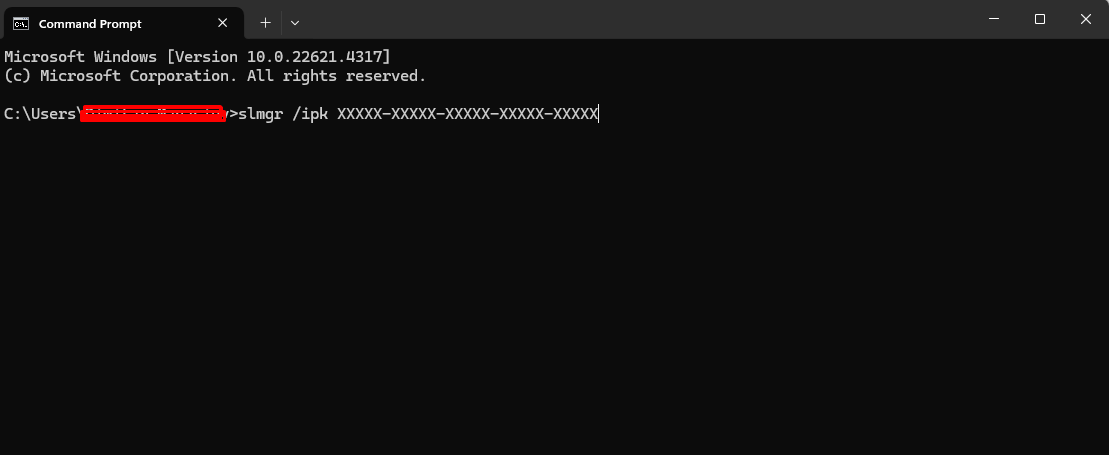
- Use this command to enter your full version product key:
slmgr /ipk XXXXX-XXXXX-XXXXX-XXXXX-XXXXX(replace the “X” placeholders with your actual key). - Press Enter to input the key.
- After entering the key, activate the full version by typing:
slmgr /atoand pressing Enter. - This will initiate the activation process for the full version of Windows Server.
4. Verify Activation
To confirm that your Windows Server has been successfully activated:
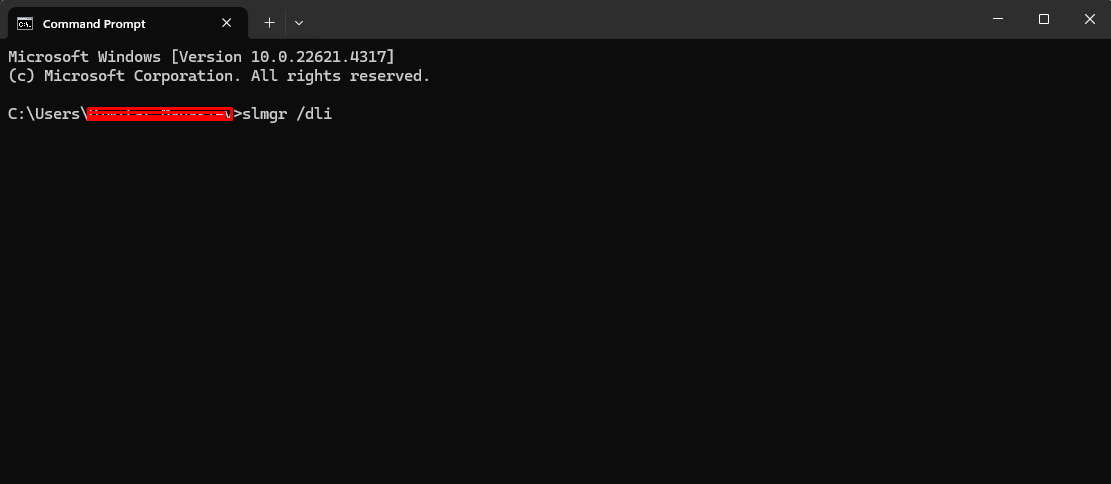
- Open Command Prompt or PowerShell and type:
slmgr /dliand press Enter. - You should see the activation status indicating Licensed, and the product key type should show Retail or Full Version.
- Restart your system so all changes are applied properly.
Now your Windows Server has been upgraded and activated, and all full version features are available.
Troubleshooting and Activation Support
If you experience any issues during activation or need assistance, our support team is here to help. Reach out to us anytime via live chat at https://officedigital.io/ or email us at [email protected]. We’re available 24/7.