
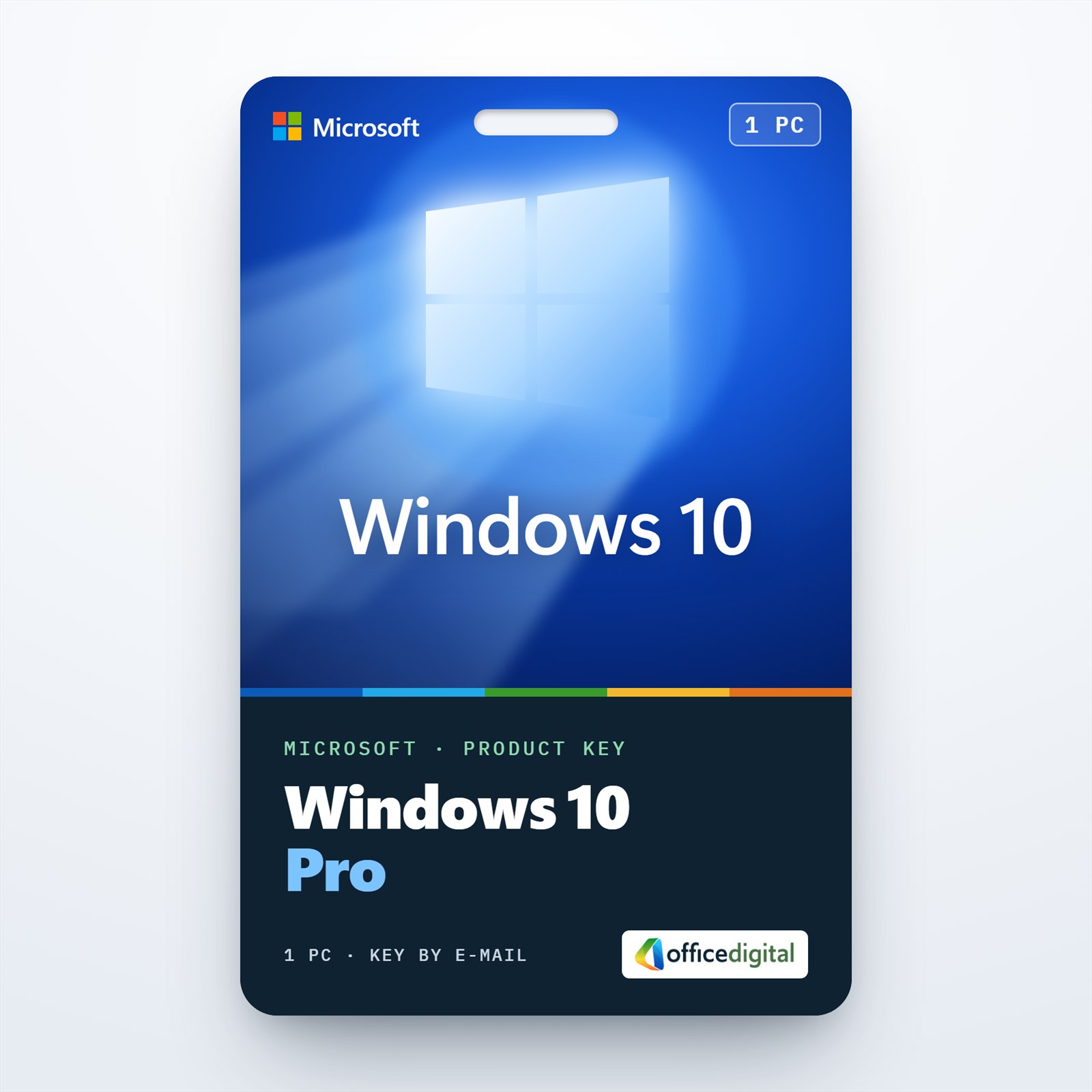




Windows 10 Pro Product Key
- License
- Retail · 1 PC
- Delivery
- Instant, by e-mail
- Download
- Official Microsoft
- Brand
- Microsoft
€23,99
One-time payment · no subscription
- Instant delivery to your e-mailkey + download links
- Key won't activate? We replace itunused keys: refund within 7 days
- Official invoice with every order
- 24/7 live chat help with activation
One Windows 10 Pro key for a single PC, with BitLocker, Remote Desktop and domain join. It also switches a PC running Windows 10 Home to Pro. You pay once and nothing renews.
What you get with Windows 10 Pro
One Windows 10 Pro key for a single PC. Use it on a fresh Windows 10 Pro install, or type it into a PC running Windows 10 Home to switch it to Pro. You get the key and Microsoft’s download link by e-mail, usually within minutes of payment, plus a PDF invoice. You pay once and nothing renews.
Windows 10 Pro next to Windows 10 Home
Both editions share the same desktop, apps and Windows Security. Pro adds the tools in this table:
| Feature | Home | Pro |
|---|---|---|
| Turn on BitLocker for internal and USB drives | No | Yes |
| Accept incoming Remote Desktop sessions | No | Yes |
| Hyper-V virtual machines | No | Yes |
| Windows Sandbox | No | Yes |
| Join Active Directory or Microsoft Entra ID | No | Yes |
| Local Group Policy Editor | No | Yes |
In practice, BitLocker matters for laptops that carry customer data, Remote Desktop for a PC you want to reach from elsewhere, and domain join for an office with a Windows Server. Hyper-V needs a 64-bit processor with SLAT and at least 4 GB of memory, so check that before you plan virtual machines on an older PC.
When Windows 10 Pro is the right pick
Windows 10 Pro is the choice for a PC that can’t meet the Windows 11 hardware rules, typically one without TPM 2.0 or with a processor outside Microsoft’s Windows 11 list. If your computer passes those checks, a Windows 11 Pro key gives you the newer system directly. For several office machines in one go, see Windows 10 Professional 5 Devices.
How to activate your Windows 10 Pro key
- For a new installation, open Microsoft’s Windows 10 download page from your e-mail and run the Media Creation Tool to make a USB drive or ISO file.
- Start the PC from that drive. Type your key when setup asks, or skip the step and pick Windows 10 Pro from the list of editions.
- On a PC that already runs Windows 10, open Start → Settings → Update & Security → Activation.
- Click the Change product key link, approve the User Account Control prompt, and enter the 25 characters of your key.
- Click Next. A Home PC now changes to Pro; an existing Pro installation simply becomes activated. If Windows reports error 0xc004f050, our 24/7 support helps you switch the edition first.
- Still on the Activation page, choose Add an account to tie the license to your Microsoft account for later reactivation.

Our Windows 10 Pro setup and activation guide repeats these steps with screenshots.
System requirements
| Processor | 1 GHz or faster processor or SoC |
|---|---|
| RAM | 1 GB for 32-bit, 2 GB for 64-bit |
| Hard disk | 32 GB or larger (needed by current Windows 10 versions) |
| Graphics | DirectX 9 or later with a WDDM 1.0 driver |
| Display | 800 x 600 |
| For Hyper-V | 64-bit processor with SLAT, 4 GB RAM |
Questions about Windows 10 Pro
Does switching from Home to Pro delete my files?
No. Changing the edition with a product key keeps your documents, programs and settings, because Windows only turns on the Pro features. If the key is refused with error 0xc004f050, contact our support at any hour and they help you change the edition first.
Can this PC go to Windows 11 Pro later?
If the hardware meets the Windows 11 requirements, Microsoft offers eligible Windows 10 PCs a free upgrade, and it keeps the edition: Windows 10 Pro becomes Windows 11 Pro.
My motherboard died. Do I need a new key?
Not if the license was tied to your Microsoft account first. Run the troubleshooter under Settings → Update & Security → Activation, choose “I changed hardware on this device recently” and select this PC. If it still refuses, our support team on live chat or e-mail helps around the clock.
1 review for Windows 10 Pro Product Key
Add a review
You must be logged in to post a review.
- Genuine Retail licenses. Every key is a genuine license that activates with Microsoft, or with ESET or Avast for antivirus. Unless the License line next to the price says OEM, it is a Retail license.
- Replacement if a key won't activate. Contact our support on live chat or by e-mail, day or night: we help you finish the activation or send a replacement key.
- Refund for unused keys. A key that has not been redeemed can be refunded within 7 calendar days of purchase, as set out in our Refund Policy.
- Invoice and instructions. Every order comes with a PDF invoice and instructions to download, install and activate the software.
You may also need
kompumeistras.lt –
Very fast delivery. This is not my first order, keys always activates without a problem, I am very satisfied.