
Instructions
Best Windows 11 Settings to Change After Installation
Feb
- Update Windows Before Anything Else
- Change Power Mode for Better Performance
- Disable Unnecessary Startup Apps
- Adjust Privacy Settings
- Customize Notifications
- Optimize File Explorer Settings
- Turn Off Visual Effects (Optional)
- Set Default Apps Properly
- Configure Windows Security Settings
- Sign In with Windows Hello (If Available)
- Remove Preinstalled Apps You Don’t Use
After installing Windows 11, the system works well out of the box – but several default settings are not optimized for performance, privacy, or productivity. Making a few smart adjustments right after installation can significantly improve your overall experience.
In this guide, we’ll cover the best Windows 11 settings to change after installation, whether you’re setting up a new PC or upgrading from Windows 10.
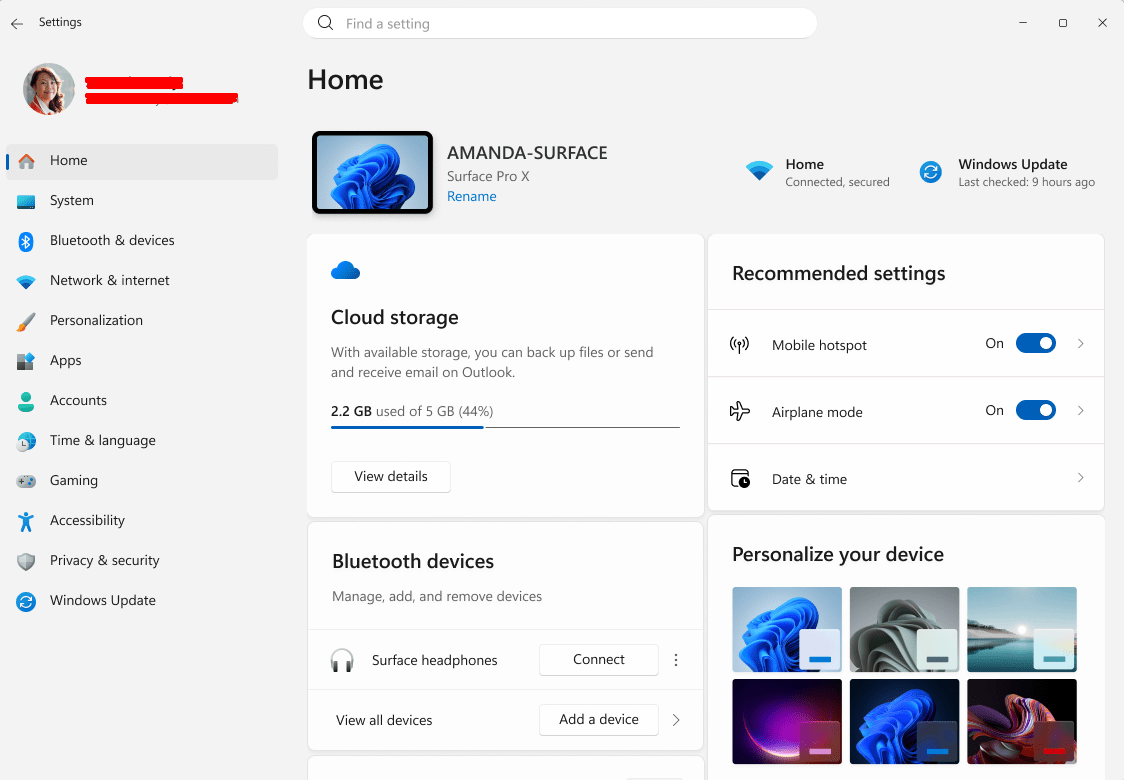
Update Windows Before Anything Else
Before customizing anything, make sure your system is fully updated.
Go to Settings > Windows Update and install all available updates. This ensures:
- Latest security patches
- Driver improvements
- Performance fixes
Restart your PC once updates are complete.
Change Power Mode for Better Performance
Windows 11 often defaults to balanced power mode.
What to do:
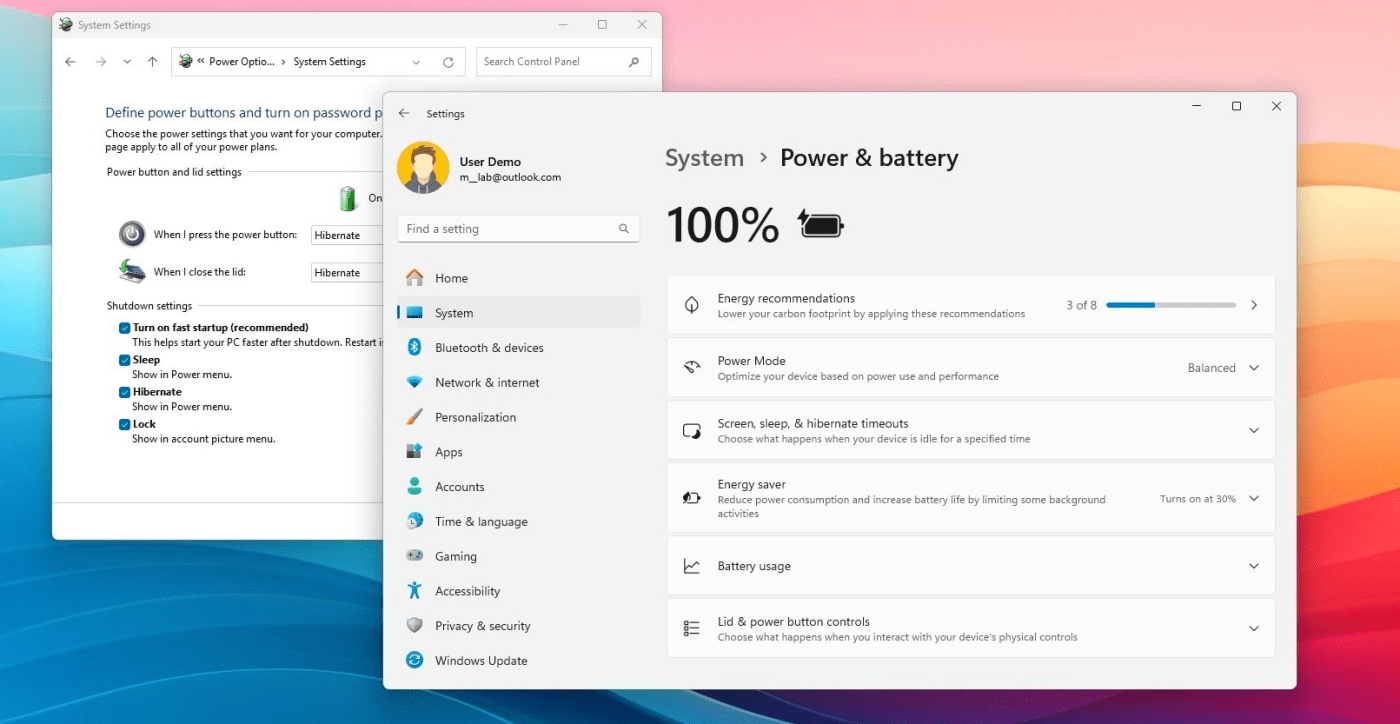
- Go to Settings > System > Power & battery
- Set Power mode to Best performance (desktop users)
- Laptop users can choose Balanced or Best performance depending on battery needs
This improves responsiveness and system speed.
Disable Unnecessary Startup Apps
Too many startup apps slow down boot time.
How:
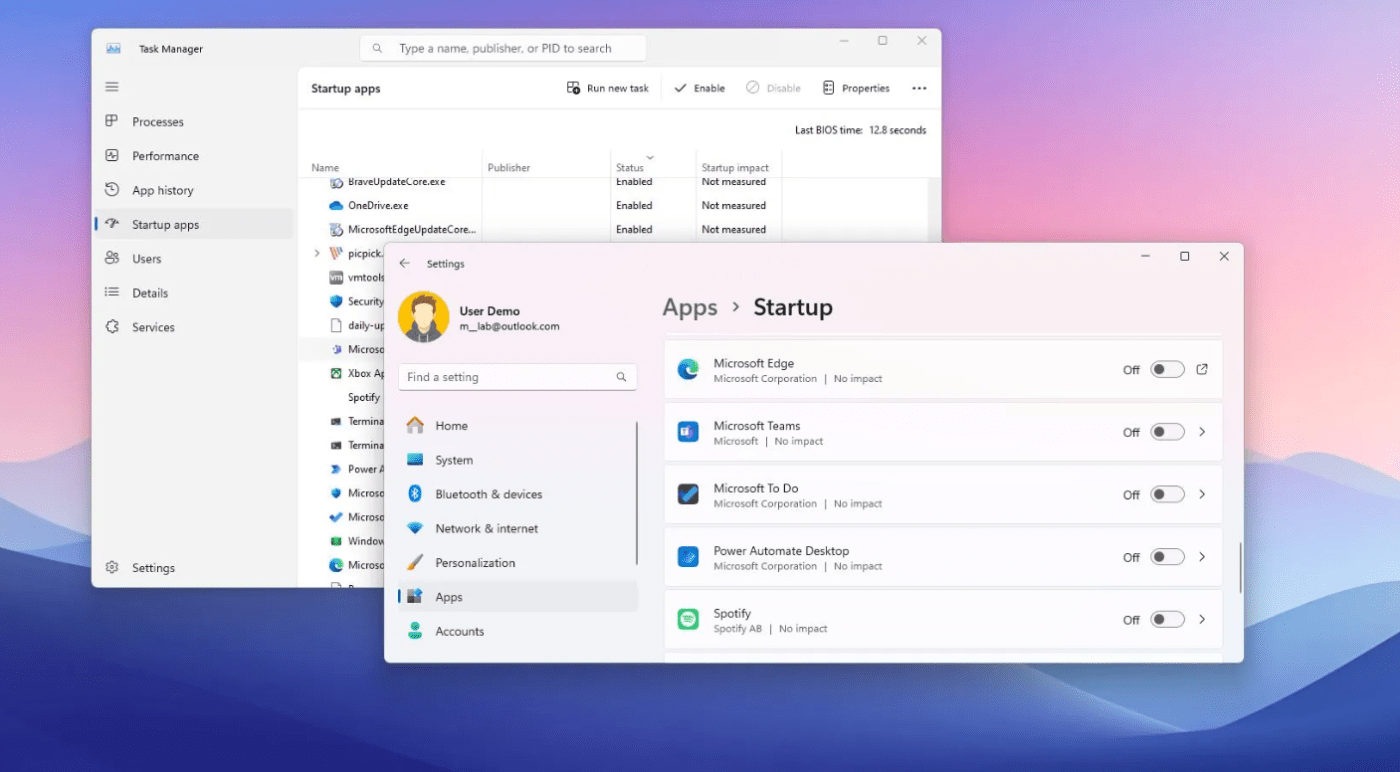
- Press Ctrl + Shift + Esc > Startup Apps
- Disable apps you don’t need immediately (launchers, updaters, etc.)
This makes Windows 11 start faster and feel lighter.
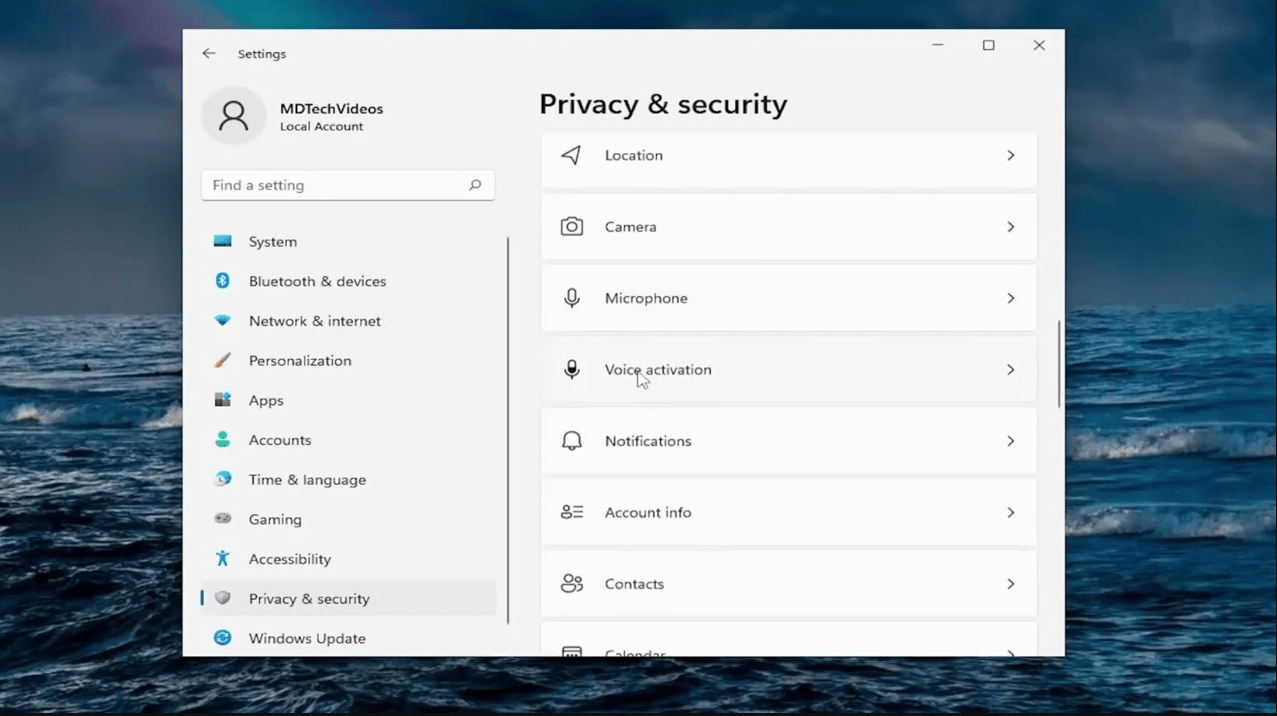
Adjust Privacy Settings
Some privacy options are enabled by default.
Recommended changes:
- Go to Settings > Privacy & security
- Disable:
- Advertising ID
- Optional diagnostic data
- App tracking permissions you don’t need
These changes improve privacy without affecting functionality.
Customize Notifications
Windows 11 notifications can become distracting.
Optimize them:
- Go to Settings > System > Notifications
- Disable notifications for non-essential apps
- Enable Do Not Disturb during work hours
This keeps your workflow focused.
Optimize File Explorer Settings
File Explorer defaults can be improved.
Suggested tweaks:
- Open File Explorer > Options
- Set Open File Explorer to: This PC
- Disable unnecessary preview panes if not needed
This makes navigation faster and cleaner.
Turn Off Visual Effects (Optional)
Visual effects look nice but can affect performance on some systems.
How:
- Go to Settings > Accessibility > Visual effects
- Disable transparency and animations if you want maximum performance
Especially useful on lower-end hardware.
Set Default Apps Properly
Windows 11 sometimes resets default apps.
Check:
- Go to Settings > Apps > Default apps
- Set your preferred browser, media player, and PDF reader
This avoids constant prompts and interruptions.
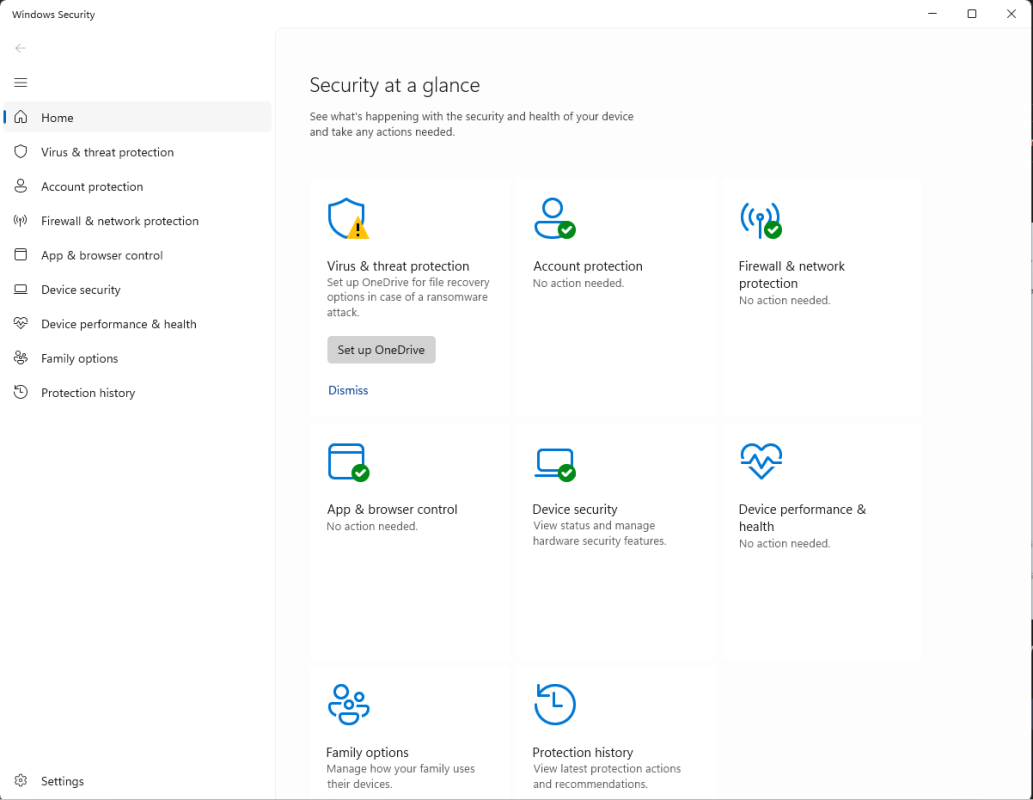
Configure Windows Security Settings
Windows Security is powerful and mostly automated, but it’s worth checking.
What to review:
- Virus & threat protection is enabled
- Firewall is active
- Core isolation is turned on (if supported)
Windows 11 provides strong protection without third-party tools for most users.
Sign In with Windows Hello (If Available)
If your device supports it:
- Enable Windows Hello (PIN, fingerprint, or face recognition)
- Found under Settings > Accounts > Sign-in options
It improves both security and convenience.
Remove Preinstalled Apps You Don’t Use
Windows 11 comes with apps you may never need.
You can uninstall:
- Games
- Trial apps
- Unused Microsoft apps
This declutters the system and frees resources.
If you’ve just installed Windows 11, make sure your system is properly activated so all features work without limitations – you can find reliable Windows 11 keys here.