
Instructions
How to Fix Windows 11 Activation Errors (Complete 2026 Guide)
Feb
- Common Windows 11 Activation Errors
- Reason 1: Invalid or Incorrect Product Key
- Reason 2: Hardware Changes After Activation
- Reason 3: Windows Edition Mismatch
- Reason 4: Activation Server or Network Issues
- Reason 5: Using Windows 11 Without Activation
- Advanced Fix: Use the Windows Activation Troubleshooter
- When You Need a New Windows 11 License
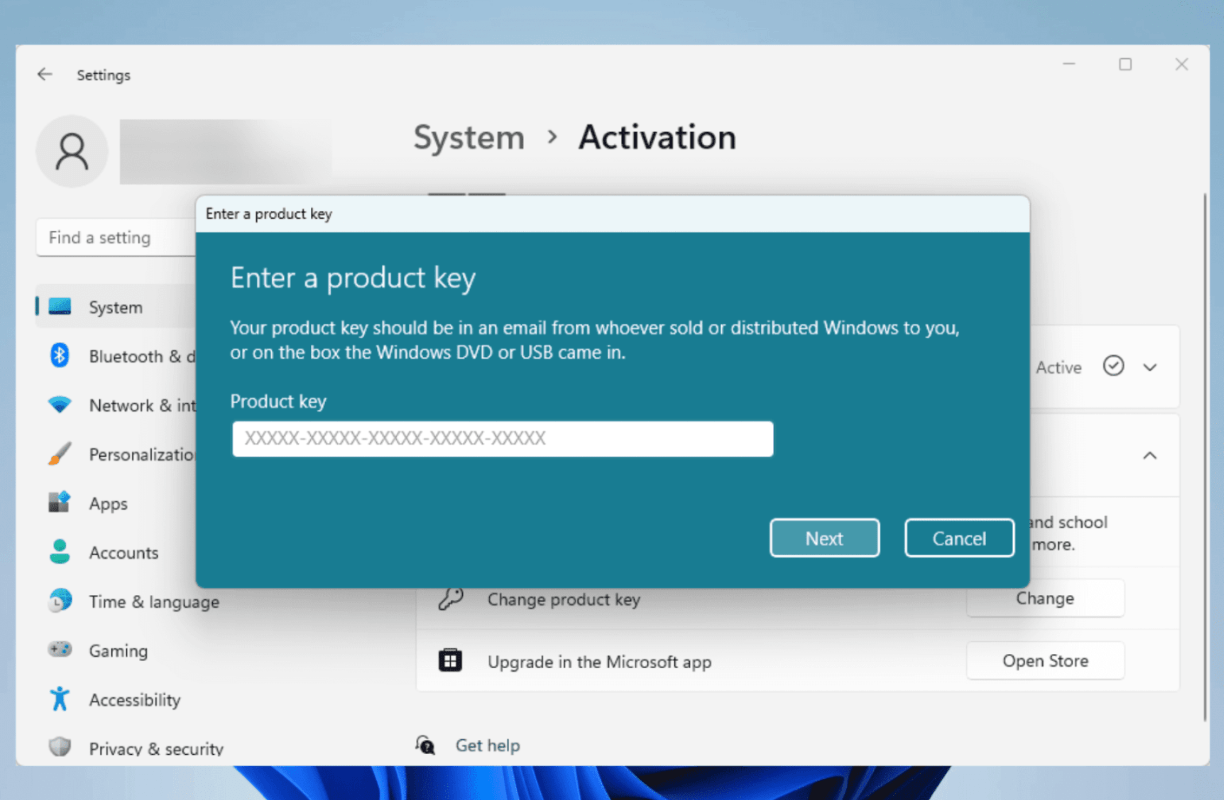
Windows 11 activation errors can be frustrating, especially after upgrading, reinstalling, or changing hardware. In 2026, many users still encounter issues such as invalid product keys, activation failures, or messages saying that Windows is not activated.
In this complete guide, we’ll explain the most common Windows 11 activation errors, why they happen, and how to fix them step by step.
Common Windows 11 Activation Errors
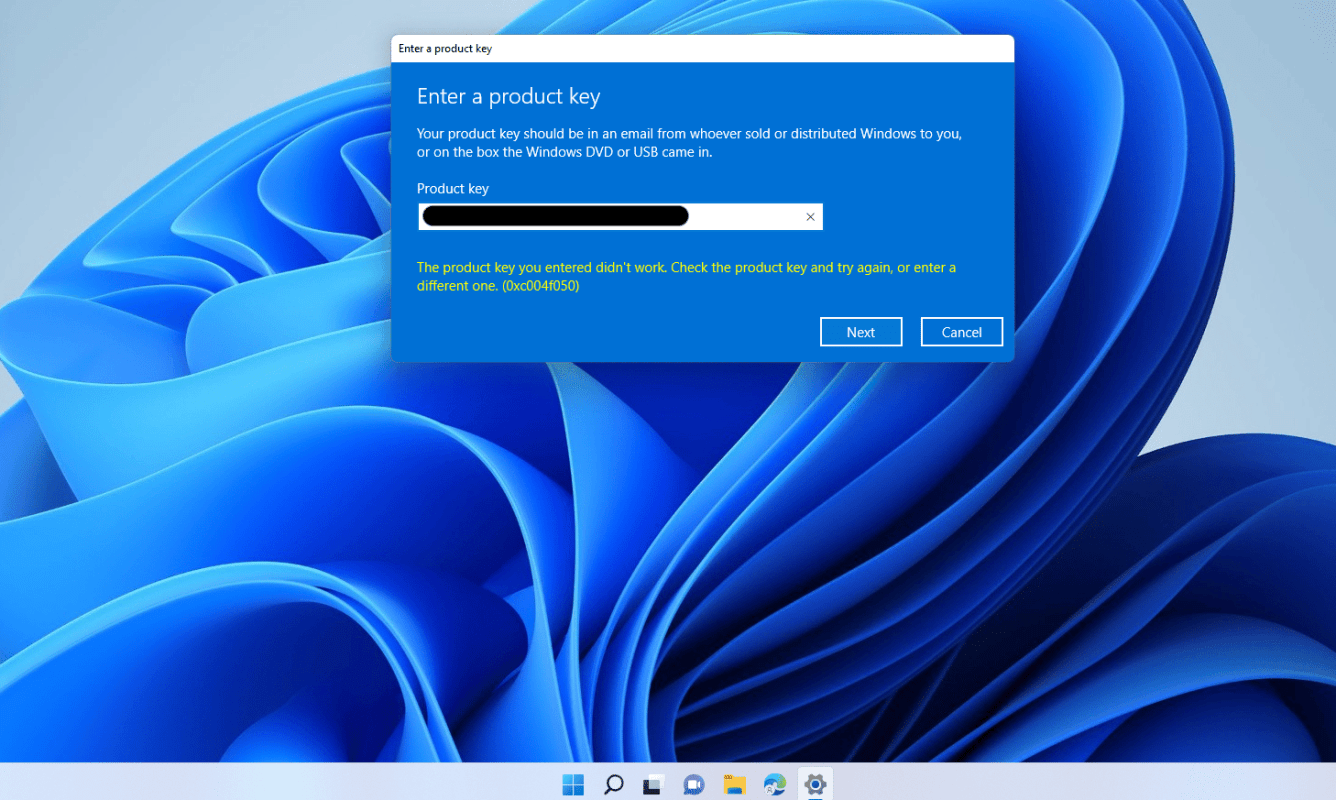
Some of the most common messages users see include:
- “Windows can’t activate right now”
- “The product key didn’t work”
- “Windows is not activated”
Before troubleshooting activation issues, it’s important to confirm that your device is fully supported – see our detailed guide on Windows 11 system requirements in 2026 to make sure compatibility isn’t the cause.
Reason 1: Invalid or Incorrect Product Key
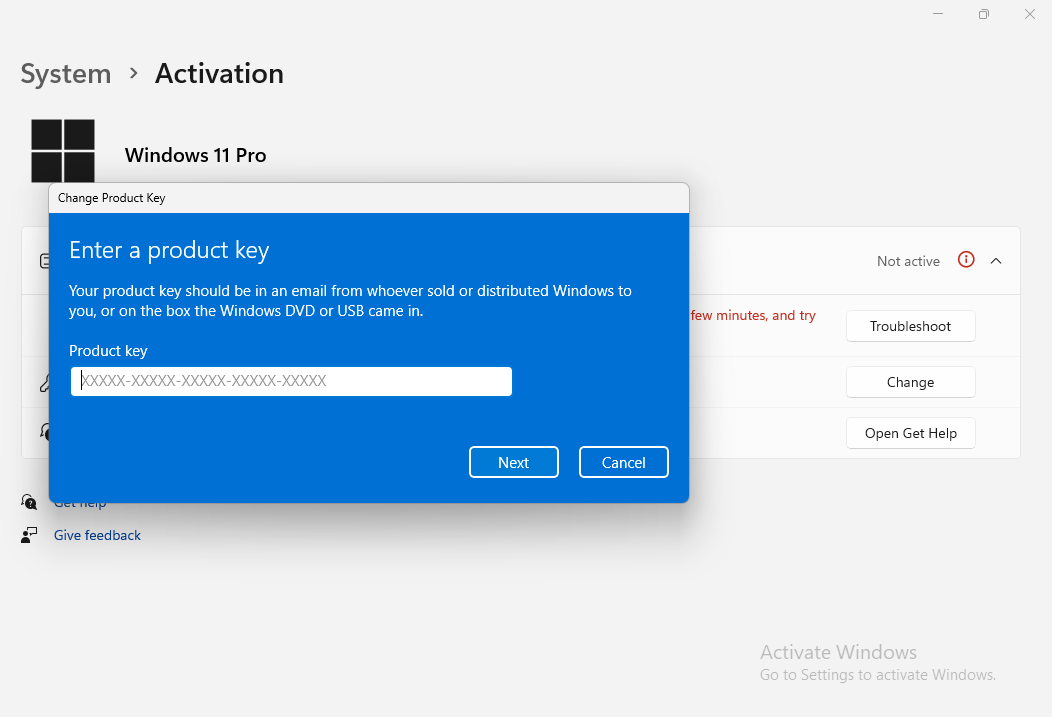
The most common cause of activation errors is entering an incorrect or unsupported product key.
How to fix it:
- Double-check the product key for typing mistakes
- Make sure the key matches your Windows edition (Home or Pro)
- Restart your PC and try activating again
If the key does not match the installed edition, activation will fail.
Reason 2: Hardware Changes After Activation
Major hardware changes, especially replacing the motherboard, can cause Windows 11 to lose activation.
How to fix it:
- Sign in using the Microsoft account that was originally linked to your Windows license
- Go to Settings > System > Activation
- Click Troubleshoot and follow the on-screen steps
If these activation problems appeared after upgrading from an older version of Windows, you may also want to review our comparison of Windows 11 vs Windows 10 in 2026 to ensure Windows 11 is the best option for your hardware.
Reason 3: Windows Edition Mismatch
Installing Windows 11 Pro while using a Home key (or the other way around) will prevent activation.
How to fix it:
- Go to Settings > System > About
- Check the installed Windows edition
- Use a product key that matches that edition
This is one of the most overlooked causes of activation errors.
Reason 4: Activation Server or Network Issues
Sometimes activation fails due to temporary issues on Microsoft’s servers or network problems.
How to fix it:
- Check your internet connection
- Install the latest Windows updates
- Wait a few hours and try activating again
In many cases, the issue resolves itself once servers stabilize.
Reason 5: Using Windows 11 Without Activation
Windows 11 can be used without activation, but with limitations:
- A watermark appears on the screen
- Personalization options are restricted
- Periodic activation reminders appear
While the system remains usable, activation is required for full functionality.
Advanced Fix: Use the Windows Activation Troubleshooter
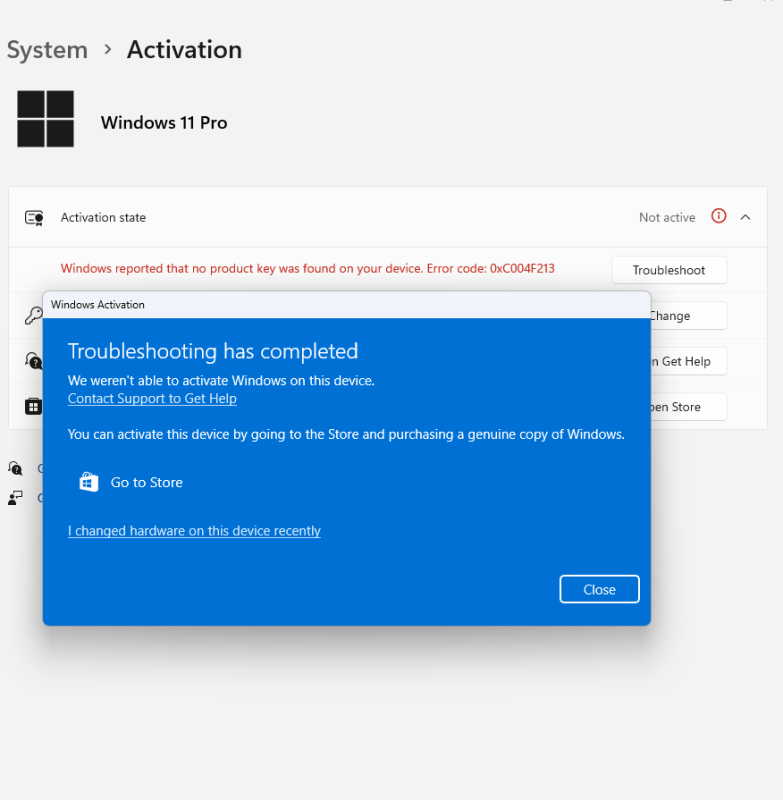
The built-in Activation Troubleshooter resolves many issues automatically.
Steps:
- Go to Settings > System > Activation
- Click Troubleshoot
- Follow the instructions provided
This tool is especially helpful after hardware changes or upgrades.
When You Need a New Windows 11 License
If your product key is invalid, already used, or incompatible with your edition, the only permanent solution is activating Windows with a valid license.
For users who recently completed a clean installation, adjusting the best Windows 11 settings to change after installation can also help prevent unnecessary system and activation-related issues.
If you need to activate or reactivate your system, make sure you’re using a genuine license – you can find reliable Windows 11 keys here.