
Instructions
How to Activate Windows 11 (Step-by-Step Guide 2026)
Feb
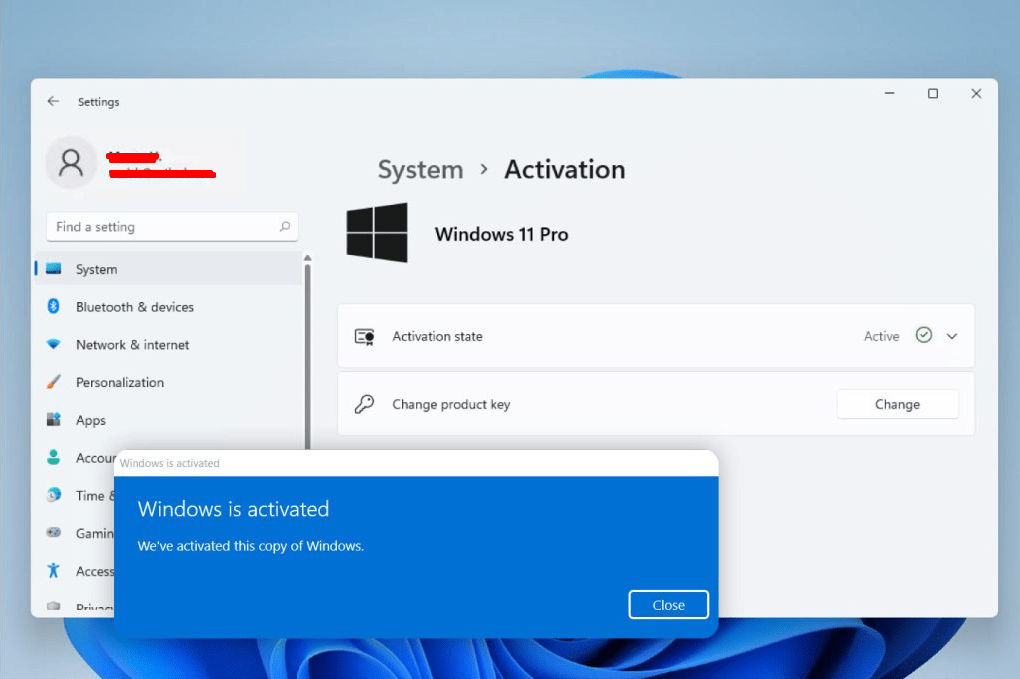
Activating Windows 11 is essential to unlock all features, remove the watermark, and ensure your system is properly licensed. Whether you’re setting up a new PC, reinstalling Windows, or switching editions, understanding how to activate Windows 11 correctly will save you time and frustration.
In this step-by-step 2026 guide, we’ll show you how to activate Windows 11 using a product key or digital license, and how to fix common activation issues.
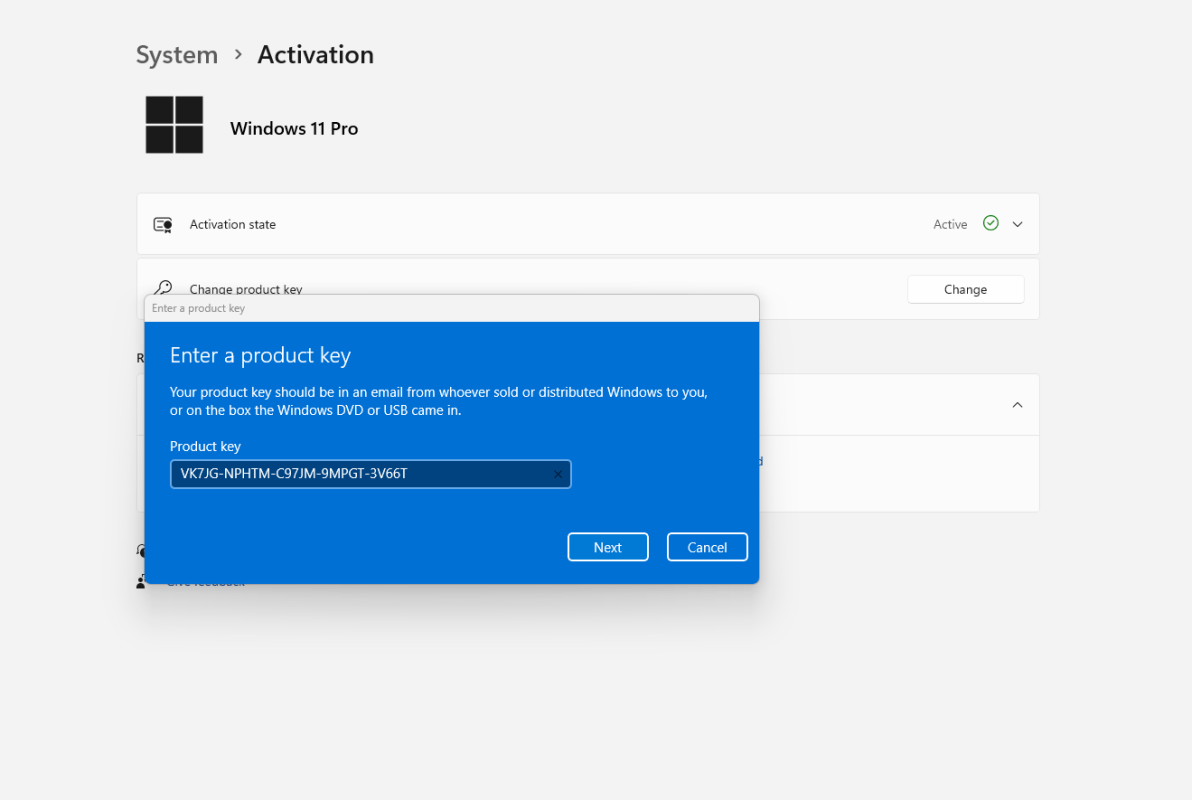
Method 1: Activate Windows 11 Using a Product Key
If you purchased a product key, follow these steps:
Step-by-step:
- Open Settings
- Go to System > Activation
- Click Change product key
- Enter your 25-character key
- Click Next > Activate
Once verified, Windows will activate instantly.
Method 2: Activate Windows 11 Using a Digital License
If your device previously had Windows activated, you may already have a digital license linked to your hardware or Microsoft account.
Steps:
- Sign in with your Microsoft account
- Go to Settings > System > Activation
- Windows should activate automatically
If it doesn’t, click Troubleshoot and follow the prompts.
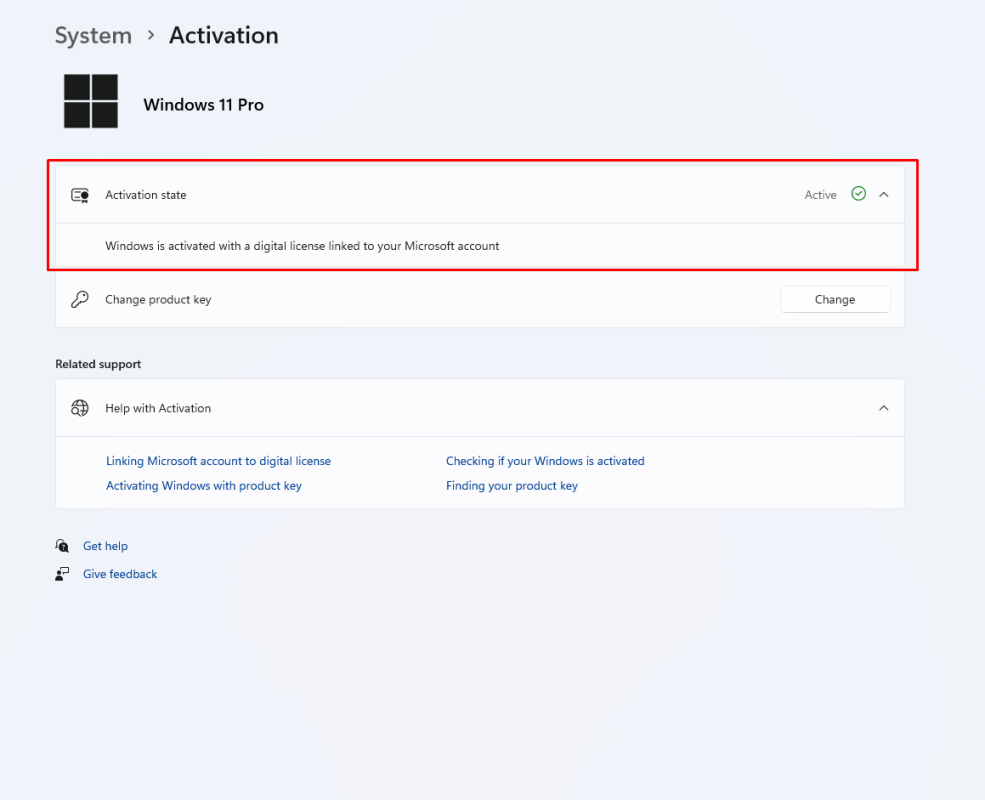
How to Check If Windows 11 Is Activated
To confirm activation:
- Open Settings
- Go to System > Activation
- Look for the message:
- “Windows is activated”
- “Windows is activated with a digital license”
If you see activation errors instead, continue below.
Fixing Common Activation Errors
Activation can fail for several reasons:
1. Wrong Edition Installed
If you install Windows 11 Pro but have a Home key, activation will fail.
Solution:
- Check your edition under Settings > System > About
- Use a matching key
2. Hardware Changes
Replacing a motherboard can invalidate activation.
Solution:
- Sign in with your linked Microsoft account
- Use Activation Troubleshooter
3. Invalid or Used Key
If the key is invalid or already activated elsewhere, Windows won’t activate.
For deeper troubleshooting steps, see our full guide on common Windows 11 activation errors and fixes.
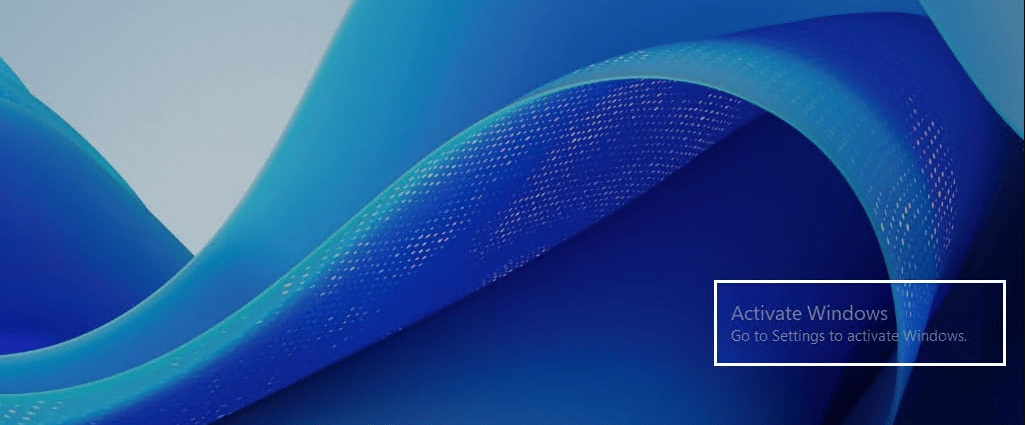
What Happens If You Don’t Activate Windows 11?
Windows will still work, but you’ll notice:
- A watermark on your screen
- Personalization settings locked
- Activation reminders
For a stable and unrestricted experience, activation is recommended.
When You Need a New Windows 11 License
You may need a new license if:
- Your previous one was tied to old hardware
- You upgraded editions
- Your key is invalid or blocked
Before purchasing, confirm that your system meets the official requirements by reviewing Windows 11 system requirements in 2026 to avoid compatibility problems.
If you need to activate Windows 11 after a fresh installation or hardware change, make sure you’re using a valid license – you can find reliable Windows 11 keys here.