
Instructions
Windows 11 Home vs Pro: Which Version Should You Choose?
Feb
Choosing between Windows 11 Home vs Pro can be confusing, especially if you’re setting up a new PC or upgrading your current system. While both versions look almost identical on the surface, they differ significantly in security, business features, and advanced management tools.
In this guide, we’ll compare Windows 11 Home vs Pro in 2026, explain the key differences, and help you decide which version is best for your needs.
Core Similarities Between Home and Pro
Before diving into differences, it’s important to understand what both versions share:
- Identical user interface
- Microsoft Store access
- Gaming features (DirectX 12, Auto HDR)
- Windows Security
- Snap Layouts and productivity tools
For everyday tasks like browsing, streaming, gaming, and office work, both versions perform the same.
Key Differences: Windows 11 Home vs Pro
1. Security Features
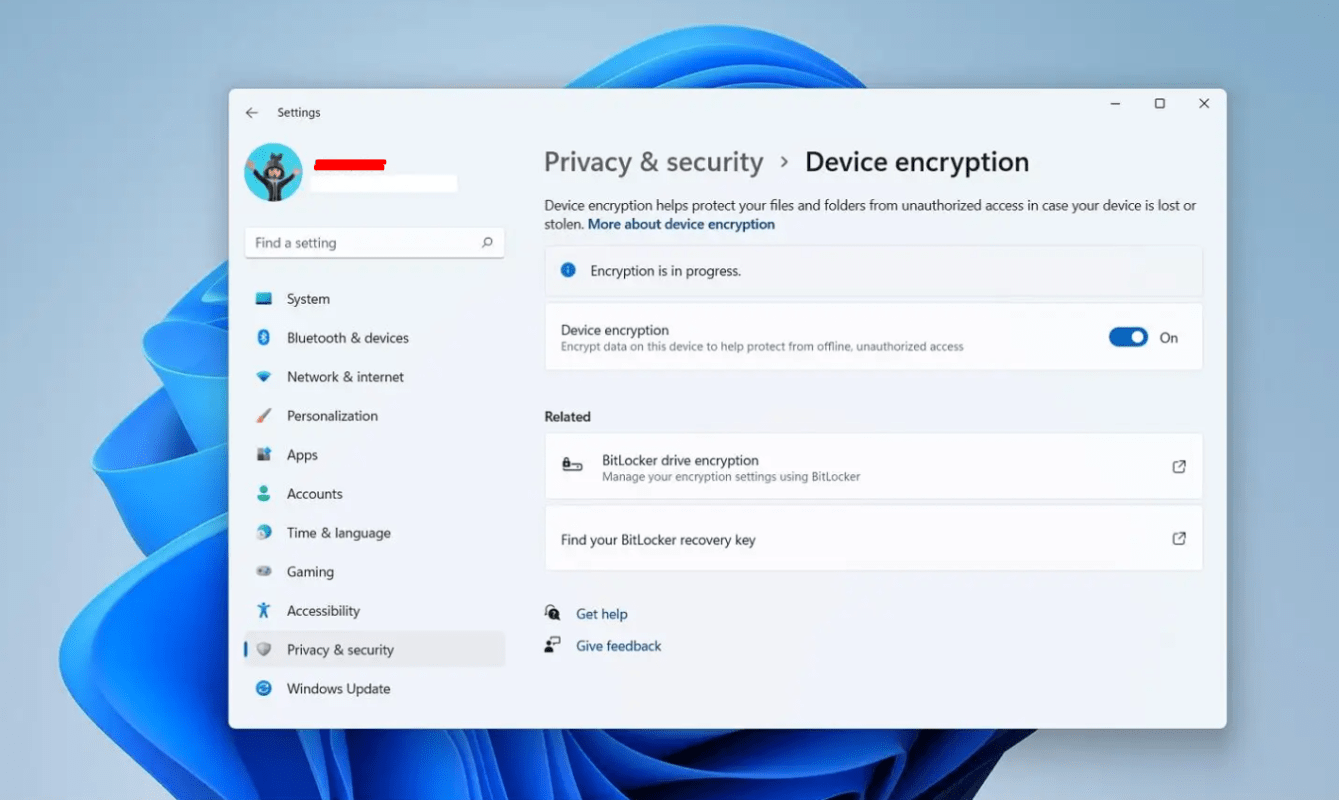
Windows 11 Pro includes:
- BitLocker drive encryption
- Windows Information Protection
- Advanced security policies
Windows 11 Home does NOT include:
- BitLocker (full version)
- Group Policy Editor
- Advanced enterprise tools
If device encryption is important, Pro has the advantage.
2. Business & Management Features
Windows 11 Pro supports:
- Remote Desktop (host mode)
- Group Policy Editor
- Azure Active Directory
- Domain join capabilities
- Hyper-V virtualization
Windows 11 Home lacks these features.
If you’re a business user, IT admin, or developer, Pro is usually the better choice.
3. Remote Desktop
With Windows 11 Pro, you can remotely connect into your PC.
Windows 11 Home can connect to other PCs but cannot act as a host.
4. Memory & Hardware Limits
- Windows 11 Home: Supports up to 128GB RAM
- Windows 11 Pro: Supports up to 2TB RAM
For most home users, 128GB is more than enough.
Performance: Is Pro Faster Than Home?
No.
There is no performance difference between Windows 11 Home and Pro for normal users. Gaming, browsing, and productivity performance are identical.
If your system feels slow, performance tuning matters more – see our guide on how to speed up Windows 11 for optimization tips.
Who Should Choose Windows 11 Home?
Windows 11 Home is ideal for:
- Casual users
- Students
- Gamers
- Home office users
- General productivity
If you don’t need advanced business tools, Home is sufficient.
Who Should Choose Windows 11 Pro?
Windows 11 Pro is recommended for:
- Business professionals
- Remote workers
- IT administrators
- Developers
- Users needing BitLocker or Remote Desktop hosting
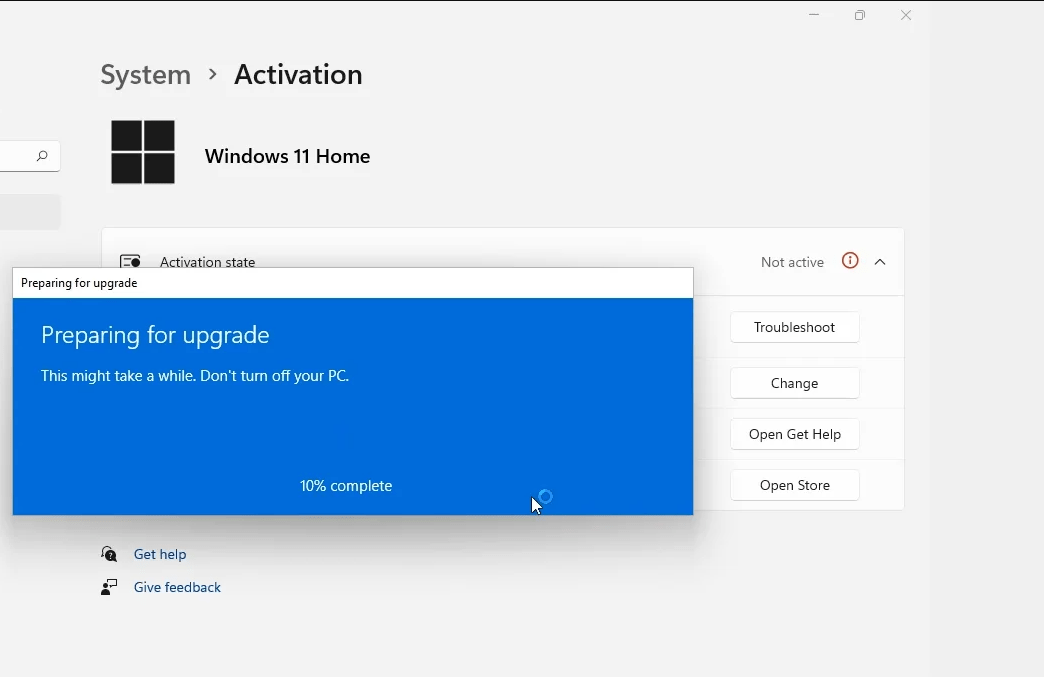
Can You Upgrade from Home to Pro Later?
Yes.
You can upgrade anytime by entering a Windows 11 Pro key in:
Settings > System > Activation > Change product key
When You Need a Windows 11 License
If you’re installing Windows 11 Home or Pro on a new PC or upgrading editions, you’ll need a valid license.
If you’re activating or upgrading your version, make sure you’re using a genuine license – you can find reliable Windows 11 keys here.