
Instructions
What Happens If Windows 11 Is Not Activated?
Feb
- Can You Use Windows 11 Not Activated?
- The “Activate Windows” Watermark
- Personalization Settings Are Locked
- Does Performance Change If Windows 11 Is Not Activated?
- Are Security Updates Still Installed?
- Is It Legal to Use Windows 11 Without Activation?
- Can You Remove the Watermark Without Activating?
- How to Activate Windows 11 Properly
- When You Need a Valid License
If your system displays a watermark saying Windows 11 not activated, you might wonder what that really means. Can you still use your computer normally? Does performance change? Is it safe?
In this guide, we’ll explain exactly what happens when Windows 11 is not activated, what limitations apply in 2026, and whether you should activate your copy of Windows.
Can You Use Windows 11 Not Activated?
Yes – Windows 11 works even if it is not activated.
Microsoft allows installation and usage without entering a product key during setup. However, some restrictions apply until activation is completed.
The operating system will remain functional, but certain features will be limited.
The “Activate Windows” Watermark
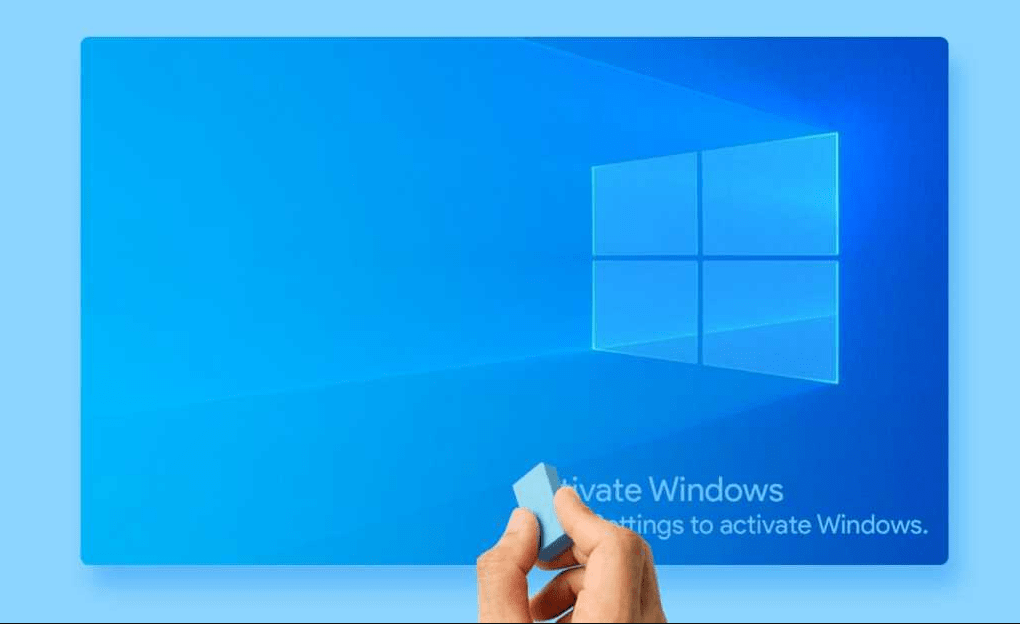
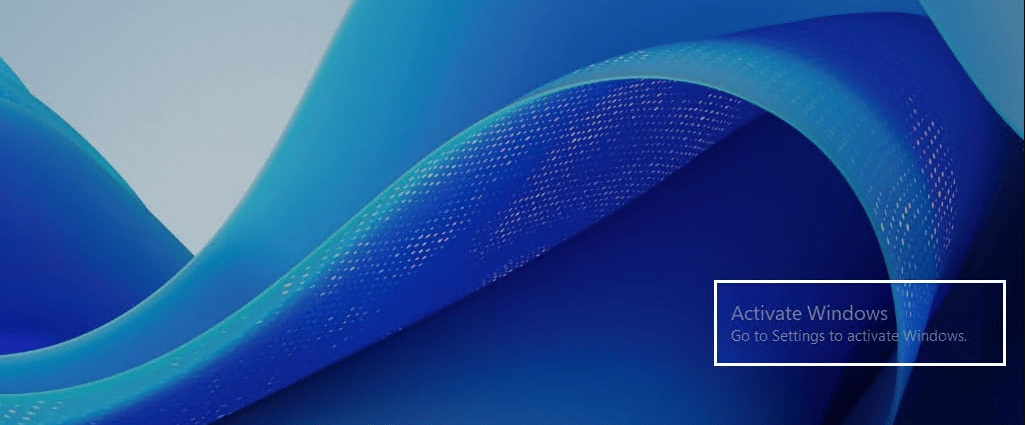
The most obvious sign of Windows 11 not activated is the watermark in the bottom-right corner of your screen.
It reads:
“Activate Windows – Go to Settings to activate Windows.”
This watermark:
- Appears on the desktop
- Is visible over most applications
- Shows during screen recordings
- Cannot be removed without activation
While it doesn’t affect performance, it can be distracting.
Personalization Settings Are Locked
When Windows 11 is not activated, personalization options are restricted.
You cannot:
- Change wallpaper from Settings
- Modify system themes
- Adjust accent colors
- Customize lock screen options
Basic functionality remains intact, but customization is limited.
Does Performance Change If Windows 11 Is Not Activated?
No.
There is no performance penalty for running Windows 11 not activated. Your system speed, gaming performance, and stability remain unchanged.
If your PC feels slow, activation is not the cause. Instead, review our guide on how to speed up Windows 11 for real performance improvements.
Are Security Updates Still Installed?
Yes.
Even if Windows 11 is not activated, Microsoft continues to deliver:
- Security patches
- Critical system updates
- Defender virus definition updates
Your system remains protected, but activation ensures full compliance and long-term stability.
Is It Legal to Use Windows 11 Without Activation?
Installing Windows 11 without activation is allowed temporarily.
However:
- Long-term use without activation violates Microsoft’s licensing terms.
- You are expected to activate Windows with a valid license.
Can You Remove the Watermark Without Activating?
No legitimate method permanently removes the watermark without proper activation.
Avoid:
- Third-party “activators”
- Pirated keys
- Registry hacks
These methods:
- Are illegal
- Often contain malware
- Can permanently damage your Windows installation
How to Activate Windows 11 Properly
If your system shows Windows 11 not activated, you can activate it easily:
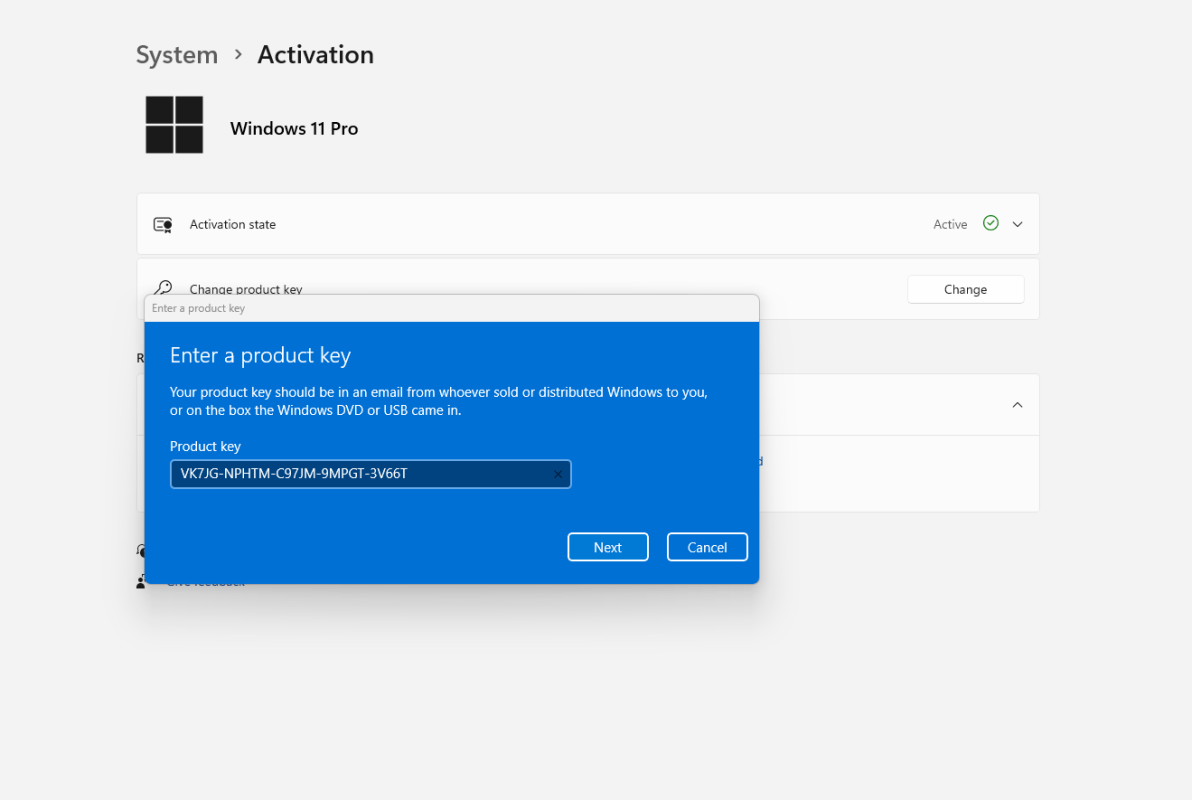
- Open Settings
- Go to System → Activation
- Click Change product key
- Enter your valid 25-character key
- Follow the activation process
For a detailed walkthrough, see our step-by-step guide on how to activate Windows 11.
When You Need a Valid License
You may need a license if:
- You reinstalled Windows
- You changed major hardware
- Your previous activation was not linked to your account
- Your key is invalid
Before activating, make sure your system meets official compatibility requirements by reviewing Windows 11 system requirements in 2026.
If you’re ready to remove the watermark and unlock full functionality, make sure you’re using a genuine license – you can find reliable Windows 11 keys here.