
Instructions
How to Screen Record on Windows 11 (3 Easy Methods)
Mar
Screen record on Windows 11 is useful for many situations, such as creating tutorials, recording gameplay, capturing online meetings, or saving important information from your screen.
Fortunately, Windows 11 includes built-in tools that make it easy to screen record on Windows 11 without installing additional software. In this guide, you’ll learn three simple methods to record your screen.
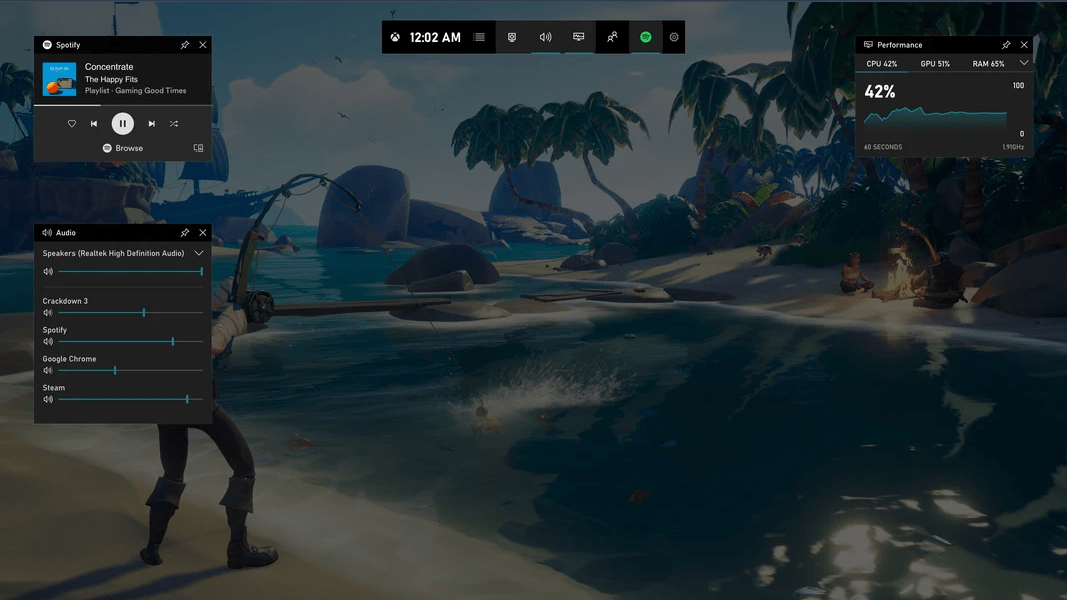
Method 1: Screen Record Using Xbox Game Bar
The Xbox Game Bar is the easiest way to record your screen on Windows 11.
Steps
- Press Windows + G
- The Xbox Game Bar overlay will appear
- Click the Capture widget
- Press the Record button
You can also start recording quickly using:
Windows + Alt + R
Your recording will begin immediately.
Where Are Game Bar Recordings Saved?
Game Bar recordings are saved automatically in:
Videos → Captures
This makes it easy to find your recordings later.
Method 2: Screen Record Using the Snipping Tool
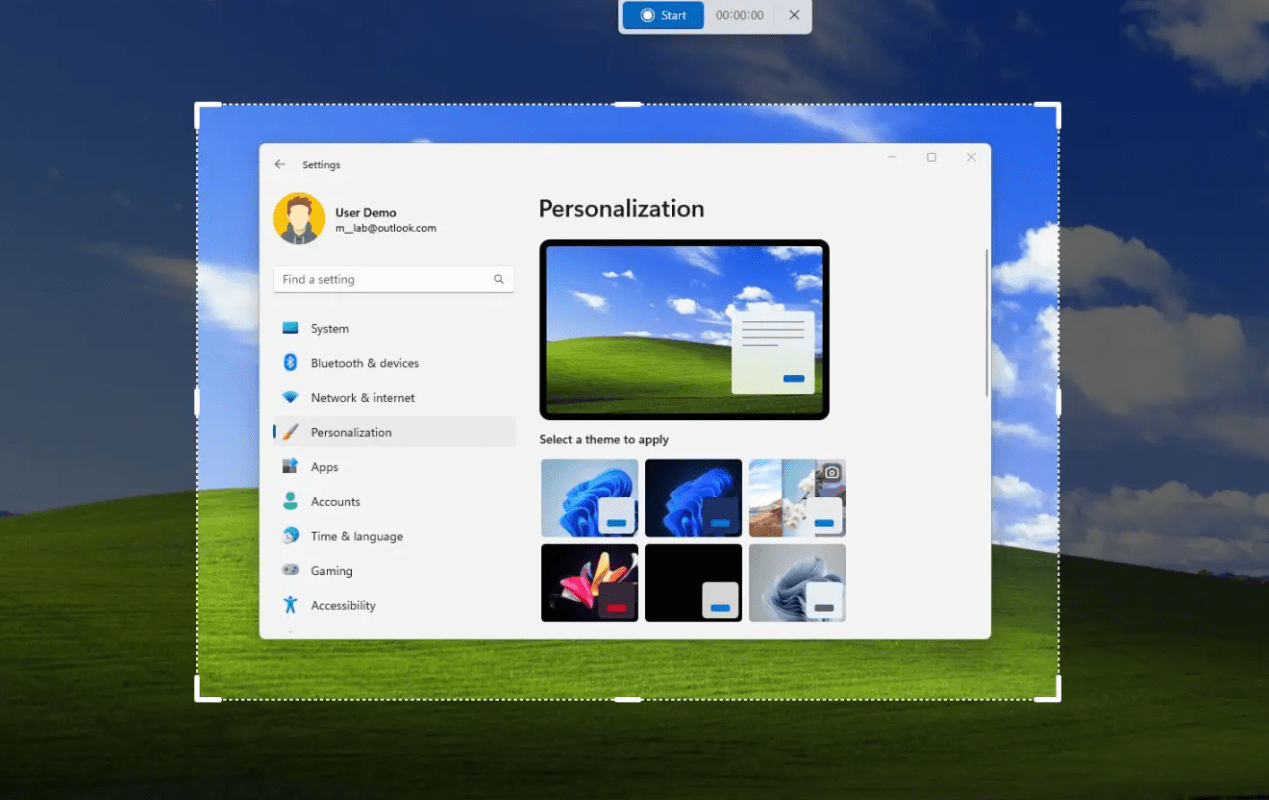
Windows 11 includes a new screen recording feature in the Snipping Tool.
Steps
- Open the Snipping Tool
- Click the Record option
- Select the area of the screen you want to capture
- Click Start recording
This method works well when you only need to record part of the screen instead of the entire display.
Method 3: Screen Record Using Third-Party Apps
While Windows includes built-in tools, some users prefer dedicated recording software.
Popular screen recorders include:
- OBS Studio
- Camtasia
- Bandicam
These tools provide advanced features such as:
- Webcam recording
- Audio mixing
- High-quality video export
However, for most everyday tasks, the built-in Windows tools are sufficient.
Tips for Better Screen Recordings
To improve your recordings:
• Close unnecessary programs before recording
• Use a microphone for narration
• Adjust screen resolution if needed
• Record in a quiet environment
These small improvements can make your recordings clearer and more professional.
Troubleshooting Screen Recording Issues
If screen recording is not working:
• Ensure Xbox Game Bar is enabled
• Update Windows and graphics drivers
• Restart your PC
If your system is experiencing broader issues, you may want to review common Windows 11 problems and fixes.
When Screen Recording Is Useful
Many users record their screens when:
- Creating tutorials
- Recording gameplay
- Reporting bugs or errors
- Demonstrating software features
For example, screenshots and recordings are often used when troubleshooting issues like those explained in our guide on how to start Windows 11 in Safe Mode.