
Instructions
Microsoft Copilot in Windows 11: What It Is and How to Use It
Mar
Microsoft is bringing artificial intelligence directly into the operating system with Windows 11 Copilot. This built-in AI assistant helps users perform tasks faster, control system settings, and get assistance with everyday work directly from the desktop.
In this guide, you’ll learn what Windows 11 Copilot is, how it works, and how to use it effectively.
What Is Windows 11 Copilot?
Windows 11 Copilot is Microsoft’s AI assistant integrated into the operating system. It combines AI technology with system controls, allowing users to interact with Windows using natural language commands.
Instead of searching through menus or settings, you can ask Copilot to help perform tasks directly from the desktop.
Examples include:
- Changing system settings
- Summarizing content
- Generating text or ideas
- Answering questions
- Assisting with productivity tasks
Copilot is designed to make Windows easier to use, especially for beginners.
How to Open Copilot in Windows 11
Opening Copilot is simple.
Steps
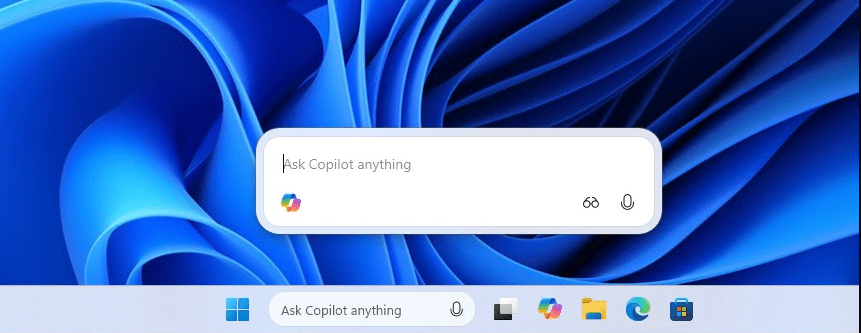
- Look for the Copilot icon on the taskbar
- Click the icon
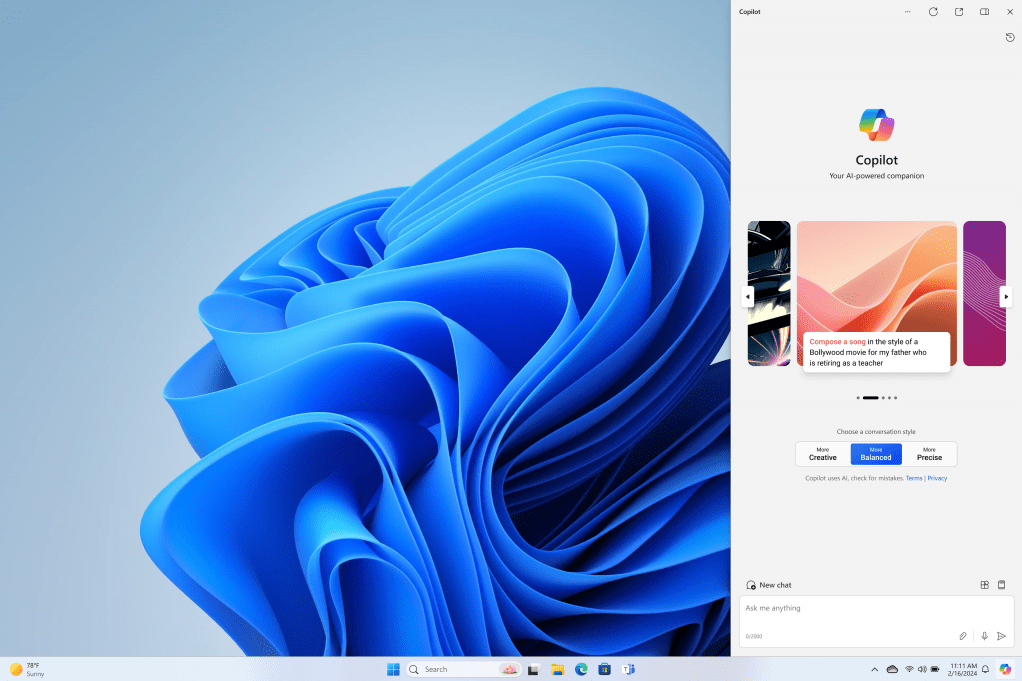
- The Copilot panel will open on the right side of your screen
You can also launch it using the keyboard shortcut:
Windows key + C
What Can Copilot Do?
Copilot is designed to help with both system tasks and productivity.
Some common uses include:
Changing Windows Settings
You can ask Copilot to:
- Turn on dark mode
- Enable Bluetooth
- Adjust system settings
Writing Assistance
Copilot can help:
- Generate text
- Rewrite sentences
- Summarize content
Productivity Help
Users can ask Copilot to:
- Explain topics
- Provide suggestions
- Assist with research
These capabilities make Copilot similar to having an AI assistant built directly into Windows.
Copilot Requirements
Not all systems support Copilot immediately.
You typically need:
- Windows 11 updated to a recent version
- An internet connection
- A Microsoft account
Many Copilot features are also updated through Windows updates.
If your system is not fully updated, review our guide on how to upgrade Windows 10 to Windows 11 to ensure compatibility.
Tips for Using Copilot Efficiently
To get the most out of Copilot:
• Ask clear and specific questions
• Use natural language commands
• Experiment with different tasks
For example, instead of searching manually through settings, you can simply ask Copilot to adjust system options.
When Copilot Might Not Appear
If Copilot is missing from your system, possible reasons include:
- Windows version not updated
- Feature not available in your region
- Copilot disabled in settings
Updating Windows often resolves these issues.
If your system has other problems, you may want to check our guide on common Windows 11 problems and fixes.
Windows 11 Copilot represents Microsoft’s major step toward integrating AI directly into the operating system. With the ability to assist with system tasks, productivity, and information, Copilot makes Windows easier and more interactive for everyday users.
As Microsoft continues developing AI features, Copilot is likely to become one of the most important tools inside Windows 11.
And if you ever reinstall Windows while setting up new features, make sure your system is properly activated – you can find a genuine Windows 11 key here.