
Instructions
How to Enable Copilot in Windows 11
Mar
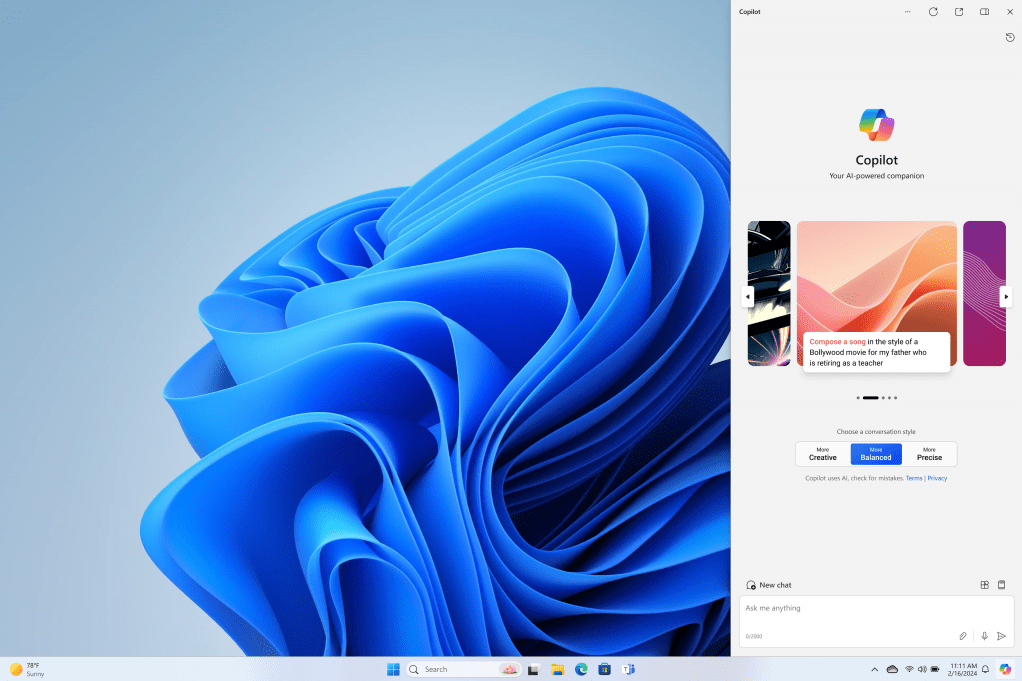
Microsoft Copilot is one of the newest features in Windows 11. Enable Copilot and bring artificial intelligence directly into the operating system. This AI assistant can help users adjust system settings, generate text, summarize information, and improve productivity.
If Copilot is not visible on your computer, you may need to enable it manually. In this guide, you’ll learn how to enable Copilot in Windows 11 step by step.
Check Your Windows Version
Before enabling Copilot, make sure your computer is running a recent version of Windows 11. Microsoft releases new AI features through Windows updates.
To check your Windows version:
- Press Windows + R
- Type winver
- Press Enter
If your system is outdated, update Windows first.
If you’re still using an older system, follow our guide on how to upgrade Windows 10 to Windows 11.
Method 1: Enable Copilot from the Taskbar
The easiest way to activate Copilot is through the taskbar.
Steps
- Right-click the taskbar
- Select Taskbar settings
- Find the Copilot option
- Turn it ON
Once enabled, the Copilot icon will appear on the taskbar.
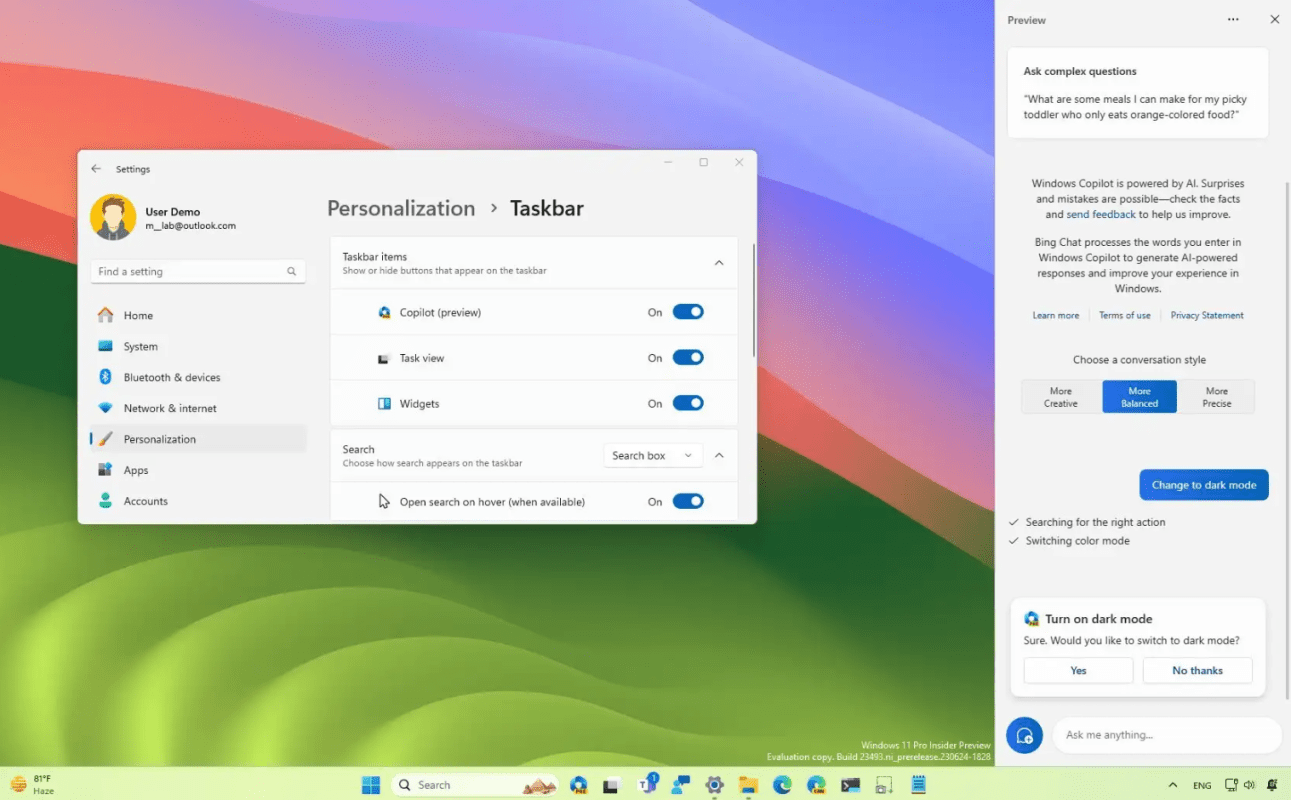
Method 2: Enable Copilot Using Windows Settings
If Copilot does not appear automatically, check your system settings.
Steps
- Open Settings
- Go to Personalization
- Click Taskbar
- Enable the Copilot toggle
After enabling it, you can open Copilot from the taskbar.
How to Open Copilot After Enabling It
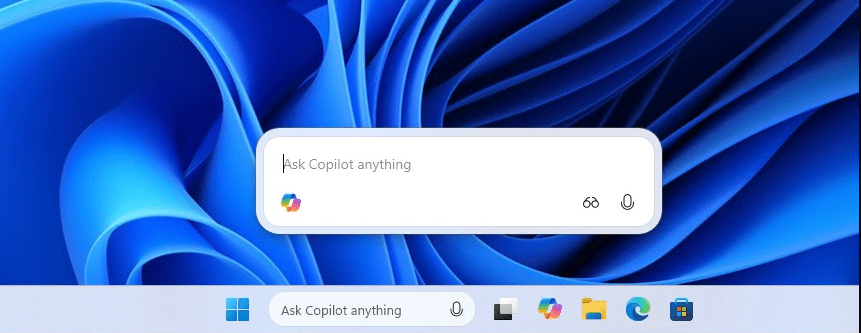
Once Copilot is enabled, you can launch it in two ways:
Method 1
Click the Copilot icon on the taskbar.
Method 2
Use the keyboard shortcut:
Windows + C
The Copilot panel will open on the right side of the screen.
What If Copilot Is Not Available?
If you cannot enable Copilot, several things might be preventing it:
Possible reasons
• Your Windows version is outdated
• Copilot is not available in your region yet
• Your system policies disable the feature
Updating Windows usually resolves this issue.
If your system is experiencing other problems, review common Windows 11 problems and fixes.
What You Can Do With Copilot
Once enabled, Copilot can help you:
- Adjust system settings
- Generate text and summaries
- Answer questions
- Assist with productivity tasks
- Provide AI-powered suggestions
Many users use Copilot for quick system changes and productivity improvements.
For a full overview of the feature, read Microsoft Copilot in Windows 11: what it is and how to use it.
Final Thoughts
Knowing how to enable Copilot in Windows 11 allows you to take advantage of one of Microsoft’s newest AI features. Once activated, Copilot can assist with everyday tasks, system settings, and productivity.
As Windows continues integrating AI features, tools like Copilot are becoming an important part of the Windows experience.
And if you ever reinstall Windows while setting up new features, make sure your system is properly activated – you can get a genuine Windows 11 key here.