
Instructions
Best Microsoft Copilot Tips for Windows Users

Mar
Microsoft Copilot is quickly becoming one of the most powerful features in Windows 11. This AI assistant can help users perform tasks faster, adjust system settings, generate text, and improve productivity. However, many users only use a small portion of its capabilities. In this guide, you’ll learn the best Microsoft Copilot tips to help you use the AI assistant more effectively in Windows 11.
Use Natural Language Commands
One of the biggest advantages of Copilot is that it understands natural language. Instead of searching through menus, you can simply ask Copilot what you need.
Examples:
- “Turn on dark mode”
- “Summarize this text”
- “Help me write an email”
- “Explain this topic”
Using natural language makes Copilot much easier and faster to use.
Use Copilot to Change Windows Settings
Copilot can help you adjust many Windows settings without manually navigating through system menus.
You can ask Copilot to:
- Enable dark mode
- Turn on Bluetooth
- Adjust system settings
- Open specific apps
This can save time, especially for beginners who are unfamiliar with Windows settings.
If Copilot is not available on your system, follow our guide on how to enable Copilot in Windows 11.
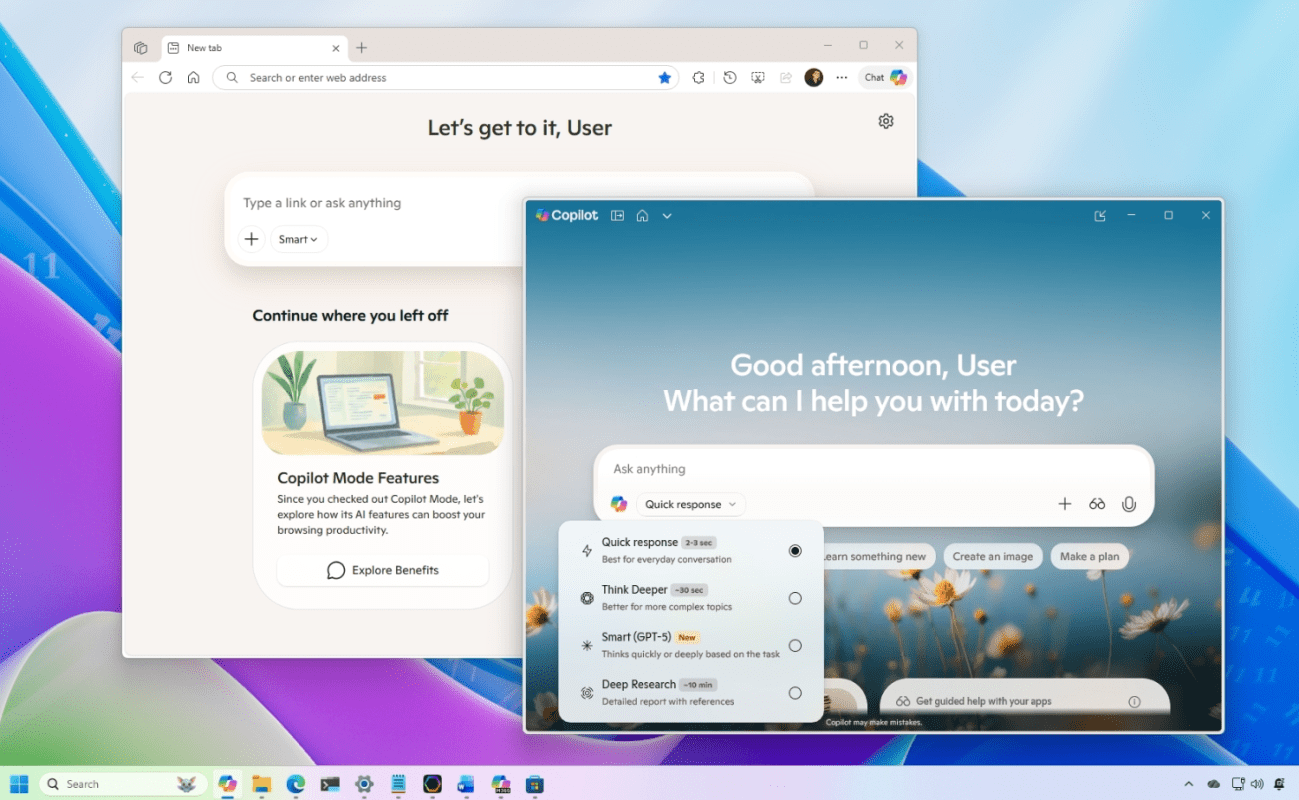
Use Copilot for Writing and Productivity
Copilot can help with many writing tasks.
Examples include:
- Generating text ideas
- Rewriting sentences
- Summarizing documents
- Drafting emails
These features make Copilot useful for students, professionals, and content creators.
Ask Copilot to Explain Complex Topics
Copilot can quickly explain difficult topics in simple language.
For example, you can ask:
- “Explain cloud computing”
- “What is artificial intelligence?”
- “Summarize this article”
This makes Copilot useful for research and learning.
Use Copilot While Multitasking
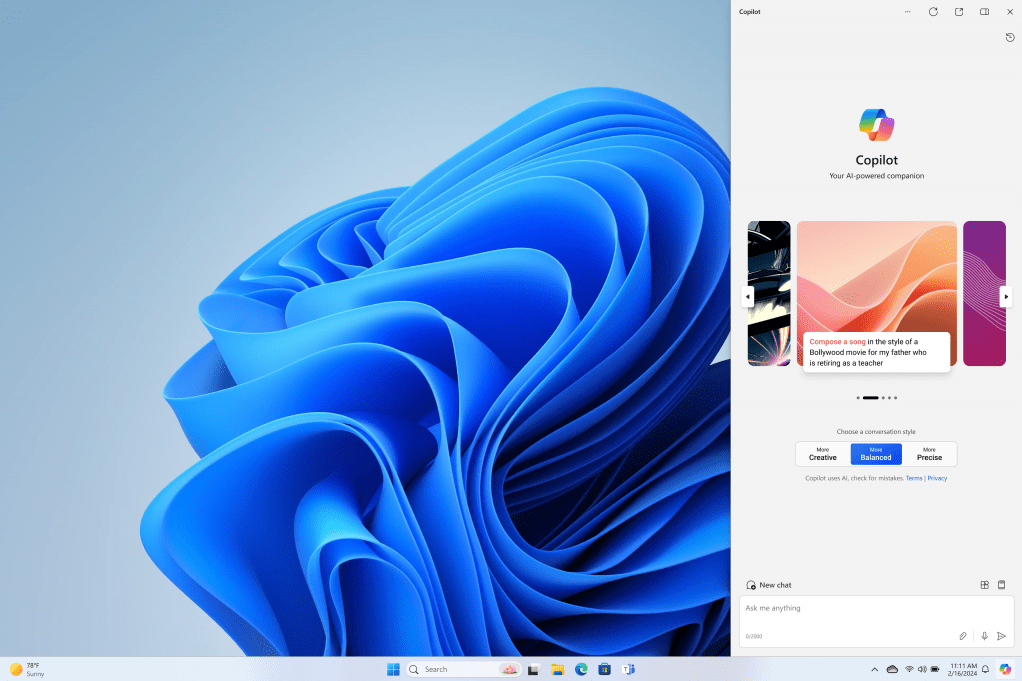
Copilot works in a side panel, allowing you to continue working while interacting with the AI assistant.
You can:
- Ask questions while browsing
- Generate text while writing documents
- Get help while researching topics
This multitasking ability improves workflow efficiency.
Use Copilot While Multitasking
Copilot works in a side panel, allowing you to continue working while interacting with the AI assistant.
You can:
- Ask questions while browsing
- Generate text while writing documents
- Get help while researching topics
This multitasking ability improves workflow efficiency.
Keep Windows Updated for New Copilot Features
Microsoft regularly improves Copilot through Windows updates.
Updating Windows ensures you get:
- New AI capabilities
- Improved responses
- Better integration with system features
If your system is outdated, check our guide on how to upgrade Windows 10 to Windows 11.
Final Thoughts
Learning the best Microsoft Copilot tips can significantly improve how you use Windows 11. From adjusting settings to generating text and answering questions, Copilot helps users complete tasks faster and more efficiently.
As Microsoft continues expanding AI features in Windows, Copilot will likely become an essential productivity tool for many users.
And if you reinstall Windows while setting up new features, make sure your system is properly activated – you can get a genuine Windows 11 key here.