
Instructions
How to Install Windows 11 From USB
Mar
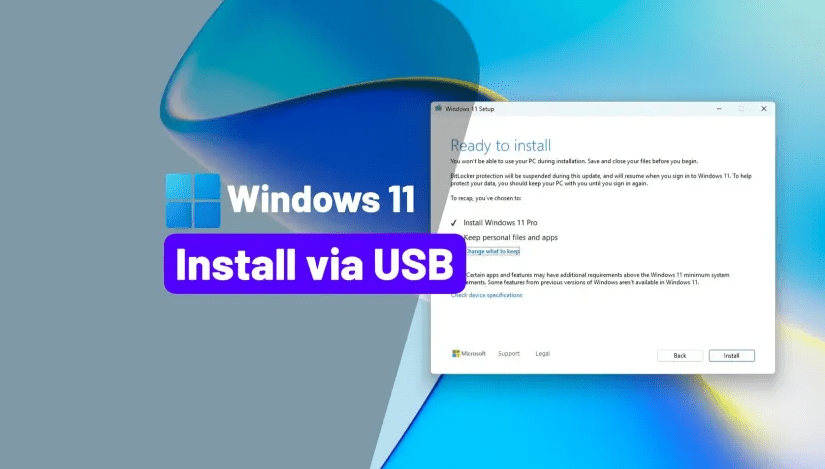
Installing Windows 11 from a USB drive is the best way to perform a clean installation, fix system issues, or upgrade your PC.
In this guide, you’ll learn how to install Windows 11 from USB step-by-step, even if you’re starting from scratch.
What You Need Before Installing
Before you begin, make sure you have:
- A USB drive (at least 8GB)
- A Windows 11 ISO file
- A working PC
- Backup of your important files
Step 1: Create a Bootable Windows 11 USB
You need to create a bootable USB first.
Method 1: Using Rufus
- Download and open Rufus
- Insert your USB drive
- Select your Windows 11 ISO
- Choose:
- Partition scheme: GPT
- Target system: UEFI
- Click Start
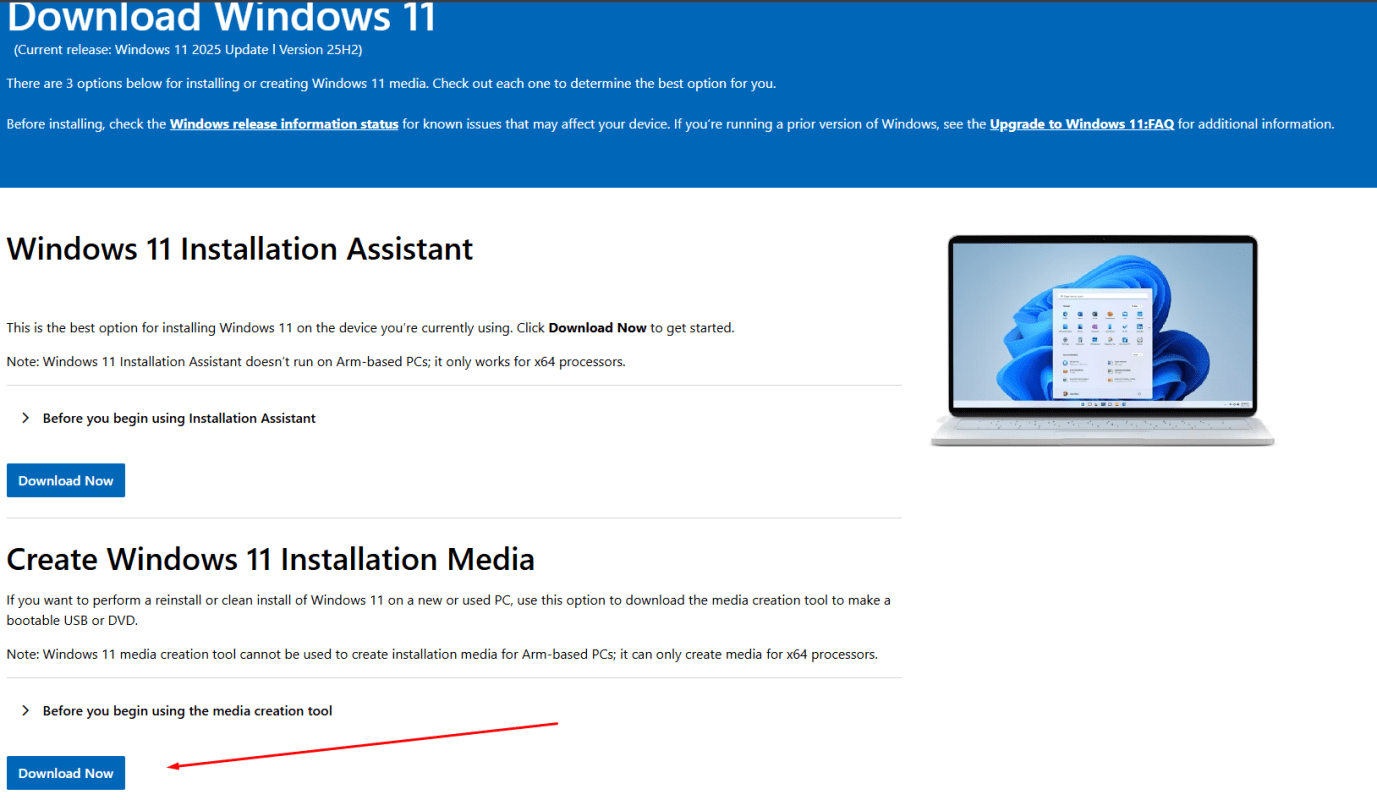
Method 2: Using Media Creation Tool
- Download Windows 11 Media Creation Tool
- Run the tool
- Select Create installation media
- Choose USB drive
- Follow the instructions
Step 2: Boot From USB
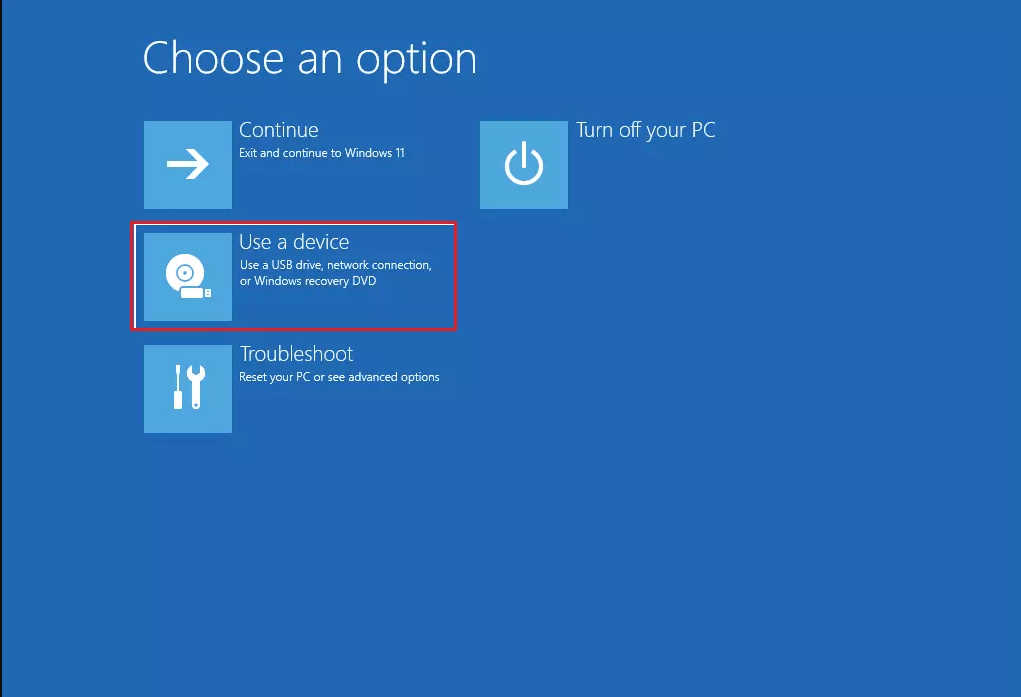
Now you need to boot your PC from the USB.
Steps
- Insert the USB drive
- Restart your PC
- Press the boot key (F12, ESC, F2, or DEL depending on your PC)
- Select your USB drive
Step 3: Start Windows 11 Installation
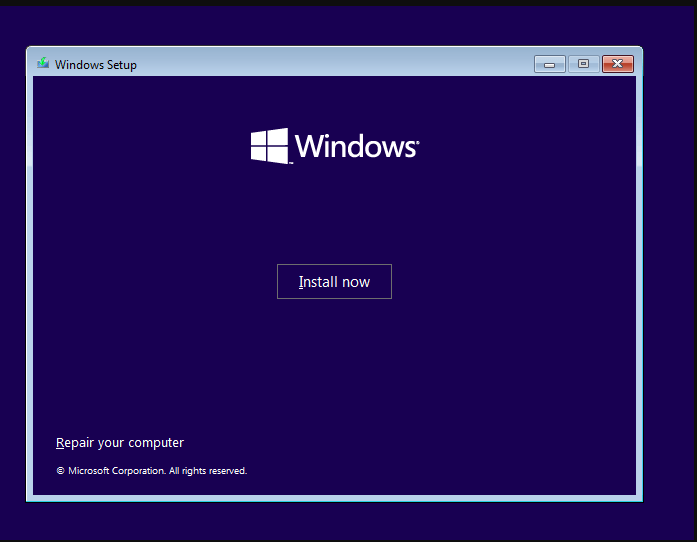
Once booted from USB:
Steps
- Select language, time, and keyboard
- Click Install Now
- Enter your product key (or click I don’t have a key)
- Select Windows 11 edition
- Accept license terms
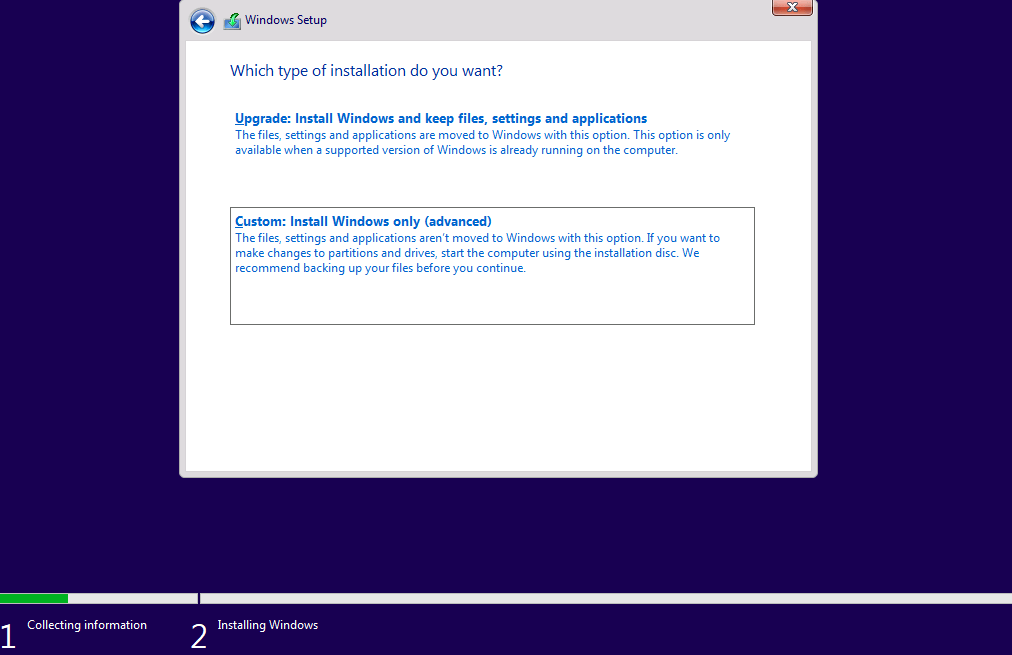
Step 4: Choose Installation Type
Choose how you want to install Windows:
Upgrade
- Keeps files and apps
Custom (Clean Install)
- Deletes everything (recommended for best performance)
Select Custom: Install Windows only
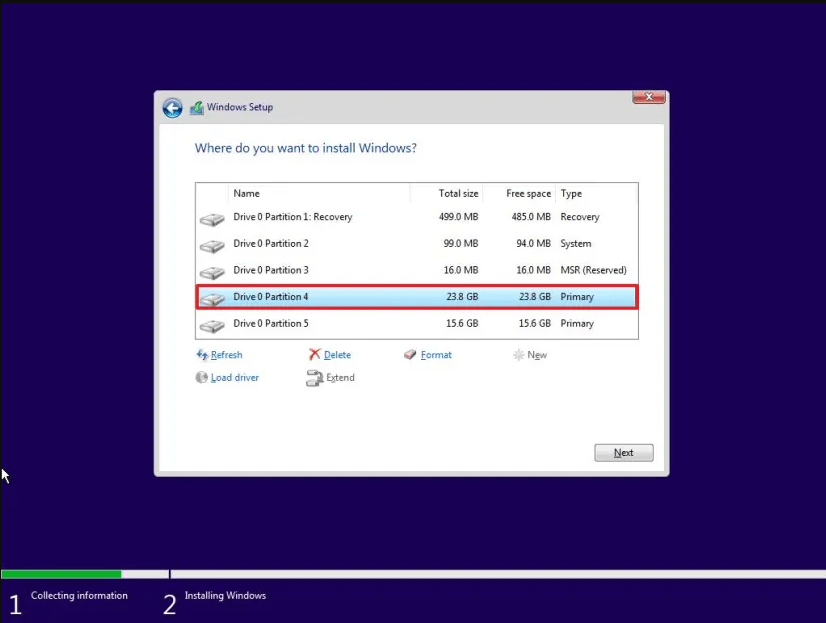
Step 5: Select Drive and Install
- Select your main drive
- Click Format (optional for clean install)
- Click Next
Windows will begin installing.
Your PC will restart several times.
Step 6: Complete Setup
After installation:
- Choose your region and keyboard
- Connect to Wi-Fi
- Sign in with Microsoft account (or create local account)
- Complete setup
You’ll then see the Windows 11 desktop.
Installing Windows 11 from USB is the best way to get a clean, fresh system. By following these steps, you can easily create a bootable USB, install Windows, and set up your PC.
If you skipped entering a product key, you can activate your system anytime using a genuine Windows 11 Pro product key from our store.