
Instructions
Windows 11 High CPU Usage – Fix
Mar
If your PC is running slow, overheating, or the fan is constantly loud, there’s a good chance you’re dealing with high CPU usage in Windows 11.
This issue can be caused by background processes, Windows updates, malware, or misconfigured settings.
In this guide, you’ll learn how to fix Windows 11 high CPU usage step-by-step.
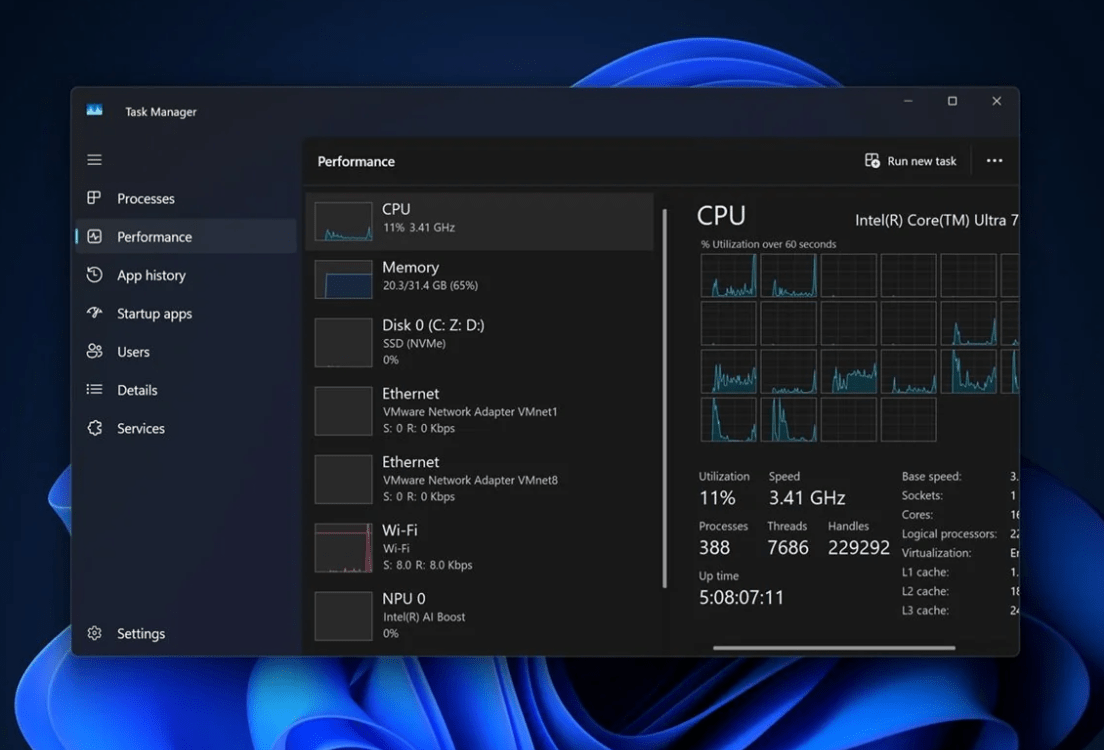
How to Check CPU Usage in Windows 11
Before fixing the issue, check what’s causing it.
Steps
- Press Ctrl + Shift + Esc
- Open Task Manager
- Go to the Processes tab
- Click CPU to sort usage
Look for apps or processes using unusually high CPU.
Fix 1: Restart Your PC
Sometimes a simple restart clears temporary issues.
Restart your PC and check CPU usage again.
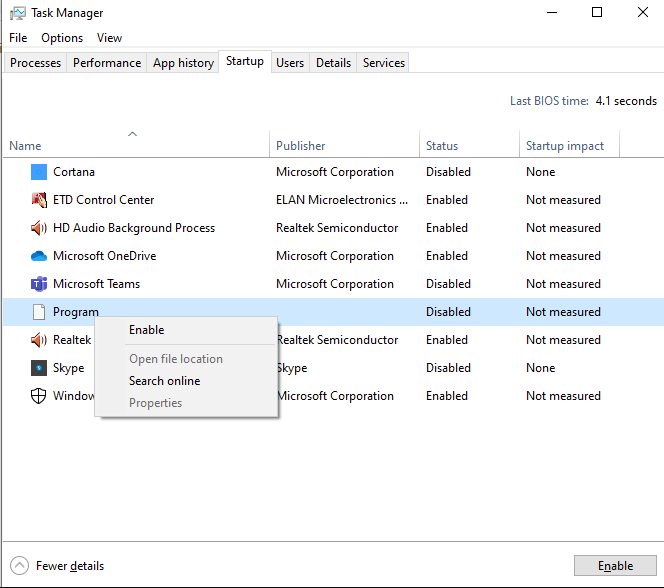
Fix 2: Disable Startup Programs
Too many startup apps can overload your CPU.
Steps
- Disable unnecessary apps
- Open Task Manager
- Go to Startup tab
Fix 3: End High CPU Processes
Steps
- Open Task Manager
- Find the process using high CPU
- Right-click → End Task
Don’t end system-critical processes.
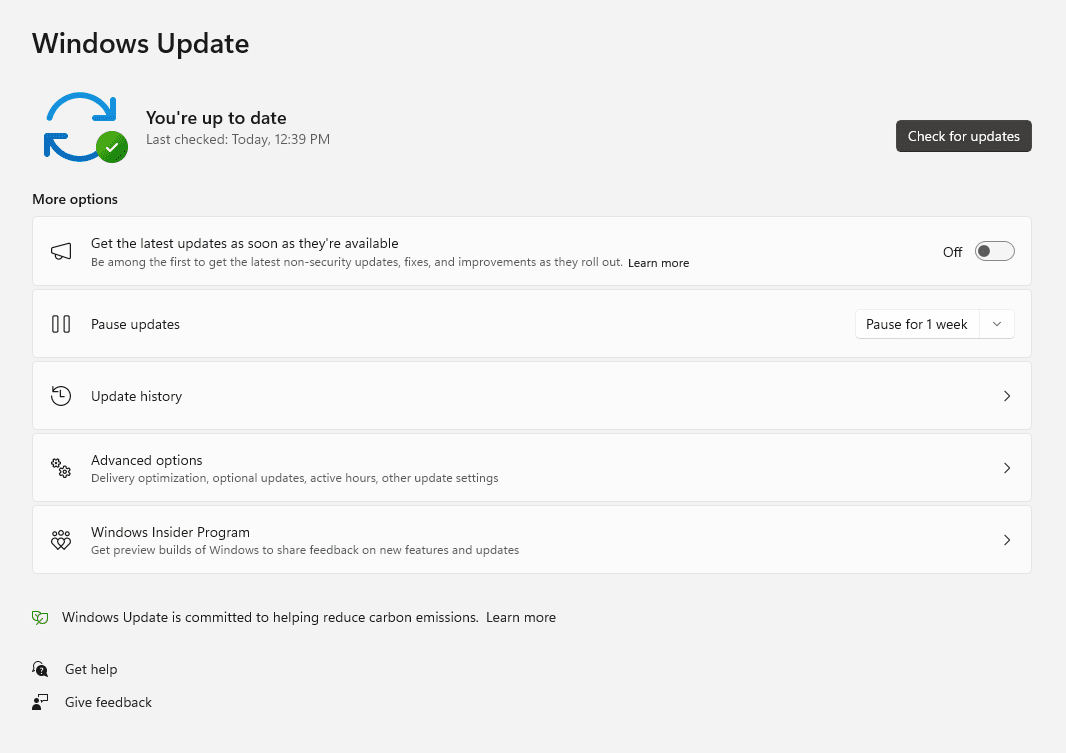
Fix 4: Update Windows
Updates often fix performance issues.
Steps
- Go to Settings → Windows Update
- Click Check for updates
- Install updates
Fix 5: Scan for Malware
Malware can cause constant CPU spikes.
Steps
- Open Windows Security
- Go to Virus & Threat Protection
- Run a Full Scan
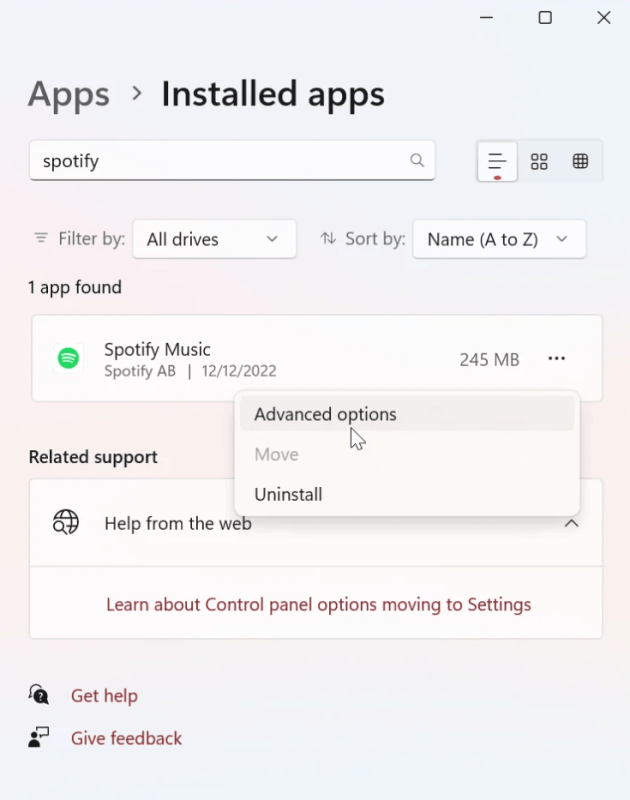
Fix 6: Disable Background Apps
Background apps consume CPU resources.
Steps
- Go to Settings → Apps → Installed apps
- Select an app → Advanced options
- Set background permissions to Never
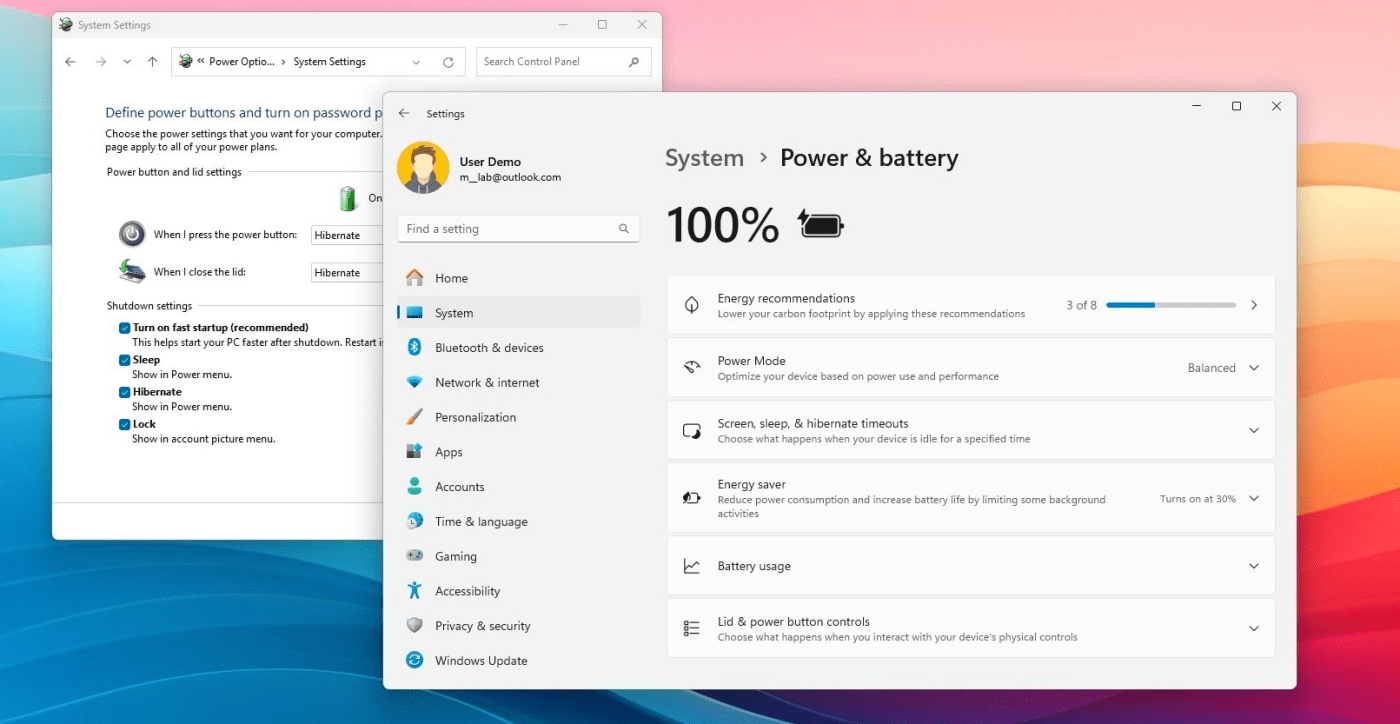
Fix 7: Adjust Power Settings
Power settings can affect CPU usage.
Steps
- Go to Settings → System → Power & battery
- Set Power mode → Balanced or Best performance
Fix 8: Disable Windows Search Indexing
Search indexing can cause CPU spikes.
Steps
- Press Windows + R → type: services.msc
- Find Windows Search
- Right-click → Stop
- Set Startup type to Disabled
Fix 9: Update Drivers
Outdated drivers can cause performance issues.
Steps
- Open Device Manager
- Update:
- CPU drivers
- GPU drivers
- Chipset drivers
Fix 10: Reset Windows 11 (Last Resort)
If nothing works, reset your system.
Steps
- Go to Settings → System → Recovery
- Click Reset this PC
Common Causes of High CPU Usage
- Too many background apps
- Windows updates running
- Malware or viruses
- Outdated drivers
- Faulty software
Fixing Windows 11 high CPU usage usually involves disabling unnecessary apps, updating your system, and optimizing settings.
By following these steps, you can significantly improve performance and reduce CPU load.
If your system is newly installed, make sure to activate it using a genuine Windows 11 Pro product key from our store for full functionality.