
Instructions
How to Use Windows Sandbox in Windows 11
Mar
Windows Sandbox is a built-in feature in Windows 11 that lets you run apps in a safe, isolated environment. It creates a temporary version of Windows where you can test files, software, or unknown programs without affecting your main system.
In this guide, you’ll learn how to use Windows Sandbox in Windows 11, including setup, usage, and tips.
What Is Windows Sandbox?
Windows Sandbox is a lightweight virtual environment that:
- Runs a fresh copy of Windows
- Is completely isolated from your system
- Deletes everything after closing
It’s perfect for:
- Testing unknown software
- Opening suspicious files
- Running temporary apps
Requirements for Windows Sandbox
To use Windows Sandbox, your system must have:
- Windows 11 Pro / Enterprise / Education
- Virtualization enabled
- At least 4GB RAM (8GB recommended)
- SSD storage
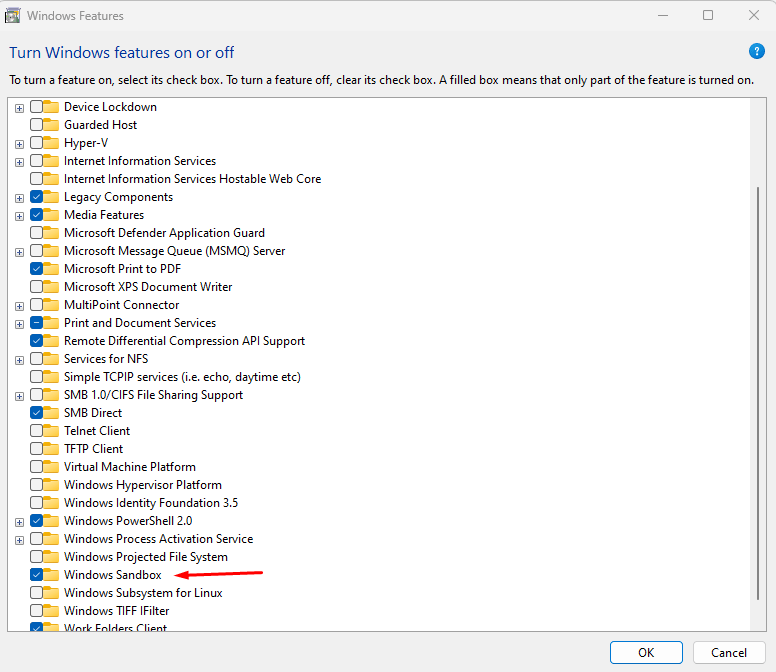
Step 1: Enable Windows Sandbox
Steps
- Press Windows + R → type: optionalfeatures
- Scroll down and find Windows Sandbox
- Check the box
- Click OK
- Restart your PC
Step 2: Launch Windows Sandbox
Steps
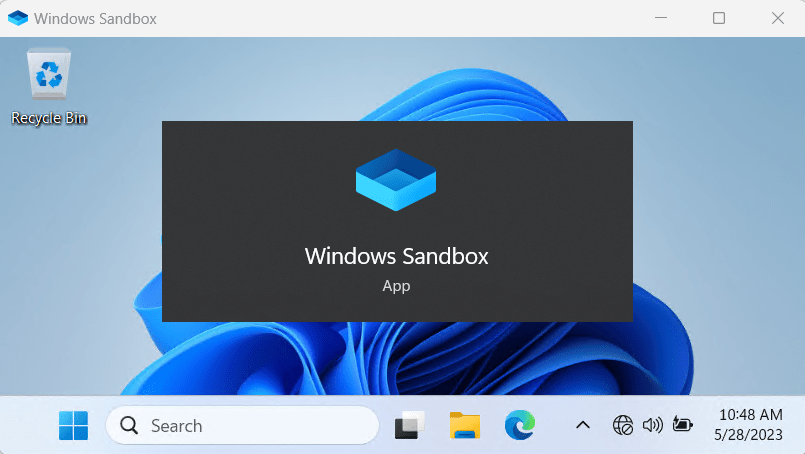
- Open Start Menu
- Search for Windows Sandbox
- Click to launch
After a few seconds, a clean Windows desktop will appear.
Step 3: Use Windows Sandbox
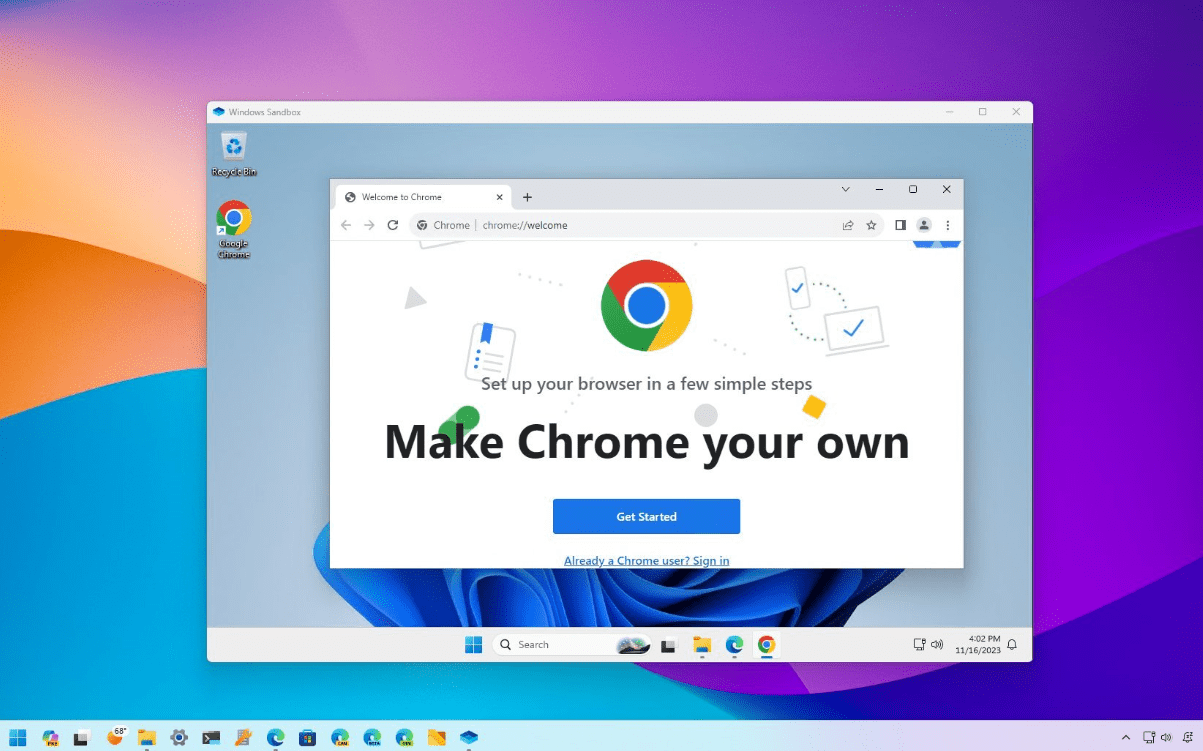
Inside Sandbox, you can:
- Copy and paste files
- Install apps
- Run programs safely
- Browse the web
Everything runs independently from your main system.
Step 4: Close Sandbox (Auto Reset)
When you close Windows Sandbox:
- All files and apps are deleted
- The system resets completely
This makes it 100% safe for testing.
Benefits of Windows Sandbox
- No risk to your main system
- No need for third-party tools
- Fast and lightweight
- Automatically resets after use
Windows Sandbox in Windows 11 is one of the best tools for safely testing apps and files. It provides a secure, temporary environment that protects your system from potential threats.
If you want maximum flexibility, combine Sandbox with tools like Hyper-V or virtualization.
If you’re setting up your system, don’t forget to activate Windows using a genuine Windows 11 Pro product key from our store.