
Instructions
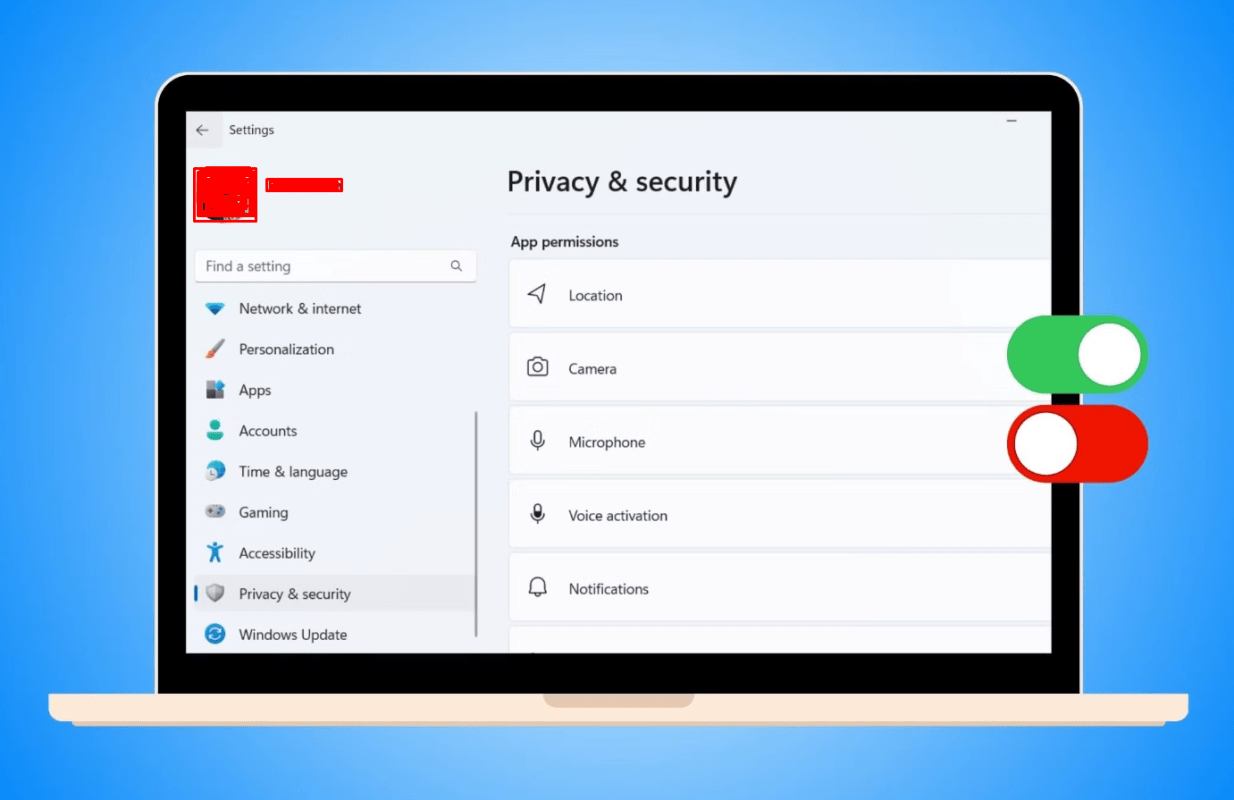
Windows 11 Privacy Settings You Should Turn Off
Mar
Windows 11 includes many features that collect data to improve your experience—but not all of them are necessary. If you care about privacy, performance, and control, there are several settings you should disable.
In this guide, you’ll learn which Windows 11 privacy settings to turn off and how to do it step-by-step.
Why You Should Change Privacy Settings
By default, Windows 11 may:
- Collect diagnostic data
- Track your activity
- Use your data for personalized ads
- Allow apps to access your location and microphone
Turning off unnecessary settings helps:
- Improve privacy
- Reduce background activity
- Increase system performance
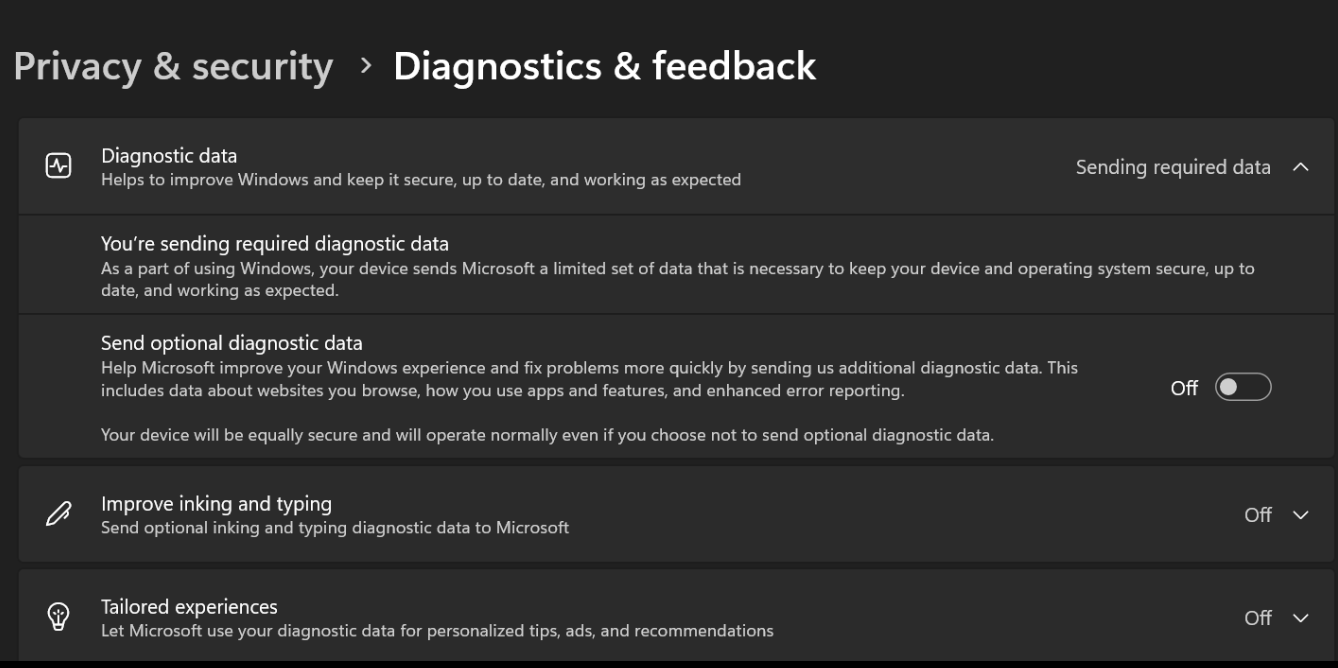
1. Turn Off Diagnostic Data (Telemetry)
Steps
- Go to Settings → Privacy & Security → Diagnostics & feedback
- Turn off:
- Optional diagnostic data
- Improve inking & typing
- Set Feedback frequency → Never
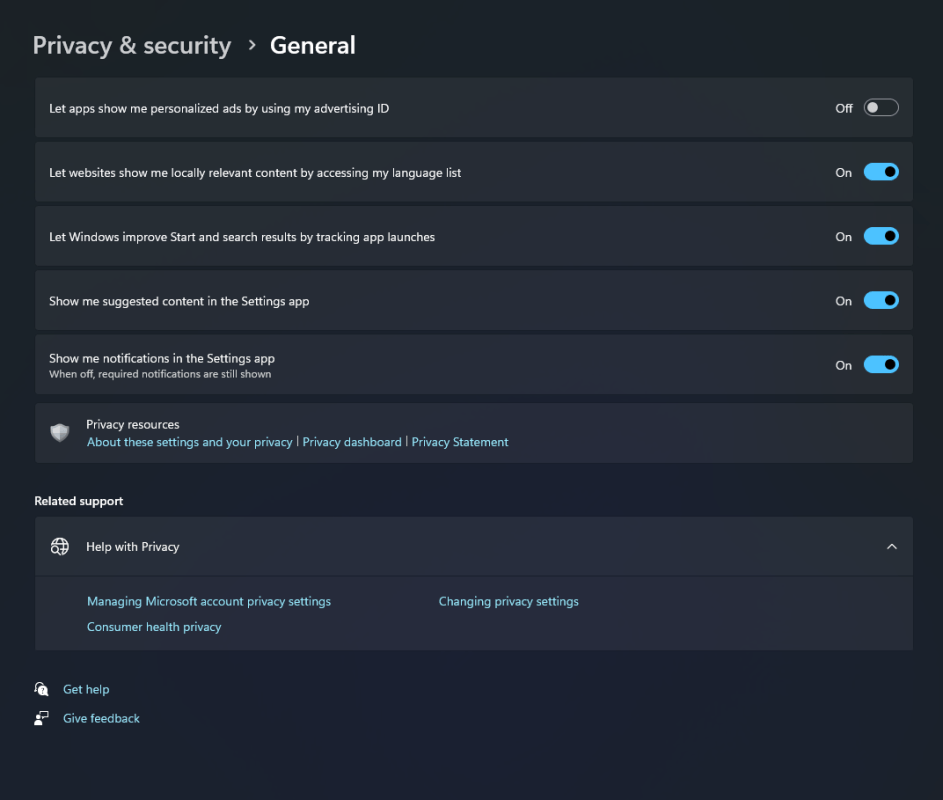
2. Disable Advertising ID
Windows uses an advertising ID to track your activity.
Steps
- Go to Settings → Privacy & Security → General
- Turn off:
- “Let apps use advertising ID”
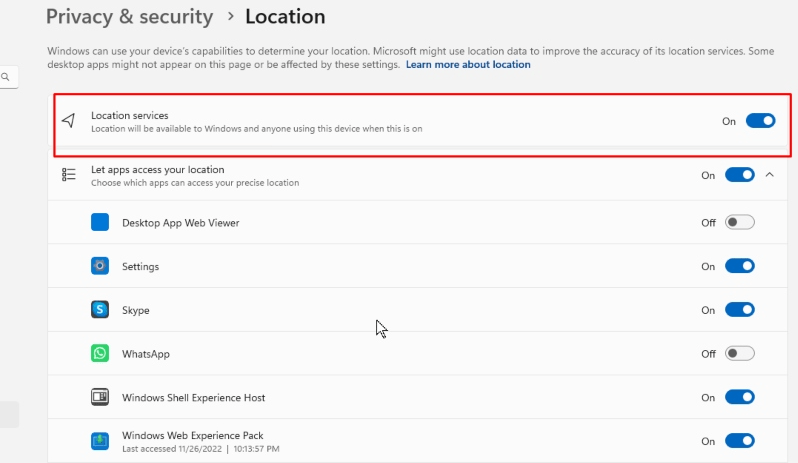
3. Turn Off Location Tracking
Steps
- Go to Settings → Privacy & Security → Location
- Turn off Location services
- Clear location history
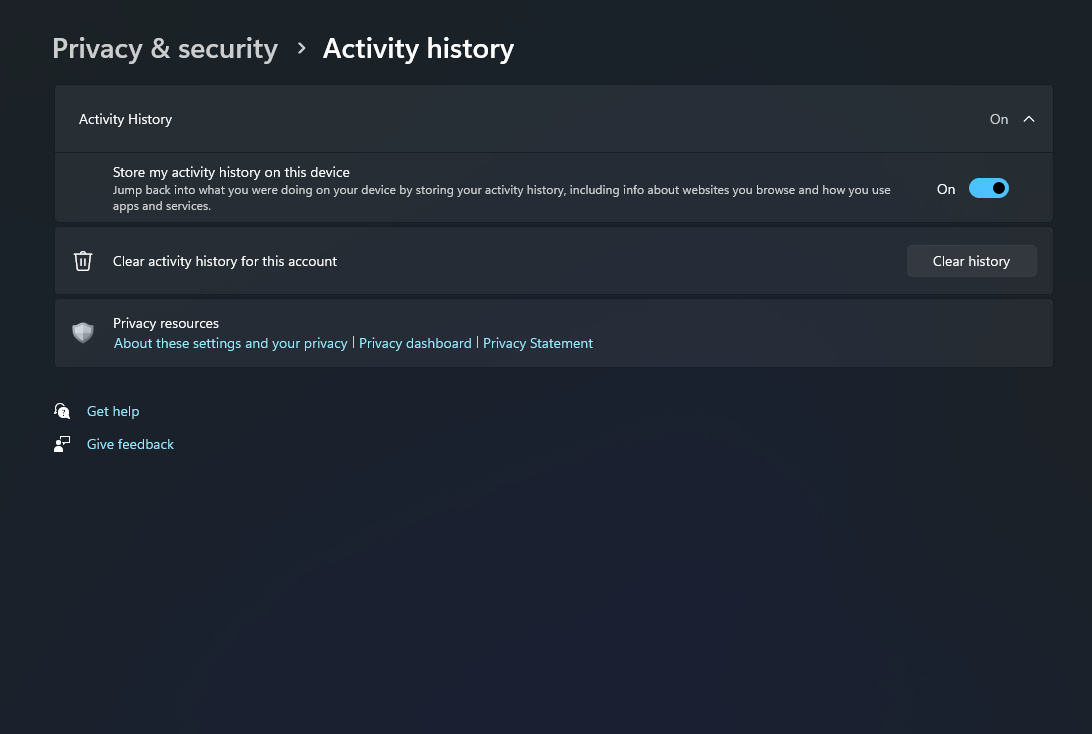
4. Disable Activity History
Steps
- Go to Settings → Privacy & Security → Activity history
- Turn off tracking
- Click Clear history
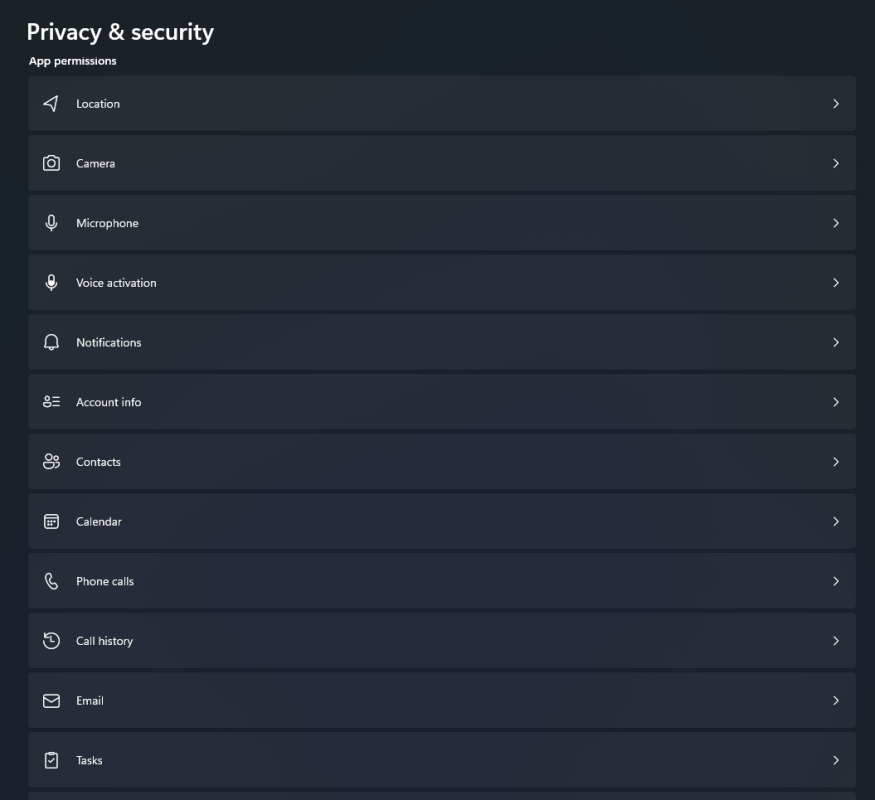
5. Limit App Permissions (Camera, Microphone, etc.)
Steps
- Go to Privacy & Security → App permissions
- Disable access for:
- Camera
- Microphone
- Contacts
- Calendar
Only allow apps you trust.
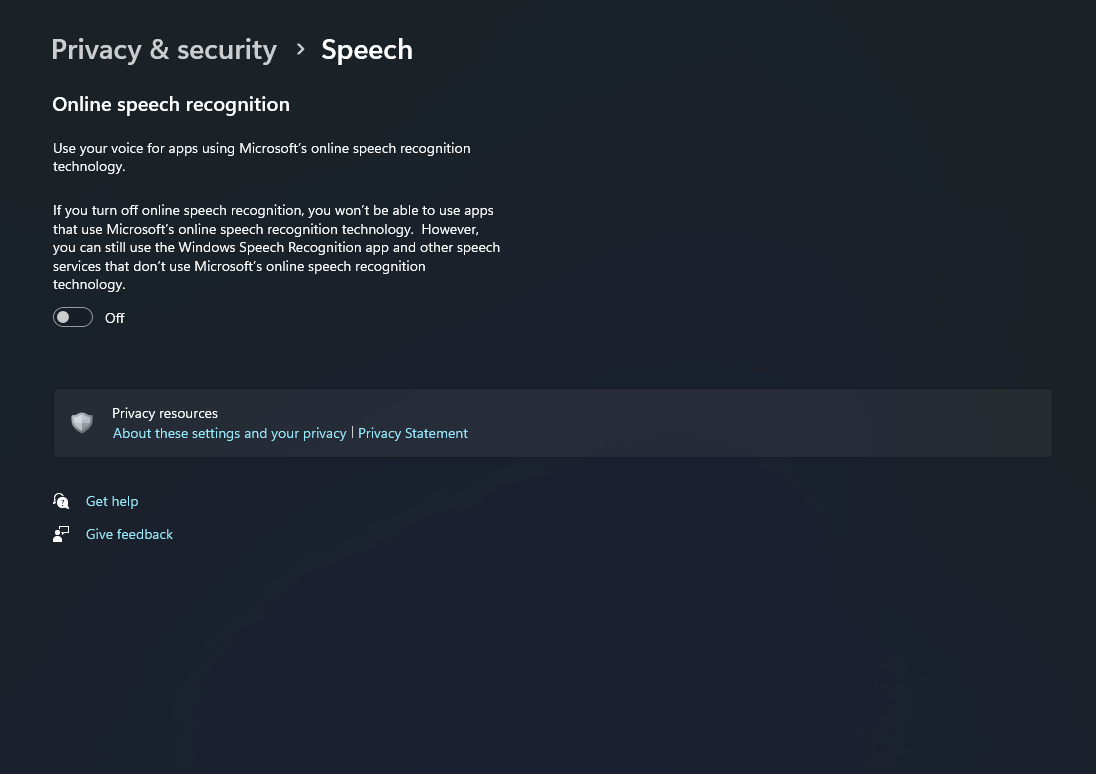
6. Turn Off Speech Recognition
Steps
- Go to Privacy & Security → Speech
- Turn off Online speech recognition
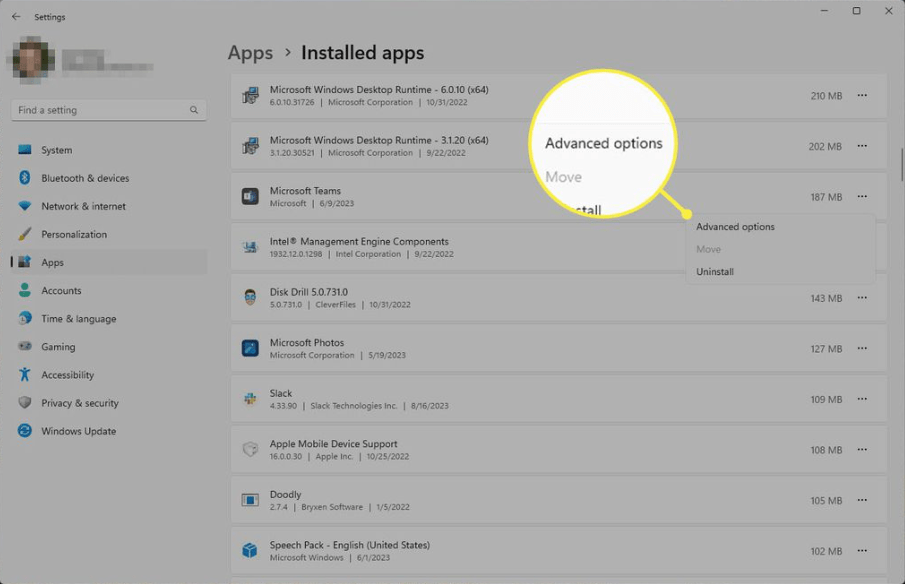
7. Disable Background Apps
Background apps can collect data and use resources.
Steps
- Go to Settings → Apps → Installed apps
- Select app → Advanced options
- Set Background permissions → Never
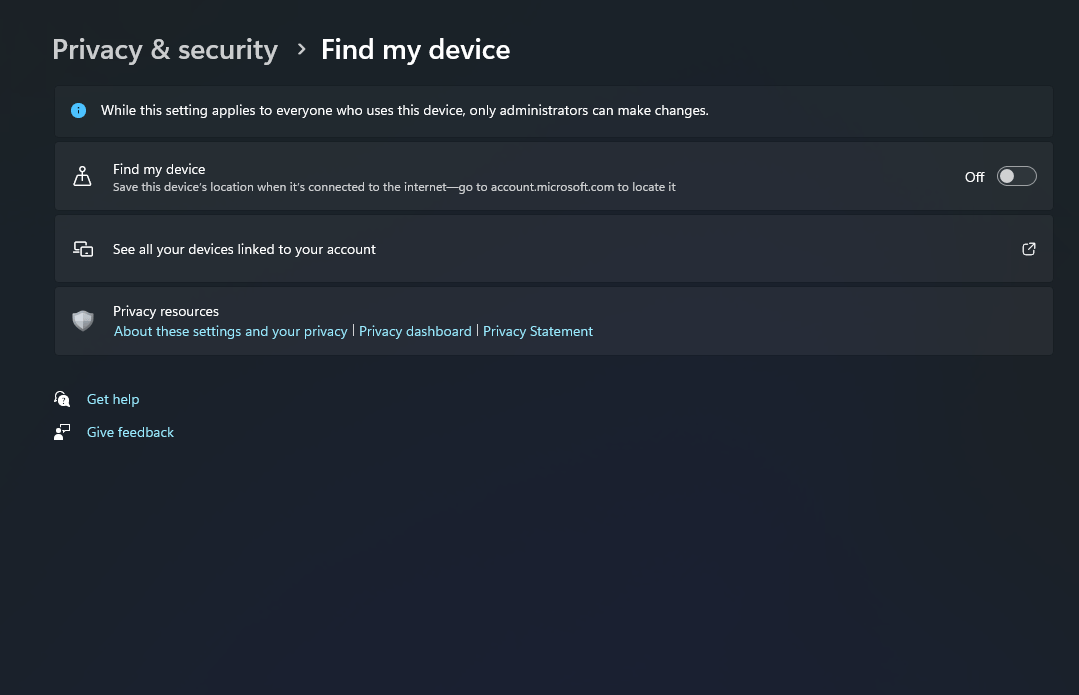
8. Turn Off Find My Device (Optional)
Steps
- Go to Settings → Privacy & Security → Find my device
- Turn off the feature
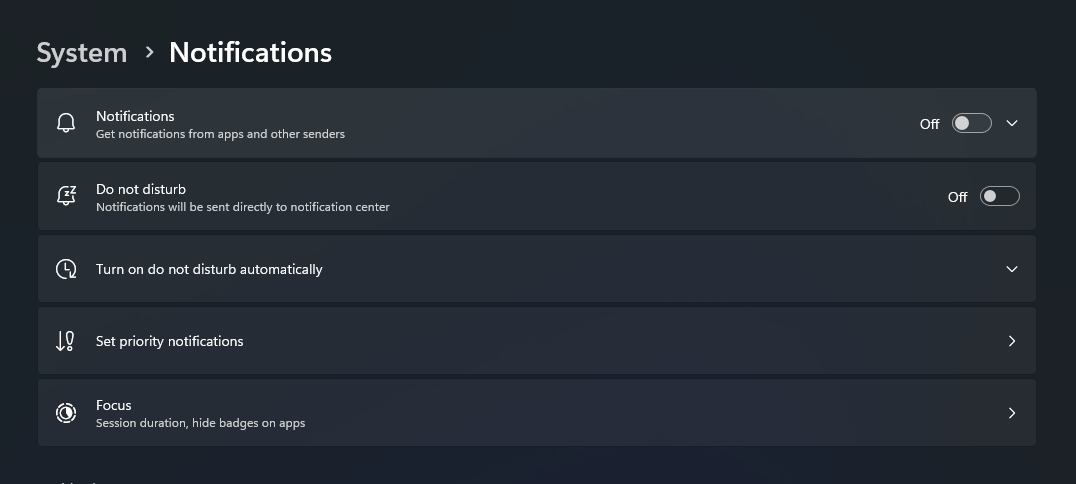
9. Disable Suggested Content & Tips
Steps
- Go to Settings → System → Notifications
- Turn off suggestions and tips
10. Turn Off Syncing (Optional)
Steps
- Go to Settings → Accounts → Windows backup
- Turn off syncing options
Adjusting these Windows 11 privacy settings can significantly improve your privacy, reduce tracking, and even boost performance. Most of these settings are enabled by default, so it’s worth reviewing them after installing Windows.
For the best experience, combine these changes with performance optimizations and system updates.
If you’re setting up your system, don’t forget to activate Windows using a genuine Windows 11 Pro product key from our store.