
Instructions
How to Download a Windows 11 ISO Legally
Apr
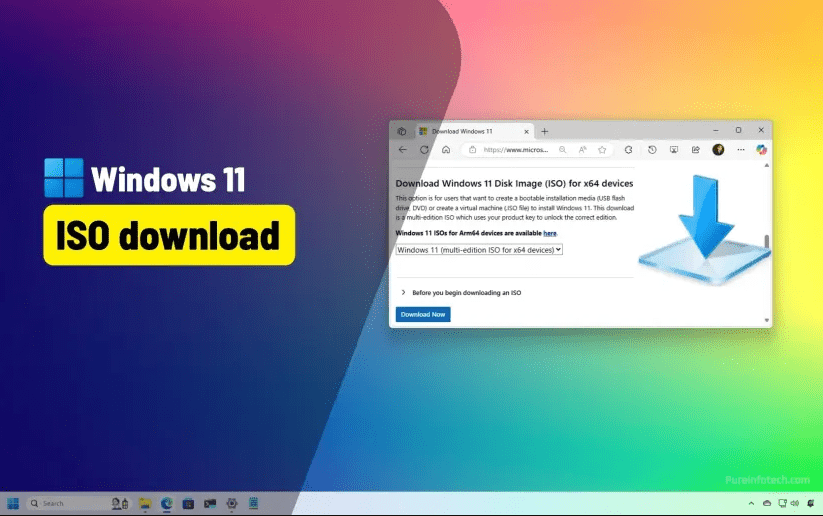
If you want to install or reinstall Windows 11, downloading the official ISO file is one of the safest ways to do it. A Windows 11 ISO gives you the installation files needed to create a bootable USB, run a clean install, repair a system, or install Windows inside a virtual machine.
The safest approach is to get the ISO directly from Microsoft’s official Windows 11 download page. That way, you avoid modified files, outdated versions, and suspicious third-party sources. For users searching how to download Windows 11 ISO legally, this is the method that matters most.
What Is a Windows 11 ISO?
A Windows 11 ISO is a disk image file that contains the full Windows 11 installation package. It can be used to install the operating system on a compatible PC or to create external installation media.
What you can do with a Windows 11 ISO
- Create a bootable USB drive
- Perform a clean install
- Reinstall Windows 11
- Install Windows 11 in a virtual machine
- Keep a backup copy for future use
Why many users prefer the ISO
The ISO gives you more flexibility than a simple upgrade tool. It is especially useful if you are setting up a new PC, reinstalling Windows after replacing hardware, or preparing installation media in advance.
Is It Legal to Download Windows 11 ISO?
Yes, it is legal to download the Windows 11 ISO when you get it from Microsoft. Microsoft provides the official ISO publicly through its Windows 11 software download page.
What makes it legal and safe
The important part is the source. If you download the ISO from Microsoft, you are getting the official installation file. That means:
- The file is genuine
- The image is not modified by a third party
- You reduce the risk of malware or corrupted setup files
- You get a version intended for proper installation use
Downloading is not the same as activating
This is where many users get confused. Downloading the ISO is free. Activation is separate. After installation, Windows may still require a valid digital license or product key.
Where to Download a Windows 11 ISO Legally
You should download it from the official Microsoft Windows 11 software download page.
Official Ways to Get Windows 11 Installation Files
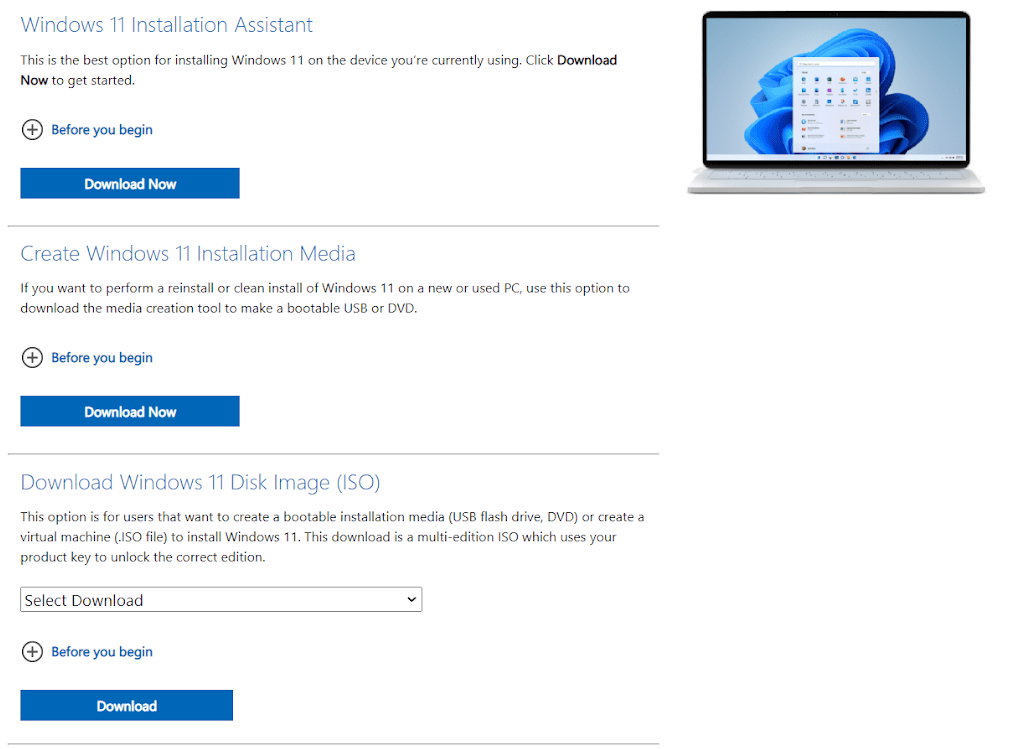
Microsoft offers a few official download options, depending on what you need.
Windows 11 Installation Assistant
This is best for upgrading an existing PC in the easiest possible way.
Create Windows 11 Installation Media
This option is useful when you want Microsoft’s tool to help you create a bootable USB drive.
Download Windows 11 Disk Image (ISO)
This is the best choice if you want the actual ISO file for manual setup, USB creation, or use in a virtual machine.
How to Download the Windows 11 ISO Step by Step
If your goal is to download Windows 11 ISO legally, follow these steps.
Step 1: Open Microsoft’s official Windows 11 download page
Go to the Microsoft Windows 11 download section and look for the ISO download area.
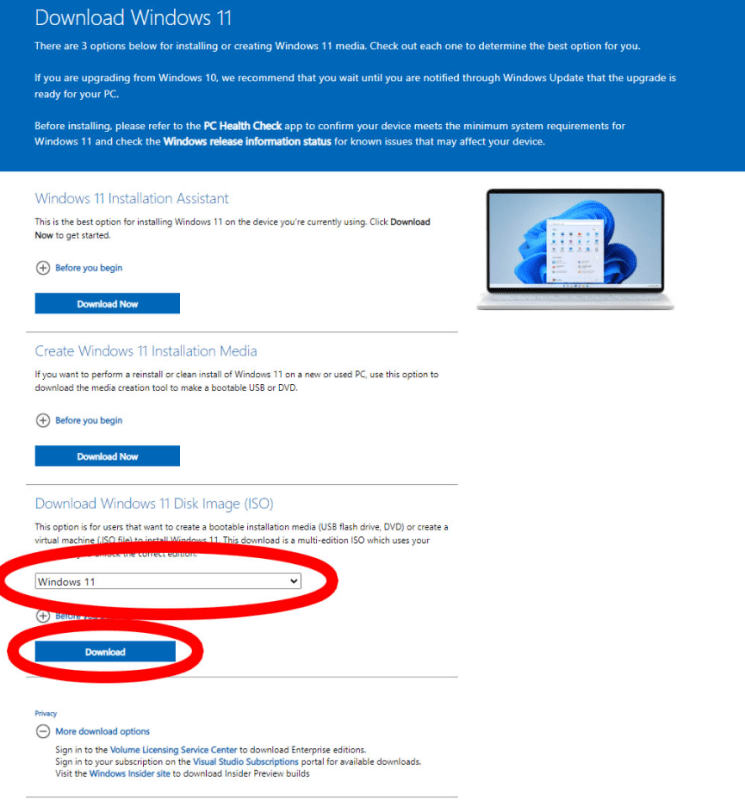
Step 2: Find the Disk Image ISO section
Scroll until you see the area for downloading the Windows 11 disk image. This is the section intended for users who want the ISO file directly.
Step 3: Select the Windows 11 edition
Choose the available Windows 11 edition from the dropdown menu.
Step 4: Choose your language
Select the language you want for your Windows 11 installation.
Step 5: Confirm and start the download
Microsoft will generate the official ISO download option for your selected version and language.
Step 6: Save the ISO file to your PC
Store it somewhere easy to find, such as your Downloads folder or an installation files folder.
How to Create a Bootable Windows 11 USB
After downloading the ISO, many users want to turn it into installation media.
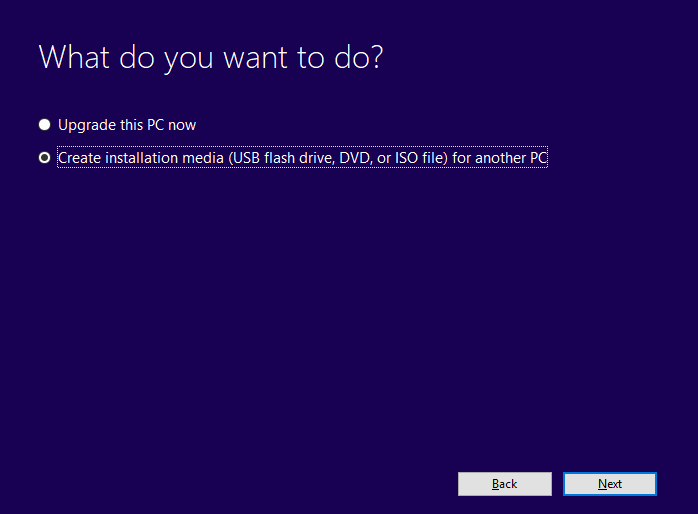
Option 1: Use Microsoft’s Media Creation Tool
This is the easiest route for most users. Microsoft’s tool guides you through the USB creation process and is ideal if you want a simple setup.
Option 2: Use the ISO manually
You can also use the ISO with a bootable USB creation tool. This gives you more control and is useful if you plan to reuse the ISO for multiple systems.
What You Need Before Installing Windows 11
Before you install Windows 11, make sure you have everything ready.
A compatible PC
Your system should meet Windows 11 hardware requirements.
Enough free storage
Make sure the target drive has enough available space for installation and updates.
A backup of important files
Always back up your files before reinstalling or doing a clean install.
A USB drive if needed
If you are planning to install Windows from external media, you will need a USB drive.
A valid license or product key
If your PC does not already have a digital license, you may need a valid Windows 11 product key after installation.
Windows 11 ISO vs Media Creation Tool
Both options are official, but they are not the same.
When the ISO is the better choice
Choose the ISO if you want:
- More control over installation
- A file for virtual machines
- A backup copy for future use
- Manual USB creation
When the Media Creation Tool is better
Choose the Media Creation Tool if you want:
- A guided process
- A quick bootable USB setup
- An easier reinstall on a standard PC
Common Mistakes to Avoid
This section is useful for both SEO and user intent because it answers common concerns directly.
Downloading from unofficial websites
Avoid downloading Windows 11 ISO files from random websites. Even if the page looks trustworthy, unofficial files can be outdated or unsafe.
Confusing the ISO with a license
The ISO is the installation file. It is not the same thing as a product key or activation license.
Skipping the compatibility check
A Windows 11 install can fail if the PC does not meet the system requirements.
Forgetting to back up files
A reinstall can go wrong or overwrite data. Back up important files before starting.
When Should You Download a Windows 11 ISO?
Downloading the ISO makes the most sense in these situations:
You are building a new PC
The ISO is a practical way to prepare installation media for a fresh system.
You want to reinstall Windows 11
It is useful for a clean reinstall or system refresh.
You need a bootable USB
The ISO is commonly used to create recovery or installation media.
You want to install Windows in a virtual machine
Many users prefer the ISO for VM setup because it gives direct access to the installation image.
FAQ
Do I need a product key to download the Windows 11 ISO?
No. You can download the ISO without entering a product key. Activation happens after installation if needed.
Is it safe to download Windows 11 ISO from Microsoft?
Yes. Microsoft is the official and safest source.
Can I use the ISO to create a bootable USB?
Yes. That is one of the main reasons people download it.
Is downloading the ISO the same as buying Windows 11?
No. The ISO is only the installation file. A separate license may still be required for activation.
Can I use the Windows 11 ISO for a clean install?
Yes. It is one of the most common uses for the ISO.
If you want the safest and most reliable method, the best way to download Windows 11 ISO legally is through Microsoft’s official website. It gives you a clean source, reduces risk, and makes installation much easier.
Once the system is installed, the next step for many users is activation. That creates a natural transition to your Windows 11 key product pages without making the article feel too sales-heavy.
After installing Windows 11, you can activate it with a genuine product key from our store.