
Instructions
How to Fix Slow Startup in Windows 11
Apr
A slow startup in Windows 11 can make even a fast PC feel frustrating. In many cases, the problem comes from too many startup apps, low free disk space, background processes, or system issues that build up over time. Microsoft’s Windows guidance notes that startup applications can affect how quickly your device boots and that cleanup and performance optimization can help improve responsiveness.
The good news is that you usually do not need advanced tools to improve boot time. In this guide, you’ll learn how to fix slow startup in Windows 11 with a few practical steps that most users can do in minutes.
Why Windows 11 Starts Slowly
There is not always just one cause.
Too many startup apps
Microsoft explains that apps that launch automatically during startup can affect both startup speed and overall device performance. If too many apps open as soon as Windows loads, boot time often gets worse.
Low disk space and temporary files
Microsoft’s PC performance guidance recommends clearing temporary files and freeing storage space, since limited space can hurt system performance.
System or update-related issues
Sometimes slow startup appears after system changes, driver issues, or updates. Microsoft also provides recovery features such as Startup Repair and Quick Machine Recovery for more serious boot problems, which shows that startup issues can come from deeper system problems too.
Best Ways to Fix Slow Startup in Windows 11
Disable Unnecessary Startup Apps
This is often the first thing to check.
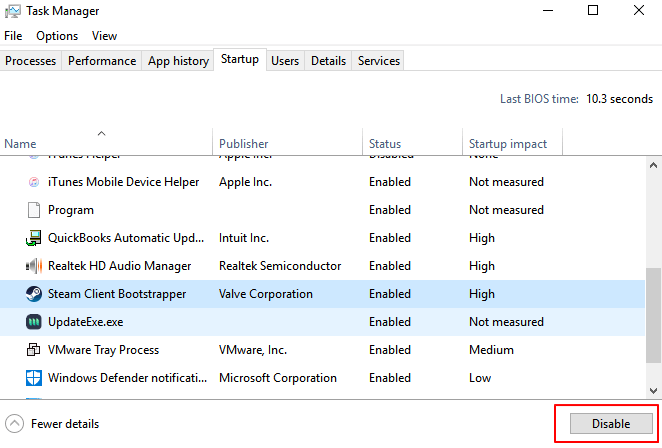
Open Settings > Apps > Startup and turn off apps you do not need when Windows starts. Microsoft says startup apps can impact startup speed, and customizing them can streamline the boot process.
You can also review startup apps in Task Manager if you want a more detailed view.
Free Up Disk Space
If your system drive is nearly full, Windows can feel slower overall, including during startup.
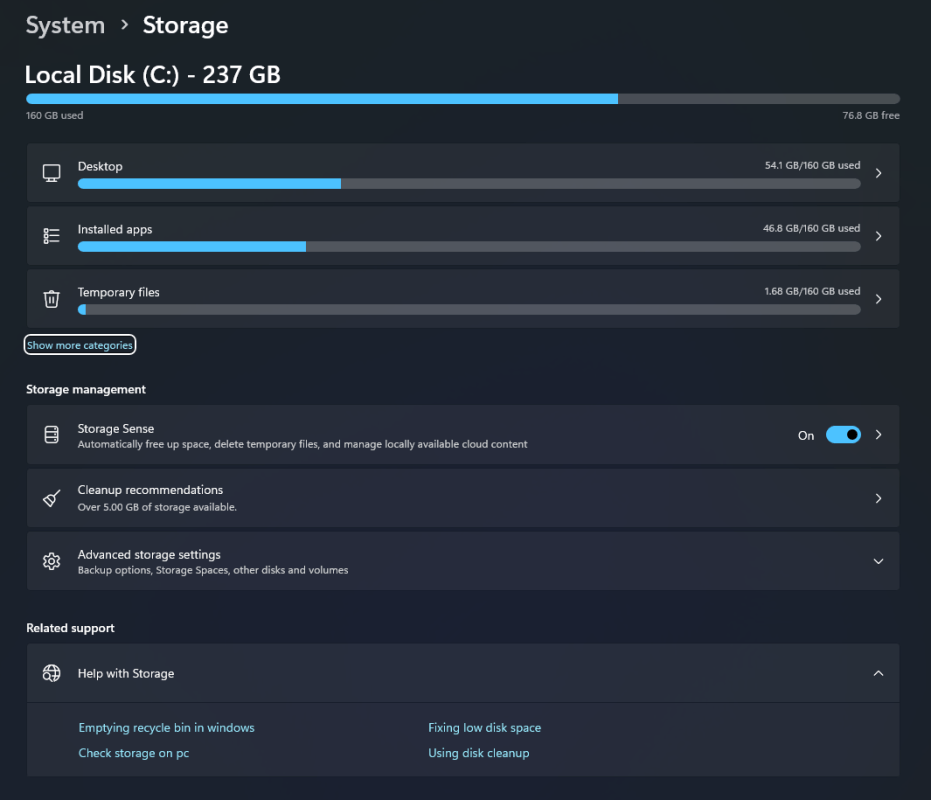
Open Settings > System > Storage, review temporary files, and remove anything you do not need. Microsoft recommends clearing temporary files and using built-in cleanup tools as part of improving PC performance.
Restart Instead of Leaving the PC Running for Too Long
A full restart can clear stuck background processes and improve startup behavior, especially if your PC has been sleeping or hibernating for days.
Microsoft’s general performance advice includes restarting the device as a simple step when performance feels sluggish.
Check for Problem Apps
If slow startup began after installing a certain app, that app may be loading background services or startup tasks you do not need.
A simple way to test this is to disable non-essential startup apps first and then restart the PC to see if boot time improves. Microsoft’s startup app guidance supports reviewing and customizing what runs at startup.
Keep Windows Updated
Some startup issues are caused by bugs, compatibility problems, or driver-related problems that updates may improve.
Open Settings > Windows Update and install available updates. Microsoft’s support ecosystem consistently points users toward keeping Windows updated when troubleshooting performance and startup issues.
Run Built-In Repair Tools if Startup Is Still Very Slow
If basic cleanup does not help, the issue may be deeper than normal startup clutter.
Microsoft provides recovery and repair options for Windows boot issues, including Startup Repair through the recovery environment and Quick Machine Recovery for certain broader startup failures.
This is usually more relevant if the PC is not just slow, but also freezing, failing to boot properly, or getting stuck.
FAQ
What causes slow startup in Windows 11?
Common causes include too many startup apps, low free space, temporary files, and deeper system issues. Microsoft specifically notes that startup apps can affect boot speed and that cleanup can improve PC performance.
How do I make Windows 11 start faster?
Start by disabling unnecessary startup apps, freeing storage space, and restarting the PC. Microsoft recommends all of these as part of improving Windows performance.
Where do I disable startup apps in Windows 11?
You can go to Settings > Apps > Startup. Microsoft’s support article on startup applications covers this startup management flow.
Can low disk space slow down startup?
Yes. Microsoft’s PC performance guidance includes freeing storage and removing temporary files as ways to improve Windows performance.
What if Windows 11 is still very slow after startup?
That may point to a larger system issue, such as damaged files, update problems, or boot-related problems. Microsoft provides recovery tools like Startup Repair and Quick Machine Recovery for more serious cases.
Get your Windows 11 key at an unbeatable price and experience the latest features with a secure, genuine activation.