
Instructions
Windows 11 Activation Troubleshooter: When to Use It
Aug
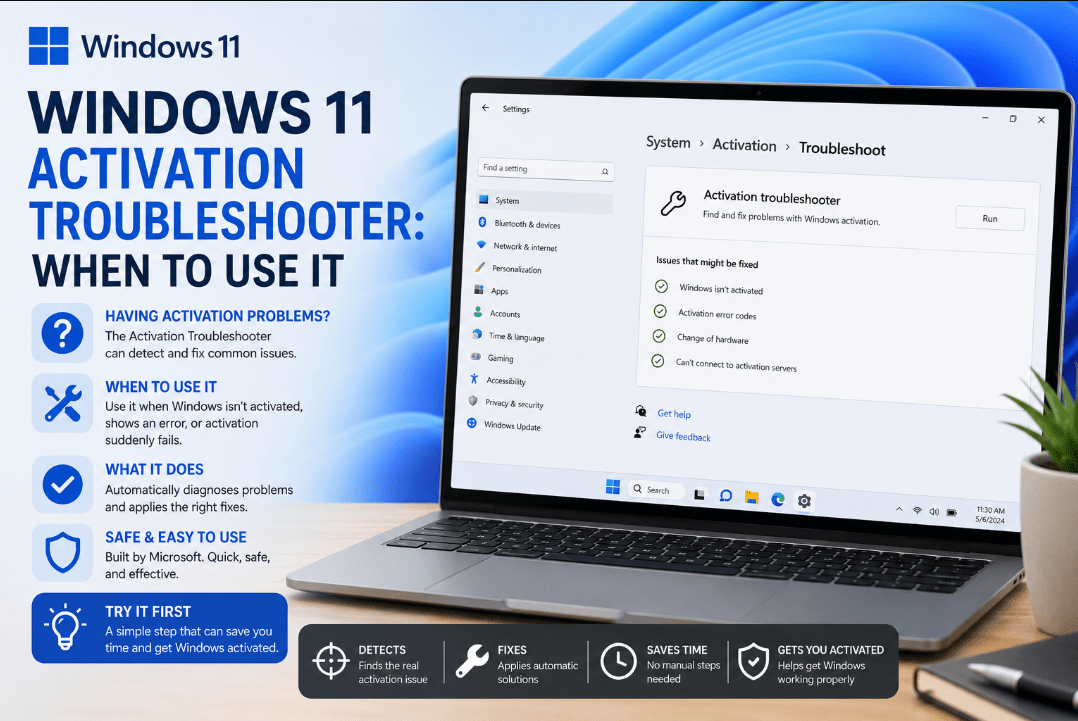
Having trouble activating Windows 11? The built-in Windows 11 Activation Troubleshooter can identify and sometimes automatically fix common activation problems.
It is especially useful if Windows was previously activated but suddenly shows that activation is required.
Where Is the Windows 11 Activation Troubleshooter?
To open it:
- Open Start.
- Select Settings.
- Go to System.
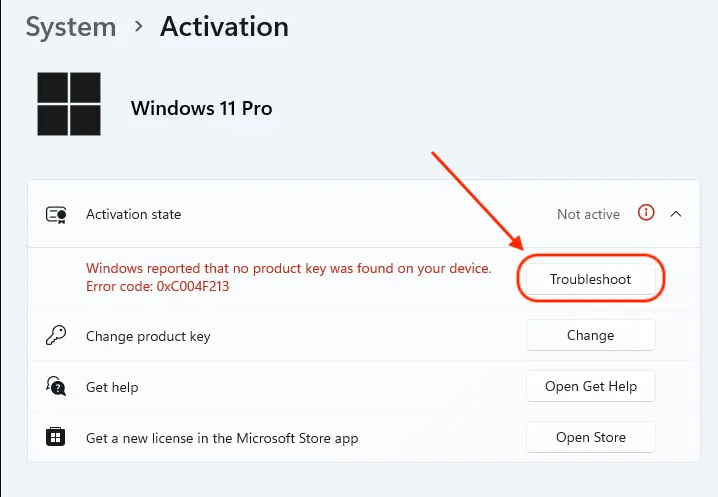
- Select Activation.
- Click Troubleshoot.
You need to be signed in with an administrator account and connected to the internet.
One important detail: the Troubleshoot option only appears when Windows is currently not activated.
When Should You Use the Activation Troubleshooter?
The troubleshooter is worth trying when:
- Windows was previously activated but now shows as not activated
- You recently changed important PC hardware
- Windows cannot detect your digital licence
- You upgraded or reinstalled Windows
- You see an activation error after changing Windows settings
- Your Microsoft account is linked to an existing digital licence
It can automatically check your system and recommend the appropriate next step.
After Changing PC Hardware
One of the most useful situations for the Windows 11 Activation Troubleshooter is after a major hardware change.
For example, replacing the motherboard can cause Windows to stop recognising the device associated with your digital licence.
If your digital licence was linked to your Microsoft account, open the troubleshooter and select:
I changed hardware on this device recently
You can then sign in to your Microsoft account, select the appropriate device and attempt to reactivate Windows.
Can It Fix a Windows Edition Mismatch?
Sometimes the activation problem is caused by having the wrong Windows edition installed.
For example, you may have a licence for Windows 11 Pro while Windows 11 Home is installed.
Microsoft’s Activation Troubleshooter can identify certain edition-related situations and may offer an upgrade option when an appropriate digital licence is detected.
However, a product key must generally match the Windows edition you are trying to activate.
For example:
Windows 11 Home key → Windows 11 Home
Windows 11 Pro key → Windows 11 Pro
If your installed edition and product key do not match, you may need to change or upgrade the Windows edition before activation can succeed.
What If the Troubleshooter Doesn’t Fix the Problem?
If Windows still cannot activate, return to:
Settings → System → Activation
Look for an activation error message or error code.
The error code can help identify whether the problem involves:
- The installed Windows edition
- Your product key
- Your digital licence
- A recent hardware change
- Microsoft’s activation servers
If you have a valid product key, you can also select Change product key on the Activation page and enter your 25-character key.
What to try first
The Windows 11 Activation Troubleshooter should be one of your first steps when Windows unexpectedly becomes unactivated.
If it cannot resolve the issue, check the activation error code and confirm that your product key matches the Windows edition installed on your PC.
Need a Windows 11 product key? Explore our Windows 11 keys and choose the correct edition for your PC today.