
Instructions
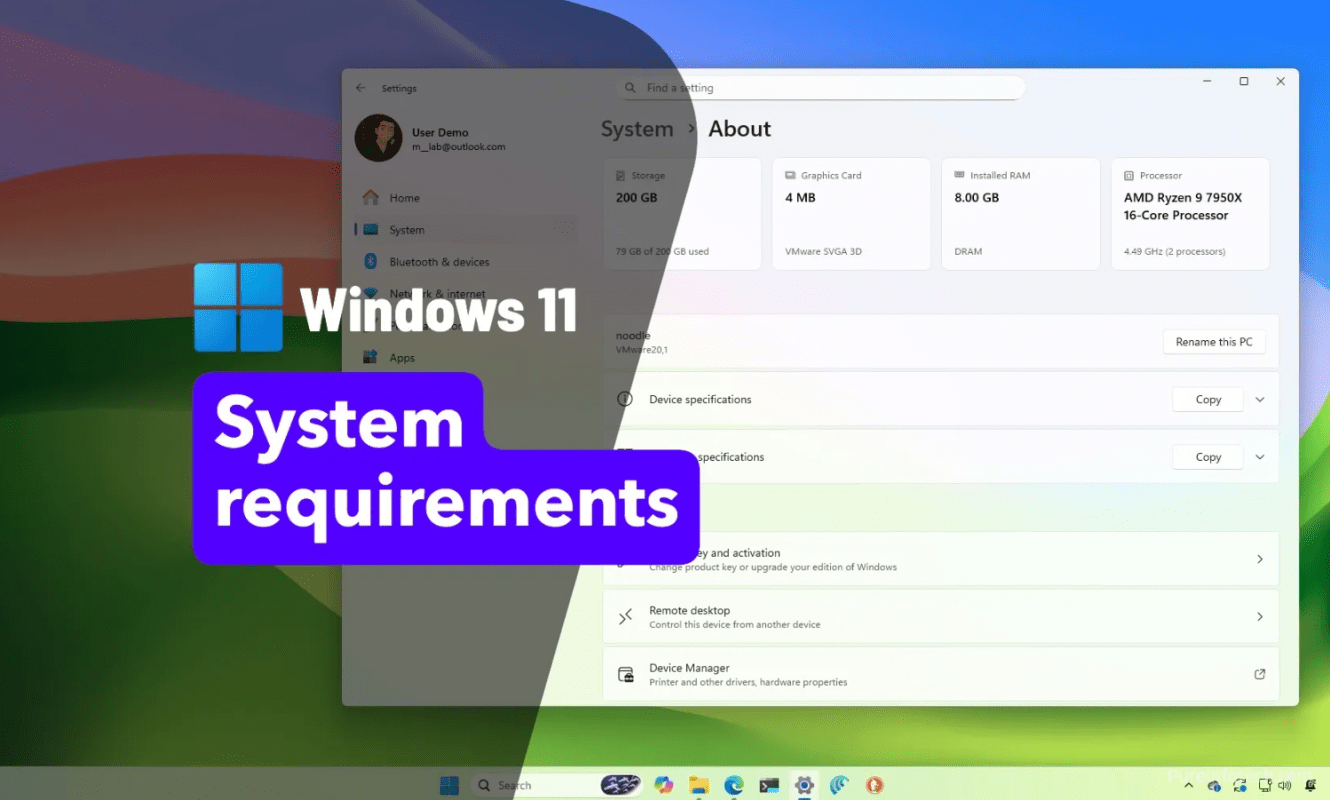
Windows 11 System Requirements Explained (2026 Update)
Jan
- Official Windows 11 Minimum System Requirements (2026)
- Why Are Windows 11 Requirements So Strict?
- Processor Compatibility Explained
- What Is TPM 2.0 and Why Does It Matter?
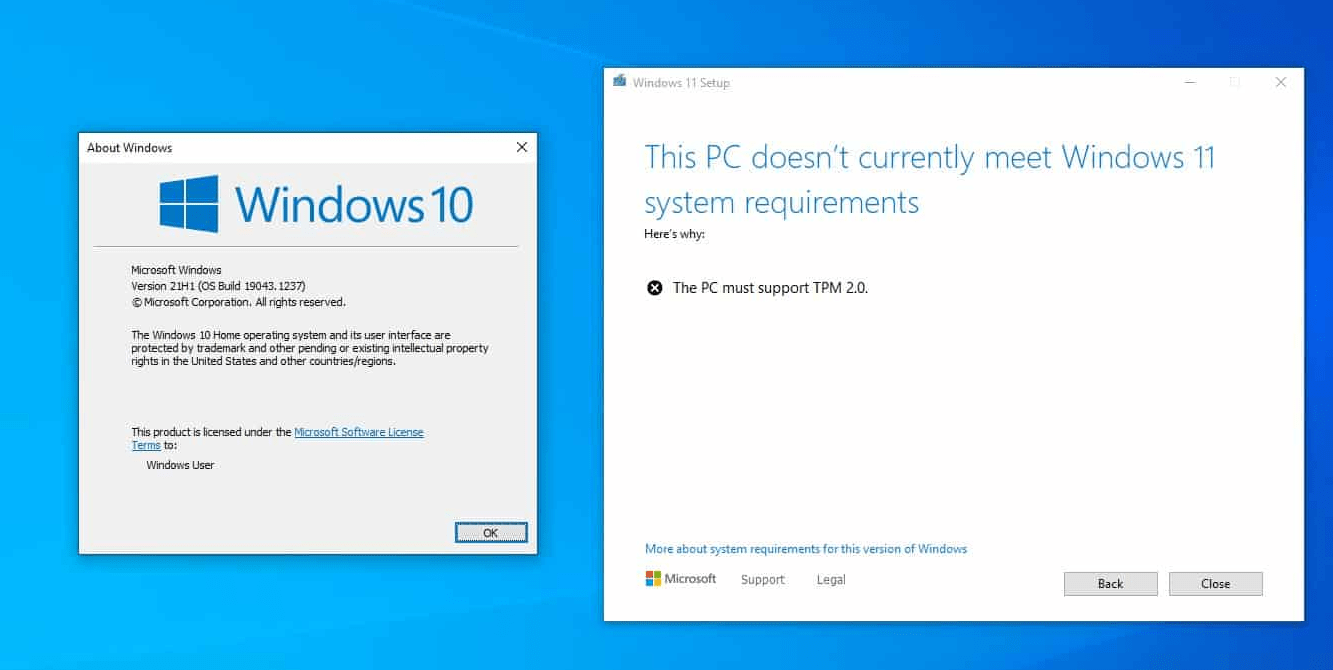
- How to Check If Your PC Supports Windows 11
- Can You Install Windows 11 on Unsupported Hardware?
- Should You Upgrade or Stay on Windows 10?
- Common Windows 11 Compatibility Questions
- Is Windows 11 free in 2026?
- Will Microsoft lower system requirements?
- Is it worth upgrading hardware just for Windows 11?
- Final Thoughts on Windows 11 System Requirements
Before upgrading to Windows 11, one of the most important things to check is whether your PC meets the system requirements. In 2026, many users are still confused about compatibility, hardware limitations, and whether their current device is supported.
This guide explains Windows 11 system requirements in 2026, what they really mean, how to check your PC, and what your options are if your hardware doesn’t qualify.
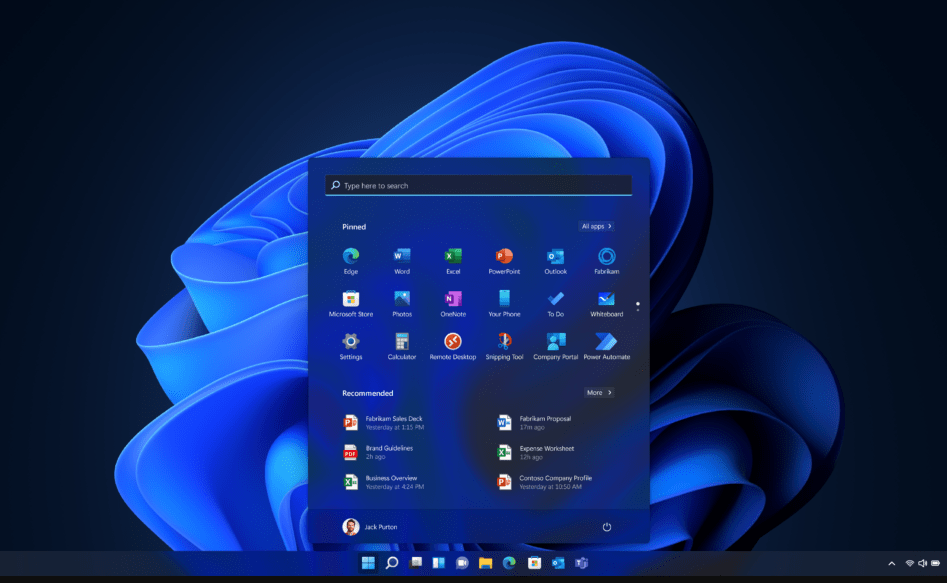
Official Windows 11 Minimum System Requirements (2026)
Microsoft has not significantly changed the core requirements since Windows 11’s release, but enforcement and checks are stricter and more consistent in 2026.
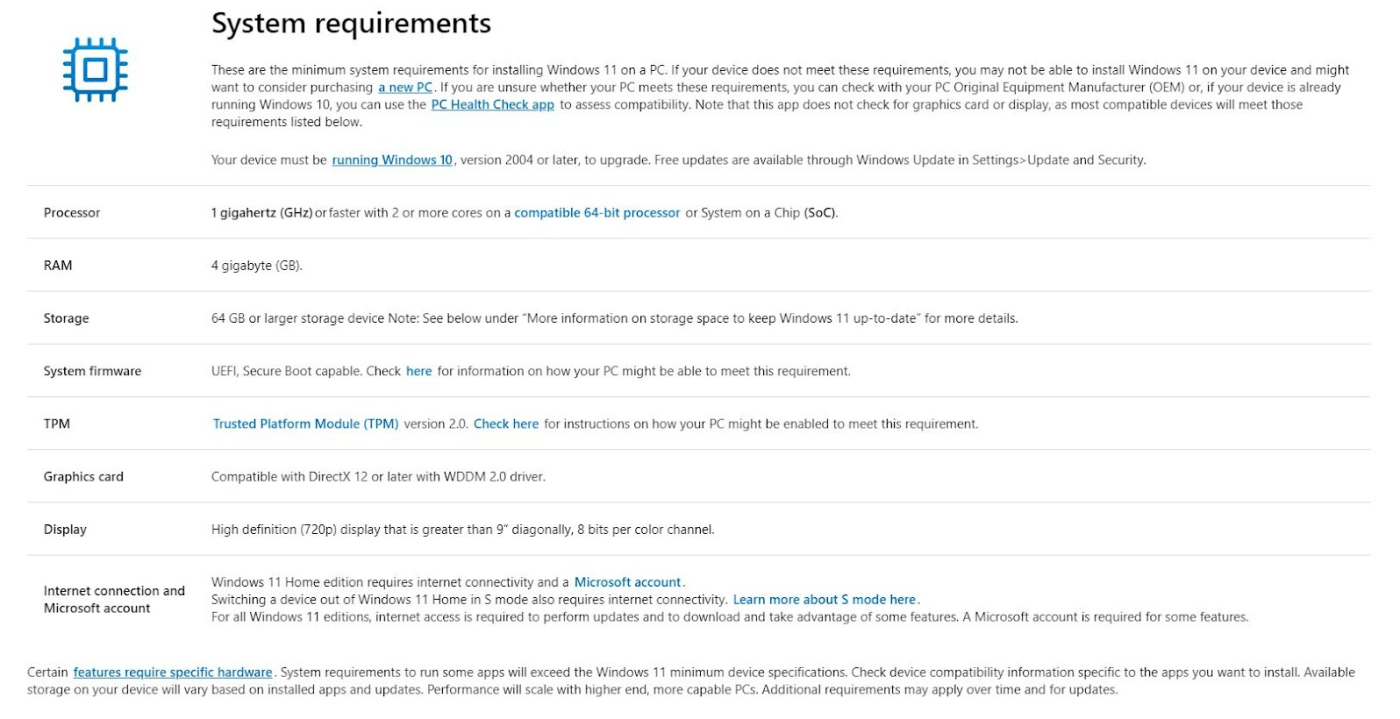
Minimum Requirements:
- Processor: 1 GHz or faster, 2 or more cores, 64-bit compatible CPU
- RAM: 4 GB minimum
- Storage: 64 GB or more
- Firmware: UEFI with Secure Boot capability
- TPM: Trusted Platform Module (TPM) version 2.0
- Graphics: DirectX 12 compatible GPU with WDDM 2.0 driver
- Display: 9” or larger, 720p resolution
- Internet: Required for updates and some features
Meeting these requirements is mandatory for a fully supported Windows 11 installation.
Why Are Windows 11 Requirements So Strict?
Windows 11 focuses heavily on security, stability, and modern hardware. Features like Secure Boot and TPM 2.0 allow Microsoft to:
- Protect against ransomware and firmware attacks
- Improve system integrity
- Enable advanced security features by default
While this improves safety, it also excludes many older but still capable PCs.
Processor Compatibility Explained
One of the most common issues users face is CPU compatibility.
Supported Processors:
- Intel 8th Gen and newer
- AMD Ryzen 2000 series and newer
- Newer ARM-based processors
Even if your CPU is powerful, it may not be officially supported if it’s from an older generation.
What Is TPM 2.0 and Why Does It Matter?
TPM 2.0 is a hardware-based security feature that stores encryption keys and protects sensitive data.
Why Windows 11 Requires TPM 2.0:
- Protects credentials and encryption keys
- Enables features like BitLocker and Windows Hello
- Improves resistance to malware and rootkits
Many PCs already have TPM 2.0 built in but disabled in the BIOS.
How to Check If Your PC Supports Windows 11
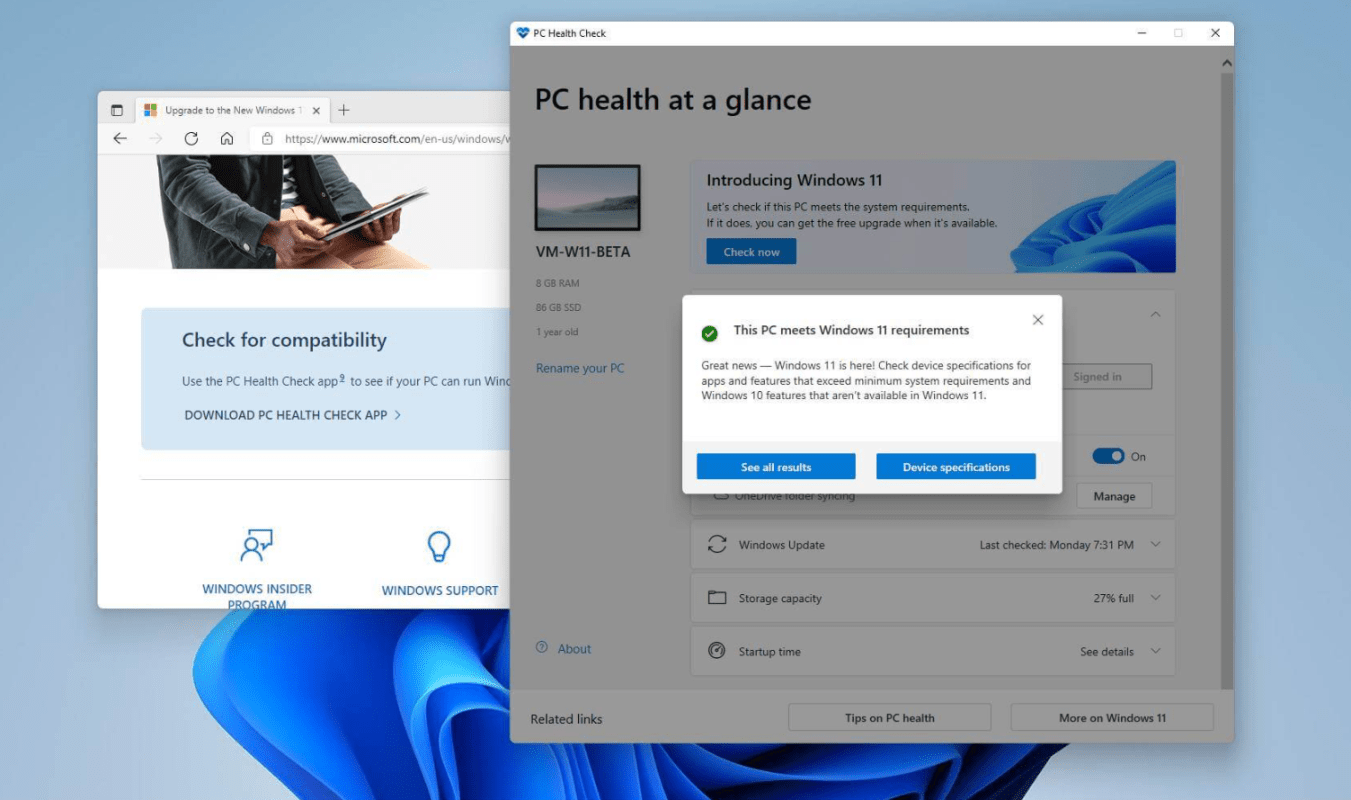
Option 1: PC Health Check Tool
Microsoft’s official PC Health Check tool quickly tells you if your device is compatible.
Option 2: Manual Check
You can manually verify:
- CPU model
- TPM version (via
tpm.msc) - Secure Boot status
- RAM and storage
This is useful if you want to understand exactly what is blocking compatibility.
Can You Install Windows 11 on Unsupported Hardware?
Technically, yes – but with important limitations.
What You Should Know:
- Unsupported installs may not receive updates
- Stability and security are not guaranteed
- Microsoft does not officially recommend this approach
For most users, installing Windows 11 on unsupported hardware is not advised in 2026.
Should You Upgrade or Stay on Windows 10?
Upgrade to Windows 11 If:
- Your PC meets the requirements
- You want better security and long-term support
- You plan to keep your system for several years
Stay on Windows 10 If:
- Your hardware is unsupported
- Your system is stable and meets your needs
- You rely on legacy software or devices
Windows 10 remains usable, but Windows 11 is the future-focused option.
Common Windows 11 Compatibility Questions
Is Windows 11 free in 2026?
Yes, Windows 11 is still free for eligible Windows 10 users with supported hardware.
Will Microsoft lower system requirements?
As of 2026, there is no indication that Microsoft plans to relax Windows 11 requirements.
Is it worth upgrading hardware just for Windows 11?
If your current PC is aging, upgrading hardware can be a good long-term investment, especially for security and performance.
Final Thoughts on Windows 11 System Requirements
Windows 11 system requirements may seem restrictive, but they exist for a reason: better security, reliability, and future-proofing. If your PC meets the requirements, upgrading in 2026 is a smart move. If not, it may be worth considering new hardware rather than unsupported workarounds.
If you decide to upgrade or reinstall, make sure your system is properly activated – you can find reliable Windows 11 keys here.