
Instructions
How to Speed Up Windows 11 for Better Performance
Feb
- Make Sure Windows 11 Is Fully Updated
- Disable Unnecessary Startup Programs
- Change Power Mode to Best Performance
- Turn Off Visual Effects and Animations
- Free Up Storage Space
- Optimize Background Apps
- Check for Malware and Security Issues
- Optimize Startup Drive (SSD or HDD)
- Reduce Background Services (Advanced Users)
- Keep Drivers Up to Date
- When Hardware Upgrades Make Sense
If your PC feels slow or less responsive, the good news is that you don’t need new hardware to fix it. In most cases, a few smart adjustments can significantly improve speed and overall responsiveness. This is especially true after a fresh setup, where reviewing the best Windows 11 settings to change after installation can make an immediate difference before applying performance-specific tweaks.
In this guide, we’ll show you how to speed up Windows 11, using simple and effective methods that work on desktops, laptops, and gaming PCs alike.
Make Sure Windows 11 Is Fully Updated
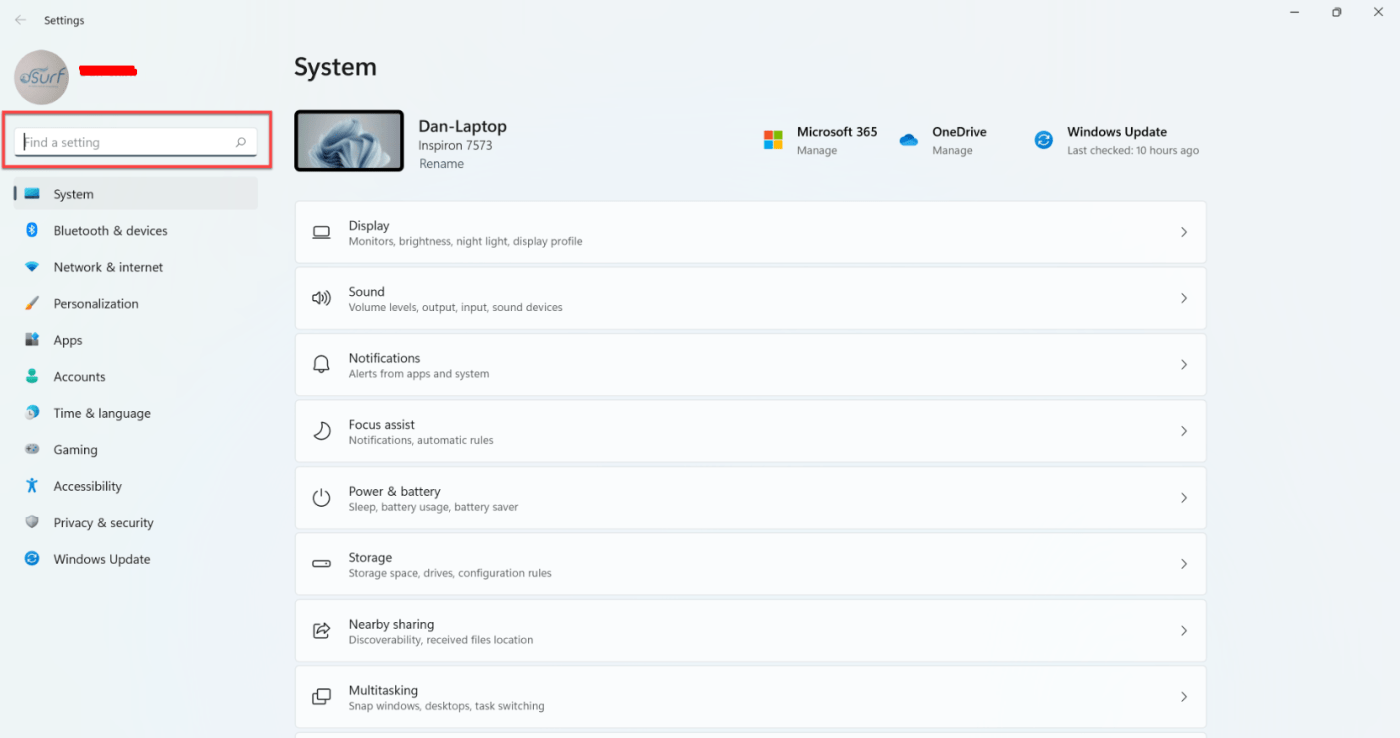
Before changing any settings, check for updates.
Go to Settings > Windows Update and install all available updates. Microsoft regularly releases performance fixes, driver improvements, and security patches that can noticeably improve system speed.
Restart your PC once updates are complete.
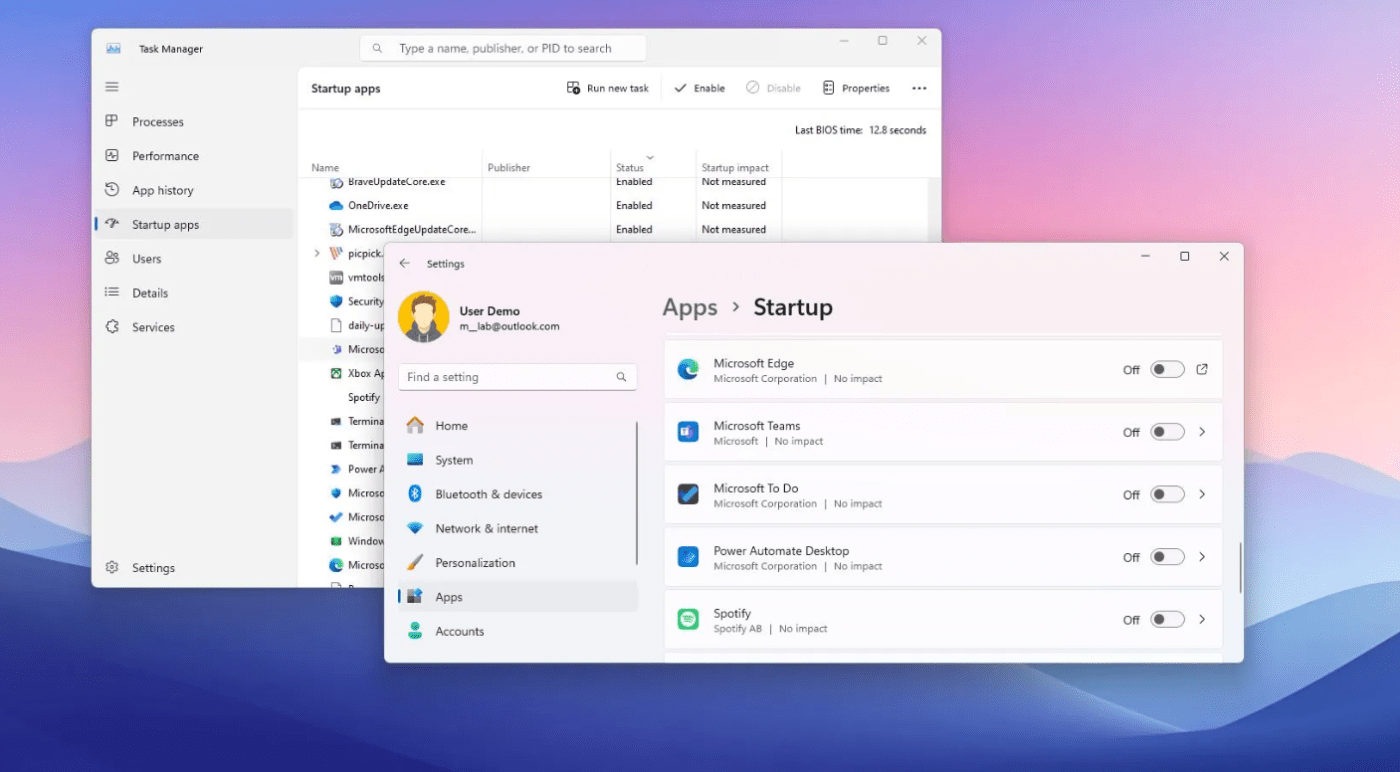
Disable Unnecessary Startup Programs
Too many startup apps slow down boot time and waste system resources.
How to disable them:
- Press Ctrl + Shift + Esc to open Task Manager
- Go to Startup apps
- Disable apps you don’t need immediately at startup
This alone can make Windows 11 feel much faster.
Change Power Mode to Best Performance
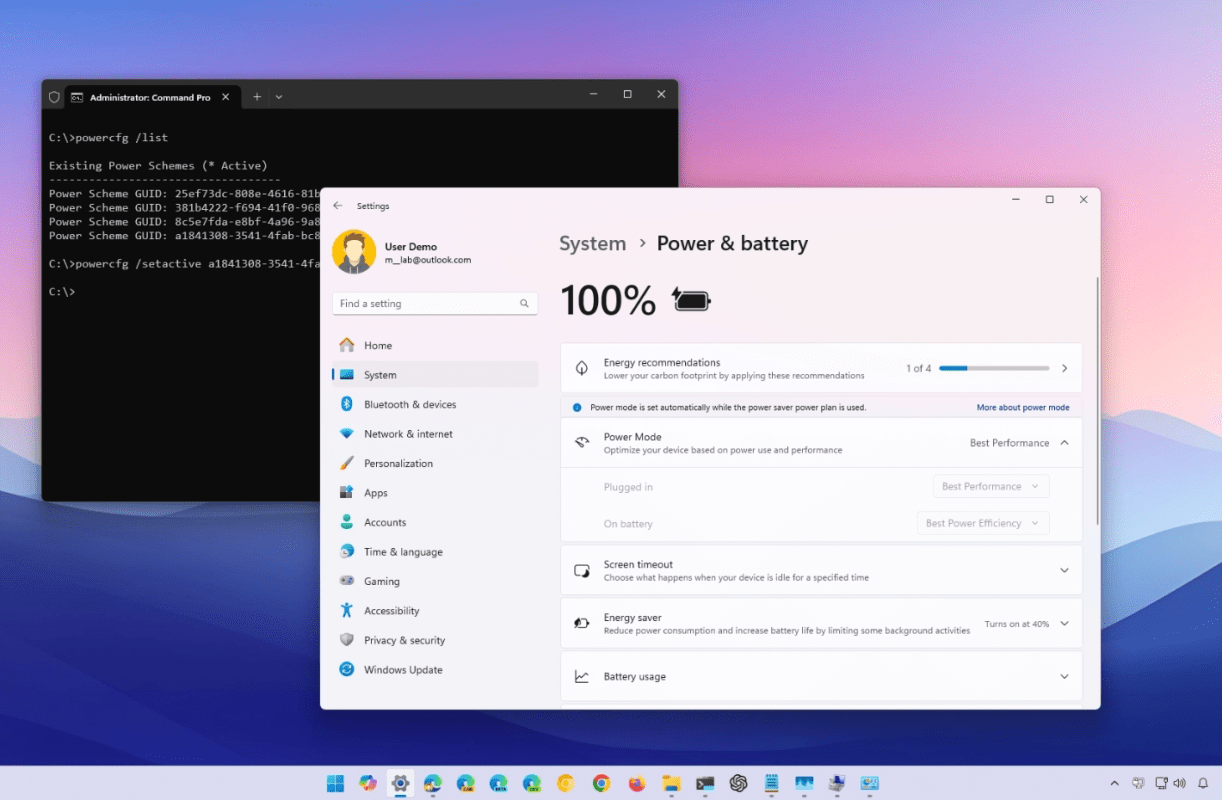
Power mode has a direct impact on speed.
Steps:
- Go to Settings > System > Power & battery
- Set Power mode to Best performance
Laptop users can switch back to Balanced mode when on battery.
Turn Off Visual Effects and Animations
Visual effects look nice but can slow down some systems.
What to do:
- Go to Settings > Accessibility > Visual effects
- Disable Transparency effects
- Turn off Animation effects if performance is a priority
This improves responsiveness, especially on older PCs.
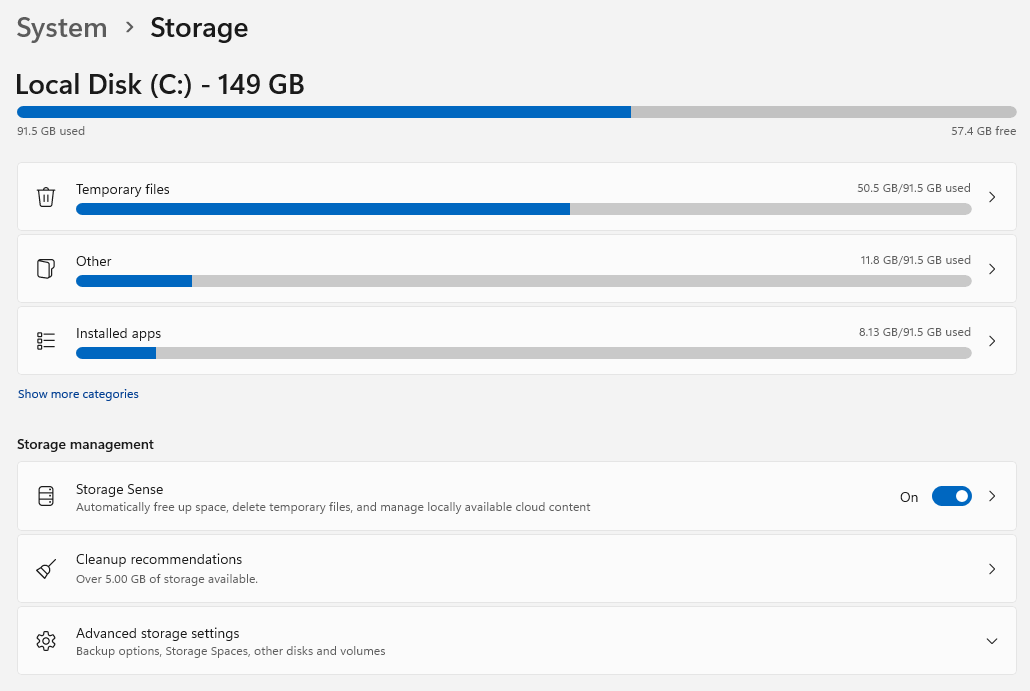
Free Up Storage Space
Low disk space can seriously affect performance.
Recommended actions:
- Open Settings > System > Storage
- Enable Storage Sense
- Remove temporary files
- Uninstall apps you no longer use
Try to keep at least 15–20% of your drive free.
Optimize Background Apps
Some apps continue running in the background unnecessarily.
How:
- Go to Settings > Apps > Installed apps
- Click an app > Advanced options
- Set Background app permissions to Never for non-essential apps
This reduces CPU and RAM usage.
Check for Malware and Security Issues
Malware can slow down Windows dramatically.
Steps:
- Open Windows Security
- Run a full virus and threat scan
- Make sure real-time protection is enabled
Windows 11’s built-in security is more than enough for most users.
Optimize Startup Drive (SSD or HDD)
For SSD users:
Windows 11 automatically optimizes SSDs – no action usually needed.
For HDD users:
- Search for Defragment and Optimize Drives
- Run optimization on your hard drive
This helps improve file access speeds.
Reduce Background Services (Advanced Users)
Some services aren’t necessary for all users.
If you’re comfortable with advanced settings:
- Disable unused third-party services
- Avoid disabling Microsoft system services unless you know exactly what they do
Proceed carefully – this step is optional.
Keep Drivers Up to Date
Outdated drivers can reduce performance.
Check:
- Windows Update (recommended)
- GPU drivers (especially for gaming)
Updated drivers improve stability, performance, and compatibility.
When Hardware Upgrades Make Sense
If you’ve optimized everything and performance is still poor:
- Adding more RAM
- Switching from HDD to SSD
These upgrades offer the biggest real-world performance boost.
If you’re reinstalling or upgrading Windows 11 as part of a performance reset, make sure your system is properly activated so all features work without restrictions – you can find reliable Windows 11 keys here.