
Instructions
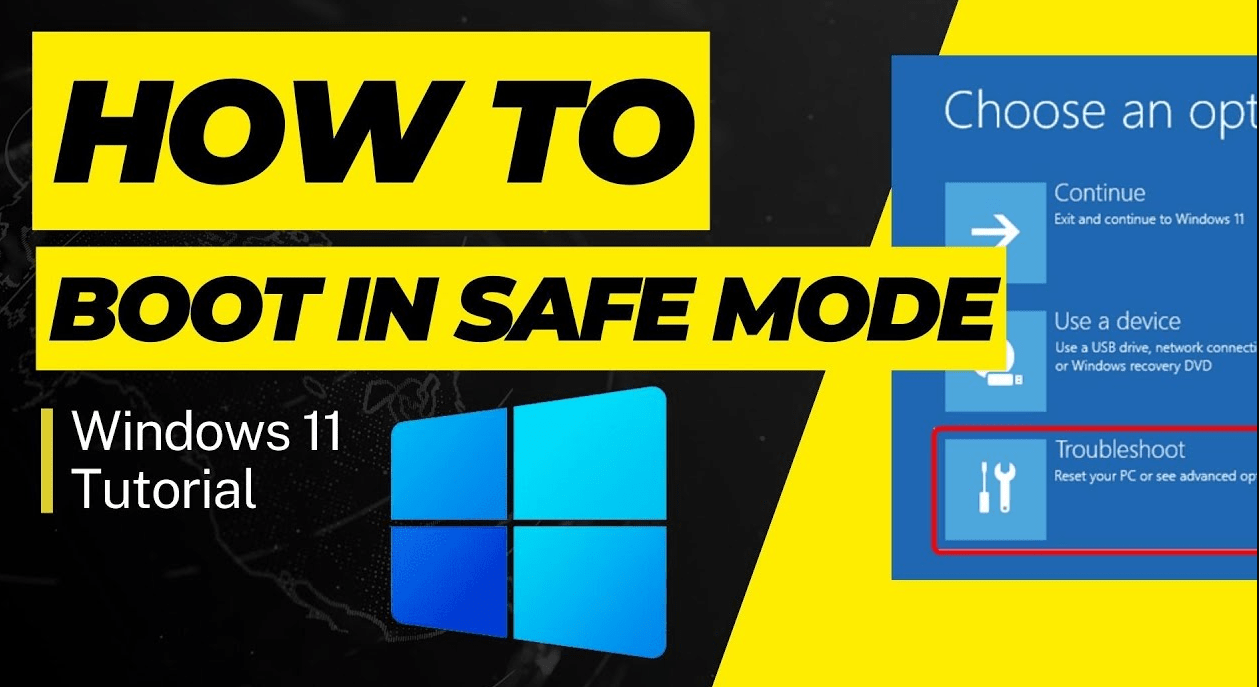
How to Start Windows 11 in Safe Mode (Step-by-Step Guide)
Mar
Windows 11 in Safe Mode is a special diagnostic mode in Windows that starts the system with minimal drivers and services. It helps troubleshoot issues such as driver conflicts, malware infections, or software crashes.
In this guide, you’ll learn how to start Windows 11 in Safe Mode using several different methods, depending on whether your system is working normally or not.
What Is Safe Mode in Windows 11?
Safe Mode loads Windows with only essential components.
This means:
- Unnecessary drivers are disabled
- Startup programs do not run
- Only basic system services start
Because of this, Safe Mode is very useful when diagnosing system problems.
If you are troubleshooting major issues, you may also want to review common Windows 11 problems and fixes.
Method 1: Start Safe Mode Using Settings
If Windows is working normally, this is the easiest method.
Steps
- Open Settings
- Click System
- Select Recovery
- Under Advanced startup, click Restart now
- Select Troubleshoot
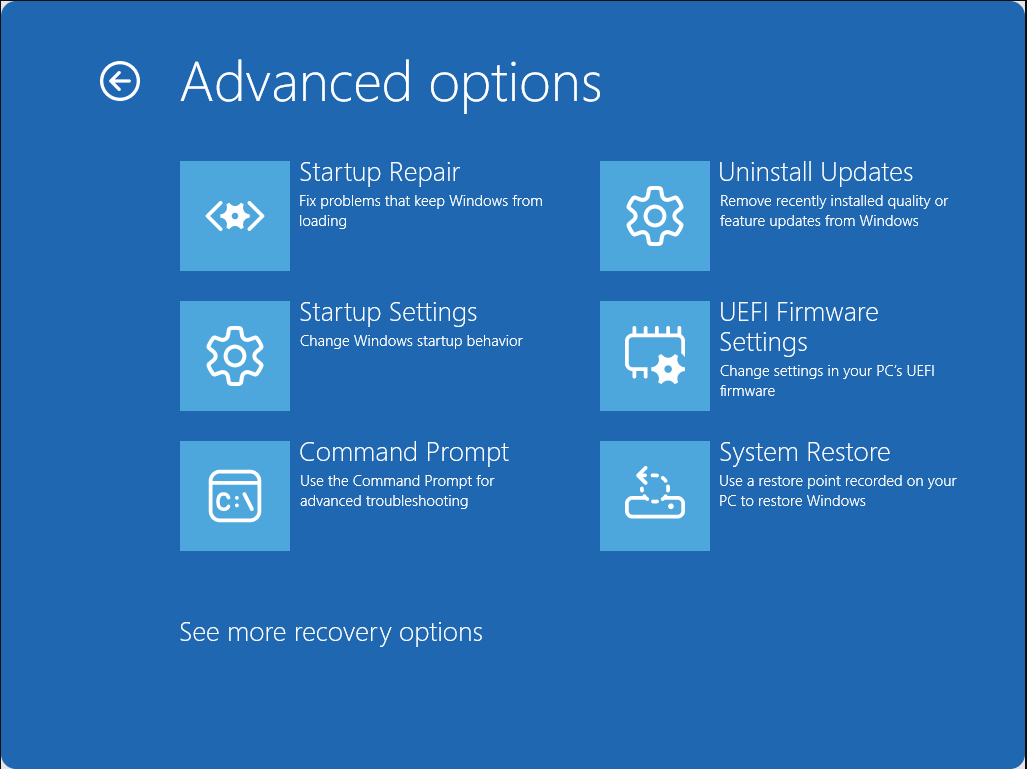
- Click Advanced options
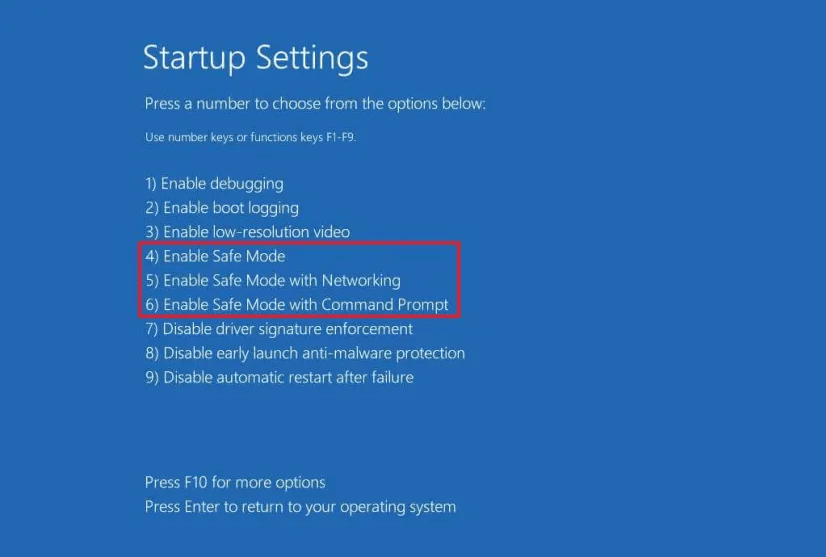
- Select Startup Settings
- Click Restart
After restarting, press:
- 4 > Safe Mode
- 5 > Safe Mode with Networking
- 6 > Safe Mode with Command Prompt
Method 2: Start Safe Mode Using Shift + Restart
This is another quick method.
Steps
- Open the Start menu
- Click the Power button
- Hold Shift
- Click Restart
Your computer will open the recovery environment.
From there follow:
Troubleshoot > Advanced Options > Startup Settings
Method 3: Start Safe Mode When Windows Won’t Boot
If your system cannot start normally, Safe Mode can still be accessed.
Steps
- Turn on your PC
- When Windows begins loading, force shut down the PC
- Repeat this 3 times
Windows will automatically open Recovery Mode.
Then choose:
Troubleshoot > Advanced options > Startup Settings
Types of Safe Mode
Windows 11 offers three Safe Mode options.
Safe Mode
Loads minimal drivers and services.
Safe Mode with Networking
Adds internet access for downloading drivers or updates.
Safe Mode with Command Prompt
Opens a command-line interface for advanced troubleshooting.
When Should You Use Safe Mode?
Safe Mode is useful when:
- Windows keeps crashing
- Drivers cause problems
- Malware prevents normal startup
- System updates break functionality
In serious cases, Safe Mode can help you prepare for a factory reset of Windows 11 to restore the system completely.
When Should You Use Safe Mode?
Safe Mode is useful when:
- Windows keeps crashing
- Drivers cause problems
- Malware prevents normal startup
- System updates break functionality
In serious cases, Safe Mode can help you prepare for a factory reset of Windows 11 to restore the system completely.
How to Exit Safe Mode
To leave Safe Mode:
- Restart your computer normally
- Windows will boot back into standard mode
If the system continues booting into Safe Mode, check system configuration settings.