
Instructions
Windows 11 Disk Usage 100% – Causes and Fixes
Mar
If your PC feels extremely slow, apps take forever to open, or your system freezes, you might be facing the 100% disk usage issue in Windows 11.
This happens when your drive (especially HDD) is fully utilized, causing major performance problems.
How to Check Disk Usage
Before fixing the issue:
Steps
- Press Ctrl + Shift + Esc
- Open Task Manager
- Go to Processes tab
- Check the Disk column
If it’s constantly at 100%, you need to fix it.
Fix 1: Restart Your PC
A simple restart can temporarily reduce disk usage.
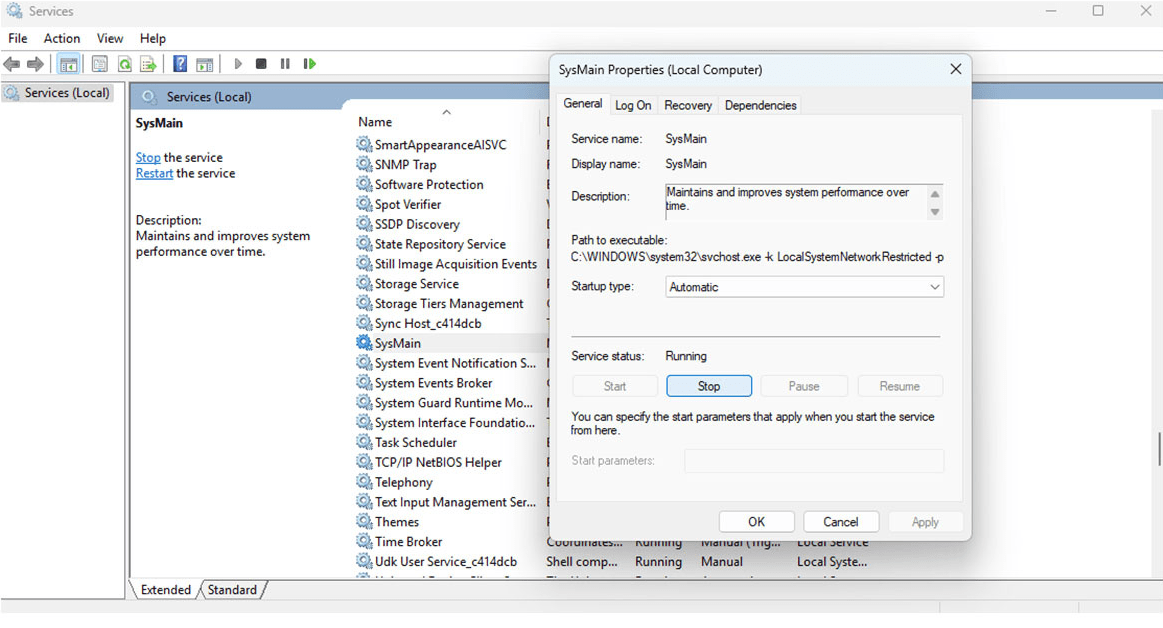
Fix 2: Disable SysMain (Superfetch)
SysMain is a common cause of high disk usage.
Steps
- Press Windows + R → type: services.msc
- Find SysMain
- Right-click → Stop
- Set Startup type to Disabled
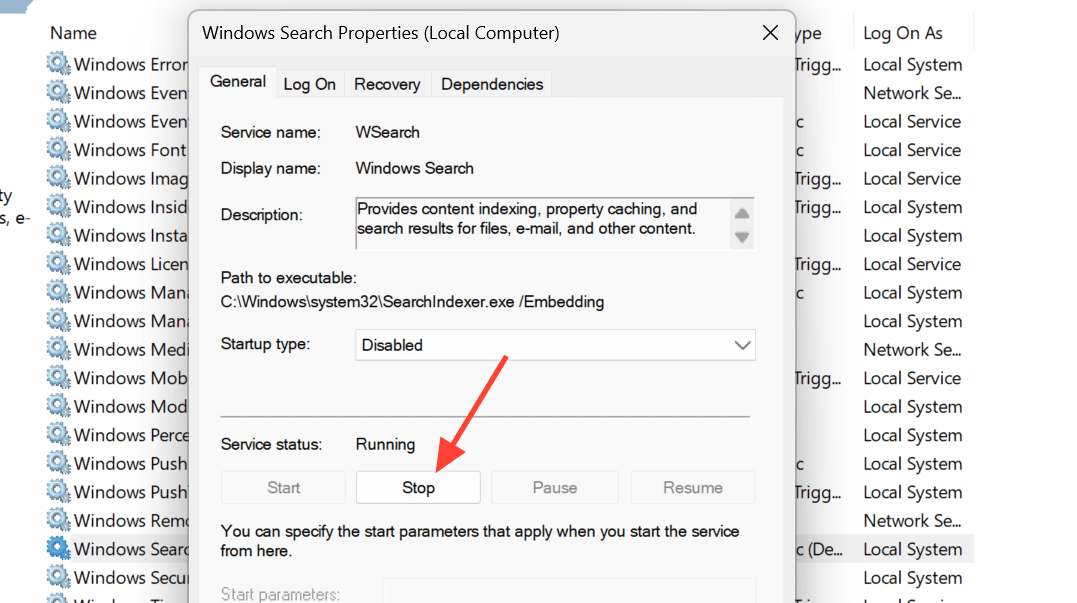
Fix 3: Disable Windows Search
Search indexing can overload your disk.
Steps
- Press Windows + R → services.msc
- Find Windows Search
- Stop the service
- Set Startup type to Disabled
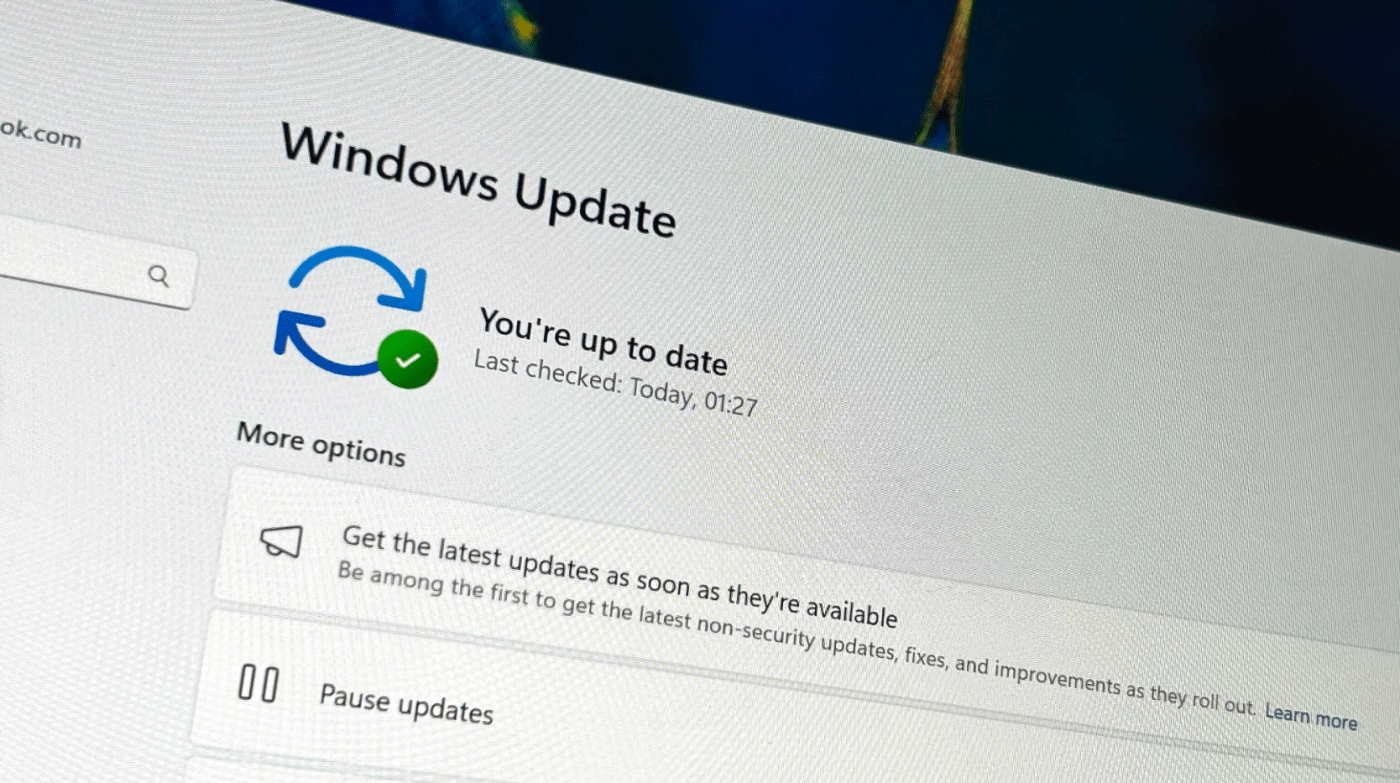
Fix 4: Update Windows
Updates can fix system bugs causing high disk usage.
Steps
- Go to Settings → Windows Update
- Click Check for updates
- Install updates
Fix 5: Check for Malware
Malware may constantly use disk resources.
Steps
- Open Windows Security
- Run a Full Scan
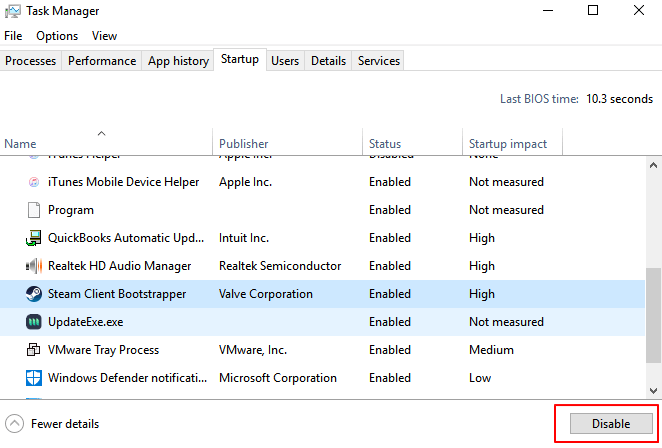
Fix 6: Disable Startup Programs
Steps
- Open Task Manager → Startup tab
- Disable unnecessary apps
Fix 7: Update Drivers
Outdated drivers can cause disk issues.
Steps
- Open Device Manager
- Update:
- Storage drivers
- Chipset drivers
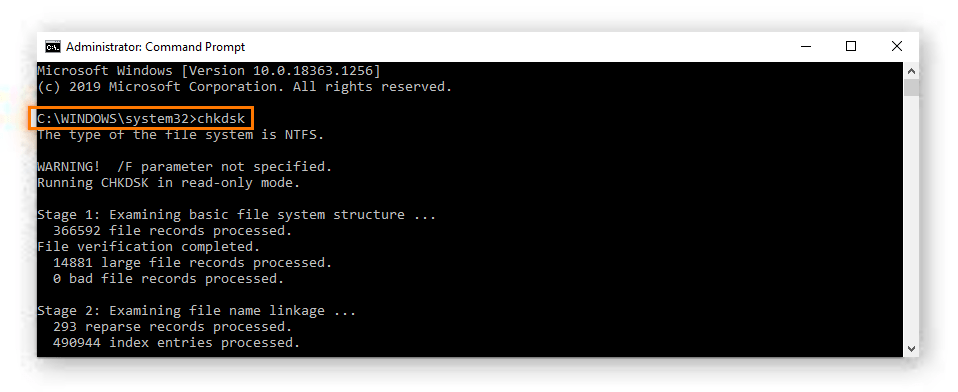
Fix 8: Check Disk for Errors
Steps
- Open Command Prompt as admin
- Run:
chkdsk /f /r
- Restart PC
Fix 9: Disable Background Apps
Steps
- Go to Settings → Apps → Installed apps
- Disable background activity
Fix 10: Upgrade to SSD (Best Solution)
If you’re using an HDD, upgrading to an SSD is the best long-term fix.
👉 SSDs are significantly faster and eliminate most disk usage issues.
Common Causes of 100% Disk Usage
- SysMain service
- Windows Search indexing
- Malware
- Outdated drivers
- HDD limitations
The Windows 11 disk usage 100% issue can be fixed by disabling unnecessary services, updating your system, and optimizing background processes.
For the best performance, upgrading to an SSD is highly recommended.
If you’re setting up your system after upgrading, don’t forget to activate Windows using a genuine Windows 11 Pro product key from our store.