
Instructions
How to Use Virtual Desktops in Windows 11
Apr
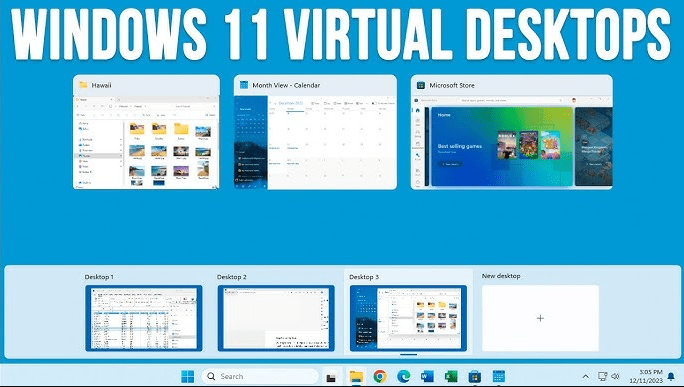
Virtual desktops in Windows 11 are a simple way to organize your workspace. Instead of keeping every app and window on one crowded desktop, you can create separate desktops for different tasks like work, browsing, meetings, or personal use. Microsoft’s Windows support explains that multiple desktops help users create separate workspaces, reduce clutter, and switch between tasks more easily.
This feature is especially useful if you multitask a lot or want a cleaner setup without constantly minimizing and reopening apps. In this guide, you’ll learn how to use virtual desktops in Windows 11, how to switch between them, move apps around, and customize them for better productivity.
What Are Virtual Desktops in Windows 11?
Virtual desktops are separate desktop spaces on the same PC. Each one can hold its own set of open apps and windows, which helps you split your tasks into different work areas. Microsoft describes multiple desktops as a way to compartmentalize work, reduce distractions, and stay organized.
For example, you might use:
- one desktop for work apps
- one desktop for meetings
- one desktop for personal browsing
- one desktop for writing or research
How to Open Virtual Desktops
Windows 11 gives you a built-in way to access them through Task View.
Open Task View
You can open Task View by clicking the Task View button on the taskbar or by pressing Windows key + Tab. Microsoft lists both of these as the main ways to open Task View.
Create a new desktop
Once Task View opens, select New desktop to create another virtual desktop. Microsoft’s support article shows this as the standard way to add more desktops in Windows.
How to Switch Between Virtual Desktops
After creating multiple desktops, switching between them is easy.
Use Task View
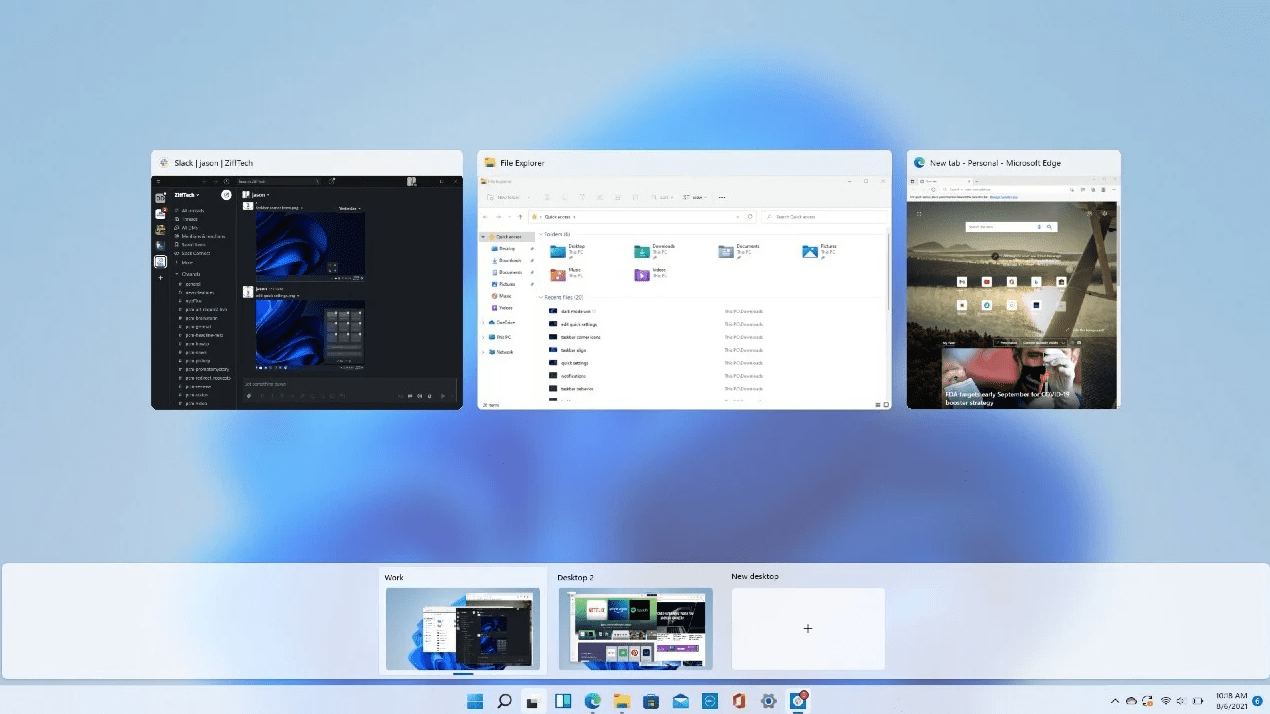
Open Task View and click the desktop you want to use. This gives you a full overview of all open windows and desktops.
Use keyboard shortcuts
A faster method is to use keyboard shortcuts:
- Windows key + Ctrl + D to create a new desktop
- Windows key + Ctrl + Left Arrow to move to the desktop on the left
- Windows key + Ctrl + Right Arrow to move to the desktop on the right
These shortcuts are commonly supported in Windows multitasking guidance and make virtual desktops much faster to use once you get used to them.
How to Move Apps Between Desktops
One of the best parts of virtual desktops is being able to move open windows where you want them.
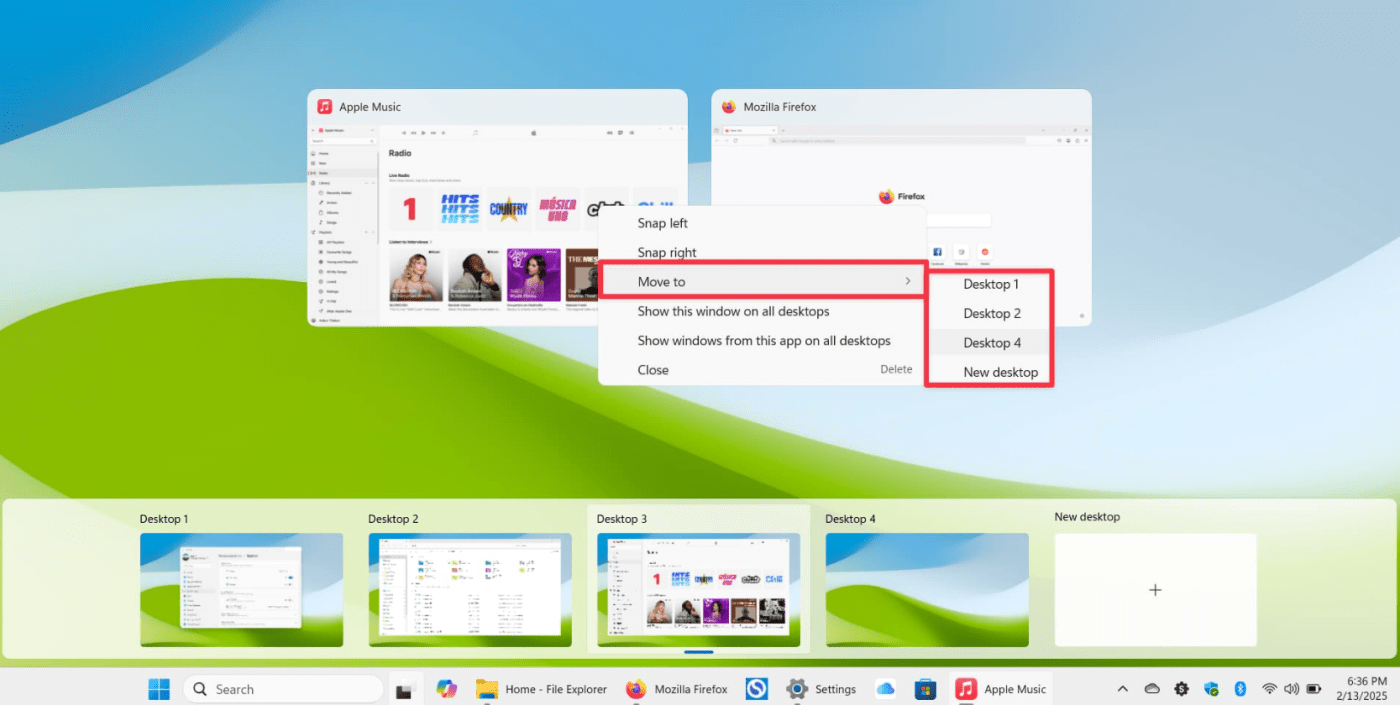
Open Task View, find the app window you want to move, right-click it, then choose Move to and select the target desktop. Microsoft’s multitasking support article documents this exact flow.
This is useful if you open something on the wrong desktop or want to reorganize your setup without closing anything.
How to Rename and Customize Virtual Desktops
Virtual desktops are even more useful when you label them clearly.
Rename a desktop
In Task View, you can rename desktops to something like:
- Work
- Meetings
- Personal
- Writing
- Projects
This makes switching easier if you use several desktops every day. This naming behavior is part of the Windows 11 multiple-desktop experience described in Microsoft’s tips content.
Use different backgrounds
Microsoft support says you can choose different backgrounds for each desktop, which makes it easier to tell them apart visually. To do that, open Task View, right-click the desktop you want, and choose Choose background.
Why Virtual Desktops Are Useful
Virtual desktops are mostly about focus and organization.
Better separation between tasks
You can keep work and personal apps on separate desktops instead of mixing everything together. Microsoft gives this exact example as one of the main benefits of multiple desktops.
Less clutter
If you usually have too many windows open, virtual desktops help you spread them out instead of stacking everything on one screen. Microsoft describes this as a way to reduce clutter and minimize distractions.
Faster switching before meetings or presentations
Microsoft also highlights meeting preparation as a practical use case, since you can keep all meeting-related apps and documents ready on a separate desktop and switch to them quickly.
FAQ
How do I open virtual desktops in Windows 11?
Open Task View from the taskbar or press Windows key + Tab. Microsoft lists both methods in its support guidance.
What is the shortcut to create a new virtual desktop?
Use Windows key + Ctrl + D. This shortcut is part of standard Windows desktop multitasking behavior.
Can I move apps between virtual desktops?
Yes. In Task View, right-click the app window, select Move to, and choose the desktop you want. Microsoft documents this in its multitasking article.
Can each virtual desktop have its own background?
Yes. Microsoft support says you can right-click a desktop in Task View and choose Choose background to customize it.
Are virtual desktops available in Windows 11 Home?
Yes. Virtual desktops are a Windows 11 productivity feature and are not limited to Pro. Microsoft’s support article applies to both Windows 11 and Windows 10 generally, without restricting the feature to Pro.
Get your Windows 11 key at an unbeatable price and experience the latest features with a secure, genuine activation.