
Instructions
How to Install RSAT Tools on Windows 11
Apr
RSAT stands for Remote Server Administration Tools. These tools let you manage Windows Server roles and features from your Windows 11 PC, including Active Directory, Group Policy, DNS, DHCP, and other admin tools. Microsoft describes RSAT as a collection of tools that allow IT administrators to remotely manage roles and features on Windows Server from a Windows client computer.
In Windows 11, RSAT is no longer something you download as a separate installer the way many users remember from older versions. Microsoft’s current documentation says RSAT is installed as Features on Demand, which means you normally add it through Optional Features in Windows or with PowerShell.
What You Need Before Installing RSAT
Before you install RSAT, it helps to know a few basics.
RSAT is built into Windows 11 as an optional feature
Microsoft’s current RSAT documentation explains that on modern Windows versions, RSAT is installed through Features on Demand rather than a separate standalone package for Windows 11.
You do not have to install every RSAT component
You can install only the tools you actually need, such as:
- Active Directory tools
- Group Policy Management
- DNS tools
- DHCP tools
- Server Manager
Microsoft’s RSAT overview describes it as a collection of separate utilities, which is why Windows lets you add individual RSAT components instead of one big installer.
Install RSAT from Optional Features
Step 1: Open Settings
Open Settings in Windows 11.
Step 2: Go to Optional Features
Go to System > Optional features. On some builds or UI layouts, you may still see instructions online that mention Apps > Optional features, but current Windows 11 guidance and Microsoft community answers commonly point users to Optional Features as the place where RSAT is added.
Step 3: Select View features
Choose View features or the equivalent option to add a new optional feature.
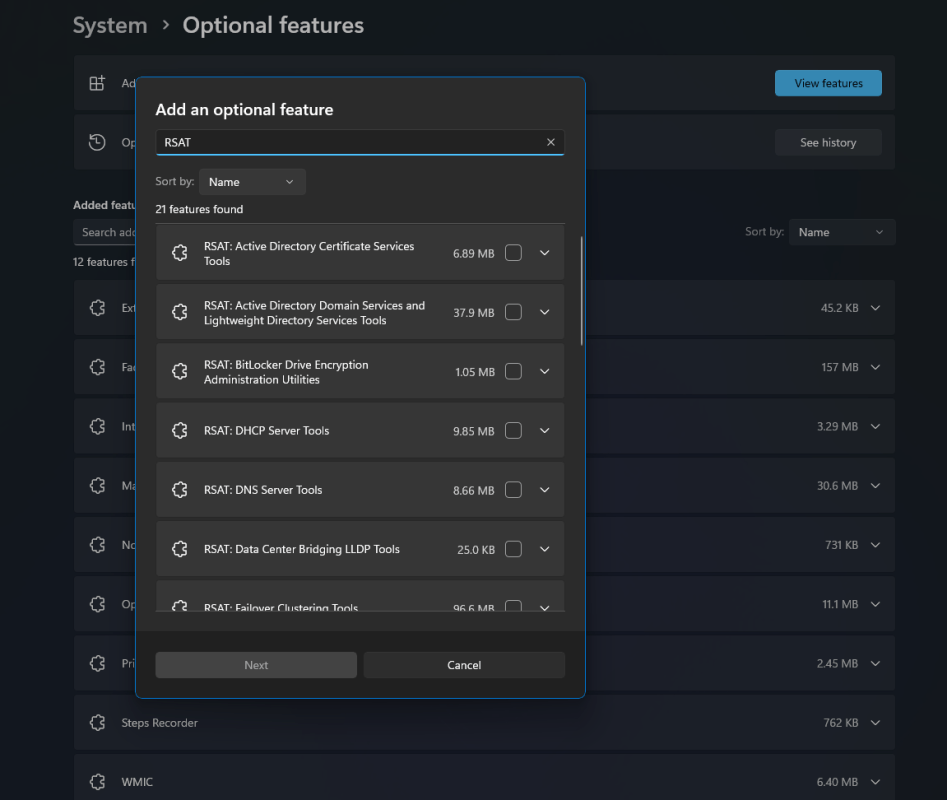
Step 4: Search for RSAT
Type RSAT in the search box. You should see a list of available RSAT tools.
Step 5: Select the tools you need
Pick the RSAT components you want, then continue with the installation. Microsoft’s PowerShell Active Directory module page also notes that you can go to Manage optional features in Settings, click Add a feature, and install the specific RSAT tools you need.
Step 6: Let Windows install them
Windows will download and install the selected tools. You can then check the installation status in the Optional Features page. Microsoft notes that after selecting RSAT features, you can view installation progress from the manage features page.
How to Install RSAT with PowerShell
Some users prefer PowerShell, especially if they are setting up admin tools more often.
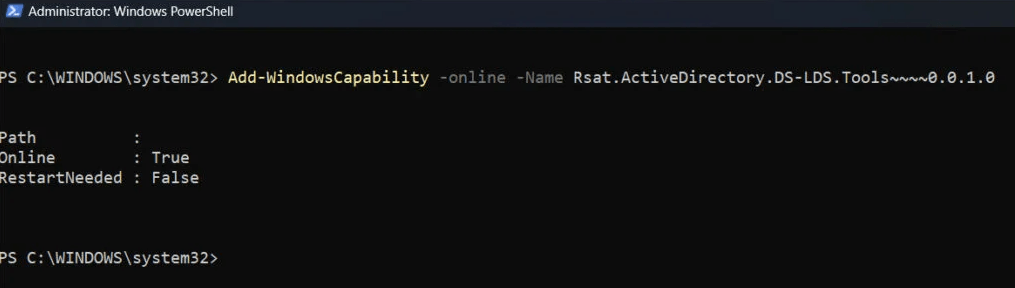
You can first list available RSAT capabilities with PowerShell, then install the one you need. Microsoft’s RSAT documentation says RSAT is installed as Windows capabilities, and the official Features on Demand documentation recommends using Add-WindowsCapability for these optional features.
Example commands:
Get-WindowsCapability -Online | Where-Object Name -like 'RSAT*'
Add-WindowsCapability -Online -Name Rsat.ActiveDirectory.DS-LDS.Tools~~~~0.0.1.0
This is useful if you want a specific component like Active Directory tools instead of browsing through the Settings list. Microsoft’s RSAT and Features on Demand documentation supports this capability-based installation model.
Common RSAT Tools People Install
The exact tools depend on the job, but some are more common than others.
Active Directory tools
These are commonly installed by IT admins who manage users, groups, and organizational units. Microsoft’s Active Directory PowerShell module page points users to Optional Features in Settings to install the needed RSAT tools.
Group Policy Management
This is useful for managing policies in business or domain environments.
DNS and DHCP tools
These are useful if you manage server infrastructure, name resolution, or network address assignment.
What to Do if RSAT Is Missing from Optional Features
Sometimes users search for RSAT and do not see all the expected items.
Microsoft’s Q&A and troubleshooting discussions show that this can happen on some Windows 11 systems, including cases where only part of the RSAT list appears or installation does not start correctly.
Common reasons include:
- Windows build or servicing issues
- update-related problems
- missing access to the needed Features on Demand source
- enterprise policies blocking feature installation
For managed environments, Microsoft’s Features on Demand documentation explains that Windows can request feature packages from Windows Update, and organizations can also use a matching local Features on Demand repository.
FAQ
How do I install RSAT tools on Windows 11?
The standard method is to open Optional Features, search for RSAT, choose the tools you want, and install them. Microsoft’s RSAT and PowerShell documentation both describe this approach.
Is there an RSAT download for Windows 11?
Windows 11 generally does not use a separate downloadable RSAT installer. Microsoft’s current guidance points users to Optional Features and Features on Demand instead.
Can I install RSAT with PowerShell?
Yes. RSAT is installed as Windows capabilities, and Microsoft’s Features on Demand guidance supports using capability-based commands like Add-WindowsCapability.
Why is RSAT not showing in Optional Features?
Microsoft support discussions show that this can happen because of servicing problems, missing feature sources, policy restrictions, or incomplete feature availability on the system.
Get the cheapest Windows 11 keys today and unlock the full power of Microsoft’s latest operating system at unbeatable prices!