
Instructions
How to Use Phone Link in Windows 11
Apr
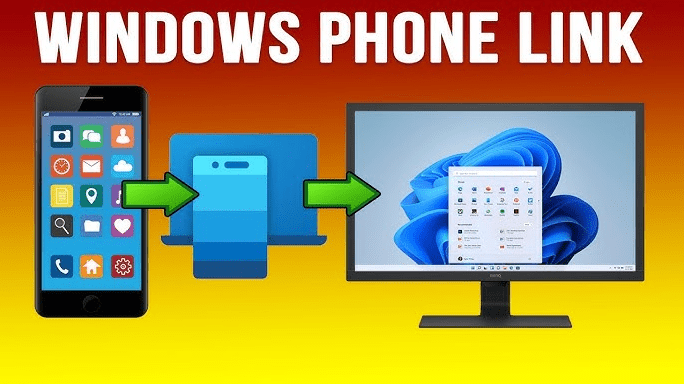
Phone Link in Windows 11 lets you connect your phone to your PC so you can see messages, notifications, calls, and photos without constantly picking up your device. Microsoft says Phone Link can connect a Windows PC with an Android phone or iPhone, and depending on the device, it can let you read and reply to messages, view recent photos, make and receive calls, and manage notifications.
This feature is especially useful if you work on your PC most of the day and want easier access to your phone activity in one place. In this guide, you’ll learn how to use Phone Link in Windows 11, how to set it up, and what features you can expect on Android and iPhone.
What Is Phone Link in Windows 11?
Phone Link is Microsoft’s built-in phone-to-PC connection feature. On Windows, the app is called Phone Link, while on mobile devices the companion app is usually called Link to Windows. Microsoft says the feature is designed to connect your phone and PC so you can manage messages, calls, notifications, photos, and in some Android cases even apps, directly from Windows.
What You Need Before You Start
Before using Phone Link, check the basic requirements.
Windows 11 PC
Microsoft says Phone Link works on Windows 10 May 2019 Update or later, and it is built into Windows 11.
Android or iPhone
Microsoft says Phone Link supports both Android and iPhone, but the experience is not identical on both platforms. Android generally gets more features, while iPhone support is more limited. Microsoft also says iPhone functionality requires iOS 14 or later in one overview, while its calls setup article specifies iOS 15 or above for calls, so it is safest to keep iPhone updated to the latest supported version.
Microsoft account
Microsoft’s troubleshooting and setup guidance indicates that using the same Microsoft account across devices helps Phone Link work properly.
Connection requirements
Microsoft says Android typically uses Wi-Fi with Link to Windows, while iPhone uses Bluetooth for pairing with the PC.
Step-by-Step Setup
Step 1: Open Phone Link on your PC
Search for Phone Link in the Windows 11 taskbar and open the app. Microsoft says it is already available in Windows 11.
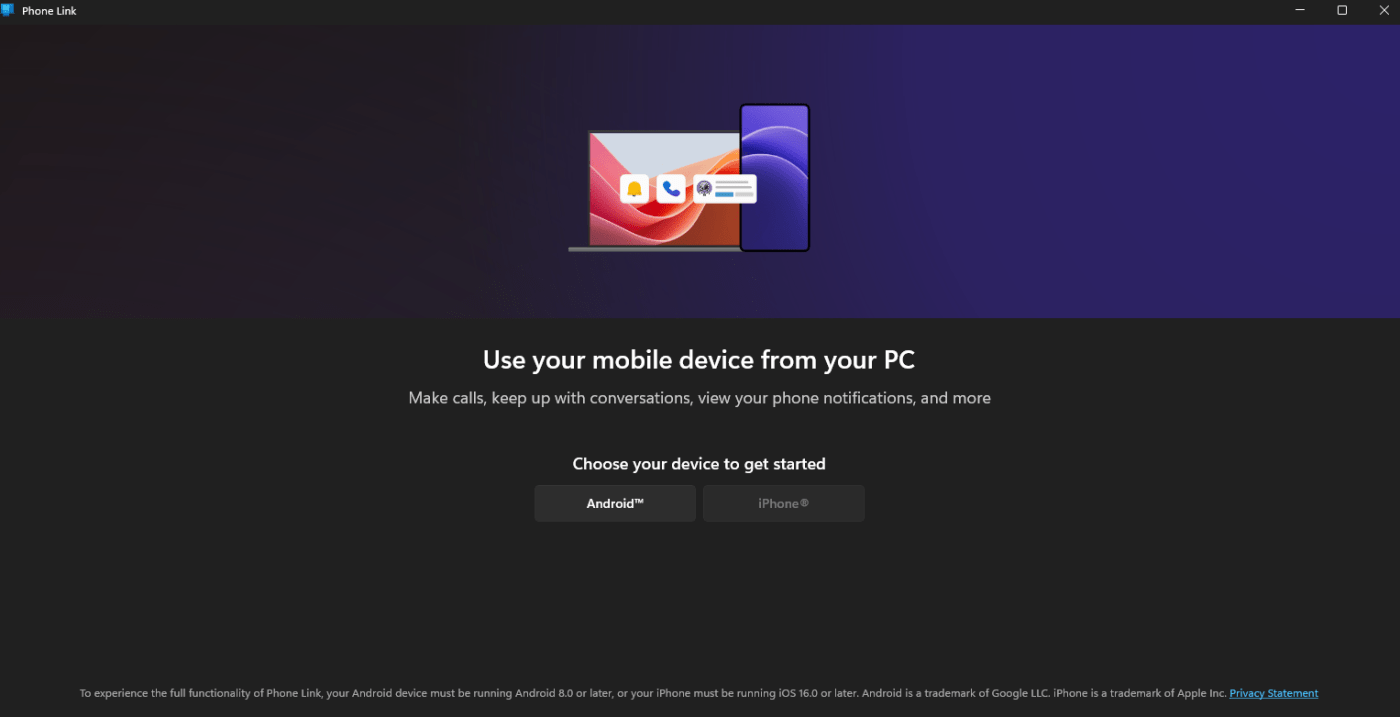
Step 2: Choose your phone type
Select whether you want to connect an Android phone or an iPhone. Microsoft shows a separate setup flow for each.
Step 3: Scan the QR code
Microsoft says Phone Link will show a QR code on your PC. On Android, you scan it through the Link to Windows app. On iPhone, Microsoft says you can scan the QR code using the default camera, and you can also use the Link to Windows app from the App Store to help complete setup.
Step 4: Allow permissions
You will be asked to allow access to things like notifications, messages, contacts, photos, and calls depending on your device. Microsoft says those permissions are required for Phone Link features to work properly.
Step 5: Finish pairing
Once both devices are linked, Phone Link should begin showing supported content from your phone on the PC. Microsoft also now supports connecting from the Windows 11 Start menu for some users, with the same Android or iPhone selection flow.
What You Can Do with Phone Link
The available features depend on the phone type.
On Android
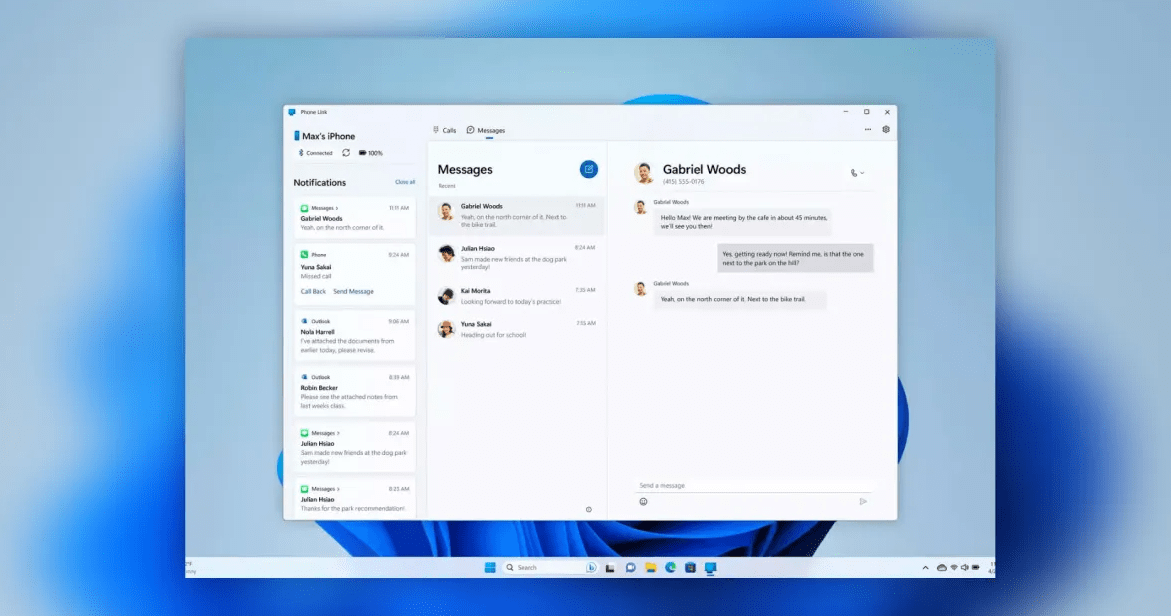
Microsoft says Android users can read and reply to text messages, view recent photos, make and receive calls, manage notifications, and in supported cases use phone screen and mobile apps from the PC. Some advanced experiences such as Apps and Phone screen are limited to select Android devices and markets.
On iPhone
Microsoft says iPhone users can connect through Phone Link, but the feature set is more limited than on Android. Microsoft’s current pages emphasize messages, calls, notifications, and pairing over Bluetooth, and note that some features vary by platform, including files and photos on iPhone.
Why Phone Link Is Useful
Phone Link is mostly a convenience and productivity feature.
Fewer interruptions
Instead of checking your phone every few minutes, you can see key updates on your PC screen. Microsoft presents notifications, calls, and messages as core parts of the Phone Link experience.
Easier file and photo access
Microsoft says connected Android devices can share files, photos, and copied content with Windows through Phone Link and Link to Windows, as long as the device and app versions meet the requirements.
Better for work and study
If you spend a lot of time on your laptop or desktop, Phone Link can keep your phone activity accessible without breaking your focus. This is an inference from the features Microsoft highlights, especially messages, calls, notifications, and recent photos.
FAQ
Is Phone Link available in Windows 11?
Yes. Microsoft says Phone Link is available in Windows 11 and is also supported on Windows 10 May 2019 Update or later.
Can I use Phone Link with iPhone?
Yes. Microsoft says Phone Link supports iPhone, though the experience is more limited than Android and uses Bluetooth for pairing.
Does Phone Link work better with Android?
Yes. Microsoft’s pages show that Android supports the broadest set of features, including photos, messages, calls, notifications, and in some cases apps and phone screen.
Do I need the Link to Windows app?
For Android, yes, Microsoft’s setup flow uses the Link to Windows app to scan the QR code and complete pairing. For iPhone, Microsoft says you can scan with the default camera and can also use Link to Windows from the App Store.
Get the cheapest Windows 11 keys today and unlock the full power of Microsoft’s latest operating system at unbeatable prices!