
Instructions
How to Fix a Black Screen in Windows 11
Apr
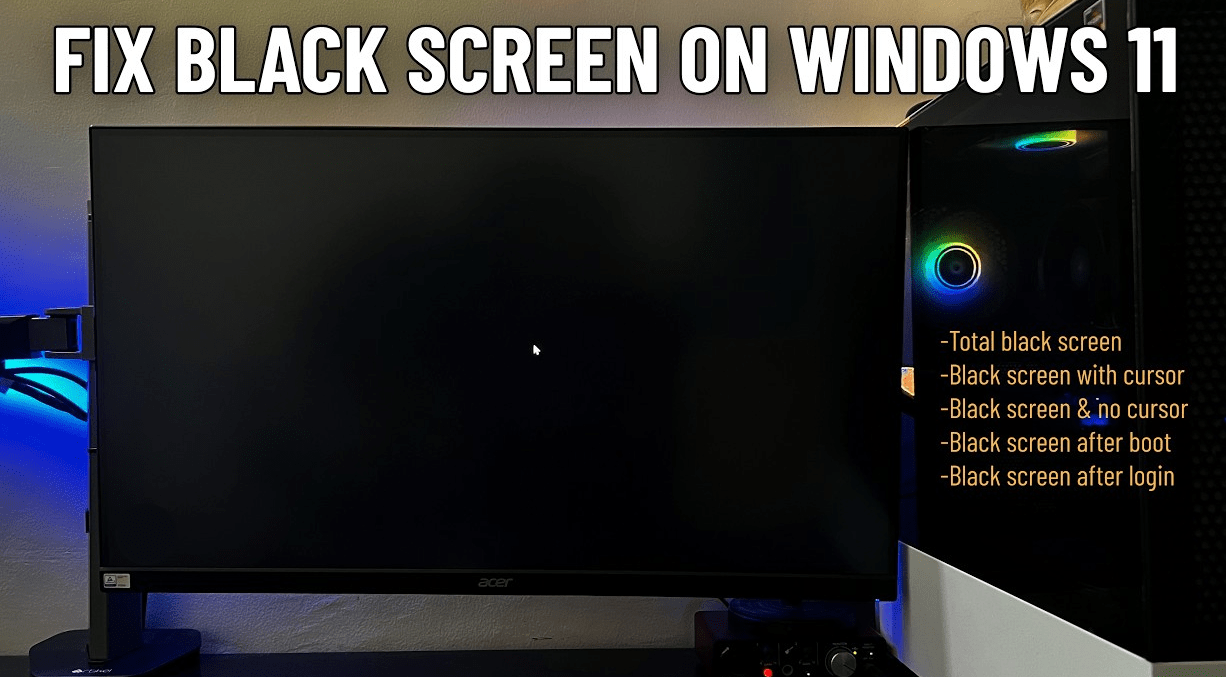
A black screen in Windows 11 can happen for a few different reasons. Sometimes it is just a display problem, sometimes it is a graphics driver issue, and other times it shows up after sign-in, after an update, or during startup. Microsoft’s support guidance for blank screens recommends starting with basic display checks, keyboard shortcuts, and Safe Mode before moving on to deeper repair options.
The good news is that many black screen problems can be fixed without reinstalling Windows. In this guide, you’ll go through the most useful steps in the right order, starting with the fastest fixes first. Microsoft’s official troubleshooting page includes checks for display mode, Task Manager access, hardware connections, Safe Mode, and startup recovery.
Start with the Quick Fixes
Before trying deeper repairs, test the simple things first.
Check the monitor and cables
Microsoft says to make sure the monitor is powered on and that display cables such as HDMI or DisplayPort are firmly connected. If possible, try a different cable or monitor to rule out a hardware issue.
Reset the graphics driver
Press Windows + Ctrl + Shift + B. This can reset the graphics driver and sometimes bring the display back right away. Microsoft support and Microsoft community guidance both point to this as a useful first step for blank or black screen issues.
Cycle display modes
Press Windows + P, then press P again and hit Enter. Repeat this a few times if needed. Microsoft says this can help if Windows is sending video output to the wrong display.
If You Can See the Cursor but Not the Desktop
This usually means Windows is partly running, but the desktop shell did not load correctly.
Open Task Manager
Press Ctrl + Alt + Delete. If the security screen appears, open Task Manager. Microsoft says this is one of the main checks for black or blank screens.
Restart Windows Explorer
In Task Manager, go to File > Run new task, type explorer.exe, and press Enter. Microsoft’s recent black-screen scenario guidance and support discussions point to restarting Explorer as a common fix when the screen is black after sign-in.
Boot into Safe Mode
If the screen stays black after startup or after sign-in, Safe Mode is one of the best next steps.
Microsoft recommends Safe Mode for startup, black-screen, and stop-code troubleshooting because it can help separate Windows issues from display driver or third-party software problems.
How to get into Safe Mode
If you cannot access the desktop, hold the power button to shut the PC down, turn it back on, and interrupt startup a few times until Windows enters recovery. From there, go to:
Troubleshoot > Advanced options > Startup Settings > Restart
Then choose Safe Mode or Safe Mode with Networking. Microsoft’s support guidance uses this recovery path for persistent blank-screen problems.
Update or Roll Back the Display Driver
A display driver problem is one of the most common causes of a black screen.
If the issue does not happen in Safe Mode, Microsoft guidance suggests that a display driver or third-party service may be involved. In Safe Mode, open Device Manager, expand Display adapters, and try updating the driver. If the problem started after a recent driver update, rolling the driver back may help instead.
Check If the Problem Started After an Update
A black screen sometimes appears after a Windows update or system change.
If the problem began right after an update and Safe Mode still works, Microsoft support guidance suggests using System Restore to return the PC to a point from before the issue started.
This can be especially useful if the system worked normally before the update and the black screen started immediately afterward.
Try Startup Repair or Recovery Tools
If the problem happens before you can sign in, startup repair may help.
Microsoft’s recovery guidance for startup-related issues recommends using Windows recovery options such as Startup Repair, Safe Mode, and System Restore when basic fixes do not work.
Go to:
Troubleshoot > Advanced options
Then try:
- Startup Repair
- System Restore
- Startup Settings
Common Mistakes to Avoid
Assuming it is always a broken monitor
Sometimes the screen is fine and the real problem is the display driver or Windows sending output to the wrong display. Microsoft’s blank-screen guidance includes both hardware checks and display-mode fixes because either can be the cause.
Skipping Safe Mode
Safe Mode is one of the quickest ways to tell whether the issue is tied to drivers or startup software. Microsoft includes it as a core troubleshooting step for black-screen problems.
Restarting over and over without changing anything
If a normal restart does not help, move on to Safe Mode, driver checks, or recovery tools instead of repeating the same step. Microsoft’s support pages present troubleshooting as a sequence, not just repeated restarts.
FAQ
How do I fix a black screen in Windows 11?
Start by checking the monitor and cables, resetting the graphics driver with Windows + Ctrl + Shift + B, and cycling display modes with Windows + P. If that does not work, try Safe Mode and recovery tools. Microsoft’s official support pages recommend that order.
What does it mean if I only see a cursor on a black screen?
It often means Windows loaded part of the session but the desktop shell did not start correctly. Microsoft support discussions and scenario guidance suggest opening Task Manager and restarting explorer.exe in that case.
Can a graphics driver cause a black screen?
Yes. Microsoft guidance says that if the issue disappears in Safe Mode, the cause may be a display driver or third-party driver or service.
Can a Windows update cause a black screen?
Yes, it can. Microsoft support discussions note that black screens can appear after updates because of driver or update conflicts, and System Restore may help if the issue began right after an update.
Get the cheapest Windows 11 keys today and unlock the full power of Microsoft’s latest operating system at unbeatable prices!