
Instructions
How to Fix Audio Problems in Windows 11
Apr
Audio problems in Windows 11 can show up in different ways. Sometimes there is no sound at all, sometimes the wrong output device is selected, and other times the issue comes from drivers, updates, or sound settings. Microsoft’s official support pages recommend starting with basic checks like the output device, volume, hardware connections, and built-in troubleshooting before moving to driver fixes.
The good news is that most Windows 11 sound problems can be fixed without advanced tools. In this guide, you’ll go through the most practical fixes in the right order, starting with the fastest ones first. Microsoft also provides separate guidance for missing output devices, broken audio after updates, and audio driver problems, which helps narrow things down when the basic steps do not work.
Start with the Quick Fixes
Before changing drivers or digging into repair tools, check the basics.
Check the output device
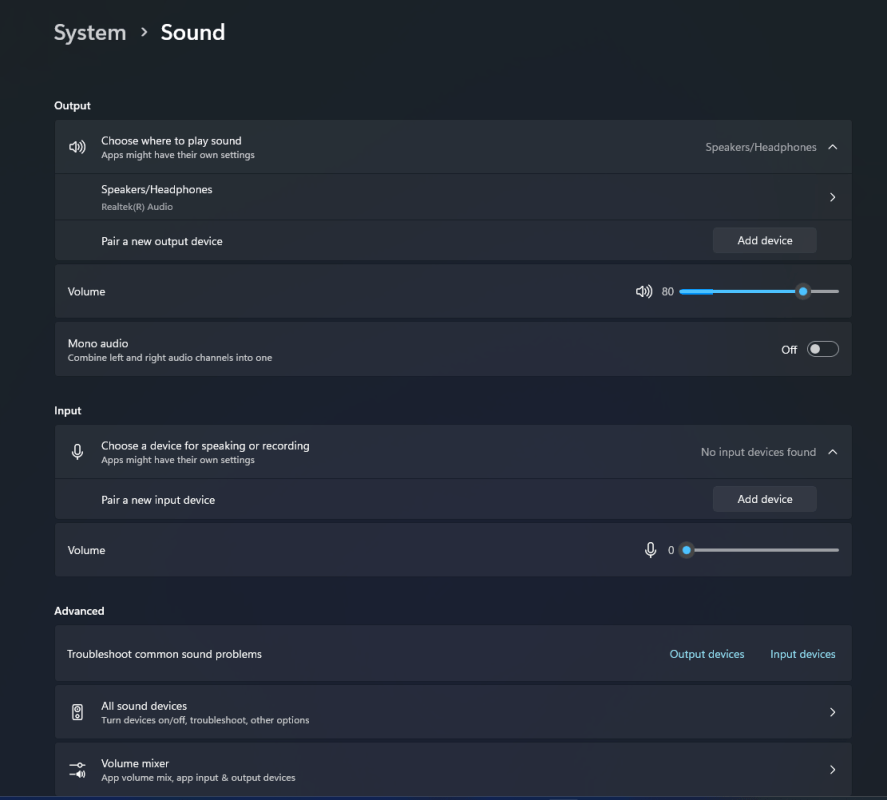
Microsoft says to open Settings > System > Sound and confirm that the correct output device is selected under Output. This matters if you have multiple audio devices connected, such as speakers, a monitor, Bluetooth headphones, or a USB headset.
Check volume and mute settings
Make sure the sound is not muted and the volume is turned up in Windows and on the device itself. Microsoft includes volume checks as one of the first steps for fixing sound problems.
Check cables, speakers, or headphones
Microsoft recommends checking for loose connections and making sure speakers or headphones are plugged into the correct jack or port. This is especially important on desktop PCs, monitors with audio output, and surround-sound setups.
Set the Correct Default Audio Device
Sometimes sound is working, but Windows is sending it to the wrong place.
Microsoft says you can open Sound Control Panel, go to the Playback tab, select your audio device, and choose Set Default. This can help if sound is being routed to the wrong speaker, monitor, or headset.
Run the Audio Troubleshooter
If the simple checks do not help, try the built-in troubleshooter.
Microsoft now points users to the Get Help app for troubleshooters, including the audio troubleshooter. Microsoft’s Windows troubleshooters page says you can open Get Help, search for audio troubleshooter, and follow the prompts.
For some sound-related settings, Microsoft also points users to Settings > System > Sound, then to Troubleshoot common sound problems for output or input devices.
Update or Reinstall the Audio Driver
Driver issues are one of the most common causes of sound problems.
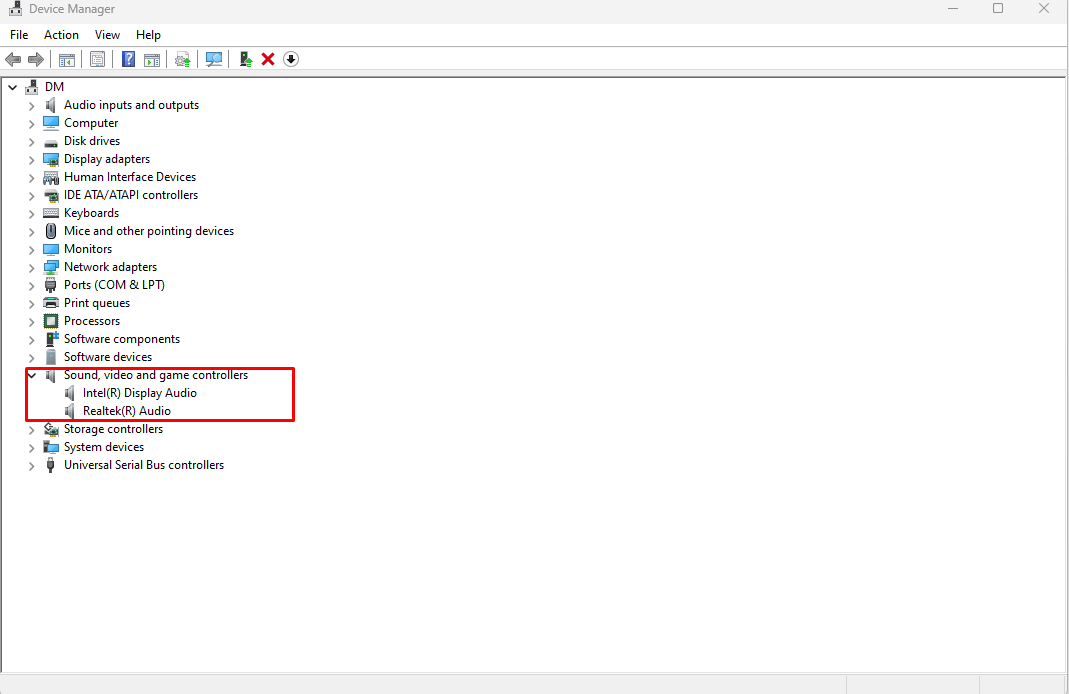
Microsoft says updated audio drivers can fix issues such as no sound, distorted sound, crackling, and headset or microphone problems. To update the driver, open Device Manager, expand Sound, video and game controllers, right-click your audio device, and choose Update driver.
If updating does not help, Microsoft’s support guidance for missing or undetected audio devices says you may need to install the latest audio driver from your PC or sound card manufacturer’s support site.
Turn Off Audio Enhancements
Sometimes sound works, but it is distorted, crackling, or not behaving normally because of audio enhancements.
Microsoft community guidance for recent Windows 11 audio issues points users to Settings > System > Sound, selecting the active device, and turning Audio enhancements off. This is especially worth trying if the problem is not silence, but poor or unstable audio quality.
Restart Windows Audio Services
If sound stopped working suddenly, restarting audio services can help.
Microsoft’s support page for distorted or crackling audio says to open services.msc, then restart Windows Audio and Windows Audio Endpoint Builder. Even though that page focuses on distortion, Microsoft notes this can resolve temporary sound issues more broadly.
If Audio Stopped Working After a Windows Update
If the sound problem started right after an update, the update may have affected the driver.
Microsoft has a separate support article for audio that stops working after a Windows update. It recommends checking Device Manager and updating the audio driver from there. In some cases, rolling back the driver may also help if the issue began immediately after the update.
If Windows Cannot Find Any Audio Output Device
This is a more specific problem than normal sound failure.
Microsoft says that if the output device is missing or undetected, the audio driver may be missing or incompatible, and the recommended fix is to install the latest audio driver from the PC or sound card manufacturer.
FAQ
How do I fix audio problems in Windows 11?
Start by checking the selected output device, volume, and hardware connections. If that does not help, run the audio troubleshooter, update the audio driver, and check whether audio enhancements are causing the issue. Microsoft’s official support follows that general order.
Why is there no sound on my Windows 11 PC?
Common causes include the wrong output device, muted audio, bad connections, missing drivers, or audio issues after an update. Microsoft’s support pages list all of these as common reasons.
How do I update my audio driver in Windows 11?
Open Device Manager, expand Sound, video and game controllers, right-click your audio device, and choose Update driver. Microsoft says updated audio drivers can fix no sound, distorted audio, crackling, and headset problems.
What if Windows 11 says no audio output device is installed?
Microsoft says that usually points to a missing or incompatible audio driver, and the recommended next step is to install the latest audio driver from the device manufacturer’s support site.
Get the cheapest Windows 11 keys today and unlock the full power of Microsoft’s latest operating system at unbeatable prices!