
Instructions
How to Fix Windows 11 Activation Error 0xC004F213
Apr
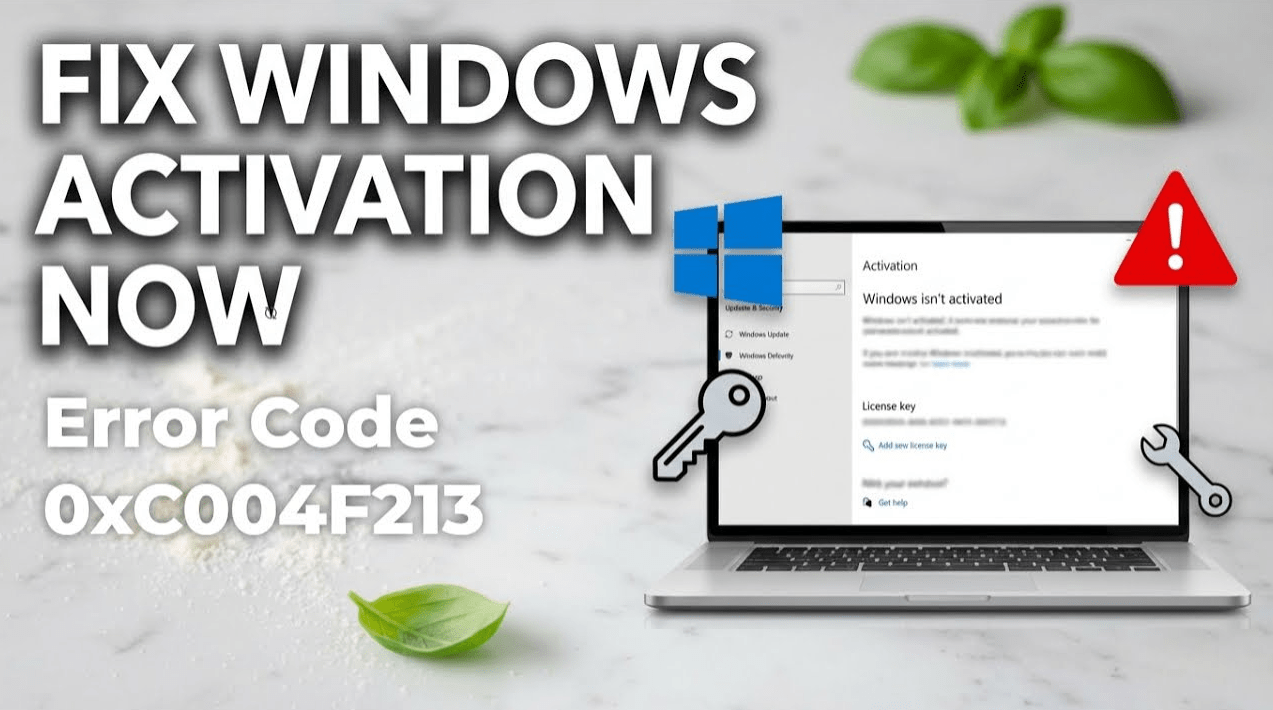
Windows 11 activation error 0xC004F213 usually means Windows could not find a product key on the device. Microsoft’s activation error guide says this code appears when “no product key was found on your device,” and it also notes that Windows licenses are tied to device hardware.
This error often shows up after reinstalling Windows, changing hardware, or installing a different edition than the one your license matches. The good news is that, in many cases, it can be fixed by checking the edition, signing in with the right Microsoft account, entering the correct product key, or running the Activation troubleshooter. Microsoft documents all of those paths in its activation guidance.
What Error 0xC004F213 Means
Microsoft’s official explanation is simple: Windows reported that no product key was found on your device. Microsoft also says that significant hardware changes, such as replacing the motherboard, can prevent Windows from finding a matching license after restart. If Windows came preinstalled and the motherboard was replaced, Microsoft says you may need a new license.
That means this error is usually about one of these problems:
- Windows cannot find a built-in license on the hardware
- the device’s digital license is not being detected
- the installed edition does not match the license
- hardware changes broke the license match
- no valid product key has been entered yet
These points follow from Microsoft’s activation error explanations and troubleshooter guidance.
Check Which Windows 11 Edition Is Installed
Before doing anything else, make sure the installed edition matches the license you actually own.
This matters because a Windows 11 Home license will not activate a Windows 11 Pro install, and the reverse can also cause problems. Microsoft’s activation guidance repeatedly ties activation to the correct license and setup path, which makes edition mismatch one of the first things to rule out.
To check your edition:
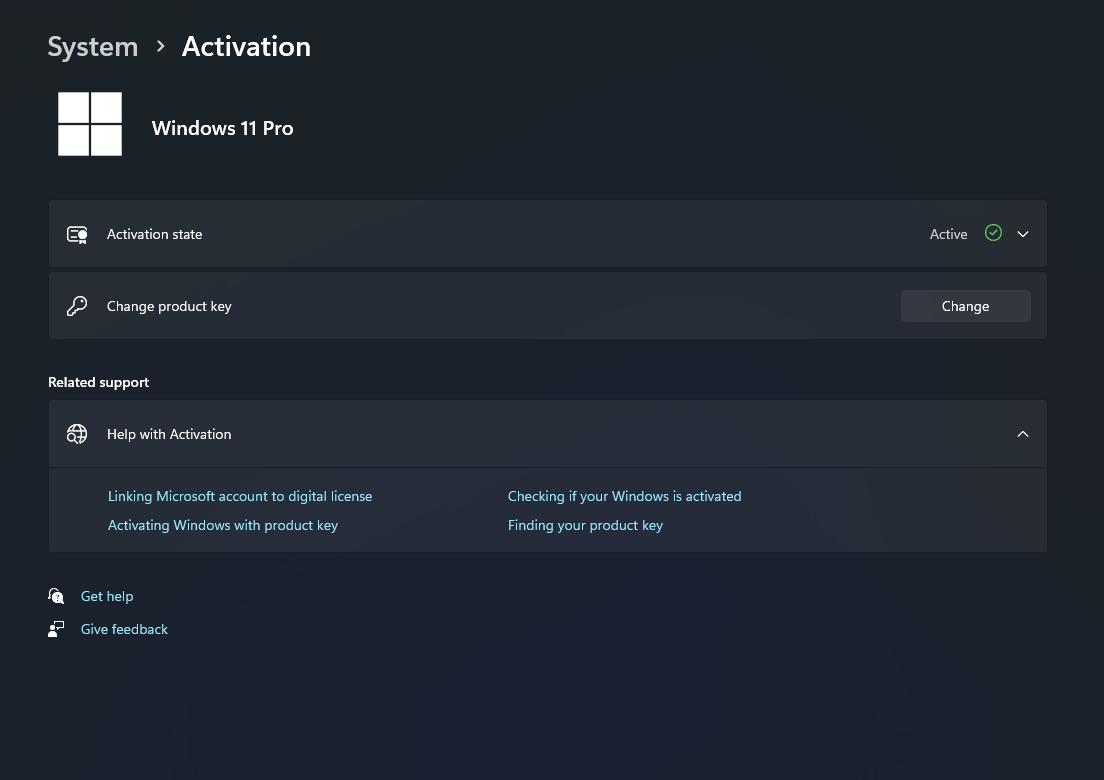
- open Settings
- go to System
- select Activation
There you can see your activation status and Windows edition. Microsoft’s Activation troubleshooter article points users to Settings > System > Activation as the place to check and troubleshoot activation.
Sign In with the Right Microsoft Account
If your Windows license is a digital license linked to your Microsoft account, signing in with that same account can help Windows find it again.
Microsoft’s Activation troubleshooter article says the troubleshooter can help reactivate Windows 11, especially when a digital license is involved. The tool is accessed from Settings > System > Activation when Windows is not activated.
This is especially important if:
- you reinstalled Windows
- you changed hardware
- you switched local accounts
- you previously activated Windows using a Microsoft account-linked license
Run the Activation Troubleshooter
This is one of the best official fixes if the license should already belong to the device or your Microsoft account.
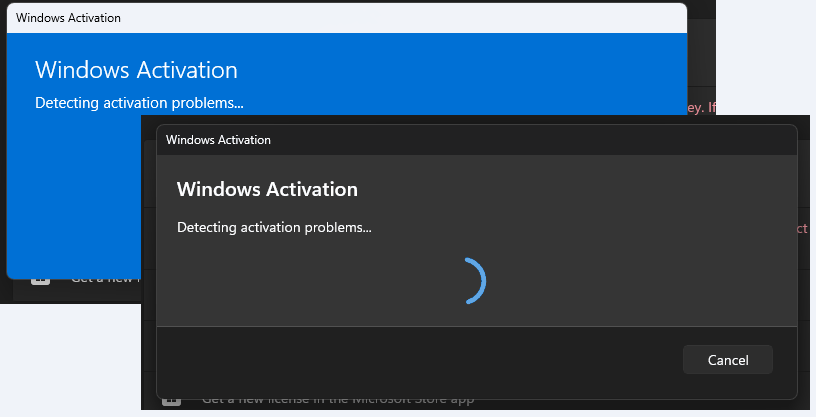
Microsoft says that if you are unable to activate Windows 11, the Activation troubleshooter could help. It is available through Settings > System > Activation when Windows is not activated.
How to run it
- open Settings
- go to System
- select Activation
- choose Troubleshoot
If Windows can find a matching digital license, the troubleshooter may reactivate the system automatically. Microsoft presents this as the built-in path for activation recovery.
Enter a Valid Product Key
If your device does not have a digital license available, you may need to enter a valid product key manually.
Go to:
Settings > System > Activation > Change product key
Then enter the 25-character key that matches your Windows 11 edition. Microsoft’s activation error guidance says error 0xC004F213 means no product key was found, so adding the correct key is one of the direct fixes.
Check for Hardware Changes
If this error started after replacing major hardware, that is a very important clue.
Microsoft says that significant hardware changes, especially a motherboard replacement, can stop Windows from finding the matching license. Microsoft also notes that if Windows was preinstalled on the device and the motherboard was replaced, you may need to buy a new license.
This does not always mean the license is gone forever, but it does mean the original device-to-license link may no longer match the hardware the way Windows expects.
If Windows Was Preinstalled on the PC
Some PCs come with Windows preinstalled by the manufacturer. In that case, the license may be tied closely to the original hardware.
Microsoft’s activation error page specifically says that after a major hardware change, especially motherboard replacement, a preinstalled Windows license may no longer be found and a new license may be required.
So if the error appeared on an OEM laptop or desktop after repair or motherboard replacement, this may be the reason.
FAQ
What does Windows 11 activation error 0xC004F213 mean?
Microsoft says it means no product key was found on your device.
Can hardware changes cause error 0xC004F213?
Yes. Microsoft says significant hardware changes, such as replacing the motherboard, can prevent Windows from finding a matching license.
How do I fix 0xC004F213 in Windows 11?
The main official fixes are checking the installed edition, signing in with the correct Microsoft account, running the Activation troubleshooter, and entering a valid product key if needed. Microsoft documents the troubleshooter in Settings > System > Activation and explains the error on its activation error page.
Can the Activation troubleshooter fix this error?
Yes, in some cases. Microsoft says the Activation troubleshooter can help if Windows 11 cannot activate and is accessed through Settings > System > Activation.
Get the cheapest Windows 11 keys today and unlock the full power of Microsoft’s latest operating system at unbeatable prices!