
Instructions
How to Use IF Formula in Excel
May
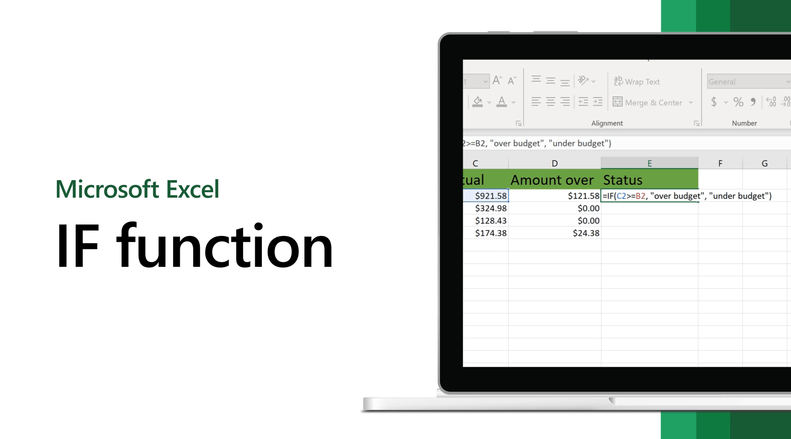
The IF formula in Excel is one of the most useful functions because it lets you test a condition and return one result if it is true and another if it is false. Microsoft says the IF function is one of the most popular functions in Excel and allows you to make logical comparisons between a value and what you expect.
This makes the IF formula useful for things like pass or fail results, yes or no checks, budget comparisons, status labels, and other situations where you want Excel to make a decision based on a condition. Microsoft’s Excel function reference also lists IF as one of its featured functions.
The Short Answer
The basic IF formula in Excel is:
=IF(logical_test, value_if_true, value_if_false)
Microsoft says the syntax is IF(logical_test, value_if_true, [value_if_false]), where the logical test is the condition you want to check.
How the IF Formula Works
Microsoft says the IF function returns one value if a condition is true and another value if it is false.
That means the formula has three main parts:
- logical_test = the condition you want Excel to check
- value_if_true = what Excel returns if the condition is true
- value_if_false = what Excel returns if the condition is false
This is the basic pattern you will use in almost every IF formula.
Simple IF Formula Example
A very common example is checking whether a score is enough to pass.
=IF(C2>=60,"Pass","Fail")
This tells Excel:
- if the value in C2 is 60 or more, return Pass
- otherwise, return Fail
Microsoft’s IF page uses similar examples to show how the function compares a value and returns different results depending on whether the condition is true or false.
Another Easy IF Example
You can also use IF for labels like yes or no.
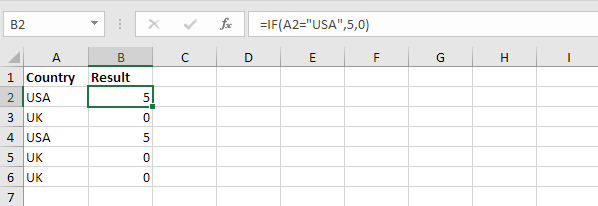
=IF(B2="Yes","Approved","Pending")
This checks whether the value in B2 is exactly Yes. If it is, Excel returns Approved. If it is not, Excel returns Pending.
This is a practical use of the same IF structure Microsoft describes in its formula syntax.
Best Ways to Use IF in Excel
The IF formula is especially useful for simple decision-making in spreadsheets.
Common examples include:
- pass or fail
- over budget or OK
- approved or rejected
- yes or no
- complete or incomplete
Microsoft’s IF function page includes an example like =IF(A2>B2,"Over Budget","OK"), which shows how often IF is used for quick status labels.
How to Use IF with Numbers
The IF formula is often used with numbers and comparisons.
Example:
=IF(A2>100,"High","Low")
This checks whether the value in A2 is greater than 100.
You can use comparison operators like:
>greater than<less than>=greater than or equal to<=less than or equal to=equal to
These are part of the logical comparison Microsoft refers to in its IF function explanation.
How to Use IF with Text
You can also compare text values.
Example:
=IF(A2="Paid","Done","Unpaid")
This checks whether the cell contains the exact text Paid and returns a different result depending on that condition.
This is useful for:
- payment status
- completion status
- department labels
- category checks
How to Use IF with AND or OR
Sometimes one condition is not enough.
Microsoft says you can combine IF with AND, OR, and NOT to create conditional formulas.
IF with AND
Use AND when all conditions must be true.
Example:
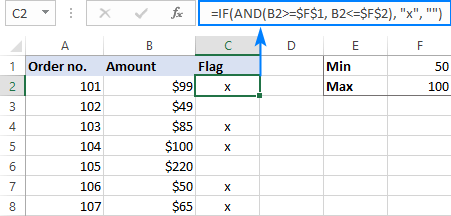
=IF(AND(B2>=60,C2="Yes"),"Pass","Fail")
This returns Pass only if:
- B2 is at least 60
- and C2 is Yes
IF with OR
Use OR when at least one condition must be true.
Example:
=IF(OR(B2="Late",C2="Missing"),"Check","OK")
This returns Check if either condition is true.
Microsoft’s support page specifically covers using IF together with AND, OR, and NOT for more complex logic.
Nested IF Formulas
A nested IF means putting one IF inside another IF.
Microsoft has a separate support article about nested IF formulas and avoiding pitfalls, which shows that nested IF is supported but can become difficult to manage if overused.
Example:
=IF(A2>=90,"A",IF(A2>=80,"B",IF(A2>=70,"C","D")))
This can be useful for:
- letter grades
- score bands
- category ranges
But if the logic gets too long, formulas can become harder to read and fix. Microsoft’s nested IF guidance exists mainly because these formulas can get complicated quickly.
Common IF Formula Mistakes to Avoid
Forgetting quotation marks around text
If you want Excel to return words like Pass or Fail, put them in quotation marks.
Using the wrong comparison
Make sure you use the right operator, like > or =.
Building very long nested IF formulas
Microsoft’s nested IF support page exists because these formulas can become hard to manage and easy to break.
Ignoring errors in referenced cells
Microsoft says IF can return a #VALUE! error when the argument refers to error values, and it notes that error-handling functions like IFERROR can help in some cases.
Why the IF Formula Is So Useful
The IF formula is useful because it helps Excel make simple decisions for you. Instead of checking every row manually, you can let Excel label results automatically based on your rules.
Microsoft highlights IF as one of Excel’s featured functions because it is widely useful in normal spreadsheet work.
FAQ
What is the IF formula in Excel?
Microsoft says the IF function allows you to make a logical comparison between a value and what you expect, then return one value if the result is true and another if it is false.
What is the syntax of the IF formula?
Microsoft gives the syntax as:
=IF(logical_test, value_if_true, value_if_false)
More precisely, the third argument is optional in the documented syntax as IF(logical_test, value_if_true, [value_if_false]).
Can I use IF with AND or OR in Excel?
Yes. Microsoft says you can combine IF with AND, OR, and NOT to create conditional formulas.
Why is my IF formula showing an error?
Microsoft says IF can return a #VALUE! error when one of its arguments refers to error values, and it suggests using error-handling formulas like IFERROR in some cases.
Power up your spreadsheets with genuine Office keys, instant delivery, and hassle-free activation that gets Excel ready right away.