
Instructions
Office Ribbon Customization Tips for Faster Work
Jun
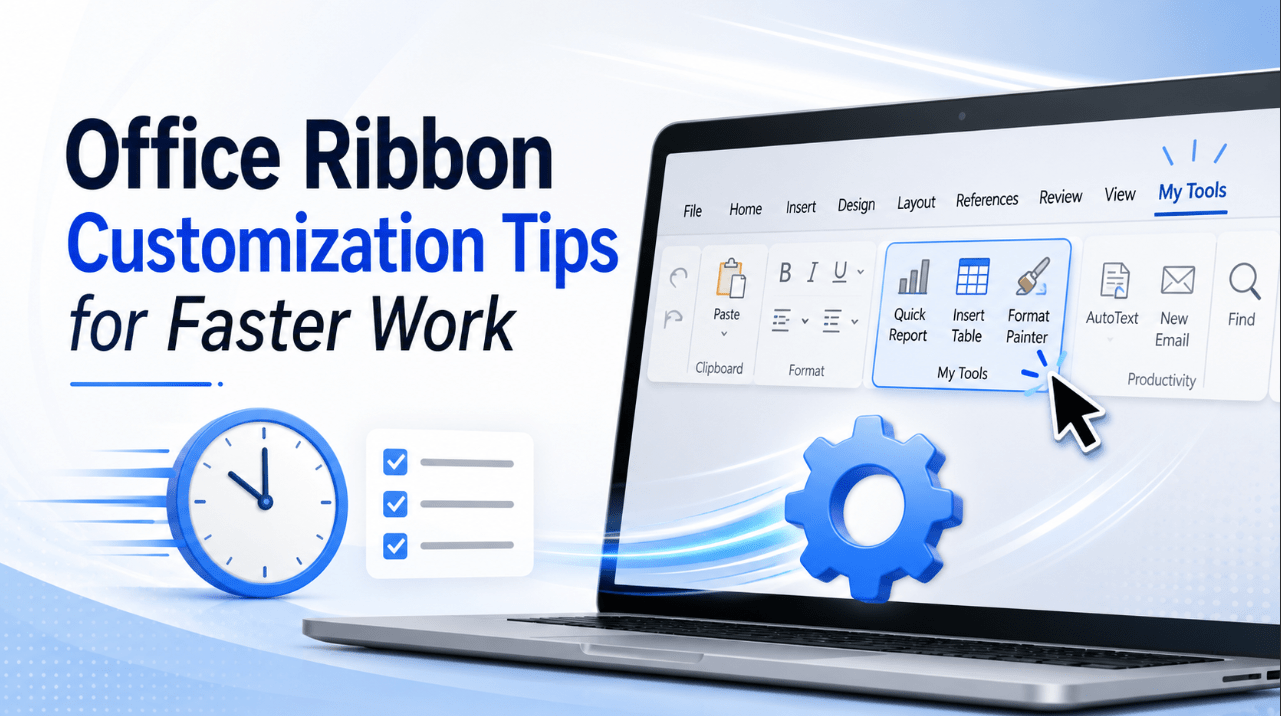
Microsoft Office contains hundreds of useful commands, but the tools you use every day may be spread across several different tabs. Office Ribbon customization lets you reorganise those commands so that your preferred tools are easier to find.
You can create custom tabs, build personalised command groups, hide sections you never use and place important actions on the Quick Access Toolbar. A few thoughtful changes can reduce unnecessary clicks in Word, Excel, PowerPoint, Outlook, Project and Visio.
This guide explains how to customize the Office Ribbon and create a cleaner workspace based on the way you actually work.
Looking for a desktop Office suite for your computer? Explore our Microsoft Office licences to compare available editions and find the right option for your needs.
- What Is the Microsoft Office Ribbon?
- Why Customize the Office Ribbon?
- How to Open the Ribbon Customization Menu
- Create a Custom Ribbon Tab
- Add and Organise Commands
- Reorder or Hide Tabs You Do Not Use
- Customize the Quick Access Toolbar
- Combine Ribbon Customization with Keyboard Shortcuts
- Collapse the Ribbon When You Need More Space
- Ribbon Ideas for Different Office Applications
- Microsoft Word Custom Ribbon
- Microsoft Excel Custom Ribbon
- Microsoft PowerPoint Custom Ribbon
- Microsoft Outlook Custom Ribbon
- Microsoft Project Custom Ribbon
- Microsoft Visio Custom Ribbon
- Frequently Asked Questions
- Can I customize the Ribbon in Microsoft Office?
- How do I add a command to the Office Ribbon?
- Why is the Add button unavailable when I select a command?
- Can I remove a command from a built-in Ribbon group?
- Does Ribbon customization apply to every Office application?
- What is the difference between the Ribbon and the Quick Access Toolbar?
- Can I reset the Office Ribbon?
- Can I move my custom Ribbon to another computer?
- Can I change the size or colour of Ribbon buttons?
- Is Office Ribbon customization available in Office 2024?
What Is the Microsoft Office Ribbon?
The Ribbon is the command area displayed near the top of desktop Office applications. It groups tools into tabs such as Home, Insert, Design, Review, View and Data.
Each tab contains groups of related commands. In Word, for example, the Home tab includes Clipboard, Font, Paragraph and Styles groups. Excel includes groups for alignment, number formatting, formulas and data tools.
The default arrangement is designed to support many different types of users. However, that also means the tools most important to your workflow may not always be in the most convenient place.
Ribbon customization gives you control over:
- Which tabs are visible
- The order in which tabs appear
- Custom tabs and groups
- Commands placed inside custom groups
- The order of custom commands
- The Quick Access Toolbar
- Whether the Ribbon remains expanded or collapsed
Your changes normally apply only to the Office application being customized. A custom tab created in Word, for example, does not automatically appear in Excel or PowerPoint.
Why Customize the Office Ribbon?
Every extra search, tab change and mouse movement takes a small amount of time. The difference may seem minor during one task, but repeated interruptions can slow down a full day of work.
A customised Ribbon can help you:
- Keep frequently used commands together
- Reduce switching between multiple tabs
- Make less-visible commands easier to access
- Remove distractions from your workspace
- Build a consistent workflow for repeated tasks
- Create task-specific layouts for writing, reporting or design
Ribbon customization is particularly useful when you regularly repeat the same sequence of actions.
For example, someone editing documents might frequently use Track Changes, New Comment, Accept Change, Compare and Restrict Editing. Instead of moving through different sections of the Review tab, those commands can be placed together in one custom group.
An Excel user could create a reporting tab containing PivotTable, Sort, Filter, Remove Duplicates, Data Validation, Freeze Panes and Conditional Formatting.
The goal is not to add every available command. It is to create a small, practical collection of tools that matches your normal routine.
How to Open the Ribbon Customization Menu
In a supported Office desktop application on Windows:
- Open Word, Excel, PowerPoint, Outlook, Project or another Office application.
- Right-click an empty area of the Ribbon.
- Select Customize the Ribbon.
You can also open it through:
- Select File.
- Open Options.
- Select Customize Ribbon.
The window is divided into two main areas.
The left side contains available commands. The right side shows the current Ribbon tabs and groups. You can use the drop-down menu above the command list to display:
- Popular Commands
- Commands Not in the Ribbon
- All Commands
- Macros
- Commands from a specific tab
Selecting All Commands is helpful when you know the name of a tool but cannot find it in the standard Ribbon.
Create a Custom Ribbon Tab
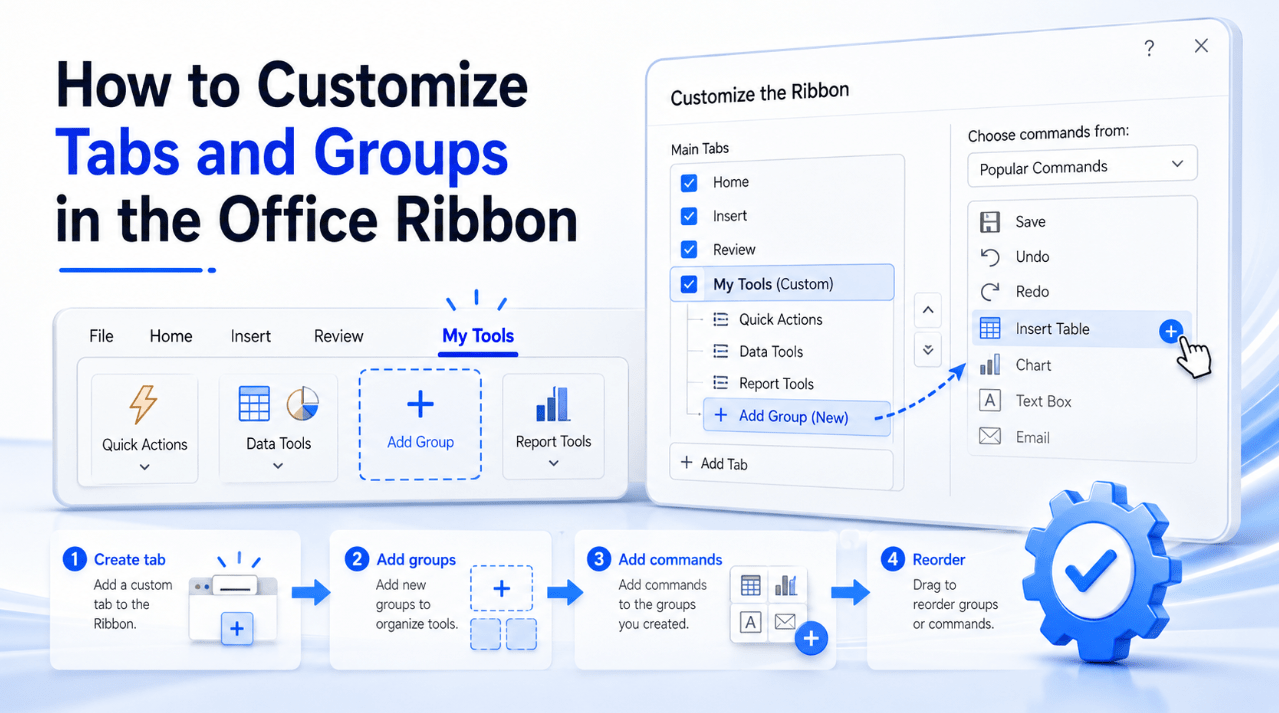
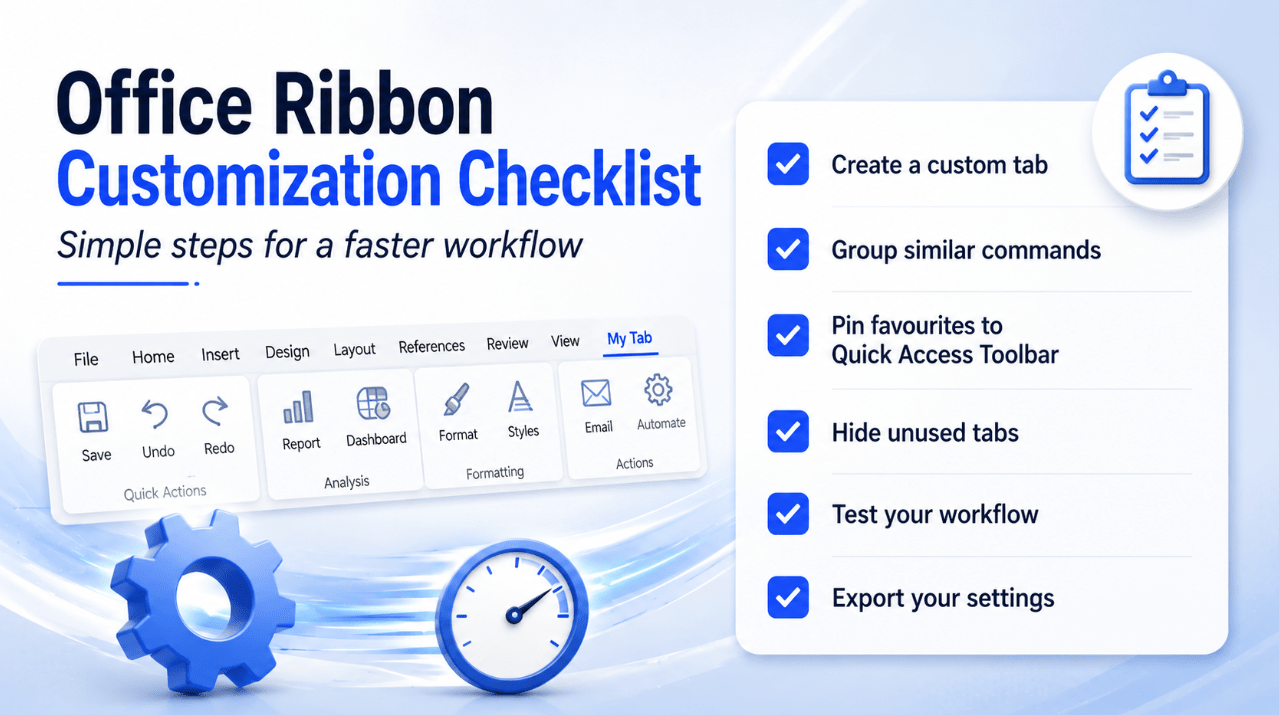
A custom tab is often the best option for a repeated workflow. It gives you a dedicated section without changing the structure of the built-in tabs.
Step 1: Create the Tab
Open the Customize Ribbon menu and select New Tab.
Office creates:
- A new custom tab
- A new custom group inside that tab
Select the new tab and choose Rename. Give it a short, descriptive name such as:
- Daily Tools
- Document Review
- Data Cleanup
- Monthly Reports
- Presentation Design
- Project Planning
- Client Work
Names should describe the work performed inside the tab rather than the application itself.
Step 2: Rename the Custom Group
Select the group beneath your new tab and choose Rename.
Groups divide the tab into smaller categories. A reporting tab in Excel could contain:
- Import
- Clean
- Analyse
- Present
A writing tab in Word could contain:
- Formatting
- References
- Review
- Export
Clear group names make commands easier to scan.
Step 3: Add More Groups
Select the custom tab and choose New Group whenever you need another category.
Try to keep the number of groups limited. A tab with too many sections may become just as difficult to navigate as the default layout.
A useful starting point is three or four groups with several related commands in each one.
Add and Organise Commands
After creating a custom group, select a command from the list on the left and choose Add.
Commands can only be added to custom groups. Office does not allow individual commands to be inserted directly into its built-in groups.
To move a command:
- Select it in the right-hand list.
- Use the up or down arrows.
- Continue until the commands follow a logical order.
Place the commands in the same sequence in which you normally use them.
For example, a document review group could be ordered like this:
- Track Changes
- New Comment
- Previous Change
- Next Change
- Accept
- Reject
- Compare
An Excel data cleanup group could use:
- Text to Columns
- Flash Fill
- Remove Duplicates
- Data Validation
- Find and Replace
- Clear Formats
This turns the Ribbon into a visual workflow rather than a random command collection.
Add Commands That Are Not on the Default Ribbon
Some useful Office tools are not displayed on the standard Ribbon. In the command selection drop-down, choose Commands Not in the Ribbon or All Commands.
Depending on the application, this can reveal commands that would otherwise require additional menus or keyboard shortcuts.
Only add tools you understand and expect to use. Filling a custom tab with unfamiliar commands will make it harder to navigate.
Reorder or Hide Tabs You Do Not Use
You do not have to keep every default tab visible.
Inside the Customize Ribbon window, clear the checkbox beside a tab to hide it. You can restore it later by selecting the checkbox again.
You may want to hide tabs that are irrelevant to your work. For example, a user who never records macros may not need the Developer tab visible every day.
You can also select a tab and use the arrows to change its position.
A practical order could be:
- Home
- Your main custom tab
- Insert
- Review
- View
Keeping your custom tab near Home makes it quicker to reach without disrupting the rest of the Office layout.
Do not hide a tab simply because you use it infrequently. Some contextual tabs appear only when you select particular objects such as pictures, charts or tables, and they remain useful for specialised tasks.
Customize the Quick Access Toolbar
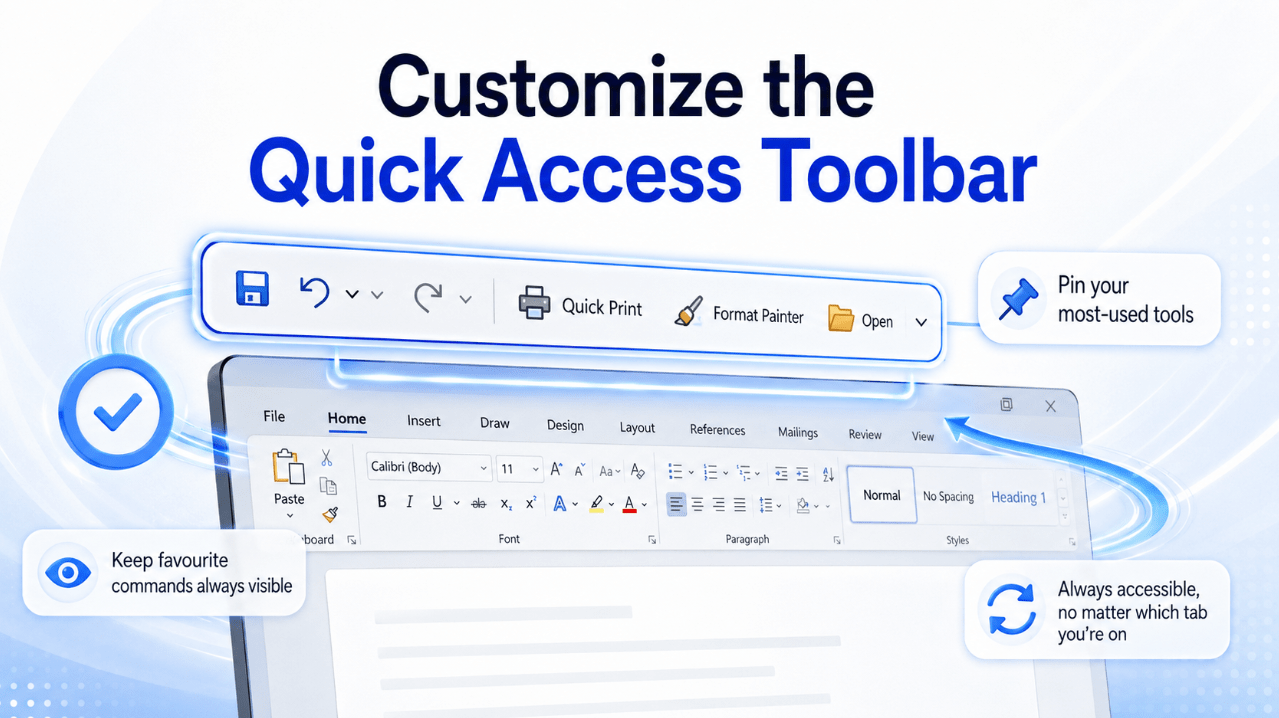
The Quick Access Toolbar is a small command area that remains available regardless of which Ribbon tab is open. It is ideal for actions you use throughout the day.
Useful Quick Access Toolbar commands include:
- Save
- Undo
- Redo
- Print Preview
- Quick Print
- New File
- Open
- Spelling and Grammar
- Format Painter
- Paste Special
- Insert Comment
- Sort Ascending
- Sort Descending
To add a visible Ribbon command quickly:
- Right-click the command.
- Select Add to Quick Access Toolbar.
For more control:
- Open File.
- Select Options.
- Open Quick Access Toolbar.
- Choose commands from the list.
- Select Add.
- Use the arrows to change their order.
The Quick Access Toolbar can normally be displayed above or below the Ribbon. Placing it below the Ribbon makes the buttons slightly closer to your document, although it also uses a little more vertical space.
Keep this toolbar focused. Between five and ten carefully selected commands will usually be more useful than a long row of small icons.
Combine Ribbon Customization with Keyboard Shortcuts
Ribbon customization reduces mouse movement, but keyboard access can make repeated actions even faster.
Press Alt in a desktop Office application to display KeyTips. Letters or combinations appear over Ribbon tabs and commands. Press the displayed keys to open a tab or activate a command.
You do not have to memorise every sequence immediately. Start with the commands you use most often.
The Quick Access Toolbar can also be accessed with Alt-based key combinations. Commands near the beginning of the toolbar are therefore valuable positions for your most frequent actions.
A useful workflow is:
- Quick Access Toolbar for universal actions
- Custom Ribbon tab for task-specific actions
- Keyboard shortcuts for the most repetitive commands
- Search for occasional commands you do not need to pin
In Word, users can also assign custom keyboard shortcuts to commands, styles, macros and frequently used symbols. Avoid replacing familiar shortcuts such as Ctrl+C, Ctrl+V or Ctrl+S.
Collapse the Ribbon When You Need More Space
A fully expanded Ribbon provides immediate access to every visible command, but it also occupies part of the document area.
Press Ctrl+F1 to collapse or expand the Ribbon in supported Windows desktop applications. You can also double-click a Ribbon tab.
Available display options may include:
- Full-screen mode
- Show tabs only
- Always show Ribbon
Use the full Ribbon when you are formatting or editing heavily. Collapse it when reading long documents, reviewing a spreadsheet or working on a smaller display.
The best setting depends on the task rather than one permanent preference.
Ribbon Ideas for Different Office Applications
Ribbon customization becomes most effective when it reflects the type of work performed in each application.
Microsoft Word Custom Ribbon
Create a Writing and Review tab with groups such as:
Formatting
- Styles
- Format Painter
- Clear All Formatting
- Paragraph settings
- Borders and Shading
Document Tools
- Word Count
- Find
- Replace
- Paste Special
Review
- Track Changes
- New Comment
- Accept
- Reject
- Compare
- Protect Document
This layout is useful for reports, articles, academic documents and client revisions.
Microsoft Excel Custom Ribbon
Create a Data and Reports tab with:
Data Cleanup
- Text to Columns
- Flash Fill
- Remove Duplicates
- Data Validation
- Find and Replace
Analysis
- PivotTable
- Recommended Charts
- Goal Seek
- Name Manager
- Evaluate Formula
Presentation
- Conditional Formatting
- Format as Table
- Freeze Panes
- Page Setup
- Print Area
This can turn a multi-tab reporting process into a much more direct workflow.
Microsoft PowerPoint Custom Ribbon
Create a Slide Design tab containing:
Arrange
- Align
- Distribute
- Group
- Ungroup
- Selection Pane
Formatting
- Format Painter
- Shape Fill
- Shape Outline
- Edit Shape
- Merge Shapes
Presentation
- Reuse Slides
- Hide Slide
- Rehearse Timings
- Record
- Presenter View
Design commands that are normally spread across several tabs become easier to reach from one place.
Microsoft Outlook Custom Ribbon
An Outlook tab for email management could include:
- Rules
- Quick Steps
- Categorize
- Follow Up
- Move
- Archive
- Address Book
- Signatures
- Automatic Replies
This is especially helpful when processing a large inbox or working with repeat customer enquiries.
Microsoft Project Custom Ribbon
Project users can create a Project Control tab with commands such as:
- Task Information
- Link Tasks
- Unlink Tasks
- Inspect Task
- Set Baseline
- Update Project
- Change Working Time
- Project Information
- Visual Reports
Microsoft Visio Custom Ribbon
A Visio tab for diagram work could contain:
- Connector
- Align
- Position
- Group
- Layers
- Shape Data
- Auto Align and Space
- Re-Layout Page
- Size and Position
Frequently Asked Questions
Can I customize the Ribbon in Microsoft Office?
Yes. Supported desktop Office applications allow you to reorder tabs, hide tabs, create custom tabs and groups, and add commands to custom groups.
How do I add a command to the Office Ribbon?
Open File > Options > Customize Ribbon, create or select a custom group, choose a command from the left-hand list and select Add.
Why is the Add button unavailable when I select a command?
Commands must be added to a custom group. Create a new group inside a built-in or custom tab, select that group and then add the command.
Can I remove a command from a built-in Ribbon group?
You cannot remove individual commands from a built-in group. You can hide an entire built-in tab or create your own custom tab and groups.
Does Ribbon customization apply to every Office application?
No. Customizations apply separately to each application. Changes made in Word do not automatically appear in Excel, PowerPoint or Outlook.
What is the difference between the Ribbon and the Quick Access Toolbar?
The Ribbon organises commands into tabs and groups. The Quick Access Toolbar keeps selected commands available regardless of the currently open Ribbon tab.
Can I reset the Office Ribbon?
Yes. Open the Customize Ribbon window and use the Reset option. You may be able to reset only the selected tab or all customizations, depending on the application and version.
Can I move my custom Ribbon to another computer?
You can export Ribbon and Quick Access Toolbar customizations and import them on another compatible installation. Export the existing setup first because an import may replace previous customizations.
Can I change the size or colour of Ribbon buttons?
Office does not provide a Ribbon customization option for changing individual button sizes or icon colours. Display scaling and the overall Office theme can affect the broader appearance.
Is Office Ribbon customization available in Office 2024?
Yes. Ribbon and Quick Access Toolbar customization are supported in major Office 2024 desktop applications, although available commands may vary by application and edition.
Ready to build a faster and more productive Office setup?
Browse our range of Microsoft Office product keys, and find a licence that suits your PC.