
Instructions
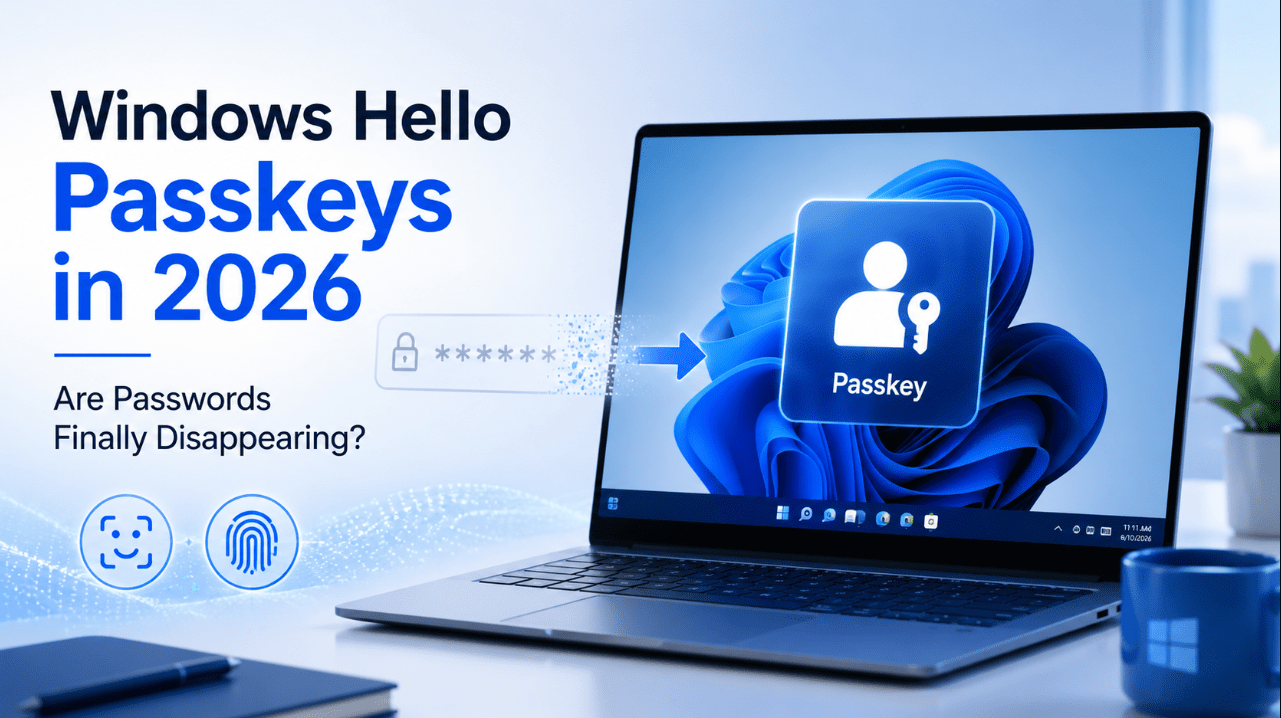
Windows Hello Passkeys in 2026: Are Passwords Finally Disappearing?
Jun
Passwords have protected online accounts for decades, but they are also one of the biggest weaknesses in digital security.
People reuse them, forget them, choose weak combinations and sometimes enter them on convincing phishing websites. Even strong passwords can be exposed when an online service suffers a data breach.
Passkeys are designed to solve these problems.
In Windows 11, passkeys work closely with Windows Hello, allowing users to sign in to supported websites and applications with facial recognition, a fingerprint or a device PIN.
In 2026, passkeys are easier to create, manage and sync across Windows devices than before. However, passwords have not completely disappeared. Many services still use them as a backup or have not introduced passkey support yet.
Need a current Windows installation with modern security features? Explore our Windows 11 product keys.
What Is a Passkey?
A passkey is a digital sign-in credential that replaces a traditional password.
Instead of creating a password that both you and a website know, a passkey uses two connected cryptographic keys:
- A public key, stored by the website
- A private key, protected on your device or in a secure passkey provider
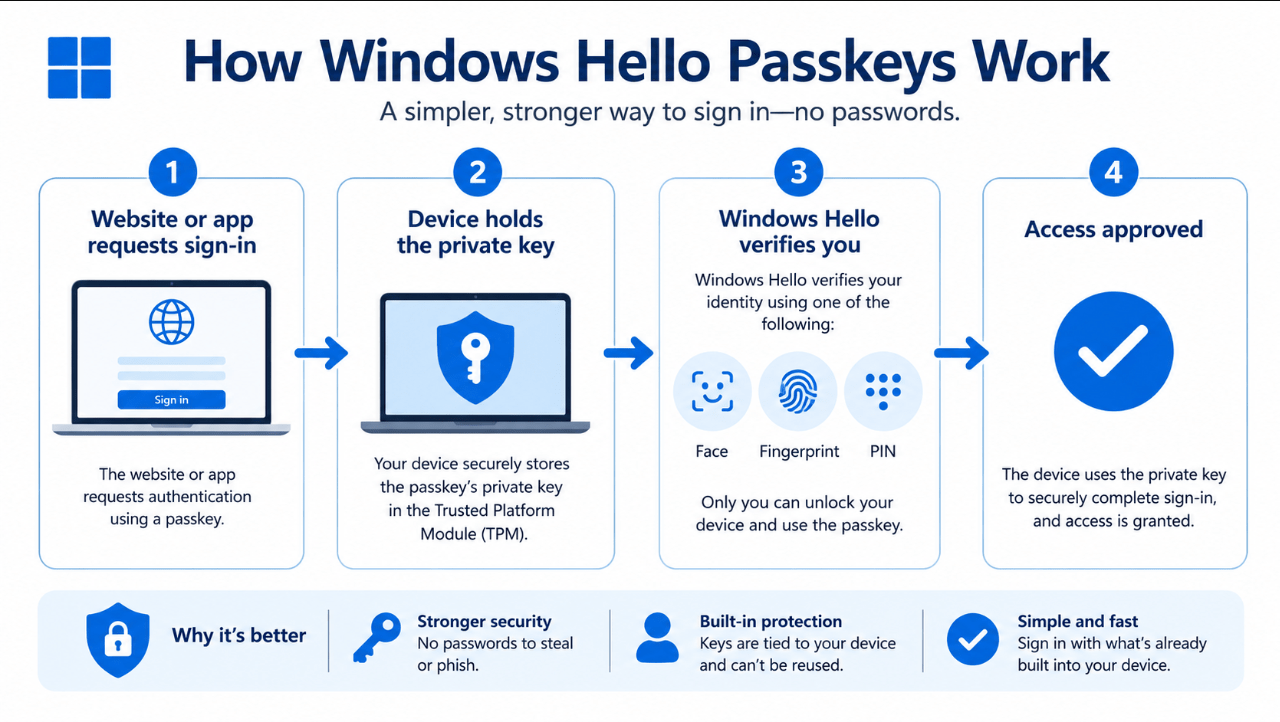
When you sign in, the website sends a challenge. Your device proves that it has the correct private key without revealing that key.
Windows Hello then confirms that it is really you by requesting:
- Face recognition
- Fingerprint recognition
- Your Windows Hello PIN
Your fingerprint or facial data is not sent to the website. It remains on your device.
How Windows Hello Passkeys Work
When a supported website asks you to create a passkey, Windows displays a secure sign-in prompt.
You approve the new passkey with Windows Hello. Later, when returning to the website, you choose the passkey option and unlock it with your face, fingerprint or PIN.
The process is usually:
- Open a website that supports passkeys.
- Choose Create a passkey in its security settings.
- Select Windows Hello or another available passkey provider.
- Confirm with your face, fingerprint or PIN.
- Use the same method for future sign-ins.
Windows 11 includes native passkey management, so users can view and remove locally stored credentials through Windows settings.
Why Passkeys Are Safer Than Passwords
They Are Resistant to Phishing
A password can be typed into a fake website.
A passkey is linked to the correct website or application. The browser and operating system verify the destination, making it much harder for a phishing page to steal the credential.
They Cannot Be Reused
Every supported account receives its own unique passkey.
If one website is attacked, the credential cannot be reused to access another service.
Websites Do Not Store the Private Key
The website keeps only the public key.
If its database is exposed, attackers do not receive a reusable secret equivalent to a password.
There Is Nothing to Remember
Users do not need to create or memorise complex character combinations.
The passkey is unlocked through Windows Hello, which makes the process both faster and easier.
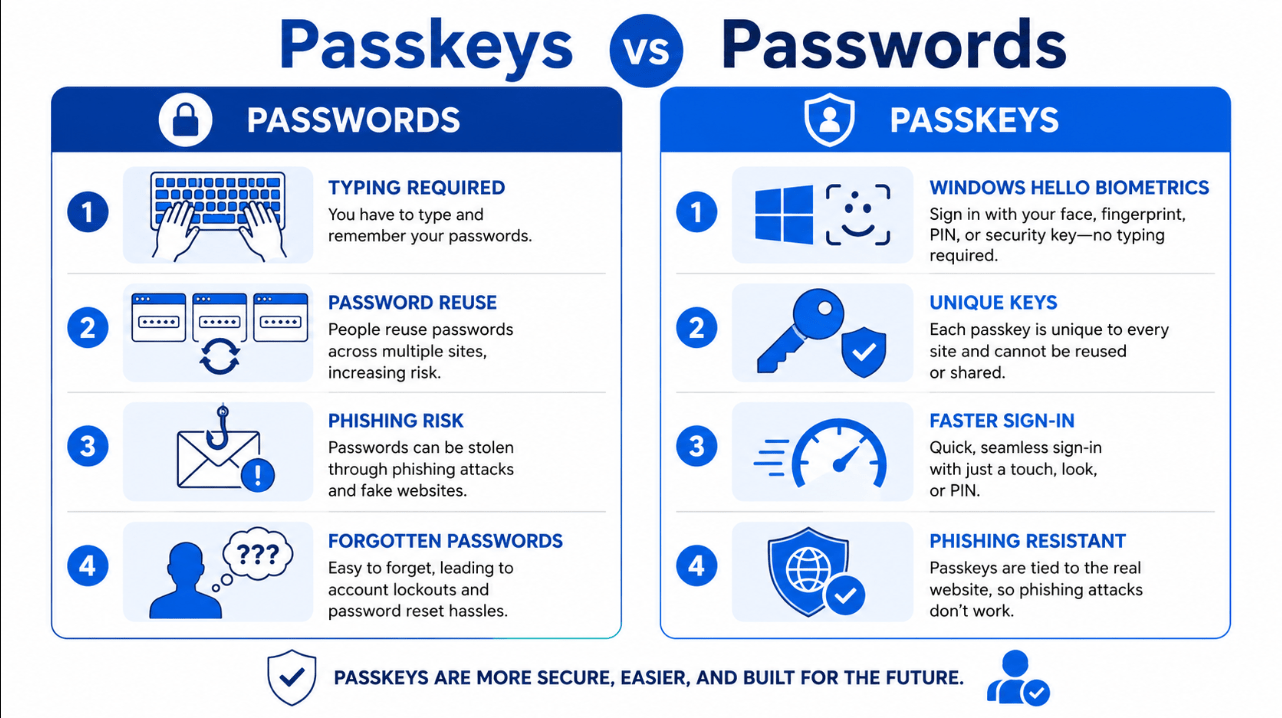
Passkeys vs Passwords
| Feature | Password | Passkey |
|---|---|---|
| Must be remembered | Usually | No |
| Can be reused | Yes | No |
| Vulnerable to phishing | Yes | Strongly resistant |
| Stored as a secret by website | Usually | No |
| Uses Windows Hello | Not normally | Yes |
| Sign-in speed | Depends on typing | Usually faster |
Passkeys remove many common human mistakes. However, they also depend on proper device security and reliable account recovery.
Can Passkeys Sync Across Windows Devices?
Yes, depending on where they are stored.
Microsoft Password Manager in Edge can save and sync passkeys across Windows desktop devices connected to the same Microsoft account.
The passkeys remain encrypted and require device authentication, such as Windows Hello, before use.
Other passkeys may be:
- Stored only in Windows Hello on one device
- Saved to a physical security key
- Stored on a phone or tablet
- Managed by another compatible passkey provider
Users should check the storage option when creating a passkey. A locally stored passkey may need to be registered again on a second computer.
Can You Use a Phone to Sign In?
Windows can also support cross-device sign-in with a nearby phone or tablet.
In this situation, the passkey remains on the mobile device. Windows communicates with it securely, normally using Bluetooth to confirm that the devices are physically close.
This can be useful when:
- The passkey was created on a phone
- You are using a shared computer
- The Windows device has no fingerprint reader
- You do not want to save the passkey locally
How to Manage Passkeys in Windows 11
Locally stored passkeys can be managed from Windows Settings.
Open:
Settings > Accounts > Passkeys
From there, you can review saved passkeys and remove credentials you no longer use.
Windows 11 also includes app privacy controls under:
Settings > Privacy & security > Passkey access
These settings allow you to control which applications may access passkeys.
Removing a passkey from Windows does not always remove it from the online account. You should also check the website’s security settings and remove the credential there when necessary.
Are Passwords Finally Disappearing?
Not completely.
Passkeys are becoming a normal sign-in option, but passwords remain common for several reasons:
- Not every website supports passkeys
- Some services still require a password for recovery
- Older applications may not support modern authentication
- Users may have accounts spread across many platforms
- Businesses need time to update identity systems
- Some users do not yet have compatible devices
The likely future is a gradual transition.
For many accounts, users will add a passkey while keeping the existing password temporarily. Over time, more services may allow the password to be removed completely.
Should You Start Using Passkeys?
For supported accounts, passkeys are usually worth enabling.
They are particularly useful for:
- Email accounts
- Microsoft accounts
- Cloud storage
- Shopping accounts
- Social platforms
- Business services
- Accounts containing payment or personal information
Before relying on passkeys, make sure you also have:
- A secure Windows Hello PIN
- A backup sign-in method
- Updated recovery information
- Another trusted device where appropriate
- Current Windows security updates
Upgrade to a modern Windows environment with current security and sign-in features.
Browse our Windows 11 Home keys for everyday use or Windows 11 Pro keys for advanced security, business and management tools.