
Instructions
Cross-Device Resume in Windows 11: Continue Phone Tasks on Your PC
Jun
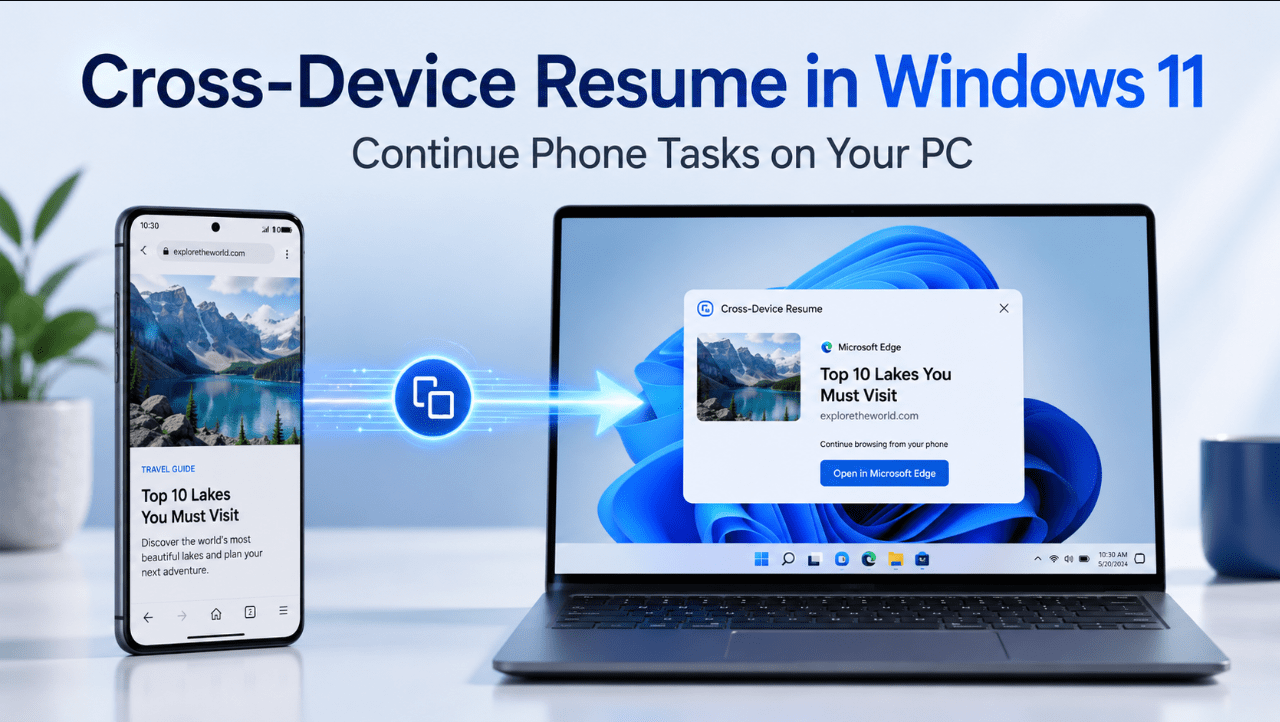
Moving between a phone and a computer often interrupts your workflow. You may start reading, listening or working on your Android phone, then need to find the same content again after sitting down at your PC.
Windows 11’s Cross-Device Resume feature is designed to make that switch easier.
When a supported activity is available, Windows displays the relevant app icon on the taskbar with a small phone badge. Clicking it opens the related application or content on your PC, allowing you to continue with fewer steps.
The feature is still expanding, so it does not work with every Android app. However, it shows how Microsoft wants Windows 11 and Android devices to work more closely together.
Looking for a current Windows edition for your PC? Browse our Windows 11 product keys.
What Is Cross-Device Resume?
Cross-Device Resume is a Windows 11 continuity feature for supported Android applications.
It allows a mobile activity to trigger a one-click alert on the Windows taskbar. The taskbar icon includes a phone badge, making it clear that the activity began on a linked mobile device.
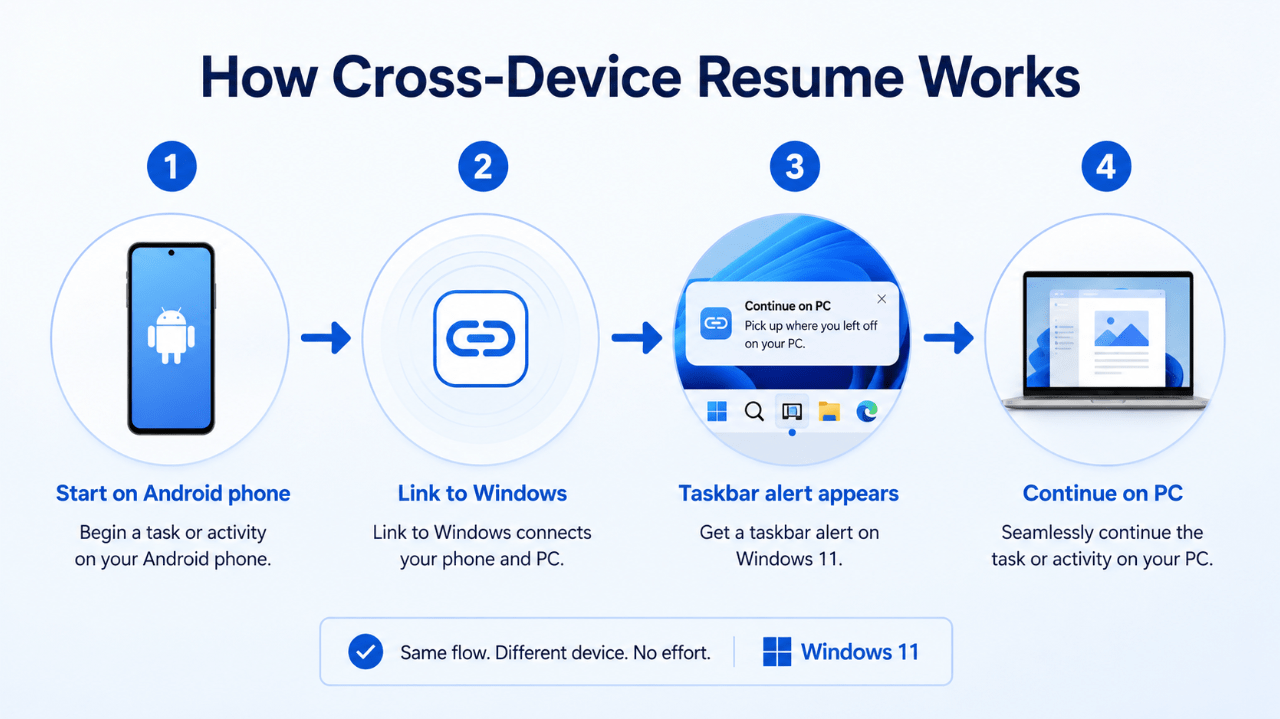
A typical handoff works like this:
- Open a supported application on your Android phone.
- Begin a supported activity.
- Look for the app icon on the Windows 11 taskbar.
- Click the icon.
- Continue the activity in the corresponding PC app or browser.
This is different from manually opening Phone Link, searching for the same content or sending yourself a link.
What Do You Need?
To use Cross-Device Resume, you generally need:
- A Windows 11 PC
- An Android phone running Android 10 or later
- Internet access on both devices
- The Link to Windows app on the phone
- The phone connected under Windows Mobile devices settings
- A supported app and activity
The feature is enabled by default when the required setup is complete.
Which Apps Are Supported?
Support remains limited and can vary by device, app and Windows version.
Microsoft currently documents support for activities including:
Spotify
You can continue music or podcast playback from your Android phone on your Windows PC.
The Spotify icon appears on the taskbar with a phone indicator. Selecting it opens Spotify on the PC and resumes the activity.
If Spotify is not installed, some Windows test versions can begin a one-click Microsoft Store installation.
Vivo Browser
Users with compatible vivo Android phones can continue a browsing session from vivo Browser in the default browser on their Windows PC.
Microsoft 365 Copilot Files
Microsoft has expanded Cross-Device Resume in recent Windows 11 updates and Insider builds.
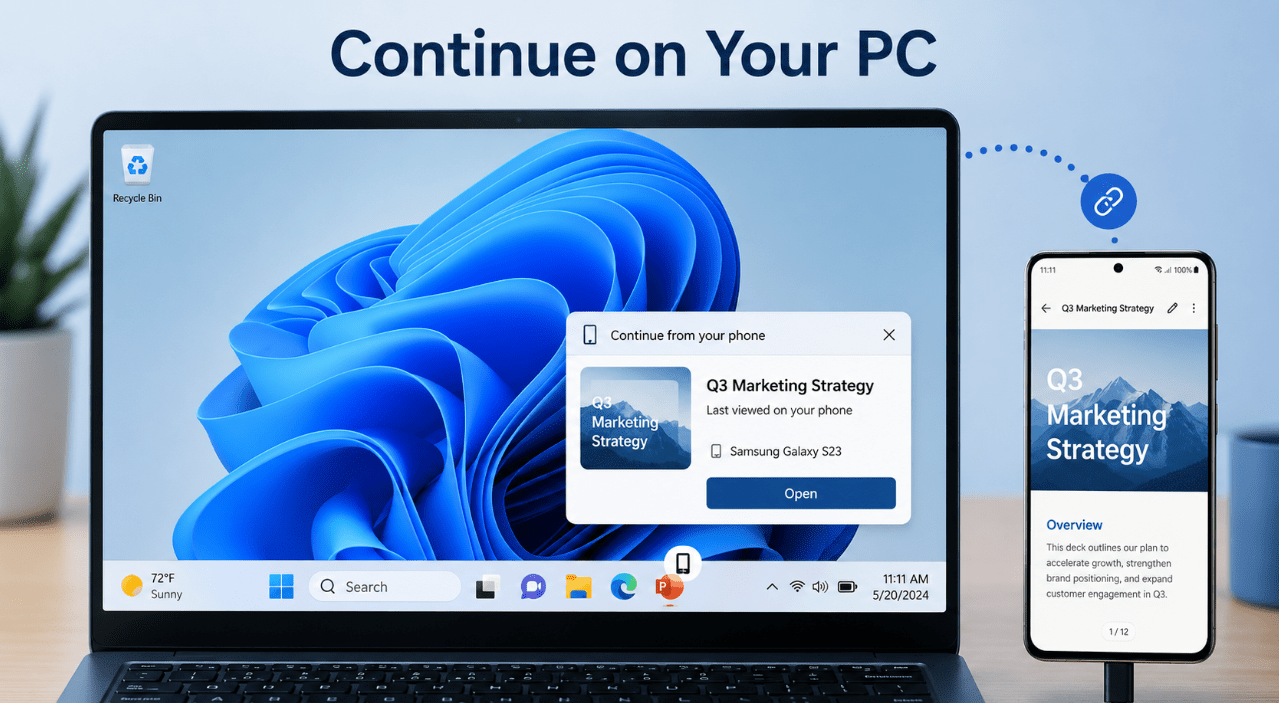
Users of selected HONOR, OPPO, Samsung, vivo and Xiaomi phones may be able to continue working with supported online files opened through the Microsoft 365 Copilot app.
This can include documents associated with Word, Excel or PowerPoint.
Availability may depend on the Windows build, mobile brand and rollout status.
How to Connect Your Android Phone
To prepare the feature:
- Open Settings on your Windows 11 PC.
- Select Bluetooth & devices.
- Open Mobile devices.
- Select Manage devices.
- Add or enable your Android phone.
- Sign in through Link to Windows when requested.
- Make sure both devices use the required Microsoft account and internet connection.
The exact setup may vary slightly depending on the phone manufacturer.
How the Taskbar Alert Works
The taskbar is the main entry point for Cross-Device Resume.
When Windows detects a supported activity:
- The corresponding app icon appears on the taskbar.
- A phone badge identifies it as a mobile handoff.
- Clicking the icon opens the relevant desktop app or browser.
- The supported content or activity resumes.
The alert is designed to reduce searching and repeated navigation.
Cross-Device Resume vs Phone Link
Cross-Device Resume and Phone Link are related, but they are not the same feature.
Phone Link
Phone Link can provide access to supported phone features such as:
- Messages
- Notifications
- Calls
- Photos
- Mobile apps on compatible devices
You normally open the Phone Link application to use these tools.
Cross-Device Resume
Cross-Device Resume focuses on continuing a specific activity directly from the Windows taskbar.
You do not need to open Phone Link first. The app or content appears as a continuation prompt when a supported mobile activity is detected.
Phone Link helps you access the phone from your PC. Cross-Device Resume helps you continue what you were already doing.
How to Turn Resume Off
You can disable the feature if you do not want mobile activity prompts on your taskbar.
Open:
Settings > Apps > Resume
You can turn the entire feature off or disable Resume for individual supported applications.
This is useful when:
- You share the PC
- You do not want activity prompts
- You use separate personal and work devices
- A particular app creates unwanted alerts
Privacy and Security
Cross-Device Resume depends on a linked-device relationship and app support.
You remain in control of whether the phone is connected and which applications can use Resume. The activity does not simply appear on unrelated Windows computers.
For better security:
- Protect both devices with secure sign-in
- Keep Windows and Android updated
- Review linked devices regularly
- Remove devices you no longer use
- Disable Resume for apps containing sensitive activity
- Avoid leaving a shared PC unlocked
Is It Available to Everyone?
The basic Resume feature is available on supported Windows 11 systems, but app support and newer capabilities are still being expanded.
Some features may appear first through:
- Preview updates
- Windows Insider channels
- Gradual controlled rollouts
- Selected Android manufacturers
- Updated versions of Link to Windows
This means two users may not see exactly the same supported apps at the same time.
Why This Feature Matters
Cross-Device Resume is currently modest, but the idea has significant potential.
As more developers support it, users could eventually continue:
- Documents
- Browser sessions
- Media playback
- Shopping activity
- Communication tasks
- Travel planning
- Business workflows
The feature also gives developers a way to create continuity between Android and Windows versions of their applications.
For users, the benefit is simple: less time spent finding the same place again.
Current Limitations
Cross-Device Resume is not yet a universal handoff system.
Current limitations include:
- Android support rather than full phone-platform parity
- A small list of supported applications
- Features that depend on specific phone brands
- Gradual Windows rollout
- Internet and account requirements
- Different behaviour between stable and Insider builds
It should be viewed as an expanding Windows feature rather than a complete replacement for manual syncing.
Improve your phone-to-PC workflow with a supported Windows installation.
Browse our Windows 11 Home keys for everyday use or Windows 11 Pro keys for advanced business and productivity features.