
Instructions
Office 2024 on Windows 11: The Best Long-Term Setup
Jun
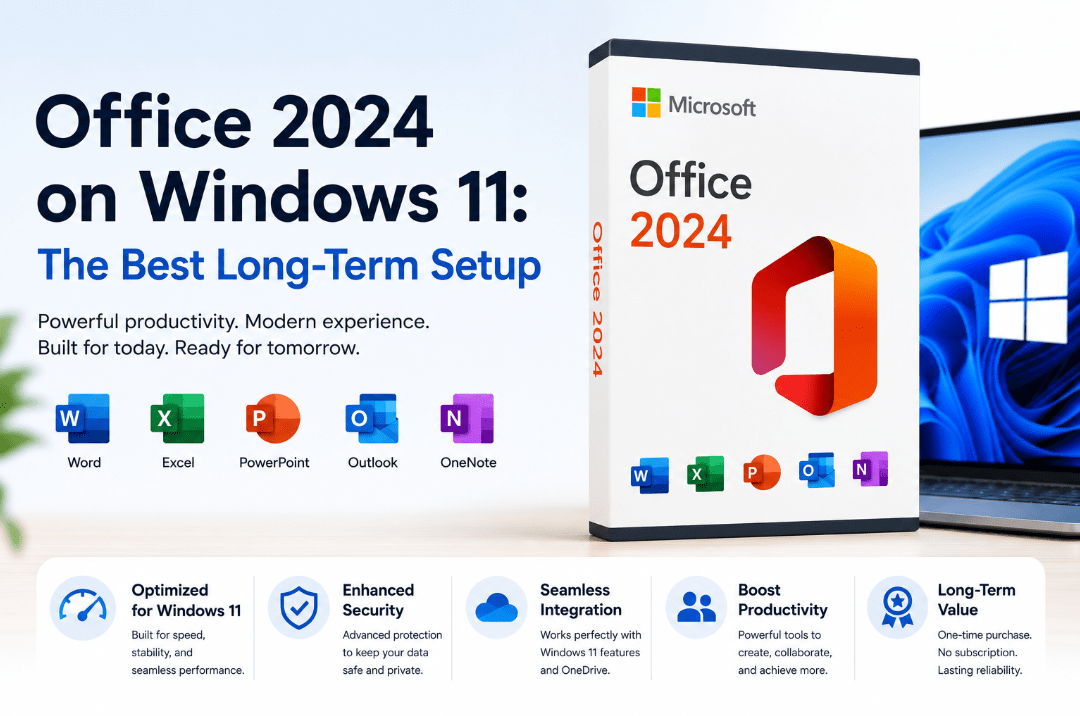
Windows 11 and Office 2024 are a strong combination for users who want a modern operating system and permanently installed desktop Office applications.
Office 2024 is available as a one-time purchase rather than a Microsoft 365 subscription. You pay for the purchased version once and can continue using it without monthly or annual Office subscription payments.
Windows 11 is also the supported Windows platform for consumer Office 2024 editions, making this pairing more suitable for long-term use than installing Office 2024 on an outdated operating system.
A good setup involves more than simply entering a product key. Choosing the correct edition, using the right installer, keeping both products updated and protecting your files can prevent activation and compatibility problems later.
Ready to build a long-term productivity setup? Browse our Office 2024 product keys and Windows 11 licences.
Why Windows 11 and Office 2024 Work Well Together
Office 2024 is designed to run on supported Windows 11 computers.
The combination provides:
- Current Windows security updates
- Modern Office desktop applications
- Compatibility with current hardware
- Support for newer display resolutions
- One-time Office licensing
- Local document storage
- Optional OneDrive integration
- A familiar Word, Excel, PowerPoint and Outlook workflow
Microsoft lists support for Office 2024 and Office LTSC 2024 until 9 October 2029.
The applications may continue working after that date, but Microsoft will no longer provide normal support and security updates for that release.
This makes Office 2024 a reasonable choice for users who want several years of supported use without moving to a Microsoft 365 subscription.
Choose the Correct Office 2024 Edition
The best setup starts with the right edition.
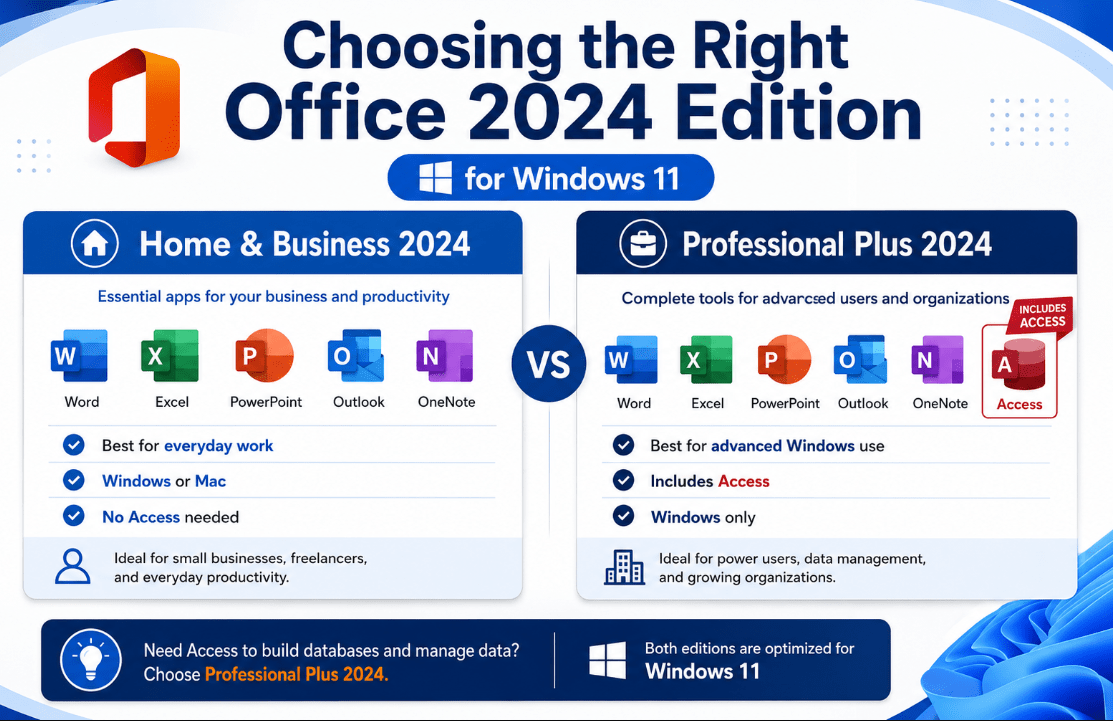
Office Home & Business 2024
Home & Business includes:
- Word
- Excel
- PowerPoint
- Outlook
- OneNote
It is suitable for:
- Freelancers
- Remote workers
- Small businesses
- Consultants
- Home-office users
- People who need Outlook but not Access
Office Professional Plus 2024
Professional Plus includes:
- Word
- Excel
- PowerPoint
- Outlook
- OneNote
- Access
It is intended for Windows users who need advanced business applications, database management or an Office LTSC deployment.
Choose Professional Plus when you specifically need Access or work with an organisation that already uses this edition.
For most individuals and smaller businesses, Home & Business is usually sufficient.
Read our Office Home & Business vs Professional Plus comparison before purchasing.
Check the System Requirements
Office 2024 does not require an especially powerful PC.
Microsoft’s listed minimum Windows requirements include:
- Windows 11
- A 1.1 GHz or faster dual-core processor
- 4 GB of RAM
- 4 GB of available storage
- A 1280 × 768 display
- A current supported browser
- Internet access for installation and activation
These are minimum requirements rather than ideal recommendations.
For smoother long-term use, a practical Windows 11 computer should preferably have:
- At least 8 GB of RAM
- A solid-state drive
- Sufficient free storage
- A supported processor
- Current graphics and device drivers
Users working with large Excel files, Access databases or several Office applications at once may benefit from 16 GB of RAM.
Install Windows 11 First
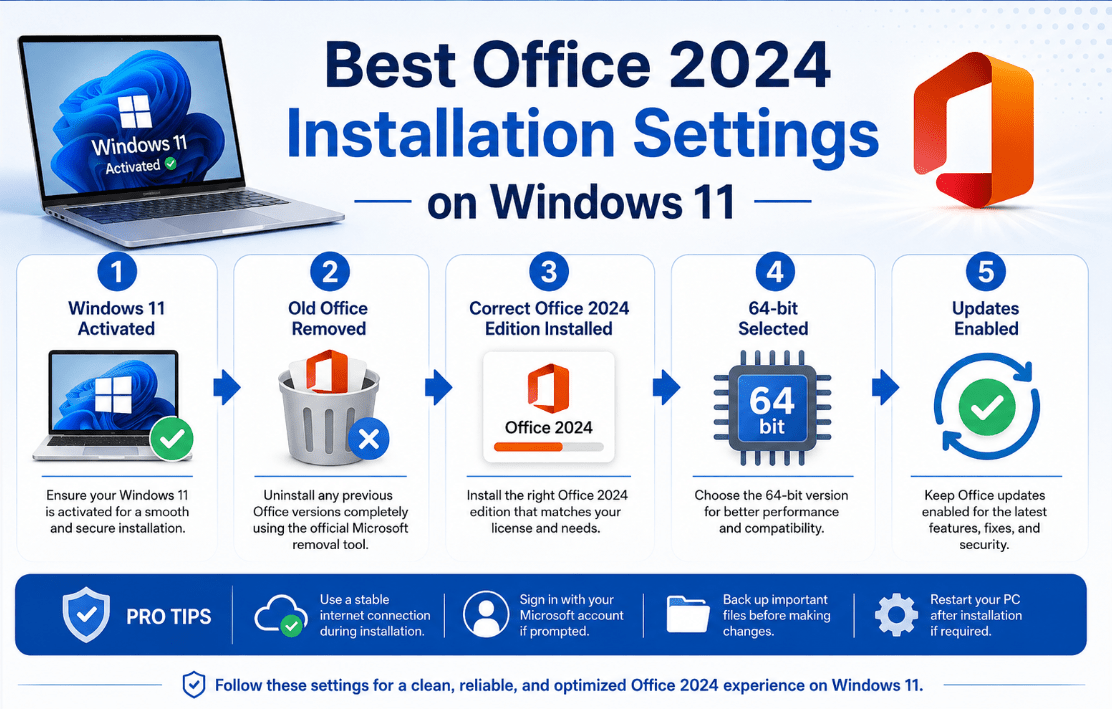
When setting up a new or reformatted computer, install and activate Windows 11 before installing Office.
A good order is:
- Install Windows 11.
- Activate Windows.
- Run Windows Update.
- Install device drivers.
- Restart the computer.
- Remove any unwanted Office trial.
- Install the correct Office 2024 edition.
- Activate Office.
- Run Office Update.
- Configure backups.
This order reduces the chance of installing Office on an incomplete or unstable Windows setup.
Remove Old or Trial Office Versions
New computers often include a Microsoft 365 trial or a preinstalled Office app.
Installing Office 2024 over an incompatible version can cause:
- Activation conflicts
- Duplicate Office entries
- The wrong apps opening
- Product-key errors
- 32-bit and 64-bit conflicts
- Update problems
Before installing Office 2024, check:
Settings > Apps > Installed apps
Remove old Office suites, expired Microsoft 365 trials and incompatible standalone Office applications where necessary.
Restart the computer before beginning the new installation.
Choose 64-Bit Office for Most PCs
Microsoft installs 64-bit Office by default unless it detects an existing 32-bit Office product.
For most Windows 11 users, 64-bit Office is the better choice.
It is especially useful for:
- Large Excel workbooks
- Complex calculations
- Large PowerPoint presentations
- Access databases
- High-resolution images
- Modern 64-bit add-ins
Choose 32-bit Office only when you depend on older add-ins, controls or business applications that require it.
Do not mix 32-bit and 64-bit Office products on the same installation. Project, Visio and the Office suite should use matching bit versions.
Keep Windows and Office Updated
A perpetual licence does not mean the software should never be updated.
Office 2024 receives security, reliability and bug-fix updates during its support period.
To update Office:
- Open Word or Excel.
- Select File.
- Open Account.
- Select Update Options.
- Choose Update Now.
Windows 11 should also receive normal Windows Update maintenance.
Open:
Settings > Windows Update
Keeping both products updated helps protect documents, email data and account information.
Protect Your Documents
Office activation does not back up your files.
Create a separate backup plan for:
- Word documents
- Excel workbooks
- PowerPoint presentations
- Outlook data
- Access databases
- Templates
- Custom dictionaries
- Important macros
Windows 11 includes Windows Backup and OneDrive integration.
Users who prefer local storage can instead use:
- An external hard drive
- A network drive
- A separate backup application
- A combination of local and cloud backups
The safest approach is to keep important files in more than one location.
Save Your Licence and Account Details
Store the following information safely:
- Order number
- Product edition
- Product key where applicable
- Microsoft account used for redemption
- Installer link
- Purchase receipt
- Activation instructions
This information is useful when reinstalling Office or moving to a replacement computer where the licence terms allow it.
Do not rely only on an old email remaining available forever.
Useful Windows 11 Settings for Office Users
A few Windows settings can make Office work more comfortably.
Snap Layouts
Use Snap Layouts to place Word, Excel, Outlook or a browser side by side.
Hover over the maximise button or press:
Windows key + Z
Clipboard History
Enable Clipboard History to reuse recently copied text and images:
Settings > System > Clipboard
Press:
Windows key + V
Windows Search
Windows Search helps find Office apps and local documents quickly.
Focus Sessions and Notifications
Reduce interruptions while writing or analysing data by configuring:
Settings > System > Notifications
The Best Long-Term Configuration
For most users, the recommended setup is:
- A supported Windows 11 PC
- Windows fully activated
- Office 2024 matched to the correct licence
- 64-bit Office
- At least 8 GB of RAM
- An SSD
- Windows and Office automatic updates
- Regular document backups
- Securely stored licence details
- Only the Office apps you actually need
Build a reliable long-term Windows and Office workstation.
Browse our Office 2024 product keys, Windows 11 Home licences and Windows 11 Pro licences.