
Instructions
Wi-Fi 7 on Windows 11: Do You Need a New Router and Computer?
Jun
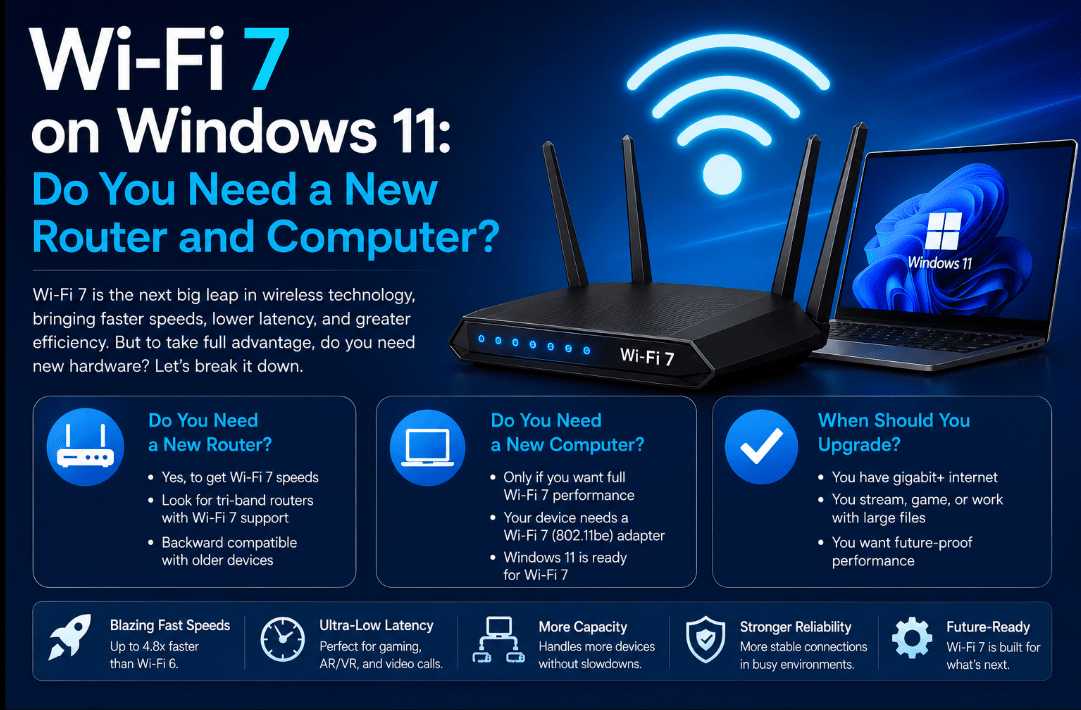
Wi-Fi 7 is the newest major generation of wireless networking. It promises faster connections, lower latency and more reliable performance when several devices are using the network at the same time.
Windows 11 supports Wi-Fi 7, but installing the latest version of Windows does not automatically upgrade your wireless connection.
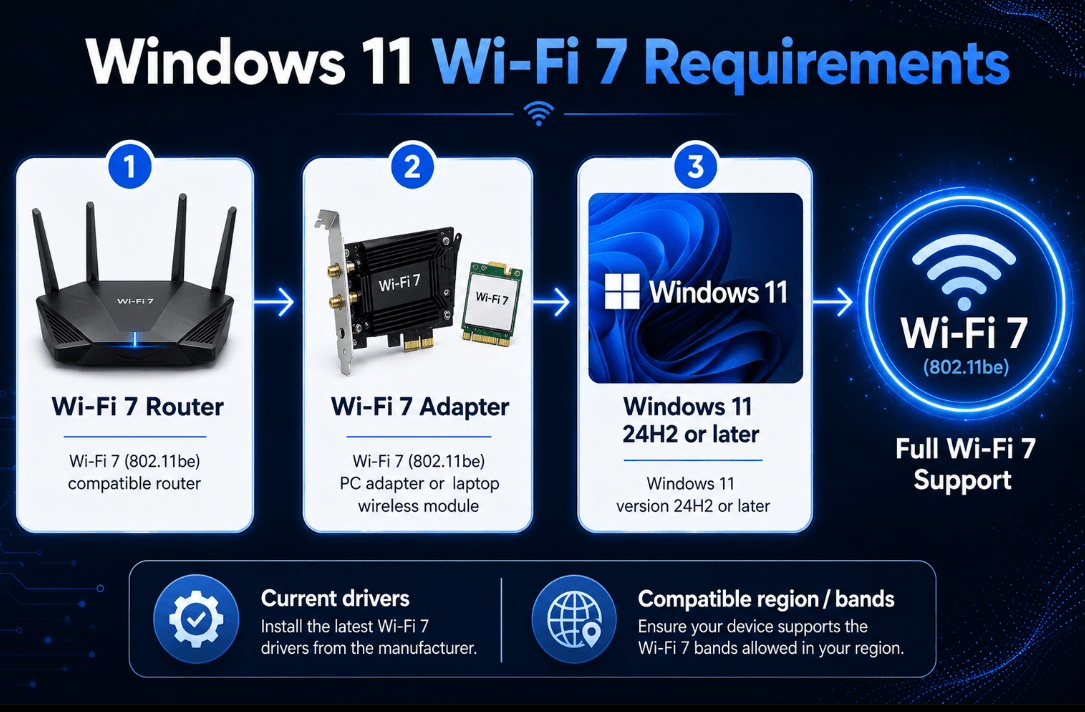
To use the full Wi-Fi 7 feature set, you need:
- A Wi-Fi 7 router or access point
- A computer with a Wi-Fi 7 wireless adapter
- Windows 11 version 24H2 or later
- Current Wi-Fi drivers
- Regional access to the required wireless bands
The good news is that you may not need to replace the entire computer. Desktop users can sometimes install a compatible Wi-Fi 7 card, while some laptops may support an internal adapter upgrade.
However, buying a new router alone will not make an older Wi-Fi 5, Wi-Fi 6 or Wi-Fi 6E computer connect at Wi-Fi 7 speeds.
Need a current Windows installation for a compatible PC? Browse our Windows 11 product keys.
What Is Wi-Fi 7?
Wi-Fi 7 is based on the IEEE 802.11be wireless standard.
Its major improvements can include:
- Channels up to 320 MHz wide
- Multi-Link Operation
- 4096-QAM, also called 4K-QAM
- Higher potential throughput
- Lower latency
- Improved performance in congested networks
- Better use of the 2.4 GHz, 5 GHz and 6 GHz bands
Multi-Link Operation
Multi-Link Operation, or MLO, allows compatible devices to use more than one wireless link.
Instead of relying on only one band at a time, a Wi-Fi 7 device may combine or switch between links to improve speed, reliability and response time.
The router, PC adapter, driver and operating system all need to support the feature correctly.
Wider 320 MHz Channels
Wi-Fi 7 can use channels that are twice as wide as the 160 MHz channels used by Wi-Fi 6E.
Wider channels can carry more data, although they are mainly available in the 6 GHz band and are subject to regional regulations.
Real-world speeds will still depend on interference, distance, walls, router quality and the internet service being used.
What Do You Need for Wi-Fi 7 on Windows 11?
There are three essential requirements.
1. A Wi-Fi 7 Router
The router must support Wi-Fi 7, which may also be shown as:
- 802.11be
- BE-class Wi-Fi
- Wi-Fi Certified 7
A Wi-Fi 6 or Wi-Fi 6E router cannot provide a true Wi-Fi 7 connection through a software update.
2. A Wi-Fi 7 Adapter
The computer needs a wireless adapter designed for Wi-Fi 7.
A new Windows 11 laptop may already include one. Desktops can sometimes use:
- A PCIe Wi-Fi 7 card
- A compatible M.2 wireless module
- A supported external adapter
Before purchasing an internal adapter, check the motherboard, antenna, chipset and manufacturer compatibility.
3. Windows 11 24H2 or Later
Microsoft introduced consumer Wi-Fi 7 support starting with Windows 11 version 24H2.
Install current Windows updates and the latest wireless driver provided by the PC or adapter manufacturer.
Do You Need a New Router?
You need a Wi-Fi 7 router to establish a full Wi-Fi 7 connection.
However, you do not necessarily need one immediately.
A current Wi-Fi 6 or Wi-Fi 6E router may already be fast enough when:
- Your internet plan is below 1 Gbps
- You have only a few active devices
- Online games and video calls already work reliably
- You do not transfer large files over the local network
- Your home has no serious wireless congestion
- Most devices do not support Wi-Fi 7
A Wi-Fi 7 router makes more sense when:
- You have multi-gigabit internet
- Several people stream or download at once
- You use wireless virtual reality
- You transfer large files to local storage
- Low latency is important
- You are replacing an old router anyway
- You want to keep the router for many years
A Wi-Fi 7 router remains backward compatible with older Wi-Fi devices. Your existing phones, televisions and computers can normally connect, but each device uses the fastest wireless standard it supports.
Do You Need a New Computer?
Not always.
The main requirement is the wireless adapter rather than the age of the computer alone.
Newer Laptops
Check the laptop specifications for:
- Wi-Fi 7
- 802.11be
- Intel BE200, BE201, BE202, BE211 or another Wi-Fi 7 adapter
- Qualcomm FastConnect Wi-Fi 7 hardware
- MediaTek Wi-Fi 7 hardware
A laptop with Wi-Fi 6E does not automatically support Wi-Fi 7, even though both can use the 6 GHz band.
Desktop Computers
A desktop may be upgraded with a Wi-Fi 7 expansion card when it has:
- A compatible PCIe or M.2 slot
- Suitable antennas
- Windows 11 support
- A compatible motherboard and chipset
- Available manufacturer drivers
This can be cheaper than replacing the entire PC.
Older or Restricted Laptops
Some laptops use soldered wireless hardware or restrict which internal modules can be installed.
In that situation, you may need:
- An external compatible adapter
- A wired Ethernet connection
- A newer laptop
Do not buy an internal Wi-Fi card until compatibility has been confirmed.
How to Check Whether Your PC Supports Wi-Fi 7
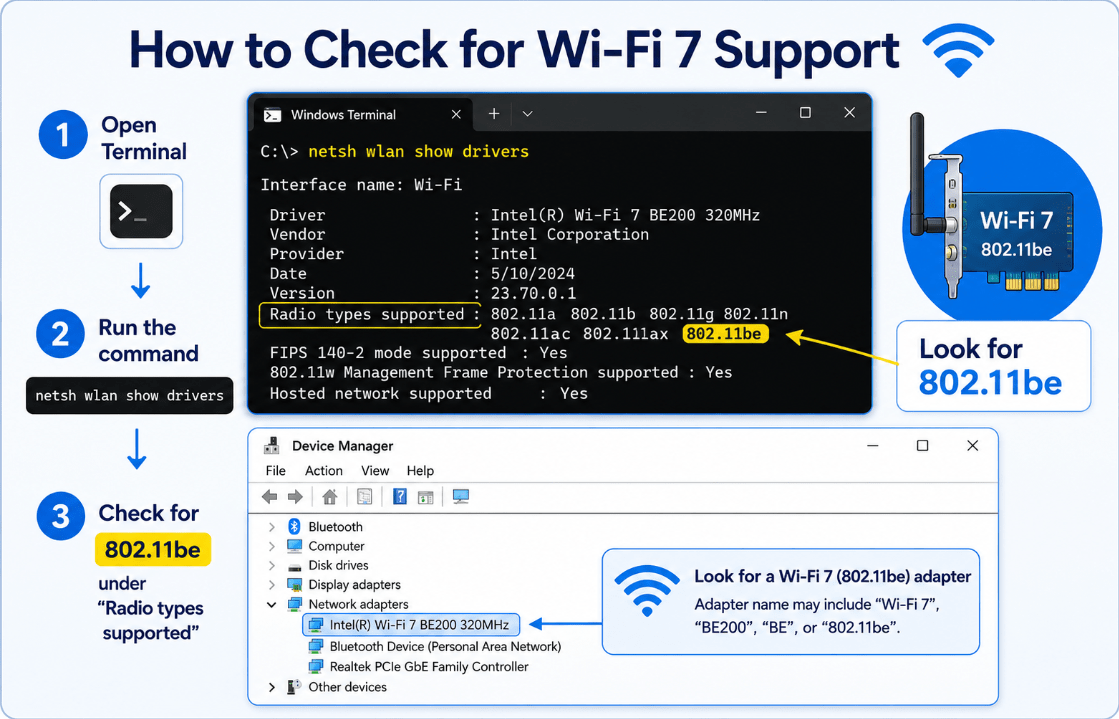
Open Terminal or Command Prompt and enter:
netsh wlan show drivers
Look for:
Radio types supported
A Wi-Fi 7 adapter should list:
802.11be
Other common entries include:
- 802.11ax for Wi-Fi 6 or Wi-Fi 6E
- 802.11ac for Wi-Fi 5
You can also check:
- Open Device Manager.
- Expand Network adapters.
- Find the wireless adapter.
- Search the exact model on the manufacturer’s website.
A router showing a Wi-Fi 7 logo does not prove that the computer is using Wi-Fi 7. Both sides must support it.
Will Wi-Fi 7 Make Your Internet Faster?
It may, but the wireless connection is only one part of the system.
Your final internet speed is limited by the slowest part of the connection:
- Internet plan
- Modem or optical network terminal
- Router Ethernet ports
- Router wireless capability
- PC wireless adapter
- Distance from the router
- Network congestion
- Website or server speed
For example, a Wi-Fi 7 laptop connected to a Wi-Fi 7 router cannot turn a 300 Mbps internet plan into a multi-gigabit service.
The improvement may still be noticeable through:
- Lower local latency
- Better performance with many connected devices
- Faster transfers between local computers and storage
- More stable video calls
- Less congestion on supported bands
Wi-Fi 7 vs Wi-Fi 6E
Wi-Fi 6E extended Wi-Fi 6 into the 6 GHz band.
Wi-Fi 7 builds on that foundation with:
- Wider channel support
- Multi-Link Operation
- Higher-order modulation
- Increased potential throughput
- Improved latency and reliability
For normal browsing, email and video streaming, the difference may not be dramatic.
For multi-gigabit networks, heavy local transfers and crowded homes, Wi-Fi 7 has more room to show its advantages.
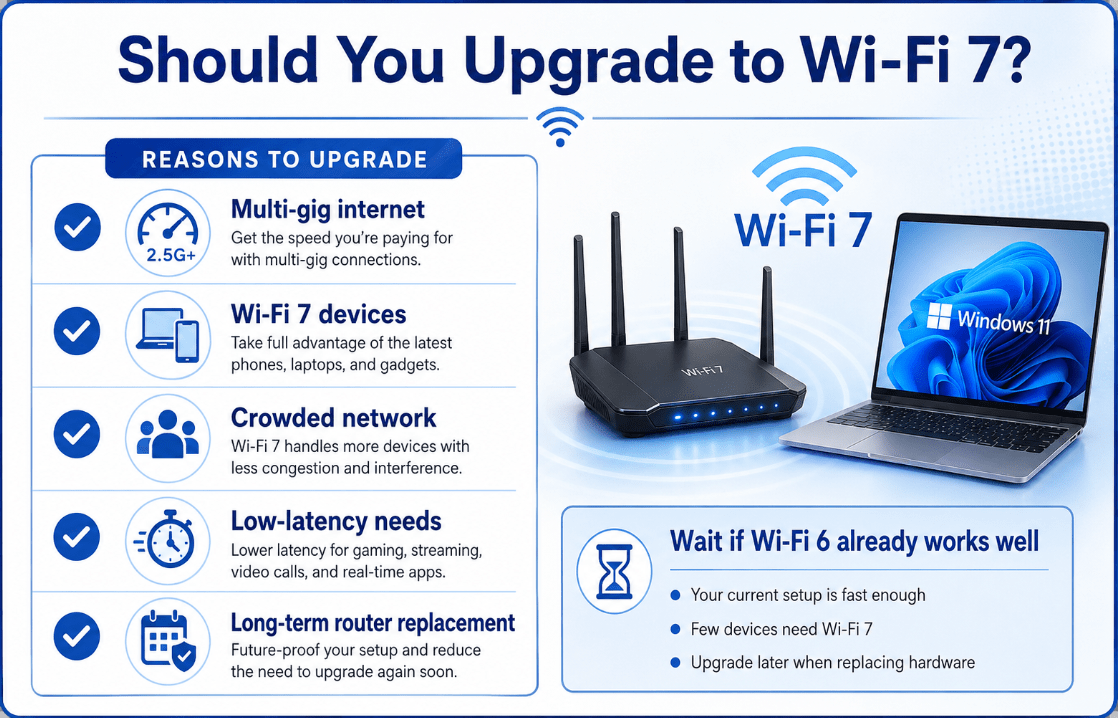
Should You Upgrade Now?
Upgrade to Wi-Fi 7 When:
- Your current router is old or unreliable
- You have multi-gigabit internet
- Your main PC already supports Wi-Fi 7
- You regularly transfer large local files
- You use many devices at once
- You want lower latency
- You are building a long-term network
Keep Your Current Setup When:
- Wi-Fi 6 or 6E already meets your needs
- Your internet plan is the main speed limit
- Few devices support Wi-Fi 7
- Your router is still new and stable
- The upgrade cost would bring little practical improvement
The best upgrade is balanced. Replacing only the router or only the computer may provide limited results when the other side of the connection remains on an older standard.
The Best Long-Term Windows 11 Setup
For a complete Wi-Fi 7 setup, aim for:
- Windows 11 version 24H2 or later
- Current Windows updates
- A Wi-Fi 7 router
- A Wi-Fi 7 wireless adapter
- Updated manufacturer drivers
- WPA3 security
- 6 GHz availability in your region
- Multi-gigabit Ethernet ports where useful
- Suitable router placement
- A fast enough internet or local network connection
Prepare your compatible computer for current networking and security features with Windows 11.
Browse our Windows 11 Home licences for everyday use or Windows 11 Pro licences for advanced business and networking tools.