
Instructions
Office 2024 Accessibility Improvements Explained
Jun
Accessible documents are easier for everyone to read, understand and navigate. They are especially important for people who use screen readers, keyboard navigation, magnification, captions or other assistive technologies.
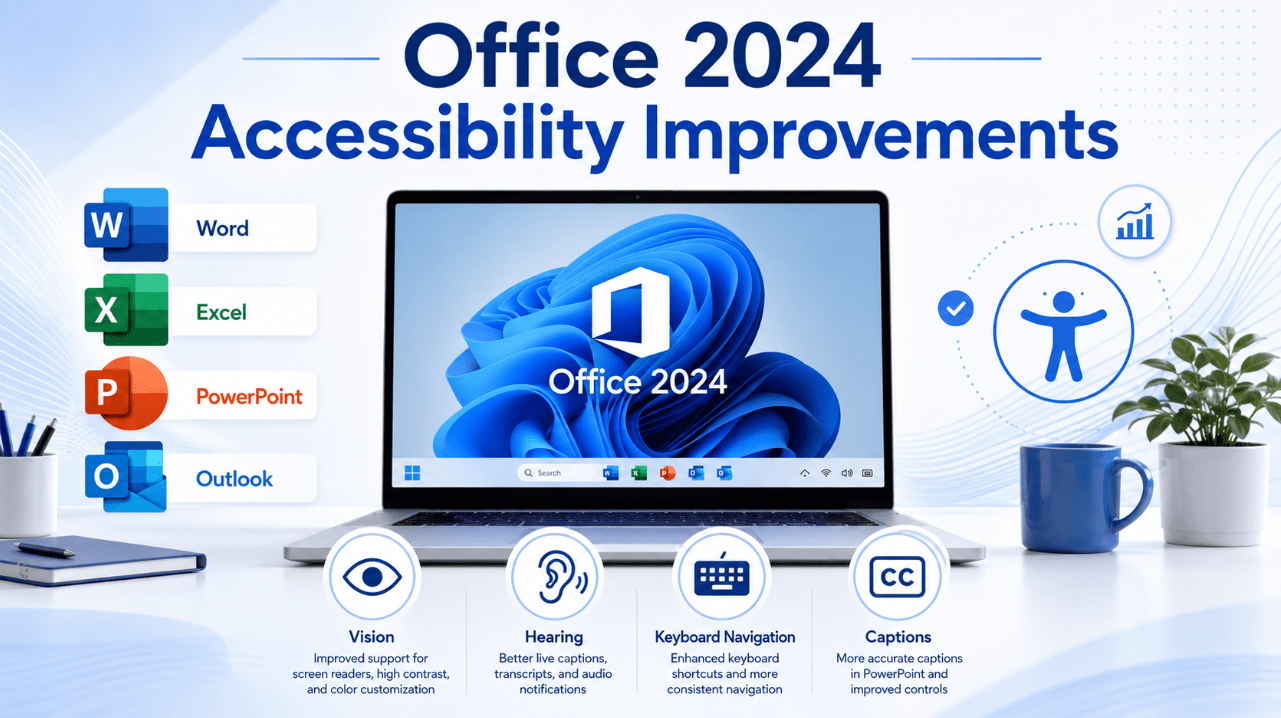
Microsoft has improved accessibility across Office 2024 and Office LTSC 2024. The updates affect common tasks in Word, Excel, PowerPoint and Outlook, from checking documents for problems to exporting more accessible PDFs.
The improvements do not automatically make every file accessible. Authors still need to use clear headings, descriptive links, alternative text and logical reading order. However, Office 2024 provides better tools for finding and correcting common barriers.
Need a one-time Office licence? Browse our Office 2024 product keys.
What Is Digital Accessibility?
Digital accessibility means designing files and communications so that people with different abilities can use them successfully.
An accessible Office file may include:
- Proper heading styles
- Alternative text for meaningful images
- Sufficient colour contrast
- Descriptive hyperlink text
- Clear table headers
- A logical reading order
- Captions for audio and video
- Meaning that does not depend on colour alone
These practices help people using screen readers, voice control, keyboard navigation, magnification and other assistive tools.
They can also make documents clearer for mobile users, people working in poor lighting and readers with temporary injuries or visual fatigue.
Improved Accessibility Ribbon
One of the most useful Office 2024 improvements is easier access to accessibility tools.
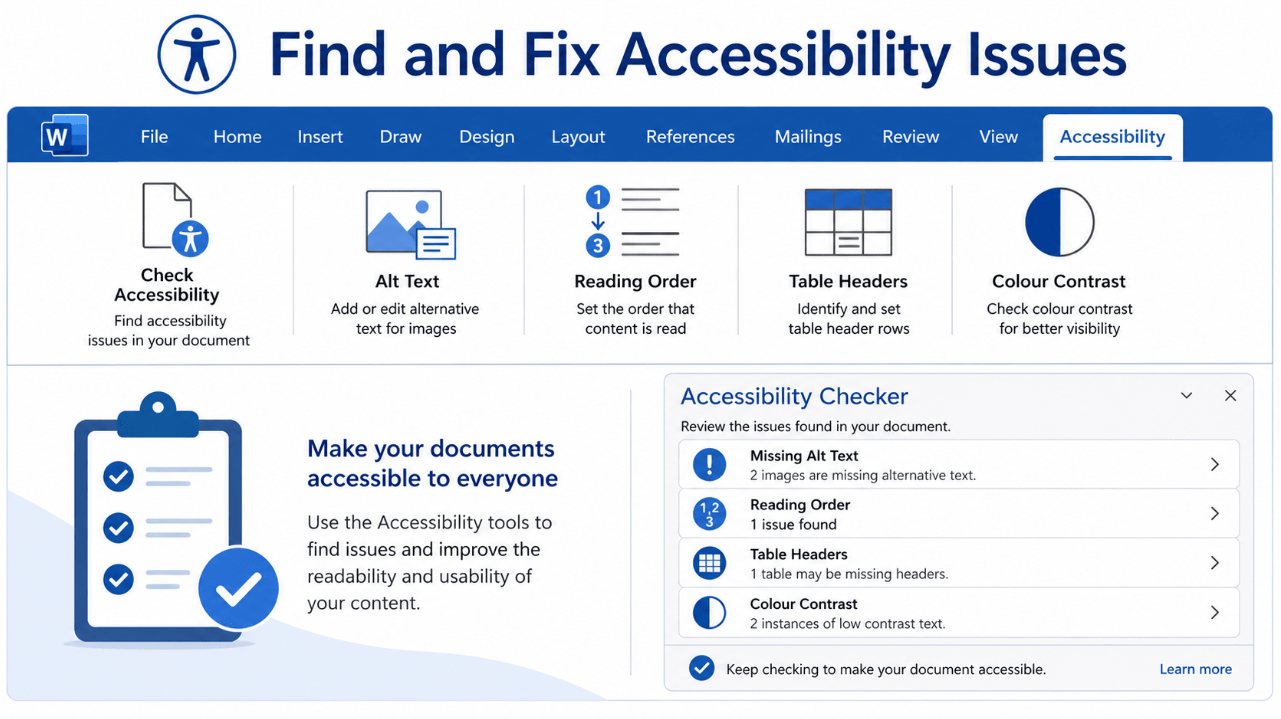
In supported Word, Excel, PowerPoint and Outlook editions, the Accessibility Ribbon brings important commands into one place.
Depending on the application, it can help users:
- Run the Accessibility Checker
- Add or review alternative text
- Check document structure
- Review table accessibility
- Adjust reading order
- Work with captions
- Identify contrast and formatting issues
This is helpful because accessibility settings were previously spread across several menus.
The Ribbon does not replace good document design, but it makes the required tools easier to find during normal work.
Accessibility Checker
The Accessibility Checker reviews a file and identifies problems that could make the content difficult to use.
It is available in Office applications including:
- Word
- Excel
- PowerPoint
- Outlook
- OneNote
The checker may flag issues such as:
- Missing alternative text
- Unclear hyperlink text
- Tables without headers
- Difficult slide-reading order
- Insufficient colour contrast
- Empty headings
- Repeated blank characters
- Content that is difficult for screen readers to interpret
To run it in a supported Office 2024 app:
- Open the document, workbook, presentation or email.
- Select Review.
- Choose Check Accessibility.
- Review the issues and recommendations.
- Correct each relevant problem.
The checker can reduce mistakes, but it cannot judge every design decision. A human review is still important before publishing or sharing important content.
Better Accessible PDF Export
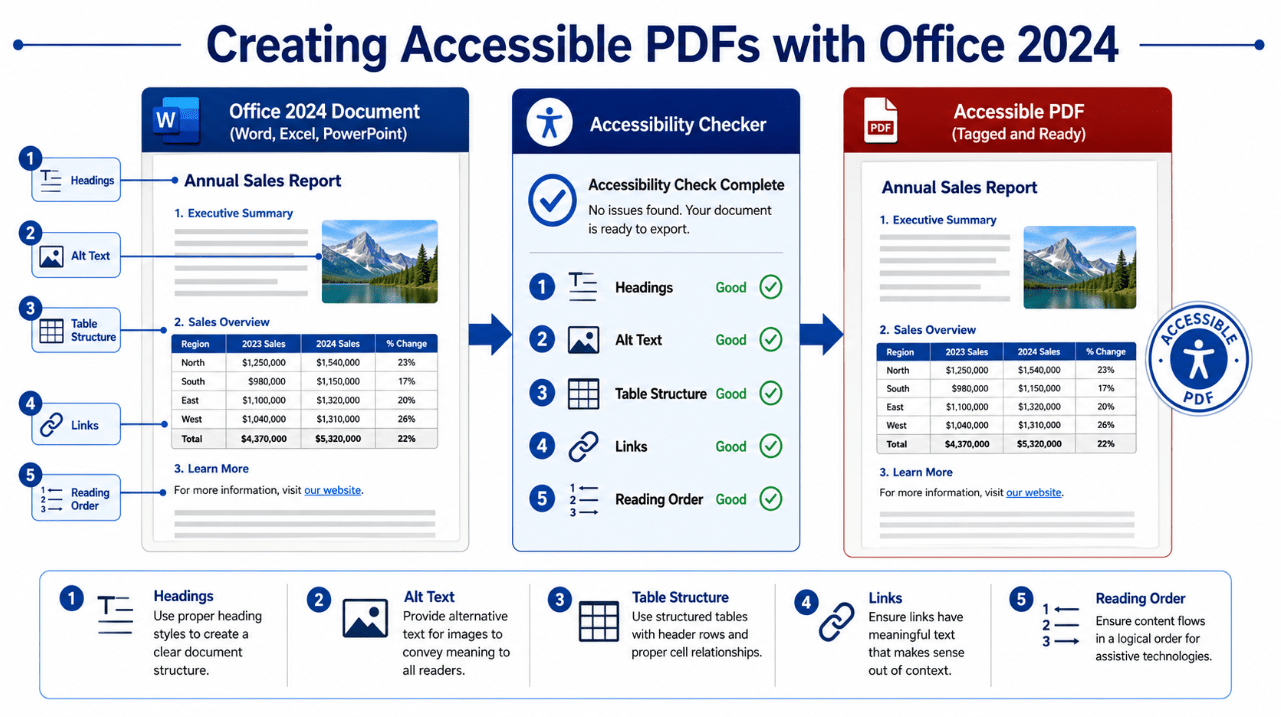
Office 2024 significantly improves the accessibility of PDFs exported from Word, Excel and PowerPoint.
A properly exported PDF can preserve information such as:
- Headings
- Lists
- Table structure
- Reading order
- Links
- Alternative text
- Document-language information
- Form-related metadata
This gives screen readers and other assistive tools a better understanding of the file.
However, the original Office document must already be structured properly. Exporting a poorly designed document will not automatically repair missing headings, confusing tables or absent alternative text.
Before creating a PDF:
- Use built-in heading styles.
- Add alternative text to meaningful images.
- mark decorative images appropriately.
- Use real lists rather than manually typed symbols.
- define table headers.
- Run the Accessibility Checker.
- Choose an accessibility-focused PDF export option where available.
PowerPoint Captions and Subtitles
Captions make presentations more accessible to people who are deaf or hard of hearing. They also help viewers in noisy environments or people watching without sound.
PowerPoint 2024 provides improved support for adding closed captions or subtitles to supported video and audio content.
Good captions should:
- Match the spoken content
- Identify important speakers where necessary
- Include meaningful sound information
- Appear at the correct time
- Remain easy to read
- Avoid covering essential visual content
Captions are especially important when a presentation will be shared online or viewed without a live presenter.
Slide Magnification
PowerPoint 2024 can magnify a slide up to 400 percent during Slide Show view while keeping supported animations and video running.
This can help presenters:
- Enlarge detailed charts
- Focus on a small section of a diagram
- Improve visibility for viewers
- Explain spreadsheet data
- Highlight interface elements during training
Magnification is not a substitute for readable slide design. Text should still be large, clear and supported by good contrast.
ODF 1.4 Accessibility Support
Word, Excel and PowerPoint in Office 2024 support OpenDocument Format 1.4.
ODF 1.4 introduces additional capabilities, including accessibility attributes for decorative objects.
Marking an object as decorative tells assistive technology that the image does not contain information that needs to be announced.
This reduces unnecessary screen-reader descriptions and helps users focus on meaningful content.
ODF support is useful for organisations that exchange files with other office suites or rely on open document standards.
A More Consistent Visual Design
Office 2024 also introduces a refreshed visual theme with a more consistent appearance across applications.
Microsoft states that the theme uses Fluent Design principles and a revised colour palette intended to improve familiarity and accessibility.
A consistent interface can help users locate tools more easily when switching between Word, Excel, PowerPoint and Outlook.
Users should still configure Windows and Office according to their needs, including:
- Display scaling
- Windows contrast themes
- Text size
- Magnifier
- Colour filters
- Keyboard navigation
- Mouse-pointer size
Accessibility Tips for Word 2024
To create more accessible Word documents:
- Use Heading 1, Heading 2 and Heading 3 styles
- Add alternative text to informative images
- Mark decorative images as decorative
- Use descriptive links rather than “click here”
- Avoid using spaces to create columns
- Use built-in lists
- Set table header rows
- Check colour contrast
- Add a document title
- Run the Accessibility Checker
A well-structured Word document is easier to navigate with both a screen reader and the Navigation Pane.
Accessibility Tips for Excel 2024
To improve Excel workbooks:
- Give every worksheet a descriptive name
- Add alternative text to charts
- Use clear table headers
- Avoid blank rows inside important data
- Do not rely only on colour
- Keep worksheet layouts predictable
- Explain abbreviations
- Use meaningful hyperlink text
- Check chart labels and legends
Complex spreadsheets may require additional explanations because screen readers process cells differently from visual users.
Accessibility Tips for PowerPoint 2024
For inclusive presentations:
- Use built-in slide layouts
- Give each slide a unique title
- Check the reading order
- Add alternative text
- Include captions for media
- Use large readable fonts
- Maintain strong contrast
- Avoid rapidly flashing content
- Describe important visuals while presenting
- Run the Accessibility Checker
Built-in layouts usually produce a more logical structure than manually placing every text box.
Accessibility Tips for Outlook 2024
Before sending an important email:
- Use short paragraphs
- Include descriptive links
- Add alternative text to informative images
- Avoid image-only messages
- Use real lists
- Keep formatting simple
- Check colour contrast
- Add meaningful subject lines
- Run the Accessibility Checker
Accessible email is particularly important for customer service, education, employment and public communication.
Does Office 2024 Make Every File Accessible Automatically?
No.
Office 2024 provides better tools, but accessibility still depends on the person creating the content.
Automatic checking cannot always determine:
- Whether alternative text is useful
- Whether headings are logically organised
- Whether a chart explanation is sufficient
- Whether reading order makes sense
- Whether plain language is needed
- Whether a caption accurately reflects the audio
The best process combines Office tools with a careful manual review.
Create documents, spreadsheets, presentations and emails with the latest one-time Office release.
Browse our Office 2024 licences, including Office Home & Business 2024 and Office Professional Plus 2024.