
Instructions
Windows 11 Update History: Where to Find It
Aug
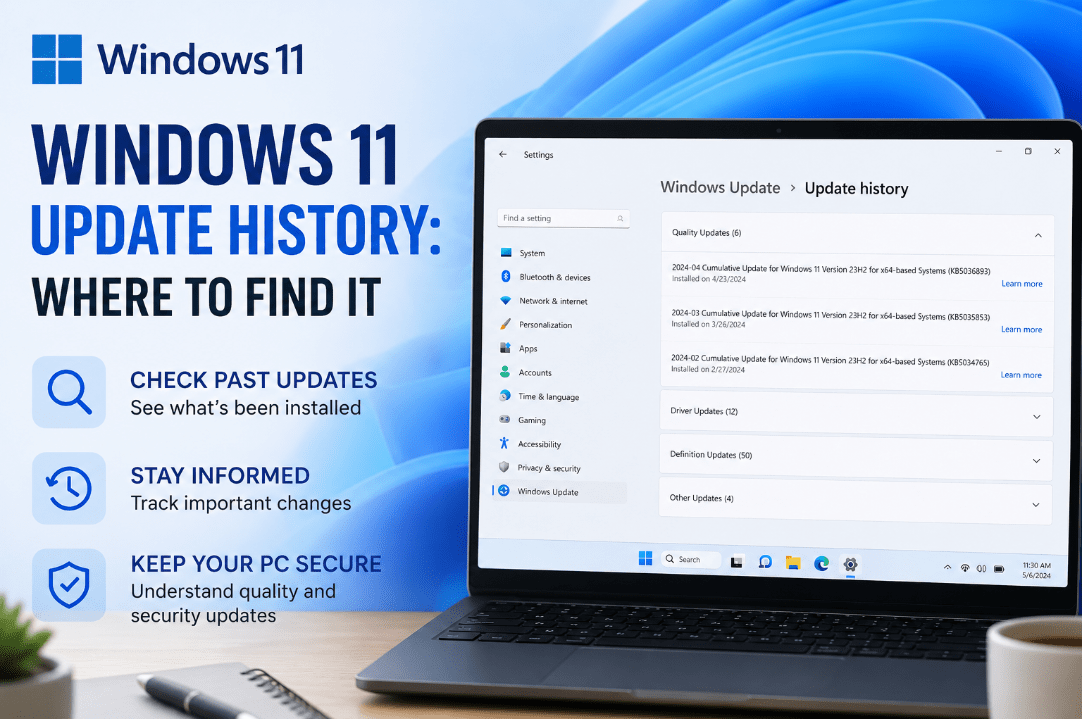
Want to know which updates have recently been installed on your PC? Windows 11 update history gives you a quick overview of the updates your computer has received.
You can find it directly in the Windows Settings app in just a few clicks.
How to Find Windows 11 Update History
Follow these steps:
- Open Start.
- Select Settings.
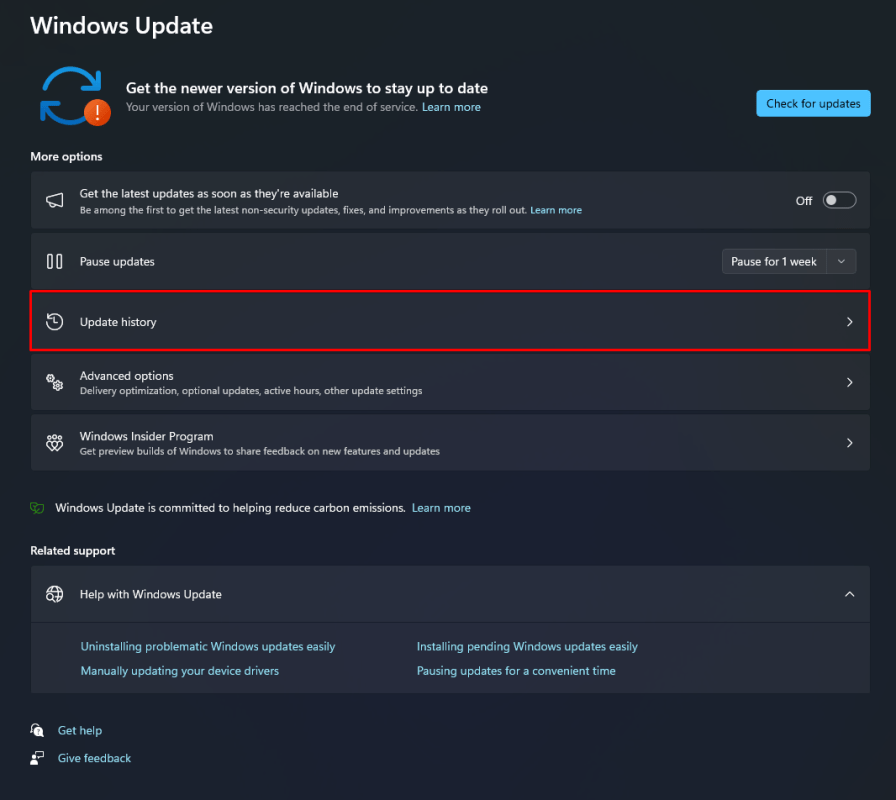
- Click Windows Update.
- Select Update history.
You will now see a list of updates that have been installed on your Windows 11 PC.
What Can You See in Update History?
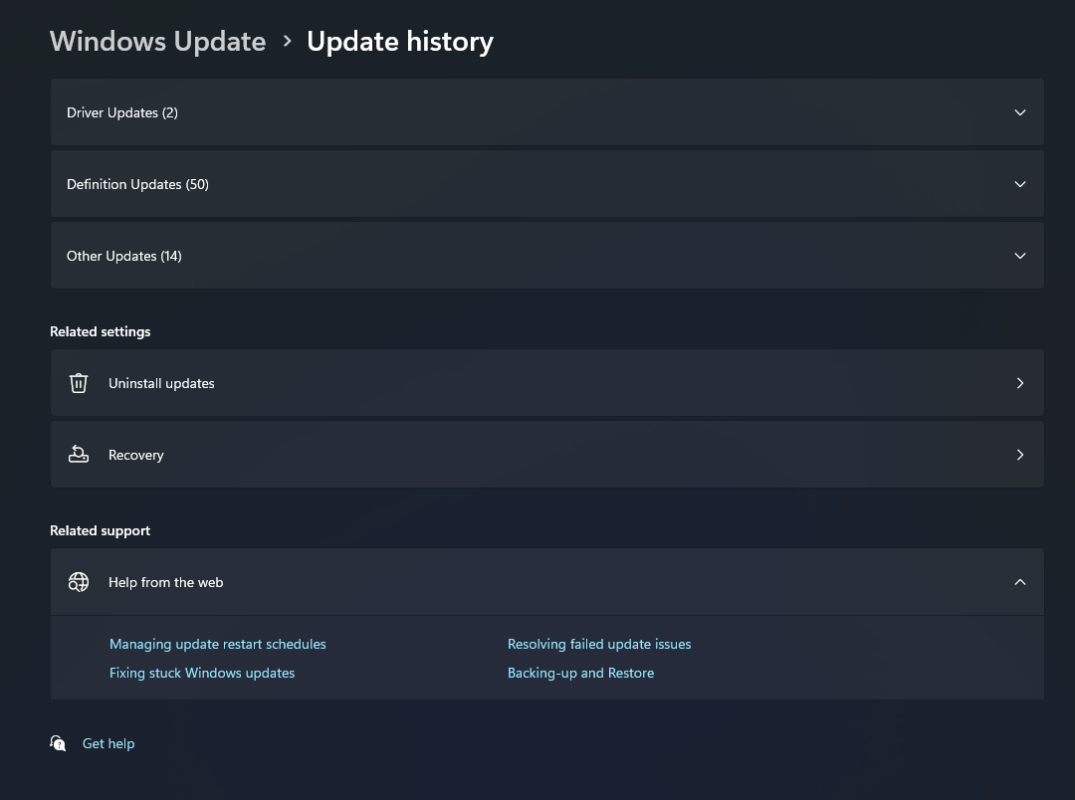
The Update history page separates installed updates into different categories. Depending on your PC, you may see:
- Quality and security updates
- Driver updates
- Definition updates
- Feature or configuration updates
- Other Windows updates
Each entry normally includes an update name and the date it was installed.
You may also see a KB number, such as KBxxxxxxx. This number identifies a specific Microsoft update and can be useful when searching for more information about fixes or known problems.
Why Check Your Windows Update History?
Checking your update history can be useful when troubleshooting a problem.
For example, if your PC suddenly starts experiencing an issue after a Windows update, you can check which updates were recently installed.
It can also help you:
- Confirm that an important update was installed
- Identify recently installed drivers
- Find the KB number of an update
- Troubleshoot problems that started after an update
- Check whether Windows is receiving regular updates
Can You Uninstall an Update?
Some Windows updates can be removed if they are causing problems.
Go to:
Settings → Windows Update → Update history → Uninstall updates
Windows will show the updates that can currently be removed.
However, not every update can be uninstalled, and removing a security update may leave your PC without important fixes. Only consider doing this when you have a specific problem linked to a recent update.
How to Check for New Windows 11 Updates
If you want to see whether new updates are available, go to:
Settings → Windows Update
Then select Check for updates.
Windows will search for available updates and download eligible updates for your device.
Where to look
Your Windows 11 update history is under Settings → Windows Update → Update history.
It is a useful place to check whenever you’re troubleshooting an update problem or simply want to make sure your PC is staying up to date.
Need a Windows 11 license for your PC? Explore our Windows 11 keys and choose the right edition for your needs today.