
Instructions
Windows 11 Activation Status: Where to Check It
Aug
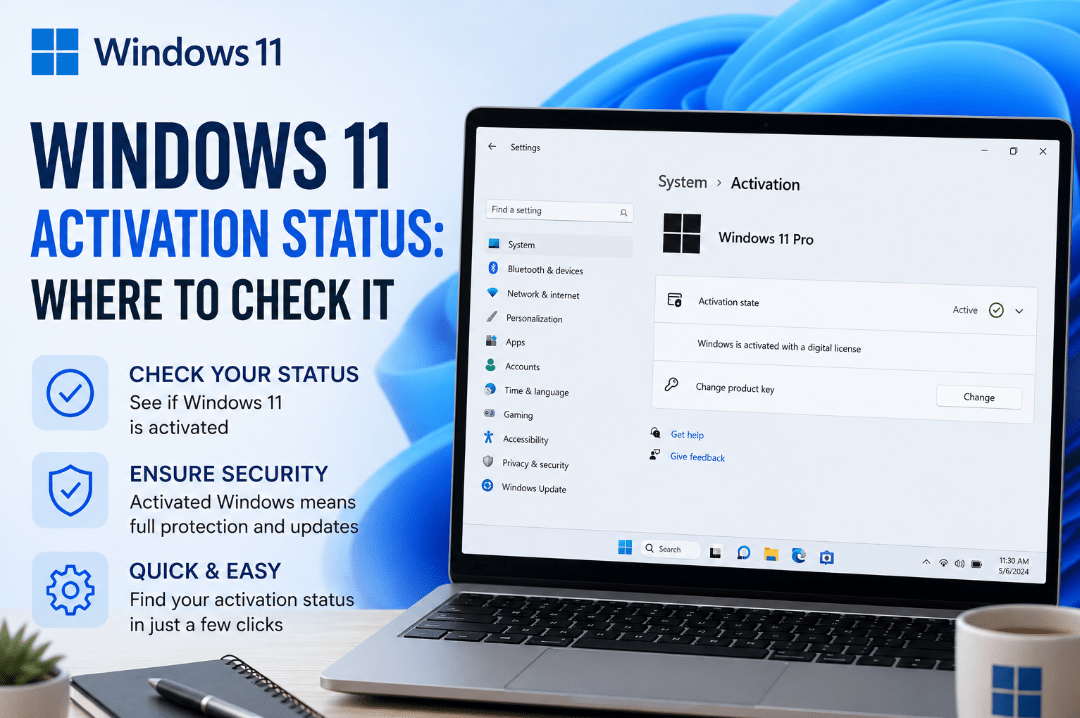
Want to know whether Windows 11 is properly activated on your PC? Checking your Windows 11 activation status takes only a few seconds.
Windows includes a dedicated Activation page where you can see your edition, activation state, and licence information.
How to Check Windows 11 Activation Status
Follow these simple steps:
- Open Start.
- Select Settings.
- Click System.
- Scroll down and select Activation.
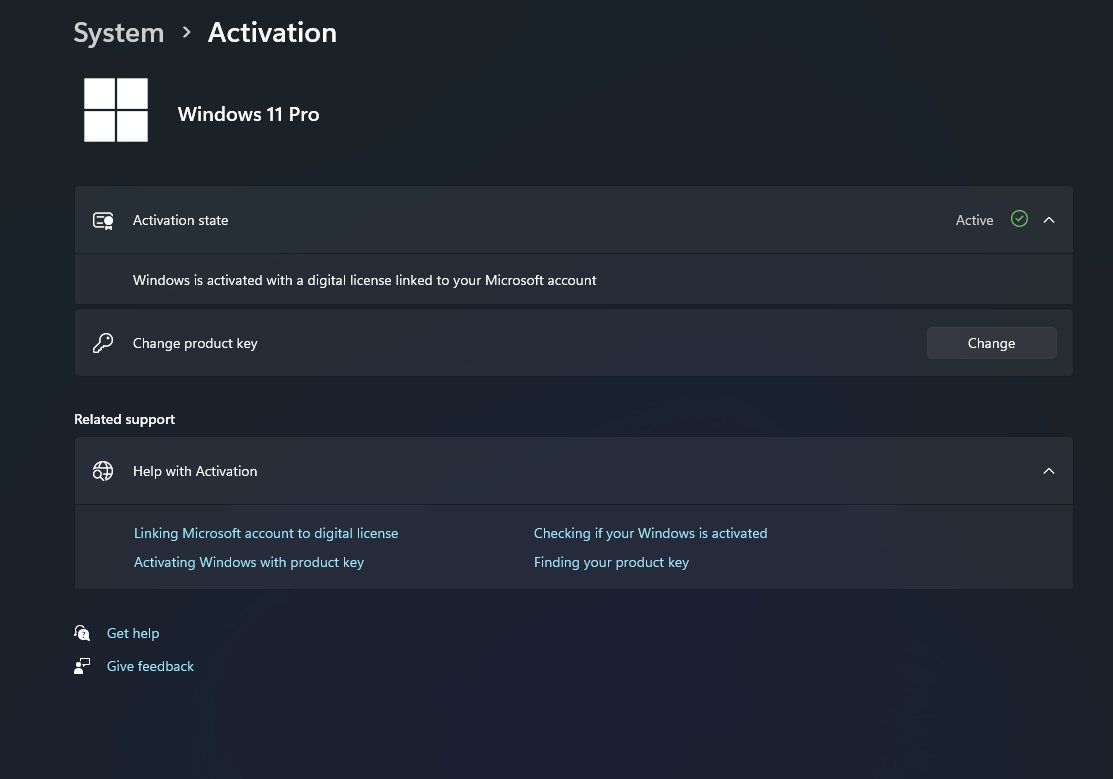
Your current activation information will appear next to Activation state.
What Does Your Activation Status Mean?
You may see several different messages on the Activation page.
Windows Is Activated
If you see that Windows is activated, your Windows 11 licence is currently active on the PC.
Windows Is Activated with a Digital Licence
This means Windows is activated using a digital licence rather than requiring you to manually enter a product key each time.
Windows Is Activated with a Digital Licence Linked to Your Microsoft Account
This means your digital licence is also connected to your Microsoft account.
Linking the licence to your account can make reactivation easier after certain hardware changes.
Windows Is Not Activated
If Windows is not activated, the Activation page may display an error message or error code.
You may need to enter a valid product key, troubleshoot an activation problem, or check that your Windows edition matches your licence.
How to Enter a Windows 11 Product Key
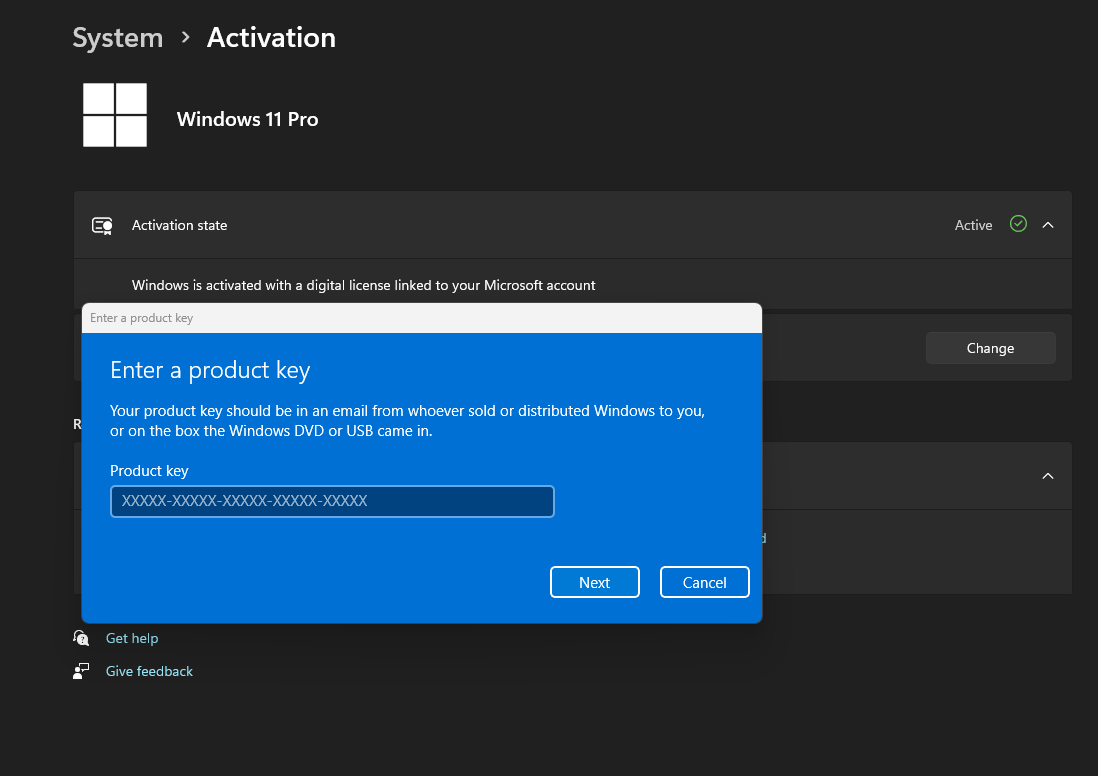
If you already have a Windows 11 product key, you can enter it from the same Activation page.
Go to:
Settings → System → Activation → Change product key
Select Change, enter your 25-character product key, and follow the instructions on the screen.
Check Your Windows 11 Edition Too
While checking your activation status, it is also a good idea to confirm which Windows edition is installed.
For example, a Windows 11 Home product key cannot normally activate an installation of Windows 11 Pro.
Your installed edition is displayed on the System → Activation page.
Checking your activation
Just open Settings → System → Activation to confirm whether Windows is activated and see which edition is installed.
If Windows is not activated, check the displayed error message and make sure your product key matches your installed Windows edition.
Need to activate your PC? Explore our Windows 11 keys and choose the right edition for your Windows 11 installation today.