
Instructions
Windows Backup: What It Actually Saves
Aug
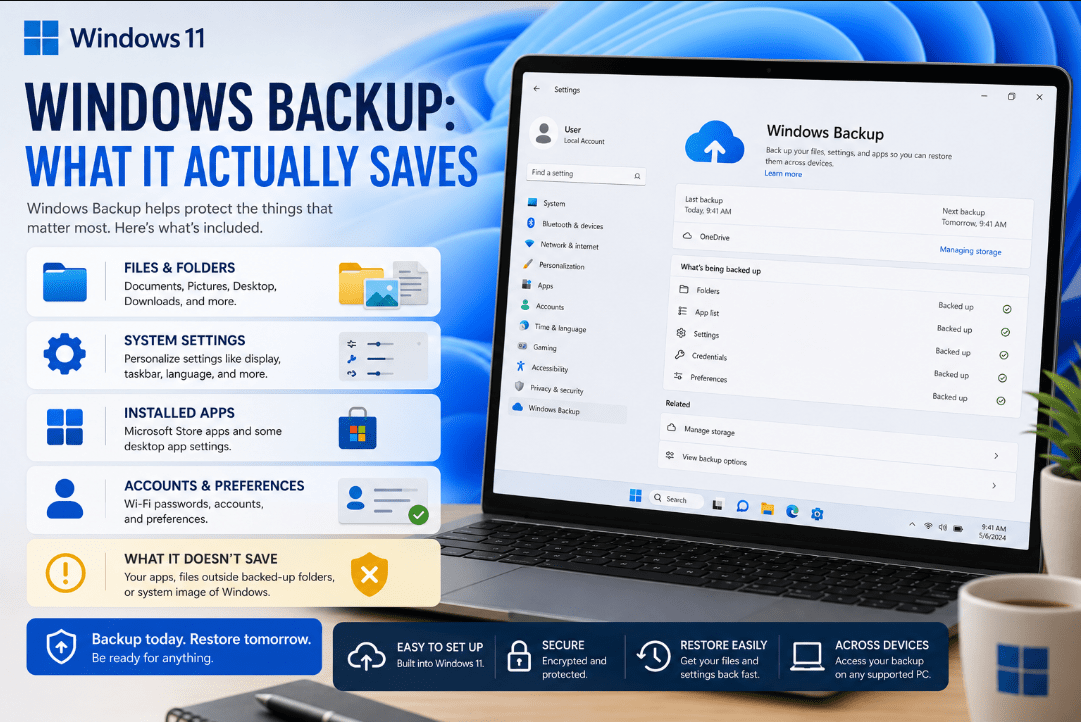
Windows Backup can make moving to a new PC much easier, but what does Windows Backup save exactly?
It doesn’t create a complete copy of everything on your computer. Instead, Windows Backup saves selected personal folders, remembers your apps, and stores many Windows settings and preferences.
What Files Does Windows Backup Save?
Windows Backup uses OneDrive to back up selected personal folders.
You can choose to back up:
- Desktop
- Documents
- Pictures
- Videos
- Music
These files are synced to your OneDrive account, so you can access them again after signing in on another PC with the same Microsoft account.
Keep in mind that your Microsoft account includes 5 GB of free OneDrive storage. If your files require more space, you may need additional OneDrive storage.
Does Windows Backup Save Your Apps?
Windows Backup can remember your list of installed apps, but this doesn’t mean every program is copied completely to the cloud.
When you restore a backup on a new PC, Windows can restore your app pins.
For apps available through the Microsoft Store, selecting the restored app can help you reinstall it. For some programs that aren’t available in the Store, Windows may direct you to the developer’s website to download them again.
So, Windows Backup remembers your apps, but some programs still need to be downloaded and installed again.
What Windows Settings Are Backed Up?
Windows Backup can also remember many of your Windows preferences, including:
- Accessibility settings
- Wi-Fi networks and passwords
- Wallpaper, colours and themes
- Start layout
- Language preferences
- Dictionary preferences
- Some File Explorer settings
- Notification preferences
- Certain device settings
This helps a new Windows PC feel more familiar after you sign in and restore your backup.
What Doesn’t Windows Backup Save?
Windows Backup shouldn’t be confused with a complete system backup.
For example, you shouldn’t assume it automatically backs up:
- Every file stored anywhere on your drives
- Complete copies of every installed desktop program
- The entire Windows installation
- All program data and application settings
- A full system image that can recreate your PC exactly
Files outside the folders you selected for OneDrive backup may need to be backed up separately.
If you have important files stored in other locations, consider copying them to another drive, cloud storage, or another backup solution.
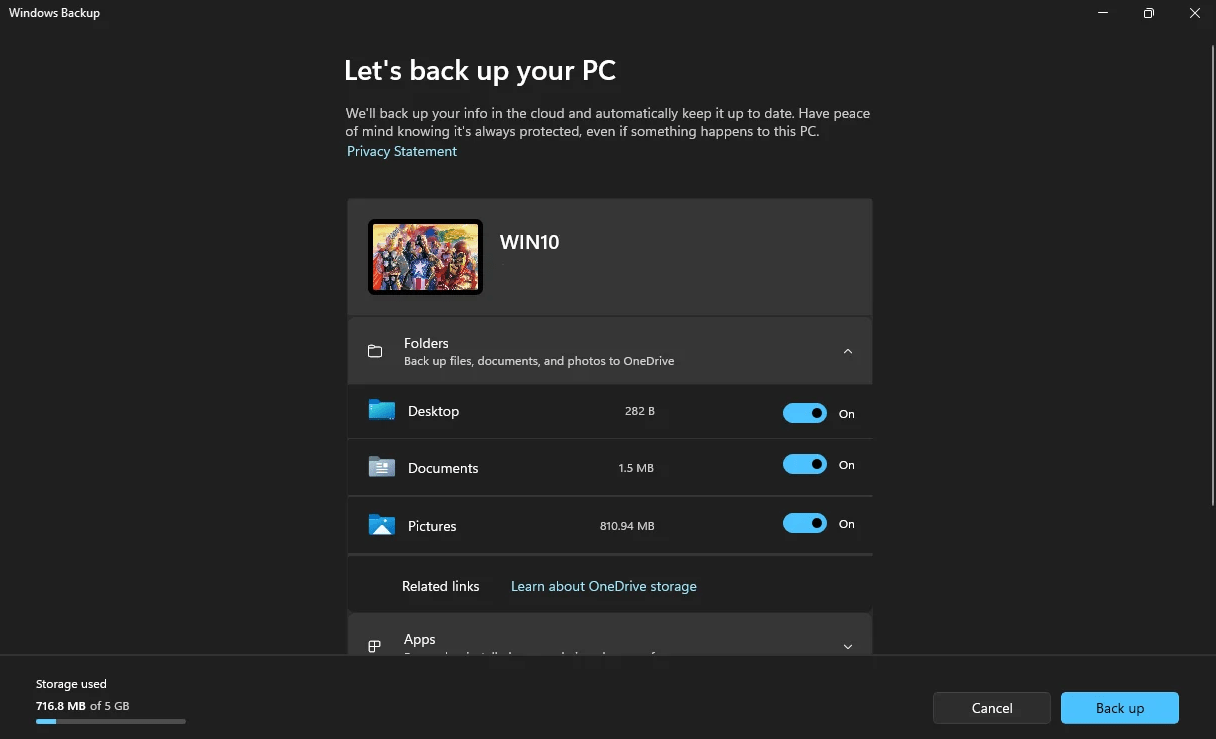
How to Check Your Windows Backup
To see what is currently being backed up:
- Open Start.
- Search for Windows Backup.
- Open the Windows Backup app.
You can also go to:
Settings → Accounts → Windows backup
From there, you can review your folders, apps, and Windows preferences.
Can Windows Backup Restore Everything to a New PC?
Not exactly.
When setting up a new Windows PC, sign in using the same Microsoft account you used for Windows Backup.
Windows can then restore many of your settings, app pins, and preferences. Your OneDrive files become available after signing in to OneDrive.
Some applications may still need to be installed again.
Summary
Windows Backup mainly protects selected personal folders through OneDrive and remembers your apps, Windows settings, Wi-Fi information, and personalisation preferences.
It’s useful when moving to a new PC, but it shouldn’t be treated as a complete copy of your entire computer. For important files stored outside your backed-up OneDrive folders, having an additional backup is a good idea.
Need Windows 11 for a new or upgraded PC? Explore our Windows 11 keys and choose the right edition for your computer today.