
Instructions
Storage Sense: Free Up Space Automatically
Aug
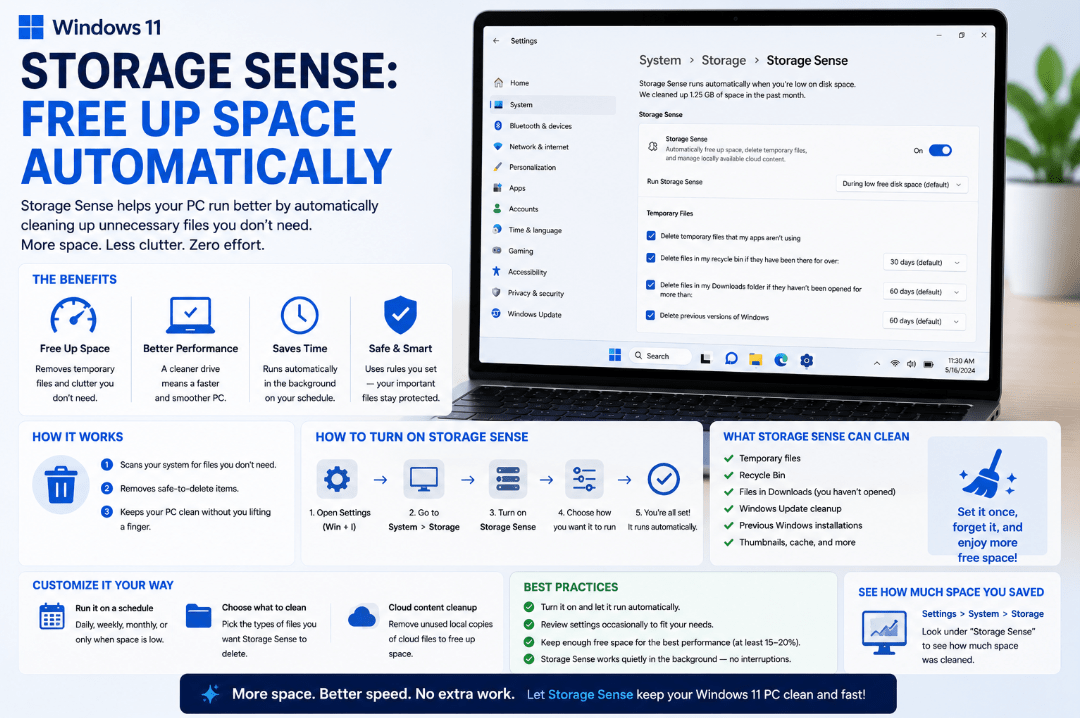
Running low on storage can slow down your PC and even make it harder to install Windows updates. Fortunately, Storage Sense in Windows 11 can automatically free up space without requiring you to manually search for unnecessary files.
Once configured, Storage Sense can regularly clean temporary files and other unwanted data in the background.
What Is Storage Sense in Windows 11?
Storage Sense is a built-in Windows feature designed to automatically manage storage space.
It can remove unnecessary files such as:
- Temporary system files
- Temporary app files
- Older items in the Recycle Bin
- Selected downloaded files, if configured
- Locally stored cloud files, if configured
Microsoft says Storage Sense can automatically run when your PC starts running low on disk space.
How to Turn On Storage Sense
Enabling the feature takes only a few seconds.
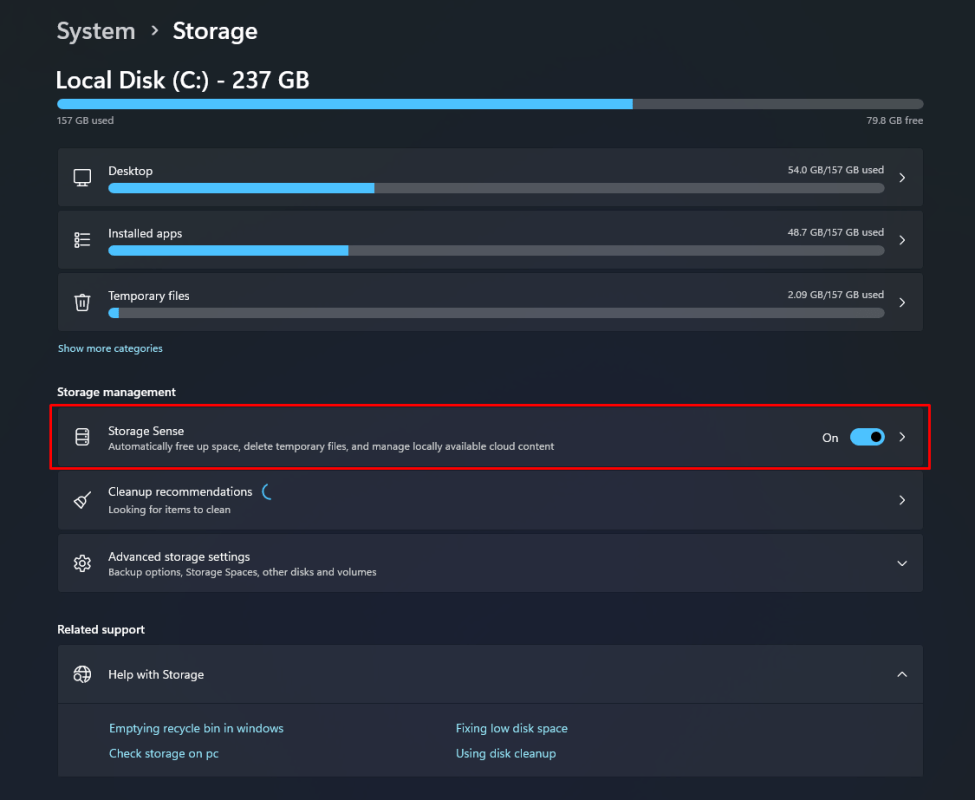
- Open Settings.
- Select System.
- Click Storage.
- Find Storage Sense.
- Turn it On.
You can select Storage Sense itself to customise how the feature works.
How Often Can Storage Sense Run?
Windows lets you decide when Storage Sense should automatically clean your PC.
Available schedules can include:
- When disk space is low
- Every day
- Every week
- Every month
For most users, allowing it to run when disk space becomes low is enough.
If you have a PC with a small SSD, running it weekly or monthly may help prevent storage from filling up too quickly.
Does Storage Sense Delete Downloads?
Not by default.
Microsoft states that Storage Sense does not normally delete files from your Downloads folder unless you configure it to do so.
If you enable Downloads cleanup, you can choose how long files must remain unused before Windows removes them.
Because important installers, documents, or other files may be stored in Downloads, review this option carefully before enabling it.
What Happens to Recycle Bin Files?
Storage Sense can automatically delete older files from your Recycle Bin.
This is useful because files placed in the Recycle Bin still occupy storage space until they are permanently removed.
You can configure how long files remain there before Storage Sense deletes them automatically.
If you regularly recover accidentally deleted files from the Recycle Bin, choose a longer period rather than deleting them too quickly.
What About OneDrive Files?
Storage Sense can also work with cloud-backed content.
If configured, files that haven’t been opened for a certain period can become online-only, meaning the local copy is removed while the file remains available in the cloud.
The file can then be downloaded again when you need it.
This can be especially useful on laptops with limited SSD storage.
Does Storage Sense Work on Every Drive?
No.
Microsoft says Storage Sense operates on the system drive, which is normally your C: drive where Windows is installed.
If you want to check storage usage on another drive, go to:
Settings → System → Storage → Advanced storage settings → Storage used on other drives
This lets you see what is using space elsewhere on your PC.
Can You Run Storage Sense Manually?
Yes.
You don’t have to wait for Windows to run it automatically.
Open:
Settings → System → Storage → Storage Sense
From there, you can run Storage Sense manually when you want to free up space immediately.
Windows also provides Cleanup recommendations under Storage settings. This can identify temporary files, large or unused files, cloud-synced content, and unused apps that you may want to remove.
Should You Use Storage Sense?
For most Windows 11 users, yes.
It is particularly useful if:
- Your PC has a smaller SSD
- You frequently run low on storage
- Temporary files build up quickly
- You often forget to empty the Recycle Bin
- Windows Update needs additional free space
Low disk space can affect PC performance and may prevent Windows updates from installing properly.
Just review the Downloads and cloud-storage options carefully before allowing Windows to manage those files automatically.
Summary
Storage Sense in Windows 11 is a simple way to keep unnecessary files from gradually filling your system drive.
Turn it on under Settings → System → Storage, choose how often it should run, and review what Windows is allowed to remove.
Need Windows 11 for your PC? Explore our Windows 11 keys and choose the right edition for your computer today.