
Instructions
Windows 11 Clipboard History: How It Saves Time
Aug
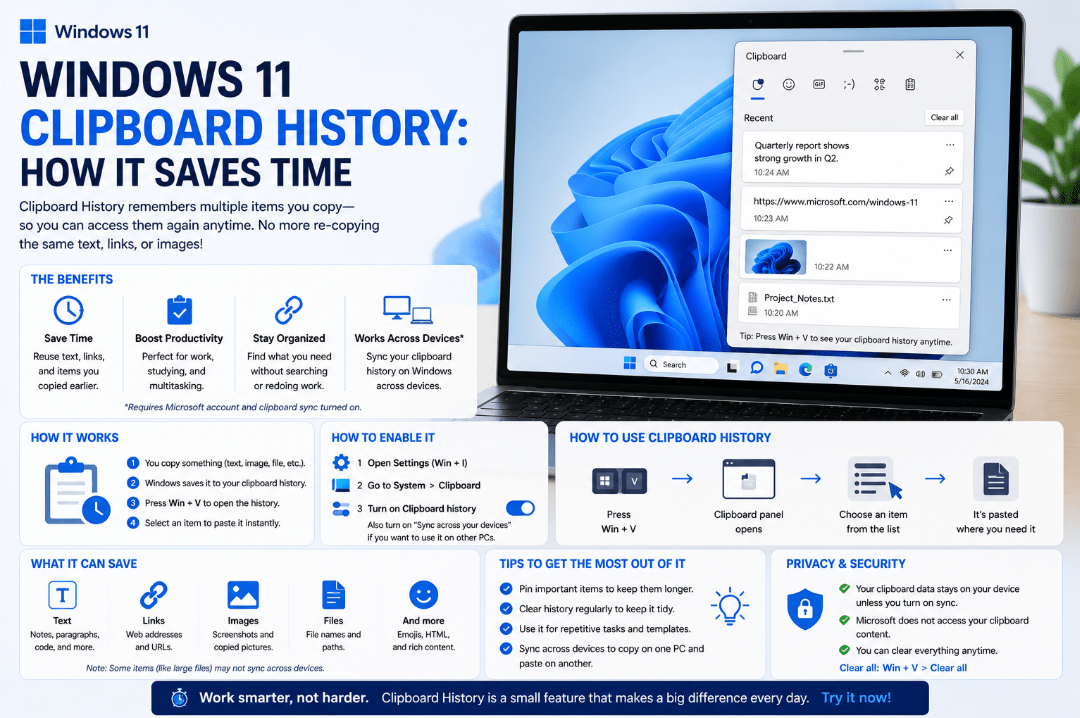
Copy and paste is one of the most basic Windows features, but Windows 11 Clipboard History makes it much more useful.
Instead of remembering only the last thing you copied, Clipboard History lets you return to previously copied text and images and paste them again whenever you need them.
For anyone who regularly copies links, text, addresses, codes, or other information, it can save a surprising amount of time.
How to Turn On Windows 11 Clipboard History
The quickest way to enable Clipboard History is with a keyboard shortcut.
Press:
Windows + V
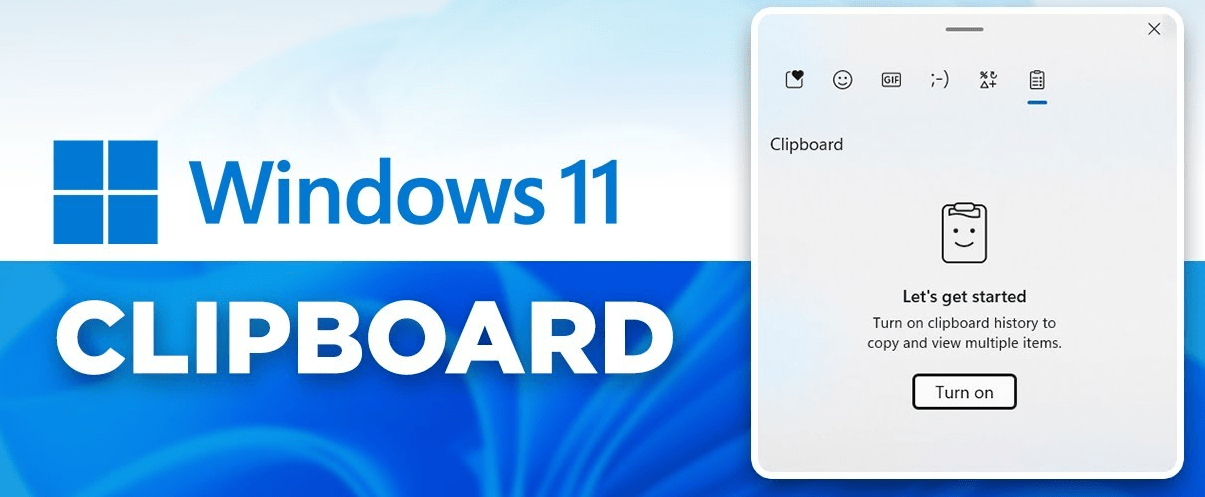
If Clipboard History isn’t already enabled, Windows will show an option to Turn on the feature.
You can also enable it through Settings:
- Open Settings.
- Select System.
- Select Clipboard.
- Turn Clipboard history on.
Once enabled, Windows starts keeping a history of supported items you copy.
How to Use Clipboard History
Using it is simple.
Copy something normally with:
Ctrl + C
Then press:
Windows + V
Instead of immediately pasting only the most recent item, Windows displays your clipboard history.
Select the item you want, and Windows pastes it into the active application.
This means you can copy several pieces of information first and then paste each one where you need it.
How Does Clipboard History Save Time?
Imagine you’re filling out a document and repeatedly need the same:
- Email address
- Website link
- Product name
- Short paragraph
- Customer reference
- Frequently used phrase
Without Clipboard History, you may have to return to the original source and copy each item again.
With Windows 11 Clipboard History, press Windows + V and select an earlier copied item.
This can be especially helpful when working with spreadsheets, emails, documents, web forms, or research.
Pin Items You Use Frequently
Windows also allows you to pin clipboard items.
Press Windows + V, find the item you want to keep, open its options, and select Pin.
Pinned items can be useful for information you regularly paste, such as:
- Common responses
- Frequently used links
- Templates
- Short pieces of text
- Repeated commands
Microsoft notes that normal Clipboard History items are cleared when the PC restarts, while pinned items can remain available.
Can Clipboard History Sync Between PCs?
Yes, Windows also supports cloud clipboard syncing.
Go to:
Settings → System → Clipboard
Then enable Clipboard history across your devices if the option is available.
Clipboard syncing is linked to your Microsoft account or work account, so compatible devices need to use the appropriate account for syncing.
This can be useful if you regularly switch between multiple Windows PCs.
Does Clipboard History Save Everything?
No.
Clipboard History is designed mainly for supported text and image content rather than acting as permanent storage.
Windows also limits how much clipboard information it keeps. Older unpinned entries are automatically removed as new ones are added.
For anything important, save it in a document or another permanent location instead of relying on Clipboard History.
Be Careful With Sensitive Information
Remember that Clipboard History can temporarily store things you’ve copied.
Avoid leaving sensitive information in your clipboard longer than necessary, especially on a shared computer.
You can clear your clipboard history by going to:
Settings → System → Clipboard → Clear clipboard data
You can also open Windows + V and remove individual entries.
Clipboard History vs Normal Copy and Paste
Normal copy and paste remembers only your current clipboard item.
Clipboard History gives you access to multiple previously copied items.
The difference is simple:
Ctrl + V → Paste the most recently copied item.
Windows + V → Choose from your Clipboard History.
Once you get used to the second shortcut, it can become one of the most useful productivity features in Windows 11.
Summary
Windows 11 Clipboard History is a small feature that can make everyday work much faster.
Enable it with Windows + V, and you’ll be able to return to previously copied text and images instead of repeatedly searching for and copying the same information.
Need Windows 11 for your PC? Explore our Windows 11 keys and choose the right edition for your computer today.