
Instructions
Nearby Sharing: Move Files Between Windows PCs
Aug
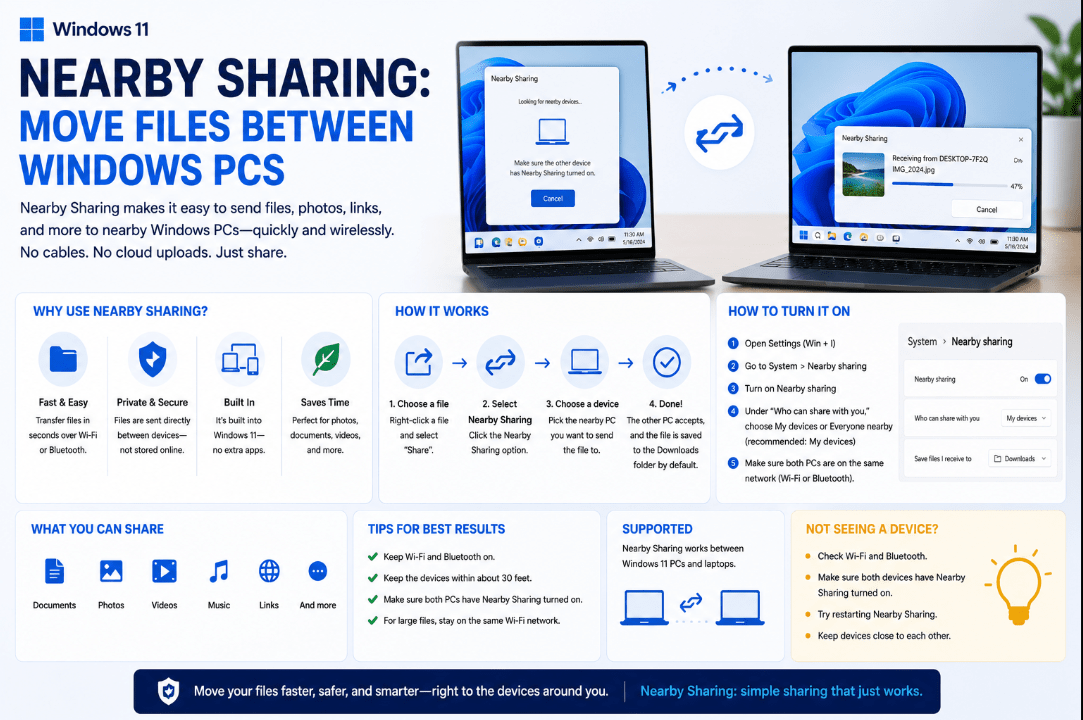
Need to move a photo, document, or other file from one computer to another? Nearby Sharing in Windows 11 provides a quick way to transfer content between nearby Windows PCs without using a USB drive or emailing files to yourself.
Once enabled, you can select a file, choose another nearby PC, and send it directly.
What Is Nearby Sharing in Windows 11?
Nearby Sharing is a built-in Windows feature that allows compatible PCs to share content using Wi-Fi or Bluetooth.
You can use it to send:
- Documents
- Photos
- Other supported files
- Website links
Microsoft says current Windows 11 PCs can transfer content over Wi-Fi when the receiving PC is connected to the same private Wi-Fi network. Otherwise, Nearby Sharing can use Bluetooth.
How to Turn On Nearby Sharing
Nearby Sharing needs to be enabled on both computers.
On each PC:
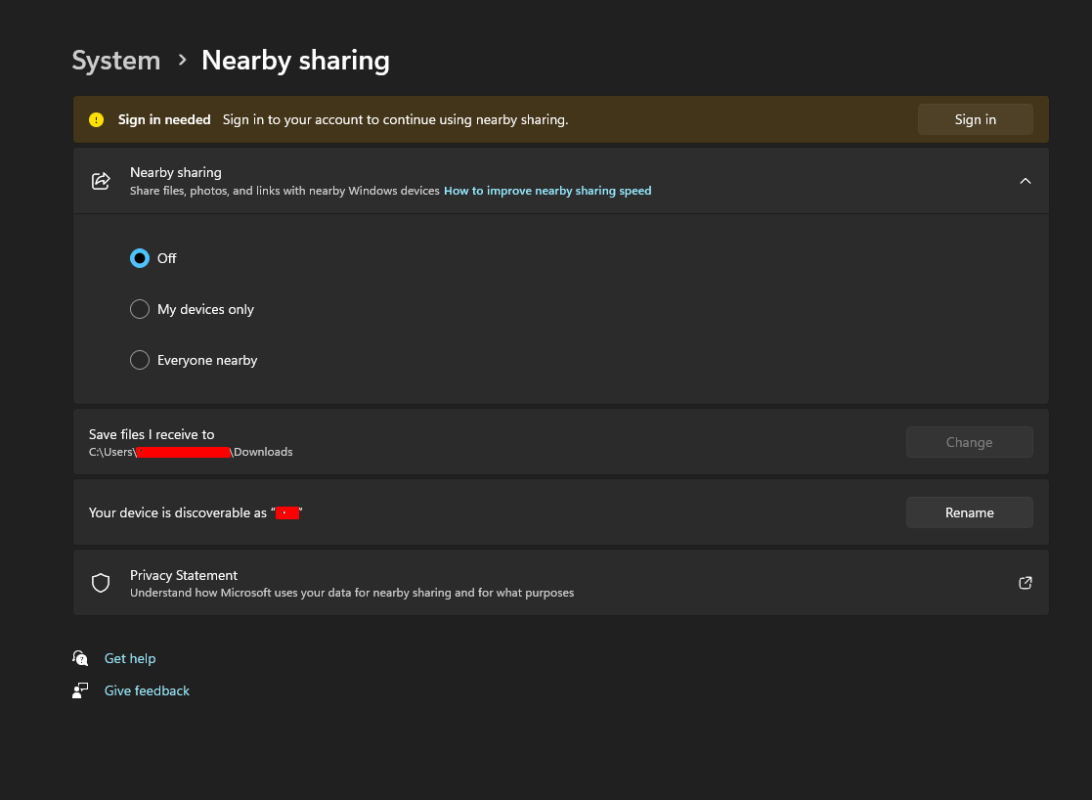
- Open Settings.
- Go to System.
- Select Nearby sharing.
- Choose who can share with the PC.
You will normally have options that allow sharing with your own devices or with everyone nearby.
If you’re transferring files between two computers that belong to you and use the same Microsoft account, selecting your own devices provides a more restricted sharing option.
How to Send a File to Another Windows PC
Once Nearby Sharing is enabled on both computers:
- Open File Explorer.
- Find the file you want to transfer.
- Right-click the file.
- Select Share.
- Find the receiving PC under Nearby Sharing.
- Select the device.
A notification will appear on the other PC.
The recipient can choose Save or Save & open to accept the transfer.
That’s it — there is no need to attach the file to an email or copy it to a USB drive first.
Where Are Received Files Saved?
You can choose where files received through Nearby Sharing are stored.
Go to:
Settings → System → Nearby sharing
Look for the option that controls where received files are saved and select Change if you want to use a different folder.
This can be helpful if you regularly transfer photos or documents and want them saved somewhere specific.
Can Nearby Sharing Send Photos?
Yes.
You can share photos directly from Windows using the same Nearby Sharing system.
For example, you can open a picture in the Photos app, choose Share, and then select the nearby PC you want to send it to.
The other computer receives a notification asking whether to accept the photo.
Can You Share Website Links?
Nearby Sharing isn’t limited to files.
Microsoft Edge can also send website links to another nearby Windows PC.
When viewing a webpage in Edge, open the sharing options and select the nearby device. The receiving PC can then open the shared page in its browser.
This can be useful when moving between a desktop and laptop without manually copying and sending the URL.
Nearby Sharing vs USB Drives
Both methods can move files between PCs, but Nearby Sharing is often more convenient for quick transfers.
Nearby Sharing is useful when:
- Both PCs are nearby
- You only need to send a few files
- Both computers have Wi-Fi or Bluetooth
- You don’t have a USB drive available
A USB drive may be better when:
- You’re transferring a very large amount of data
- One PC doesn’t support Nearby Sharing
- The computers aren’t on a suitable network
- You also want an offline copy of the files
For everyday documents and photos, Nearby Sharing can remove several unnecessary steps.
What If the Other PC Doesn’t Appear?
If Nearby Sharing cannot find the receiving computer, check that:
- Nearby Sharing is enabled on both PCs
- Bluetooth is enabled when required
- Both PCs are close enough to each other
- Both devices allow sharing with the selected device type
- Both PCs are connected to the same private Wi-Fi network when using Wi-Fi sharing
Also make sure Windows is up to date.
Is Nearby Sharing Safe?
Nearby Sharing requires the receiving PC to accept incoming transfers.
For better privacy, use the option that limits sharing to your own devices when possible.
If you enable Everyone nearby, Microsoft notes that your PC name and Bluetooth MAC address can be made available to nearby devices for sharing purposes.
Summary
Nearby Sharing in Windows 11 is an easy way to move files between nearby Windows PCs without USB drives, cloud uploads, or email attachments.
Enable it under Settings → System → Nearby sharing, select a file in File Explorer, click Share, and choose the other PC.
Need Windows 11 for your desktop or laptop? Explore our Windows 11 keys and choose the right edition for your PC today.