
Instructions
File Explorer Gallery: What It Is Used For
Aug
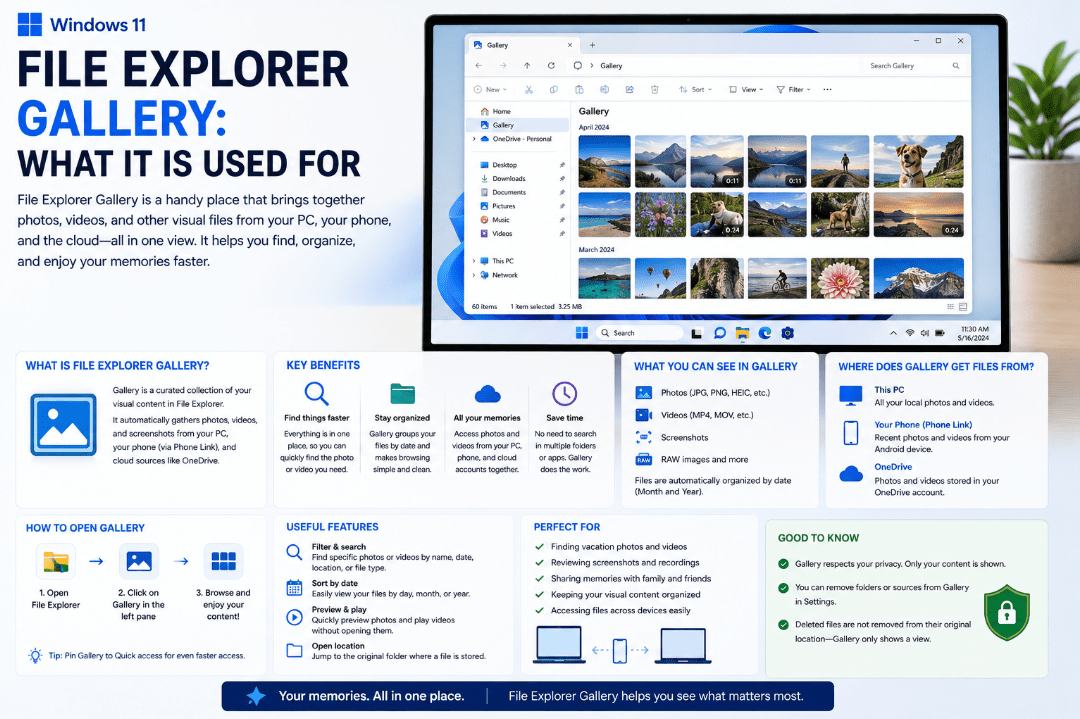
If you open File Explorer in Windows 11, you may notice an option called Gallery in the navigation pane.
The File Explorer Gallery is designed to make browsing your photo collection faster. Instead of opening several different folders to find an image, Gallery can display photos from multiple selected locations in one place.
What Is File Explorer Gallery?
Gallery is a photo-focused view built directly into Windows 11 File Explorer.
Microsoft designed it to provide quick access to your photo collection, with your most recently taken images appearing near the top.
It can display photos stored in locations such as:
- Your Pictures folder
- OneDrive
- Camera imports
- SD card imports
- Other folders you choose to include
This means you don’t necessarily have to remember exactly which folder contains a particular photo.
Where Do You Find Gallery?
Open File Explorer by pressing:
Windows + E
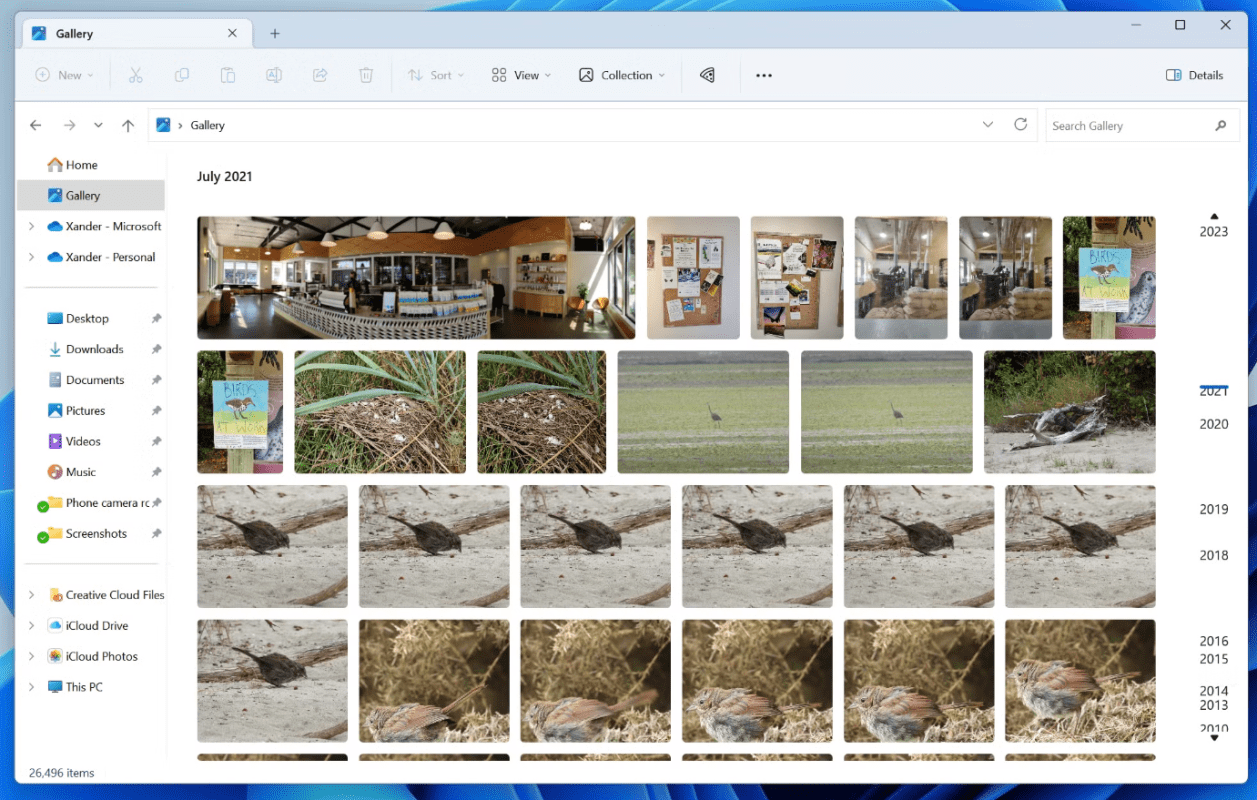
Then look at the navigation pane on the left side of the window and select Gallery.
Your available photos will appear as a visual collection rather than a traditional list of files and folders.
Is Gallery a Separate Photo Folder?
No.
Gallery isn’t another folder where Windows creates duplicate copies of your pictures.
Instead, it provides a view of photos that are already stored in other locations on your PC or connected storage.
Your original files remain in their normal folders.
This makes Gallery useful when your photos are spread across several locations but you want to browse them together.
How Do You Choose Which Photos Appear?
Windows lets you control which folders are included in Gallery.
Inside Gallery, use the Collection menu to manage the locations being displayed.
You can include additional folders or subfolders, such as:
- Screenshots
- Camera imports
- Wallpapers
- Photo folders
- Images stored on other drives
Microsoft specifically designed the Collection options so users can choose which folders contribute images to the Gallery view.
Does Gallery Work With OneDrive Photos?
Yes.
If you use OneDrive for your photos, Gallery can include compatible OneDrive content.
Microsoft also designed Gallery to work with OneDrive Camera Roll Backup, allowing recently backed-up phone photos to appear near the top of the Gallery view.
This can make it convenient to take a photo on your phone and later find it from your Windows PC.
What Is File Explorer Gallery Useful For?
Gallery is particularly useful when you need to quickly:
- Find a recently taken photo
- Browse pictures without opening individual folders
- Locate an image for an email
- Insert a picture into a document or presentation
- Find screenshots
- Browse photos imported from a camera
- Access images stored through OneDrive
Microsoft also integrated Gallery into the Windows file picker. This means the same photo-focused experience can appear when you’re selecting an image to attach or insert into another application.
Gallery vs the Pictures Folder
These two options serve different purposes.
The Pictures folder is an actual storage location on your PC. Files placed there are physically stored in that folder or its subfolders.
Gallery, on the other hand, brings pictures from selected locations together into one visual view.
In simple terms:
Pictures folder → where some of your images are stored
Gallery → a convenient way to browse images from multiple locations
Gallery vs the Windows Photos App
Gallery also shouldn’t be confused with the Microsoft Photos app.
Gallery is built into File Explorer and is mainly designed for quickly browsing and selecting images while you’re managing files.
The Photos app provides a more dedicated experience for viewing and working with your photo collection.
Microsoft originally designed File Explorer Gallery to show the same general photo collection as the All Photos view in the Photos app.
What If Gallery Doesn’t Show Your Photos?
If a photo folder isn’t appearing, check which locations are included in your Gallery collection.
Open Gallery, then use the Collection options to add or manage folders.
Also make sure your image files are still available in their original locations.
Remember that Gallery displays existing images – it doesn’t replace or move the original files.
Summary
File Explorer Gallery is a convenient Windows 11 feature for people who regularly work with photos and images.
It’s especially useful for finding recent photos, screenshots, OneDrive images, and pictures you want to quickly insert into another app.
Need Windows 11 for your PC? Explore our Windows 11 keys and choose the right edition for your computer today.