
Instructions
BitLocker vs Device Encryption: Quick Difference
Aug
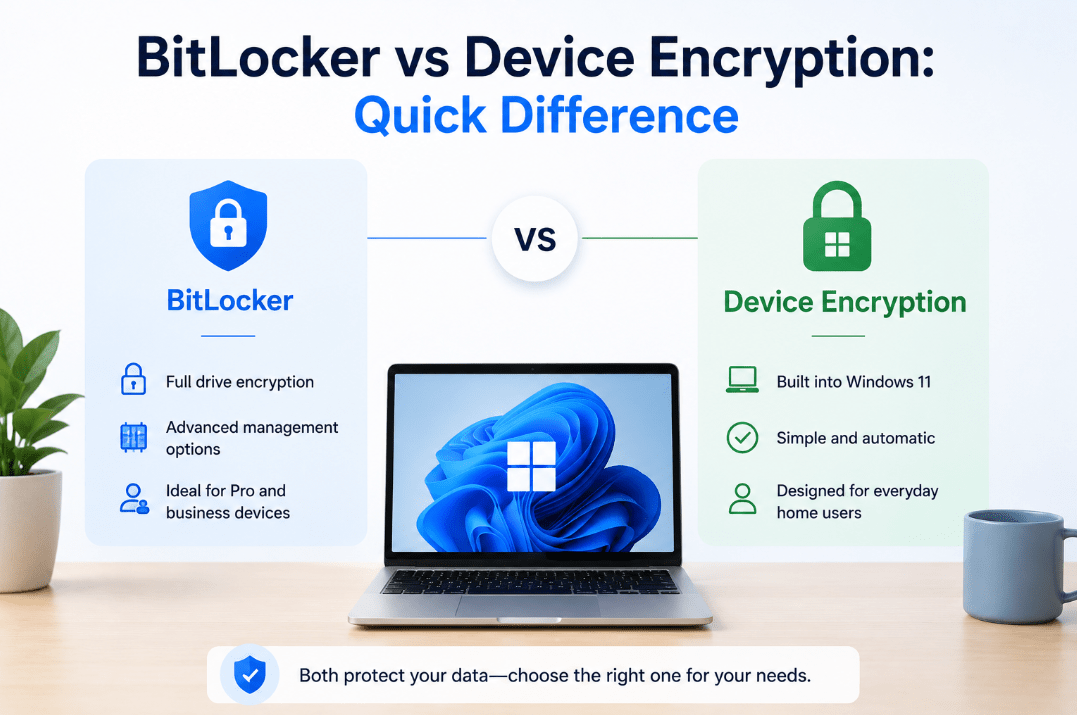
If you’ve looked through Windows security settings, you may have seen both BitLocker and Device Encryption.
They sound like two completely different security features, but they’re closely related. When comparing BitLocker vs Device Encryption, the main difference is how much control you get and which Windows edition you’re using.
What Is Device Encryption?
Device Encryption is a simpler form of drive encryption designed mainly for everyday users.
It uses BitLocker technology to encrypt the Windows system drive and fixed drives, helping protect your files if someone removes the drive or gains physical access to your computer.
On compatible devices, Device Encryption can automatically turn on when you set up Windows using a Microsoft account or work or school account. The recovery key is then associated with that account.
One major advantage is that Device Encryption can be available on Windows 11 Home as well as higher Windows editions.
What Is BitLocker Drive Encryption?
BitLocker Drive Encryption provides more advanced control over drive encryption.
It lets you manually choose which drives to protect and provides additional management options.
Full BitLocker Drive Encryption is available on:
- Windows 11 Pro
- Windows 11 Enterprise
- Windows 11 Education
It is not available as a manually managed feature on Windows 11 Home.
BitLocker can protect:
- Your Windows system drive
- Additional internal drives
- USB and removable drives using BitLocker To Go
BitLocker vs Device Encryption: Quick Comparison
| Feature | Device Encryption | BitLocker Drive Encryption |
|---|---|---|
| Uses BitLocker technology | Yes | Yes |
| Windows 11 Home support | On compatible devices | No |
| Windows 11 Pro support | Yes | Yes |
| Automatic setup | Often | Usually manually managed |
| Advanced configuration | Limited | Yes |
| Encrypt individual drives manually | Limited | Yes |
| USB drive encryption | No | Yes, with BitLocker To Go |
For most home users, Device Encryption provides simple protection without requiring much configuration.
BitLocker Drive Encryption is more useful when you need greater control over how drives are protected.
How to Check for Device Encryption
Go to:
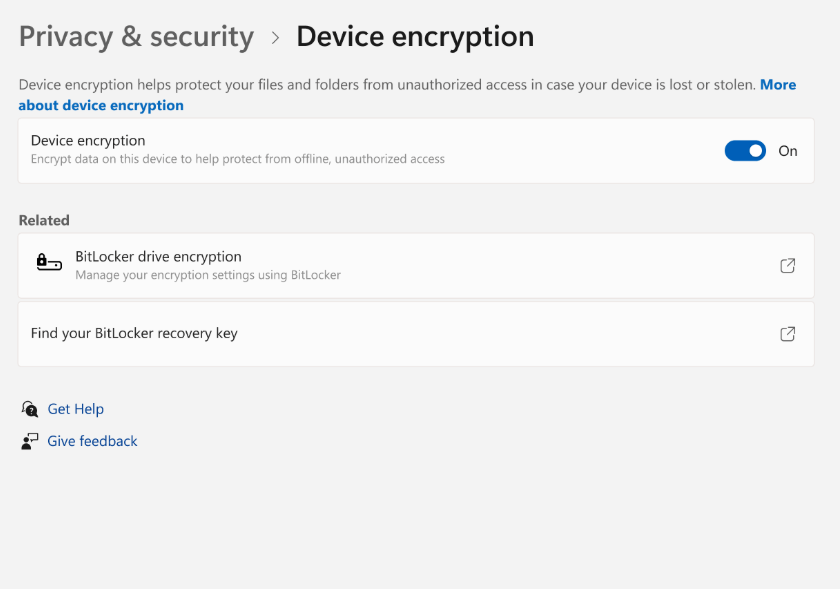
Settings → Privacy & security → Device encryption
If your PC supports the feature, you’ll see an option to turn Device Encryption on or off.
If the option doesn’t appear, your device may not meet the necessary hardware or security requirements.
Windows 11 version 24H2 also reduced some of the previous hardware requirements for automatic Device Encryption, allowing it to work on a wider range of PCs.
How to Check BitLocker
If you’re using Windows 11 Pro, Enterprise, or Education:
- Open Start.
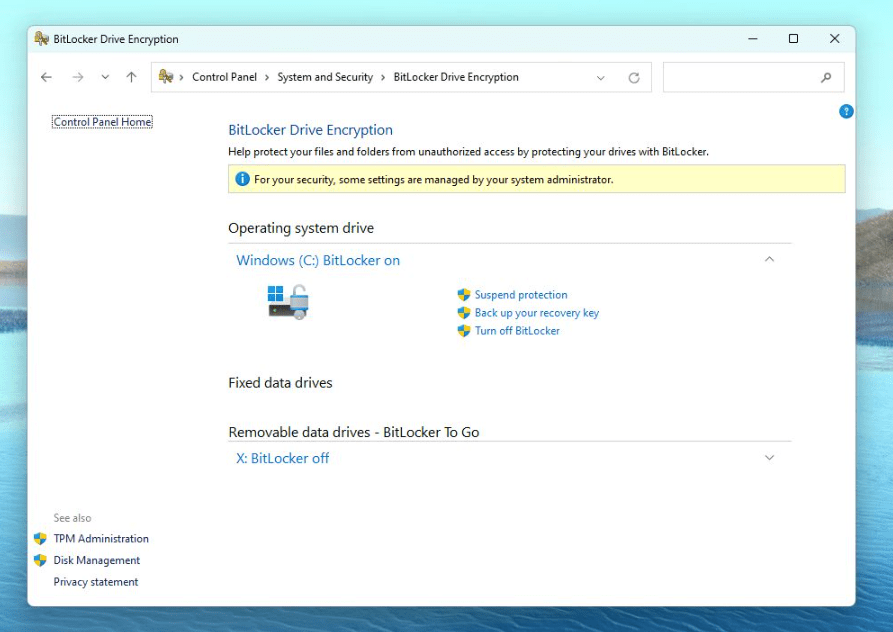
- Search for Manage BitLocker.
- Open BitLocker Drive Encryption.
You can then see which drives are encrypted and manage BitLocker settings.
If you’re using Windows 11 Home, the Manage BitLocker option normally isn’t available.
What Is a BitLocker Recovery Key?
Both Device Encryption and BitLocker may use a 48-digit recovery key.
Windows can request this key if it detects certain hardware, firmware, or security-related changes.
If Device Encryption was automatically enabled through your Microsoft account, the recovery key is typically saved to that account.
It’s important to make sure you know where your recovery key is stored before making major hardware or firmware changes.
Which One Should You Use?
For most Windows 11 Home users, Device Encryption is usually enough if the PC supports it.
It provides automatic encryption with very little setup.
BitLocker Drive Encryption is more suitable if you:
- Use Windows 11 Pro
- Want more control over encryption
- Need to encrypt additional drives
- Need to protect USB drives
- Use the PC for business or professional purposes
Both ultimately serve the same basic purpose: protecting your data if your storage drive is accessed without authorization.
Summary
Device Encryption is essentially an easier, more automatic way to use BitLocker technology and can be available on Windows 11 Home.
Full BitLocker Drive Encryption is available with Windows 11 Pro, Enterprise, and Education and provides more advanced control, including encryption for additional and removable drives.
Need advanced Windows features such as full BitLocker Drive Encryption? Explore our Windows 11 Pro keys and upgrade your PC today.