
Instructions
Windows 11 AirPods Pairing Is Faster: What Microsoft Improved
Oct
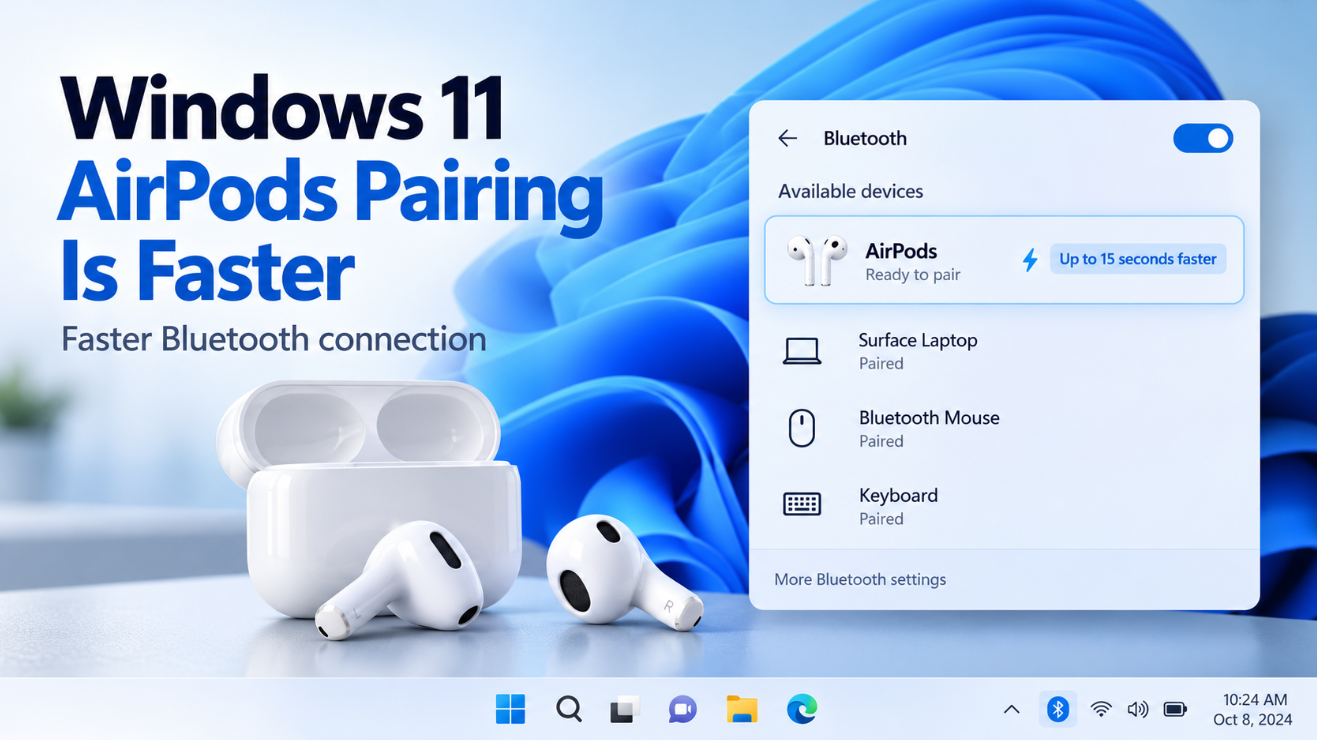
Windows 11 AirPods Pairing has received a noticeable speed improvement.
Microsoft says recent Windows 11 Bluetooth changes can make the AirPods pairing experience up to 15 seconds faster, while also improving Bluetooth reconnection, audio stability, calls, and device management.
The important detail is that Microsoft has not created a completely new AirPods app or Apple-style setup experience for Windows.
Instead, Windows has improved how quickly it recognizes certain Bluetooth accessories when they enter pairing mode.
Microsoft specifically says the compatibility work helps AirPods appear faster in pairing mode.
So what actually changed, which AirPods benefit, and what should you do if yours are still slow to connect?
What Did Microsoft Improve for AirPods?
The main AirPods-specific improvement is faster device discovery.
Previously, you could put AirPods into pairing mode and then wait several seconds before they appeared in Windows’ Bluetooth device list.
Microsoft has introduced accessory compatibility changes that allow Windows to recognize AirPods more quickly.
In October 2026, Microsoft said the resulting pairing experience can be up to 15 seconds faster. The company notes that actual performance varies depending on the AirPods model, PC configuration, usage, and other factors.
The improvement was measured using changes included in:
Windows 11 OS build 26200.8737
That build was part of Microsoft’s June 2026 update work for Windows 11 version 25H2, with corresponding Bluetooth improvements also delivered for version 24H2.
Does “15 Seconds Faster” Mean AirPods Connect Instantly?
Not necessarily.
Microsoft’s wording is important.
The improvement helps AirPods appear faster when they are in pairing mode.
That means Windows can discover them sooner in the Bluetooth device picker.
It does not guarantee that every AirPods model will pair exactly 15 seconds faster every time.
Microsoft specifically says performance can vary based on:
- AirPods model
- PC hardware
- Bluetooth adapter
- Driver version
- Windows build
- Nearby Bluetooth interference
- Current device connections
So the “up to 15 seconds” figure should be viewed as Microsoft’s measured best-case improvement rather than a guaranteed result for every computer.
How to Pair AirPods With Windows 11
AirPods work as standard Bluetooth headphones with Windows.
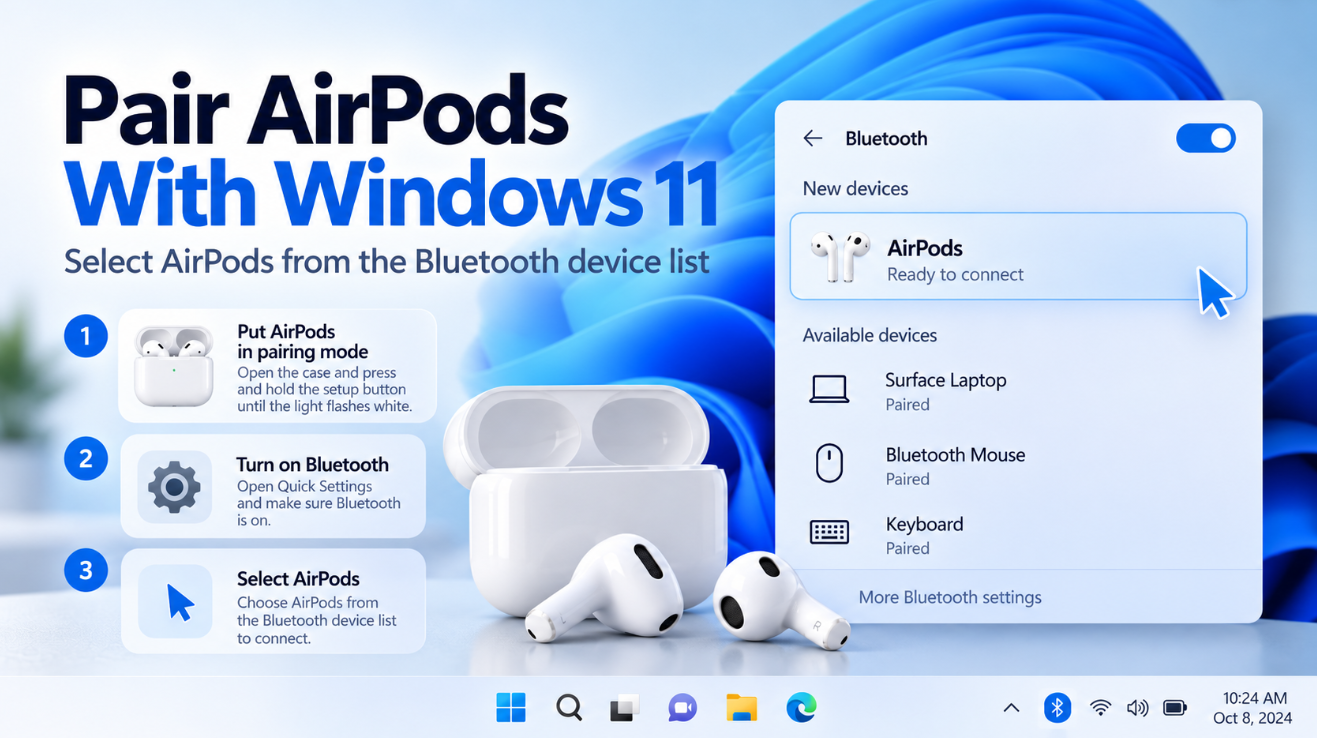
First, put the AirPods into pairing mode.
Apple’s current instructions vary slightly by AirPods generation.
For many older AirPods and AirPods Pro models, place the earbuds inside the case, open the lid, and hold the setup button until the status light flashes white.
Newer AirPods models may use a different case gesture, while AirPods Max use their own pairing control. Apple recommends checking the instructions for the specific AirPods generation.
Then on Windows 11:
- Make sure Bluetooth is turned on.
- Open the network, volume, or battery area on the taskbar.
- Open Manage Bluetooth devices.
- Look under New devices.
- Select your AirPods when they appear.
- Complete the connection.
Windows says paired Bluetooth devices should normally reconnect automatically when Bluetooth is enabled and the accessory is nearby.
AirPods Should Appear Faster in the Device List
This is where Microsoft’s 2026 improvement matters most.
Once the AirPods enter pairing mode, Windows has to discover that a Bluetooth device is advertising itself nearby.
Microsoft’s compatibility changes reduce the delay before AirPods appear as an available device.
That means less time watching the Bluetooth menu waiting for:
AirPods
to finally show up.
For users who regularly move AirPods between an iPhone, Windows laptop, desktop PC, or another device, even a relatively small reduction in discovery time can make the Windows experience feel considerably smoother.
Microsoft Also Improved Bluetooth Reconnection
The AirPods discovery change is part of a much wider Bluetooth update.
Microsoft also reduced the amount of time Classic Bluetooth audio devices can take to reconnect after Windows resumes from hibernation.
This is a different process from first-time pairing.
Pairing establishes the trusted Bluetooth relationship between the devices.
Reconnecting happens later when a device that has already been paired becomes available again.
Microsoft has been improving both areas.
So even if your AirPods are already paired, newer Windows 11 builds may provide a more responsive Bluetooth experience when you wake the computer and begin using your headphones again.
Windows 11 Bluetooth Connections Are More Reliable
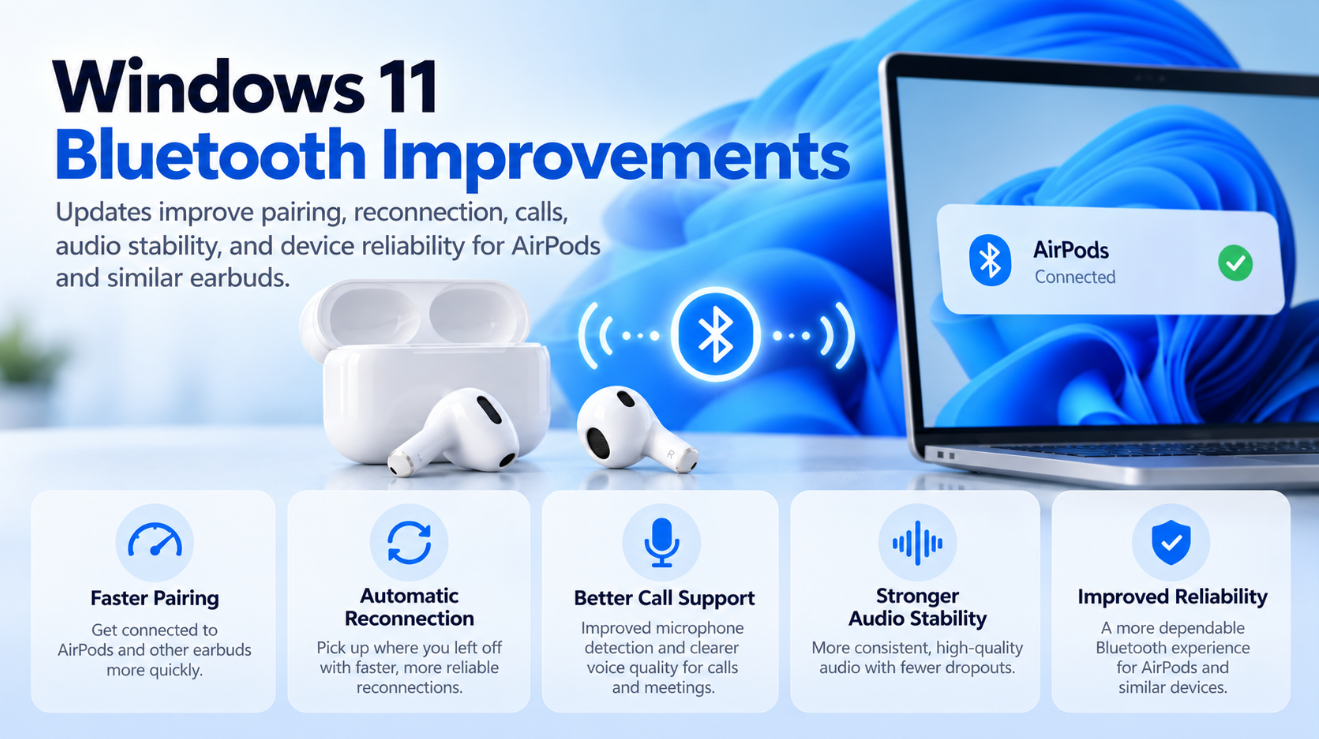
Microsoft’s updates include several Bluetooth reliability improvements beyond AirPods.
The company has worked on:
- Bluetooth device discovery
- Connection state accuracy
- Audio stability
- Voice-call reliability
- Device reconnection
- Bluetooth Settings stability
- LE Audio performance
Microsoft also says it improved reliability when a Bluetooth LE Audio accessory disconnects because another device, such as a phone, connects to it.
That scenario is particularly relevant for wireless earbuds because many users regularly switch between a phone and PC.
Voice Calls Received Bluetooth Improvements Too
Microsoft has also been improving Bluetooth audio during voice calls.
Windows now better handles Classic Audio devices that use the Hands-Free Profile, commonly called HFP.
This profile is used when Bluetooth headphones need to provide both:
audio output
and:
microphone input
during a call.
Microsoft says recent updates improve HFP reliability and also synchronize microphone mute status between supported Bluetooth accessories and the Windows audio mixer.
That is broader than AirPods specifically, but it is part of Microsoft’s overall effort to make wireless headphones behave more consistently on Windows 11.
Is This an AirPods-Only Update?
No.
AirPods are one specific accessory Microsoft calls out, but the Bluetooth work is much broader.
The same update contains improvements for:
- Classic Bluetooth audio
- Bluetooth LE Audio
- Voice calls
- Microphone behavior
- Device reconnection
- Bluetooth Settings
- Device removal
- Bluetooth driver stability
Microsoft also specifically mentioned improved microphone reliability with Beats Studio Pro headphones.
So the AirPods improvement is part of a larger Windows Bluetooth reliability project rather than a standalone Apple integration feature.
Do AirPods Need Special Windows Software?
No.
You do not need an official Apple AirPods application simply to use AirPods as Bluetooth headphones on Windows.
Apple says AirPods can function as Bluetooth headsets with non-Apple devices, allowing you to listen and talk.
Windows handles pairing through its normal Bluetooth interface.
However, some Apple ecosystem features are naturally unavailable or behave differently outside Apple devices.
For basic Windows use, the important functions remain:
- Audio playback
- Microphone use
- Bluetooth connection
- Reconnection after pairing
Can AirPods Use Swift Pair?
Windows includes a feature called Swift Pair for compatible Bluetooth accessories.
When supported, Windows can display a notification as soon as a nearby discoverable accessory is detected, allowing you to select Connect without manually opening the full Bluetooth Settings page.
However, Microsoft does not state that all AirPods models support the Windows Swift Pair experience.
Therefore, you should not expect AirPods to behave exactly like every Windows accessory that explicitly supports Swift Pair.
The 2026 AirPods improvement is specifically described by Microsoft as helping AirPods appear faster in pairing mode, not as adding universal Swift Pair support.
What If AirPods Still Take a Long Time to Appear?
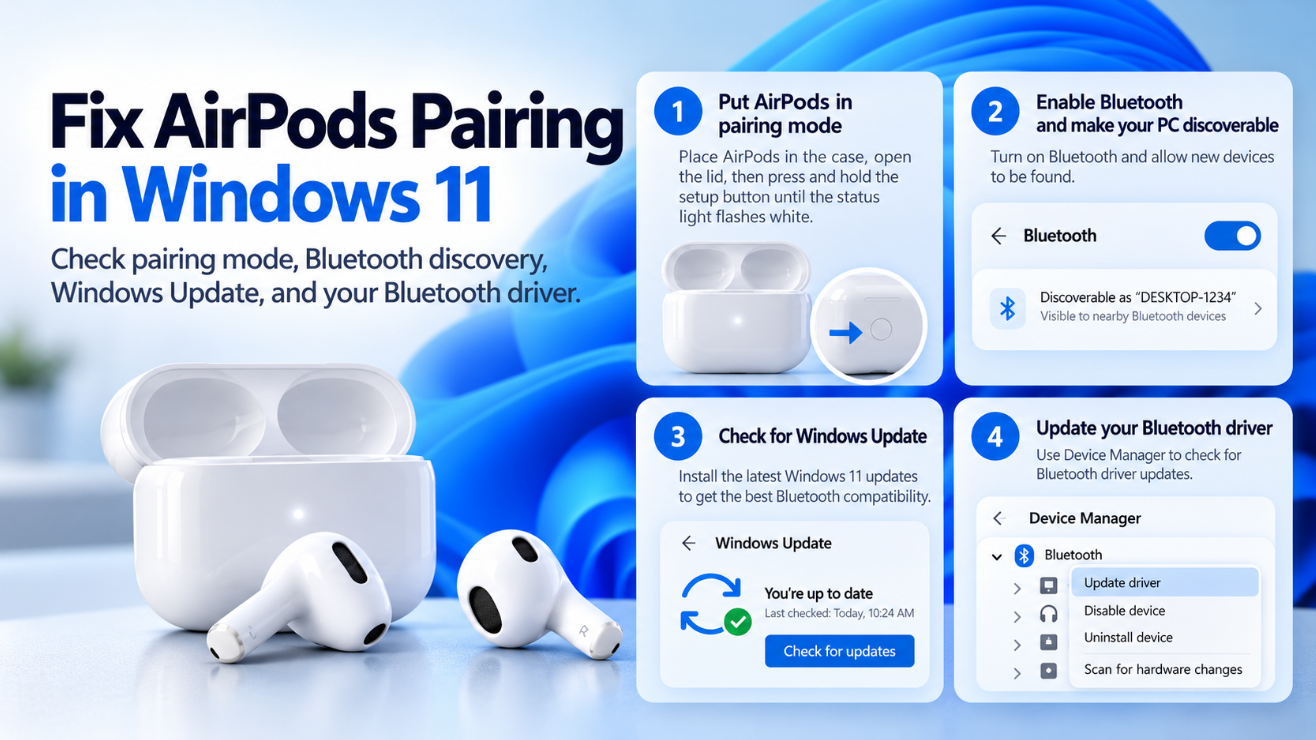
First, make sure the AirPods are actually in pairing mode.
The status light should indicate that they are discoverable according to the instructions for your AirPods model.
Next, try opening:
Settings → Bluetooth & devices → Devices
and make sure Bluetooth is enabled.
Windows also has a Bluetooth discovery setting that can affect which devices appear.
Microsoft notes that if a device does not appear, you may need to change Bluetooth device discovery to Advanced.
You should also keep the AirPods relatively close to the PC while pairing.
Update Your Bluetooth Driver
If AirPods repeatedly fail to appear or connection performance remains poor, check the Bluetooth driver.
Microsoft recommends:
Start → Device Manager → Bluetooth
Then:
- Find your Bluetooth adapter.
- Right-click it.
- Select Update driver.
- Choose Search automatically for drivers.
- Restart the PC if an update is installed.
Microsoft also notes that your PC manufacturer may offer a newer Bluetooth driver even when Device Manager says the best driver is already installed.
That can be especially important on laptops using Intel, Realtek, Qualcomm, or MediaTek wireless adapters.
Keep Windows 11 Updated
The faster AirPods discovery behavior arrived through Windows updates rather than through an AirPods firmware setting inside Windows.
Open:
Settings → Windows Update → Check for updates
and install current Windows 11 cumulative updates.
Microsoft originally documented the Bluetooth improvements in its June 2026 preview update for Windows 11 24H2 and 25H2, and the changes subsequently became part of later cumulative updates.
So if your PC has not been updated for several months, you may not have all of Microsoft’s latest Bluetooth improvements.
Is the Improvement Available in Windows 11 26H1?
Microsoft has also included the same Bluetooth compatibility work in Windows 11 builds on the newer 28000 branch.
Its July 2026 preview update for that branch again listed the change that helps AirPods appear faster in pairing mode, along with improved Bluetooth audio stability and reconnection behavior.
The broader point is that Microsoft is carrying this Bluetooth work forward across current Windows 11 development rather than treating it as a one-version experiment.
Does It Improve AirPods Sound Quality?
Microsoft’s AirPods-specific claim is primarily about pairing speed.
The broader Bluetooth updates do include audio stability and compatibility improvements, but Microsoft has not claimed that this particular change increases AirPods music fidelity or gives them a new higher-quality codec.
So you should distinguish between:
faster pairing and better reliability
and:
higher audio quality
The 2026 update mainly addresses the first category.
Why Is Microsoft Focusing on Bluetooth Now?
Bluetooth headphones have become an everyday Windows accessory.
Microsoft says it has been investing in making common Windows connectivity experiences more reliable, including improved compatibility with devices such as AirPods.
This fits into Microsoft’s larger Windows quality initiative, which also focuses on drivers, stability, responsiveness, and hardware compatibility.
Instead of treating Bluetooth as a secondary feature, Microsoft is increasingly focusing on the small delays and connection problems users notice every day.
Frequently Asked Questions
Is AirPods pairing really faster in Windows 11?
Yes. Microsoft says recent Windows 11 improvements can make the AirPods pairing experience up to 15 seconds faster, although results vary by AirPods model, PC configuration, and other factors.
What exactly did Microsoft change?
Microsoft says it implemented Bluetooth accessory compatibility improvements that help AirPods appear faster when they are in pairing mode.
Do AirPods work with Windows 11?
Yes. Apple supports using AirPods as Bluetooth headphones with non-Apple devices. You can use them to listen and talk.
Do I need an Apple app to connect AirPods to Windows 11?
No. Standard AirPods pairing is handled through Windows’ normal Bluetooth device controls.
Will my AirPods reconnect automatically?
Windows says paired Bluetooth devices normally connect automatically when they are nearby and Bluetooth is enabled. Microsoft has also improved reconnection responsiveness in recent Windows 11 updates.
Why aren’t my AirPods appearing?
Make sure they are in pairing mode, Bluetooth is enabled, the earbuds are close to the PC, and Windows and your Bluetooth driver are updated. Microsoft also suggests using the Advanced Bluetooth discovery setting when a device is not being detected.
Does this make AirPods sound better?
Not specifically. Microsoft’s AirPods claim concerns faster pairing. Other recent Windows updates improve broader Bluetooth audio stability, calls, and reliability, but Microsoft does not say this pairing change increases AirPods sound quality.
Final Thoughts
Windows 11 AirPods Pairing is getting noticeably less frustrating.
Microsoft’s 2026 Bluetooth improvements help AirPods appear faster when they enter pairing mode, with Microsoft measuring an improvement of up to 15 seconds in its testing.
But the work goes beyond first-time pairing.
Windows 11 has also received improvements for Bluetooth reconnection after hibernation, audio stability, calls, microphone behavior, LE Audio accessories, Settings reliability, and connection recovery.
You do not need to change anything on the AirPods themselves to benefit.
Keep Windows 11 and your PC’s Bluetooth drivers current, put the AirPods into pairing mode, and Windows should handle the rest.
For people who regularly switch their earbuds between an iPhone and a Windows PC, these small Bluetooth improvements could make one of Windows’ most common accessory workflows considerably smoother.
Setting up a new PC or upgrading your Windows edition? Browse our Windows 11 keys and choose the license that fits your system.