
Instructions
Windows 11 Context Menu Customization: What Is Microsoft Changing?
Oct
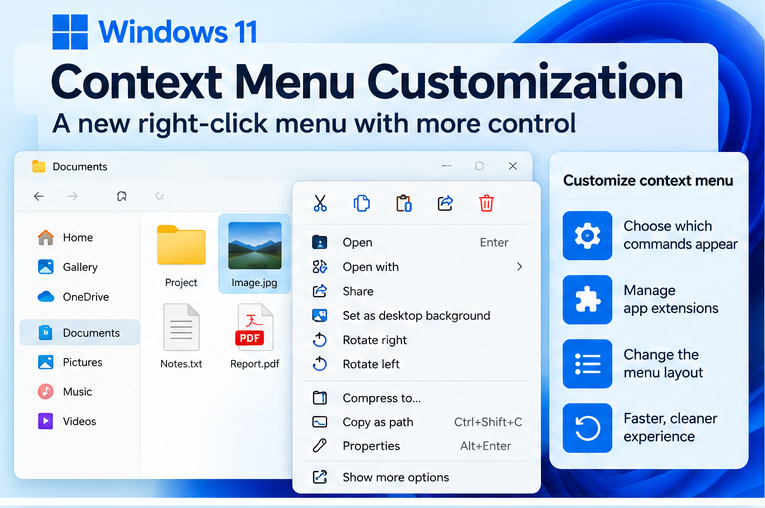
Windows 11 Context Menu Customization is finally becoming much more flexible.
Since Windows 11 launched, Microsoft’s redesigned right-click menu has divided users. It looks cleaner than the old Windows 10 menu, but some commands are hidden behind Show more options, third-party apps can add clutter, and common actions such as Cut, Copy, Rename, and Delete appear as icons instead of traditional text commands.
Microsoft is now testing a substantially redesigned File Explorer context menu that aims to fix many of those complaints.
The new version opens faster, reduces clutter, and—most importantly—adds a dedicated Settings page where you can decide which Windows commands and application extensions appear when you right-click a file or folder.
However, there is an important limitation: the redesigned menu is still being tested with Windows Insiders. If your normal Windows 11 PC does not have these settings yet, nothing is wrong.
What Is the Windows 11 Context Menu?
The context menu is the menu that appears when you right-click something in Windows.
You use it constantly without necessarily thinking about it.
For example, right-clicking a file may provide commands for:
- Open
- Cut
- Copy
- Rename
- Share
- Delete
- Properties
- Open with
- Send to
- Compress
- Third-party applications
Windows 11 introduced a streamlined version of this menu.
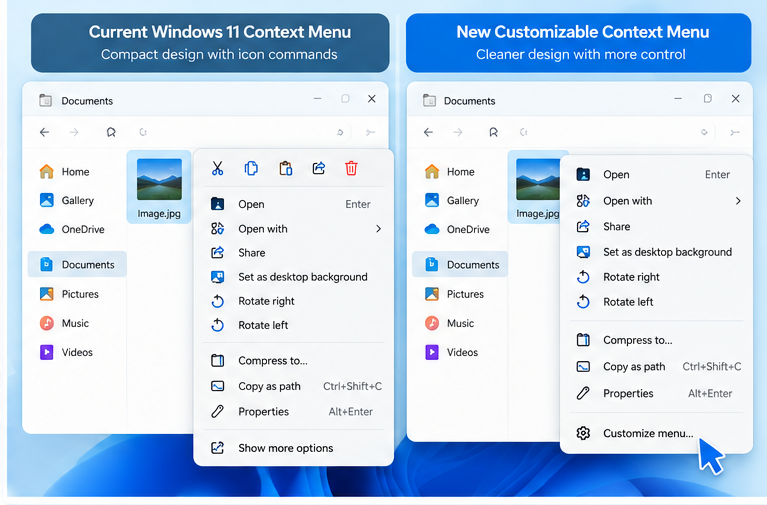
Microsoft currently places common commands such as Cut, Copy, Paste, Rename, Share, and Delete at the top of the File Explorer context menu as icons. Older commands and some application extensions can still be accessed using Show more options.
Why Is Microsoft Changing the Windows 11 Context Menu Again?
Microsoft says the Windows 11 menu became increasingly cluttered and sluggish as applications added more extensions.
Every program that adds its own right-click command can increase the amount of work File Explorer has to perform before the menu is ready.
That means clutter is not only a visual problem.
It can also affect how quickly the right-click menu opens.
Microsoft’s new design therefore has two main goals:
Make the menu faster.
and:
Give users more control over what appears in it.
The redesign forms part of a wider effort to improve File Explorer performance, reliability, and everyday usability.
The New Context Menu Opens Faster
One of Microsoft’s main priorities is reducing the delay between right-clicking and seeing a fully usable menu.
The company says the redesigned menu should open significantly faster thanks to both behind-the-scenes engineering changes and a cleaner default layout.
This could be particularly noticeable on PCs that have many applications installed.
Programs such as:
- Archive utilities
- Cloud-storage apps
- Antivirus software
- Developer tools
- Image editors
- File-management utilities
can all add commands to File Explorer.
With enough extensions installed, the menu can become surprisingly long.
The new customization system lets you decide which of those commands deserve a place in your main right-click menu.
A New “Customize Menu” Option
The biggest change is a new:
Customize menu
command at the bottom of the redesigned context menu.
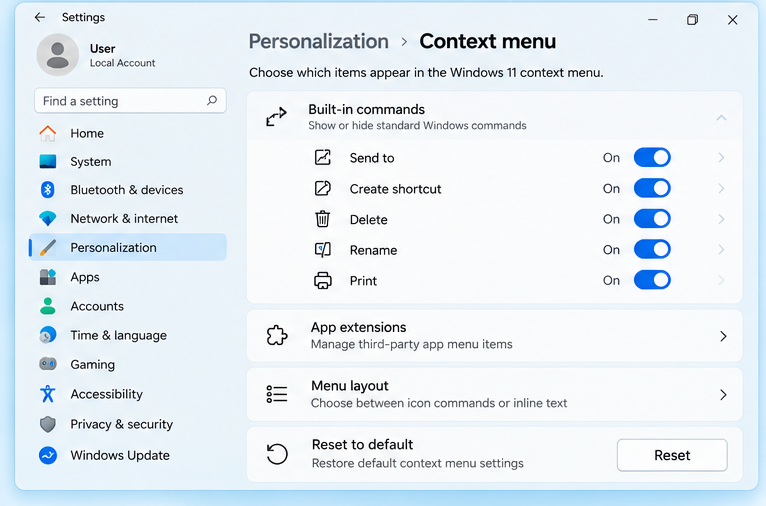
Selecting it opens a dedicated context-menu configuration page inside:
Settings → Personalization
From there, Windows lets you customize several parts of the right-click experience.
This is a major change from current stable Windows 11 versions, where built-in controls for customizing the File Explorer context menu are extremely limited.
Choose Which Windows Commands Appear
The new settings page lets you enable or disable selected built-in Windows commands.
Microsoft specifically mentions commands such as:
Send to
and:
Create shortcut
You can choose whether these appear in the context menu instead of simply accepting Microsoft’s default layout.
This should make it possible to keep commands you use frequently while removing options you rarely touch.
Print Can Return to the Main Context Menu
One interesting example is Print.
The Print command was not directly available in the modern Windows 11 context menu in the same way many long-time Windows users expected.
Microsoft says the new customization page can let you switch Print back on.
That could be useful for users who regularly right-click documents or images and send them directly to a printer.
It is also an example of Microsoft trying to accommodate people who prefer workflows from older Windows versions instead of forcing one layout on everyone.
You Can Control Third-Party App Extensions
Application extensions are one of the biggest sources of right-click menu clutter.
Suppose you install several applications.
Your context menu might eventually contain entries from:
- OneDrive
- Dropbox
- 7-Zip
- WinRAR
- Git
- Visual Studio Code
- Security software
- Image editors
- Backup utilities
The redesigned Windows 11 Context Menu Customization settings let you control how these application extensions appear.
Microsoft says users will be able to choose whether app extensions appear:
Directly in the main menu
or:
Inside a submenu
There is also an option to hide that application submenu altogether.
That should make it easier to prevent one rarely used app from occupying valuable space every time you right-click a file.
Cut, Copy and Delete Can Become Normal Text Commands Again
This may be one of the most popular changes for long-time Windows users.
In the current Windows 11 context menu, commands such as:
- Cut
- Copy
- Paste
- Rename
- Share
- Delete
are normally displayed as icons near the top of the menu.
Some users like the compact design.
Others still prefer the traditional Windows 10-style list where every command has a visible text label.
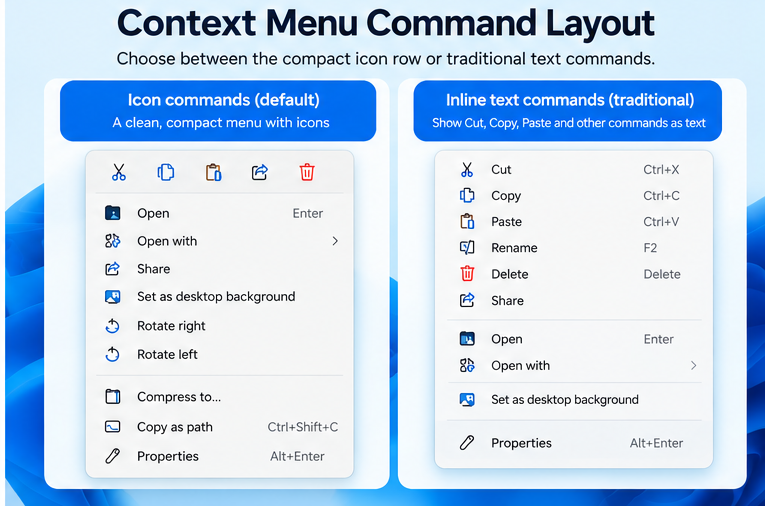
Microsoft is now testing an option that lets you display those common commands inline as normal menu items instead of using the icon row.
That means you could potentially have:
Cut
Copy
Paste
Rename
Delete
Share
displayed like traditional right-click commands.
For anyone who has used Windows for many years, that may feel more familiar.
Properties Can Move Back to the Bottom
Microsoft is also addressing another small but noticeable change from older Windows versions.
The new settings can allow Properties to appear at the very bottom of the context menu.
That was its familiar location in older Windows menus and is where many users instinctively expect to find it.
Microsoft specifically says this customization is intended partly to accommodate years of user muscle memory from older versions of Windows.
Small changes like this may sound insignificant, but right-click menus are used so frequently that familiar placement can make everyday navigation noticeably easier.
You Can Even Hide “Customize Menu”
Microsoft has already continued refining the new context menu since its initial August 2026 announcement.
In a September 11 Insider update, Microsoft added an option that lets users disable the Customize menu entry itself.
That means once you have configured your menu the way you want it, you do not necessarily have to keep the customization shortcut permanently visible.
This fits the overall goal of reducing unnecessary items.
What About “Show More Options”?
On normal Windows 11 installations today, Show more options remains the way to access many commands and legacy application extensions that are not included in the streamlined context menu.
Microsoft’s current File Explorer documentation still instructs users to:
Right-click → Show more options
to access commands from the older Windows-style menu.
The new experimental redesign gives Microsoft a way to bring more useful commands directly into the modern menu while still controlling clutter.
However, Microsoft has not announced that Show more options is being universally removed from all Windows 11 PCs.
So for now, do not assume the classic menu is disappearing.
Why Are Some Apps Missing From the Main Right-Click Menu?
Windows 11 changed how applications integrate with the modern context menu.
Microsoft notes that not every extension designed for the old Windows 10 menu appears directly in the streamlined Windows 11 menu.
Those commands can often still be found under:
Show more options.
Application developers can update their software to integrate with the modern Windows 11 context menu.
The new customization system should make those app integrations easier for users to manage once it becomes broadly available.
Earlier Context Menu Changes Were Paused
Microsoft has experimented with several approaches to cleaning up the File Explorer menu.
In late 2025 and early 2026, the company tested moving less frequently used commands into grouped flyouts.
For example, commands including:
- Compress to ZIP file
- Copy as path
- Set as desktop background
- Rotate left
- Rotate right
were moved into a Manage file submenu during testing.
However, Microsoft stopped that rollout in March 2026 so it could work on further improvements.
The much larger customizable redesign announced in August is effectively the next stage of that work.
The Open Command Is Also Getting a Small Improvement
Microsoft has been refining smaller context-menu details as well.
When you right-click files such as:
.exe
.bat
or:
.cmd
Microsoft has tested changing the icon beside Open so that it matches the icon associated with the file’s default application.
This is a small visual improvement, but it reflects the broader effort to make File Explorer menus more consistent and easier to understand.
Does the New Menu Replace the Windows 10 Context Menu?
Not exactly.
Microsoft is borrowing some ideas from the traditional Windows menu, but the goal is not simply to restore Windows 10’s design.
Instead, Microsoft appears to be combining:
Windows 11’s modern appearance
with:
more of the flexibility and familiarity of older Windows menus.
For example, you can potentially keep Windows 11’s modern menu while displaying Cut, Copy, Paste, Rename, Delete, and Share as text commands.
That gives users more control without completely abandoning the Windows 11 design.
Where Will the New Context Menu Settings Be?
Microsoft showed the new settings page under:
Settings → Personalization → Context menu
The exact naming or organization could still change before a public release because the feature remains in Insider testing.
If you open Settings on your current Windows 11 PC and cannot find a Context menu page, that is expected for most users.
Is the New Context Menu Available to Everyone?
Not yet.
Microsoft announced the redesigned context menu on August 17, 2026, and initially released it through the Windows Insider Experimental channel.
Microsoft continued refining the feature in September, including the option to hide the Customize menu command.
As of October 22, 2026, Microsoft’s more recent Insider announcements have not announced a broad move of this redesigned context menu into normal retail Windows 11 releases. The October 16 Insider release still separates Experimental features from Beta and Release Preview functionality.
So if you are running normal Windows 11 24H2, 25H2, 26H1, or 26H2 and cannot find these controls, do not assume your installation is outdated.
The feature is still being tested.
Should You Join the Insider Program Just to Get It?
For most users, probably not.
Insider builds are designed for testing upcoming Windows features and can contain unfinished functionality.
A customizable right-click menu is convenient, but it is not normally worth moving your main work PC to an experimental Windows channel just to access it early.
If Microsoft decides the feature is ready for general availability, it can eventually arrive through a normal Windows update.
Until then, the existing right-click menu continues to work.
Can You Customize the Current Stable Windows 11 Context Menu?
Not nearly as much through official Windows Settings.
On the current broadly available interface, Microsoft still provides the streamlined right-click menu and the Show more options command for older extensions.
There are third-party utilities and Registry modifications that can change context-menu behavior, but they are not the same as Microsoft’s upcoming built-in controls.
If you rely on your PC for work, using the official Windows customization options once available is generally preferable to making unnecessary Registry modifications.
Is Microsoft Removing Third-Party Context Menu Commands?
No.
The goal is to give users more control over where those commands appear.
Applications can still integrate commands with File Explorer.
The change is that you may be able to decide whether those extensions:
- Stay visible in the main menu
- Move into a submenu
- Stay out of the menu entirely
That should allow users with many installed programs to keep the menu much cleaner.
Could Customization Make the Context Menu Faster?
Potentially, yes.
Microsoft specifically connects menu clutter with performance.
Each app extension can require additional work when Windows builds the context menu, so reducing unnecessary extensions can help make the right-click experience more responsive.
The new menu also includes underlying performance improvements independent of what you choose to hide.
That means Microsoft is approaching the issue from both directions:
Optimize File Explorer itself
and:
Give users control over unnecessary menu items.
What Else Is Microsoft Improving in File Explorer?
The context menu redesign is part of a larger File Explorer overhaul.
Microsoft says it has been working on issues involving:
- File Explorer launch speed
- Freezes and hangs
- Background synchronization interrupting file renames
- Case-only filename changes
- Address bar behavior
- File-size presentation
- Details pane organization
- Navigation workflows
Microsoft has also expanded middle-click behavior for opening folders in new tabs from more locations within File Explorer.
Windows 11 Context Menu Customization: What Can You Change?
If Microsoft’s current experimental design reaches normal Windows 11 PCs largely unchanged, the most important customization options will include:
Built-in Windows commands
Choose whether commands such as Send to, Create shortcut, and Print appear.
Application extensions
Decide which third-party commands stay in the main context menu and which move to a submenu.
Extension submenu
Potentially hide the app-extension submenu entirely.
Common command layout
Choose between the Windows 11 icon row and more traditional inline text commands for Cut, Copy, Paste, Rename, Delete, and Share.
Properties location
Move Properties back to the familiar bottom position.
Customize menu shortcut
Choose whether the Customize menu command itself remains visible.
Together, these options represent a much larger level of built-in context-menu control than Windows 11 originally offered.
Frequently Asked Questions
Can you customize the Windows 11 right-click menu?
Microsoft is testing new built-in customization controls that let you manage Windows commands, third-party extensions, command layout, and other menu behavior. As of October 2026, the redesigned experience is still being tested with Windows Insiders.
Where is the new Context Menu settings page?
Microsoft’s experimental design places it under Settings → Personalization. It can also be opened using Customize menu at the bottom of the new right-click menu.
Can I show Cut and Copy as text instead of icons?
Microsoft is testing exactly that option. Users can switch common commands such as Cut, Copy, Paste, Rename, Delete, and Share from the icon row to inline text entries.
Can I put Print back in the Windows 11 context menu?
In Microsoft’s new experimental customization interface, Print is one of the built-in commands that can be switched on.
Can I hide third-party right-click commands?
The new design lets users control whether supported app extensions appear in the main menu or a submenu, and Microsoft says that submenu can also be hidden.
Is Microsoft removing Show more options?
Microsoft’s current public File Explorer documentation still includes Show more options for accessing legacy commands and extensions. Microsoft has not announced that it is universally removing the command from Windows 11.
Why don’t I have the new context menu settings?
Because the redesigned customizable context menu is still being tested in the Windows Insider Experimental channel. It has not yet been broadly released to every Windows 11 device.
Final Thoughts
Windows 11 Context Menu Customization is heading toward a major improvement.
Instead of Microsoft deciding exactly what appears every time you right-click a file, the new system lets you choose more of the experience yourself.
You can potentially bring back familiar commands, move common actions from icons to text, control third-party application extensions, reposition Properties, and remove menu items you never use.
Just remember that this is still a preview feature.
As of October 22, 2026, Microsoft is continuing to test and refine the redesigned context menu with Windows Insiders, so the final public version could still change.
For now, most Windows 11 users will continue seeing the existing streamlined menu with Show more options.
But if Microsoft’s current design reaches the stable version largely unchanged, right-clicking in Windows 11 should become both faster and considerably more customizable.
Building a new PC or upgrading your Windows edition? Browse our Windows 11 Pro keys and choose the license that fits your system.