
Software Activation Updates
Windows 11 Gaming Task View: What Is Different in Xbox Mode?
Nov
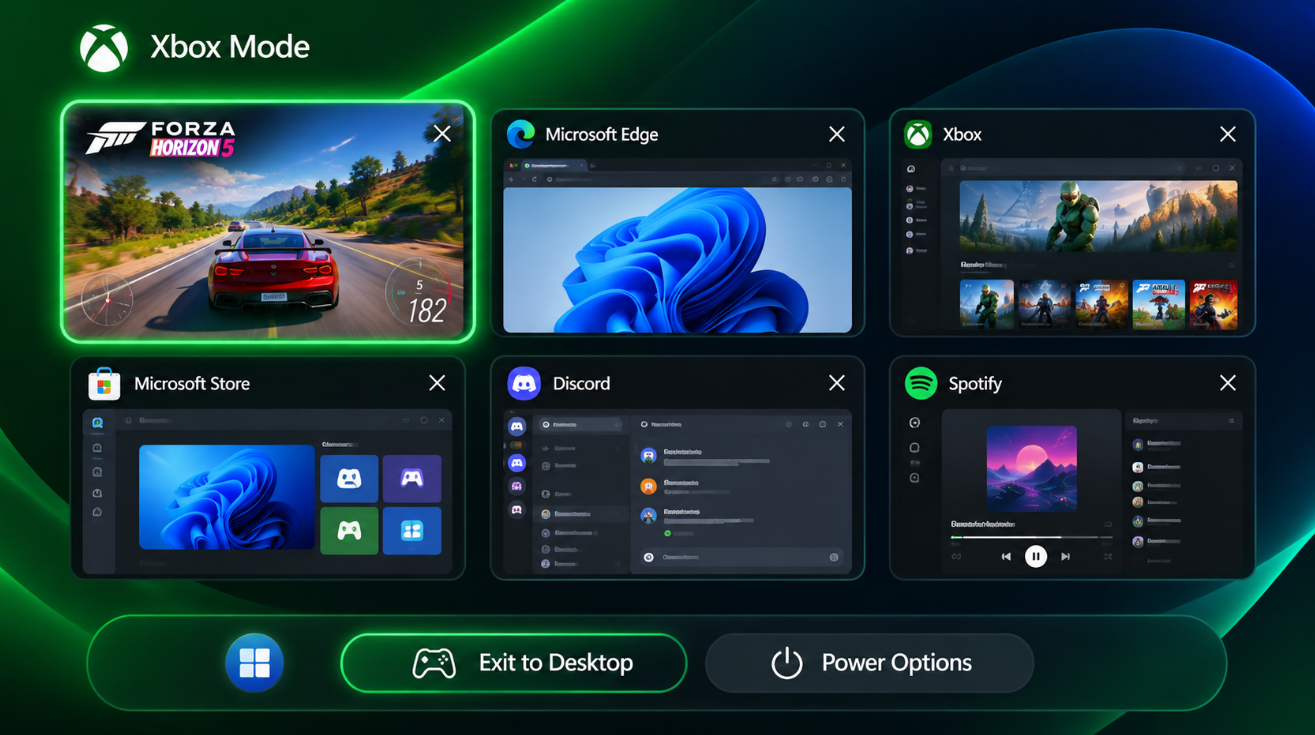
The Windows 11 Gaming Task View works differently when you use Xbox Mode.
Instead of showing the normal desktop-focused Task View with virtual desktops and traditional window management, Xbox Mode turns it into a controller-friendly app and game switcher.
Microsoft has now refreshed that experience again.
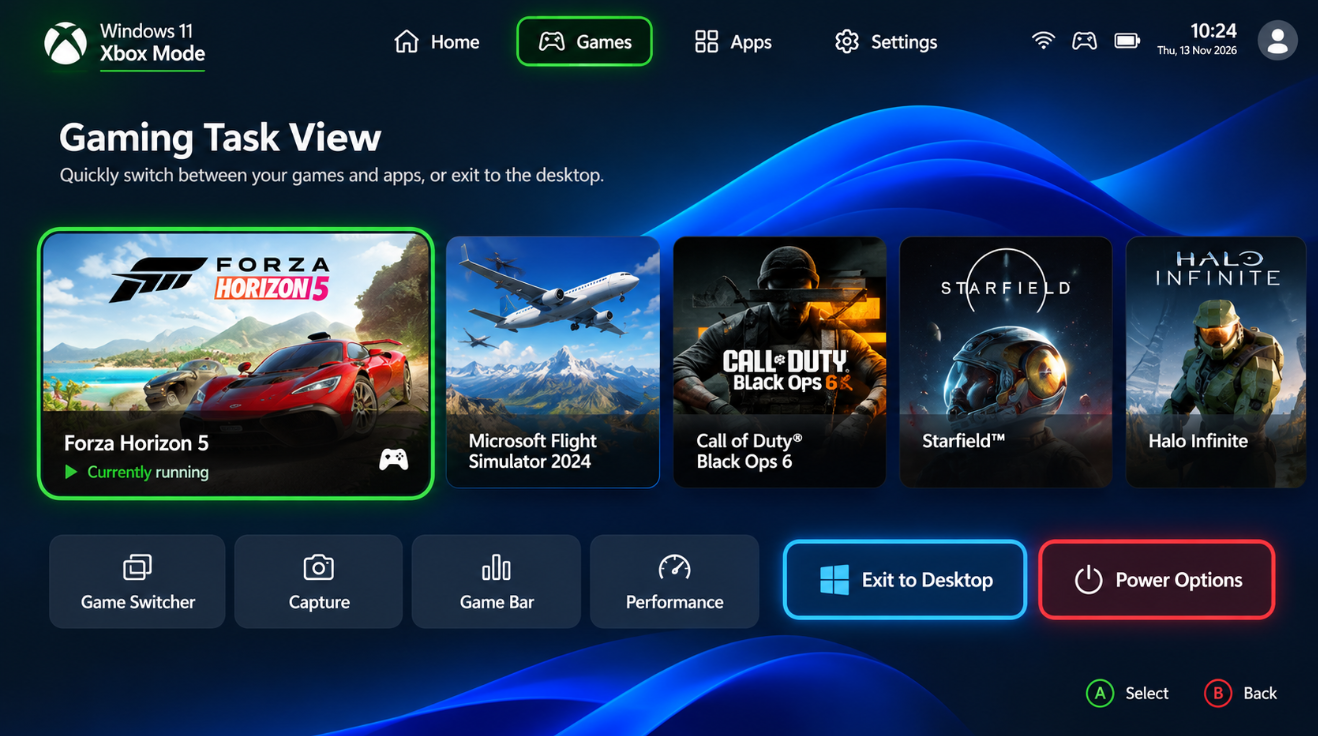
The updated Gaming Task View includes a new navigation bar with direct access to Exit to Desktop and Power Options, making it easier to control the PC without reaching for a mouse or keyboard.
The change is part of Microsoft’s wider effort to make Windows 11 feel more like a console when you want to play games while still keeping the full Windows desktop available when you need it.
What Is Xbox Mode in Windows 11?
Xbox Mode is a dedicated, controller-optimized gaming interface built into Windows 11.
Microsoft originally introduced the experience on gaming handhelds before expanding it to:
- Desktop PCs
- Gaming laptops
- Tablets
- Windows handhelds
When Xbox Mode is active, Windows launches a supported gaming home application and presents games and apps in a cleaner full-screen interface.
Microsoft describes it as a console-inspired experience designed for times when you want to sit back with a controller and focus on gaming.
It does not replace the Windows desktop.
You can move between Xbox Mode and the normal desktop whenever you want.
What Is Different About Gaming Task View?
Normal Windows Task View is primarily a multitasking tool.
Press:
Windows key + Tab
and Windows shows your open applications and virtual desktops.
Xbox Mode changes that concept.
Gaming Task View becomes a controller-friendly way to:
- Switch between games
- Switch between open apps
- Return to your gaming home app
- Close applications
- Exit back to the Windows desktop
- Access power controls
Microsoft’s latest redesign adds a dedicated navigation bar so some of the most important system actions are easier to reach while gaming.
New: Exit to Desktop Is Easier to Find
One of the biggest changes is a clear:
Exit to Desktop
option.
Previously, returning to the standard Windows desktop could feel less obvious when navigating entirely with a controller.
Microsoft has now put the command directly into the refreshed Gaming Task View navigation bar.
Select it and Windows leaves Xbox Mode and returns you to the normal desktop environment.
You do not need to reboot the PC.
That makes switching between gaming and normal PC use much quicker.
For example, you could:
- Play a game in Xbox Mode.
- Open Gaming Task View.
- Select Exit to Desktop.
- Use Word, a web browser or File Explorer.
- Re-enter Xbox Mode when you want to continue gaming.
New: Power Options Are Available From Gaming Task View
The second major addition is:
Power Options
Microsoft now puts power controls directly inside the Gaming Task View navigation bar.
This is particularly useful for gaming handhelds and PCs being used from a sofa or TV.
Instead of returning to the desktop just to turn off or restart the machine, you can access the power controls from the gaming interface.
That makes Xbox Mode feel more like a dedicated gaming console.
Why Does This Matter for Controller Users?
Windows has traditionally assumed that users have a mouse and keyboard available.
That is fine at a desk.
It becomes more awkward when a gaming PC is:
- Connected to a television
- Used from a sofa
- Running on a handheld
- Controlled almost entirely with an Xbox controller
Xbox Mode is designed around that problem.
The refreshed Gaming Task View makes important system functions reachable without requiring users to leave the controller-first interface.
That includes app switching, closing apps, returning to the desktop and accessing power controls.
How Do You Open Gaming Task View?
There are several ways.
While using Xbox Mode, you can open Task View with:
Windows key + Tab
or with supported controller interactions.
Microsoft says you can also open it by:
Long-pressing the Xbox button
on supported devices.
On touch-enabled systems, swiping upward from the bottom of the screen can also open Task View.
The exact controls can depend on your PC, controller and Windows build.
How Do You Navigate Task View With an Xbox Controller?
Microsoft designed the Xbox Mode version specifically for controller navigation.
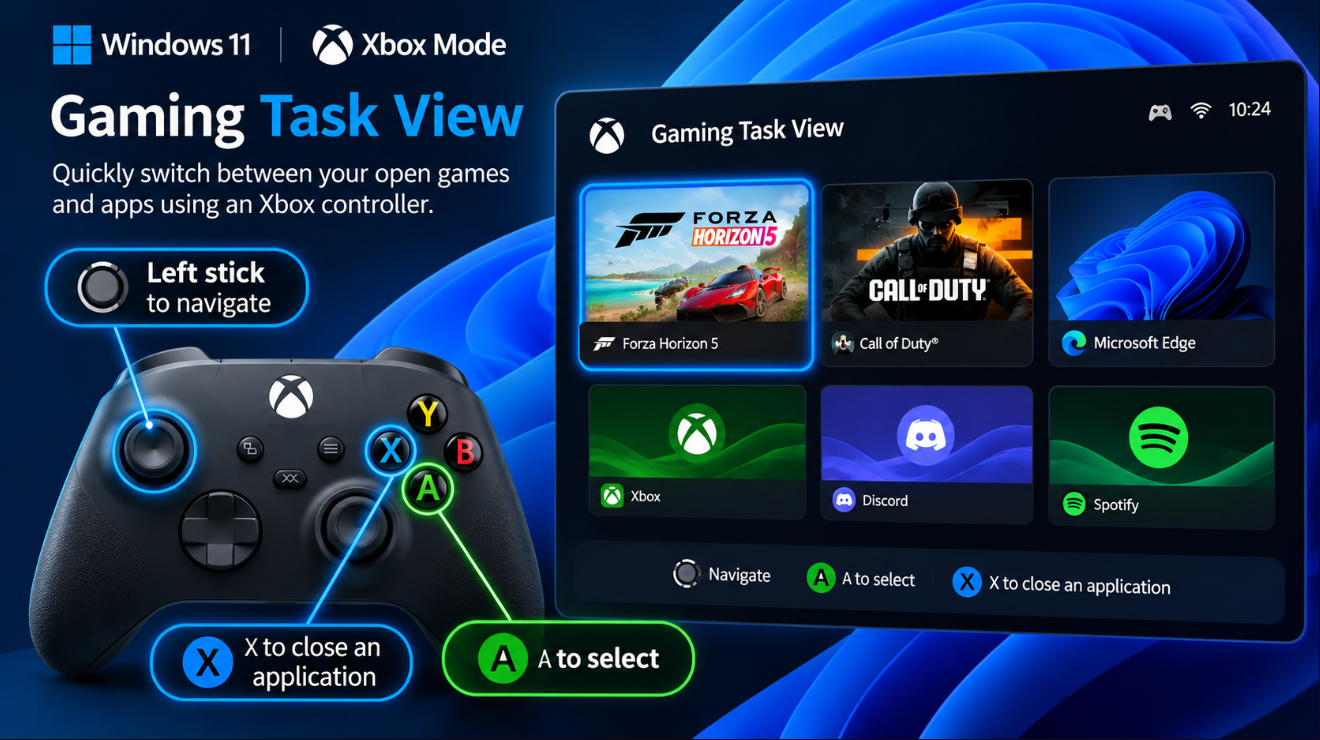
You can use:
Left stick – Move between items
LB / RB – Navigate between available items
A button – Bring the selected app or game to the foreground
X button – Close the selected application
This lets you switch between games and applications without reaching for a keyboard or mouse.
For handheld gaming devices, that is particularly important because controller input is the primary way most users interact with the system.
What Happens to Normal Windows Task View?
Nothing.
When you return to the standard Windows desktop, the normal Task View continues to work as usual.
Press:
Windows key + Tab
and you can still see:
- Open windows
- Multiple desktops
- Desktop thumbnails
Normal Task View also lets you create virtual desktops and move applications between them.
The gaming version is therefore a special interface used when Windows is operating in Xbox Mode.
Can You Switch Between Apps in Xbox Mode?
Yes.
This is one of Gaming Task View’s main purposes.
Open Task View and you can move between:
- Games
- Xbox
- Supported applications
- Your gaming home app
Microsoft says Xbox Mode displays only one window at a time and attempts to show applications full screen where possible.
That keeps the interface focused on one task rather than reproducing the traditional overlapping desktop-window experience.
Apps Behave Differently in Xbox Mode
Xbox Mode changes how desktop applications are displayed.
According to Microsoft:
- Only one window is shown at a time.
- Apps appear full screen where possible.
- Apps that create several windows may show only the most recent one.
- Apps without full-screen support can appear against a black background.
- Minimize and maximize controls may not change the application’s window state.
- Some normal Windows keyboard shortcuts behave differently.
These differences are intentional.
Xbox Mode prioritizes a simpler gaming experience instead of traditional desktop multitasking.
How Do You Return to Your Game Library?
Gaming Task View is not the only way to move around Xbox Mode.
Microsoft also provides a Home option through Game Bar.
Open Game Bar using:
Windows key + G
or the Xbox controller button.
You can then return to your configured gaming home experience.
If your gaming home application supports it, a Library button can also take you directly to your game collection.
This means Xbox Mode can function more like a console dashboard than a traditional Windows desktop.
Can Xbox Mode Show Games From Other Stores?
Yes.
Microsoft says the Xbox experience can present an aggregated gaming library that includes installed games from several PC storefronts, rather than limiting the interface exclusively to Microsoft Store purchases.
That is important because Windows gaming remains an open PC ecosystem.
You can still use other game stores and launchers while taking advantage of Xbox Mode’s controller-oriented interface.
How to Turn On Xbox Mode
Open:
Settings → Gaming → Xbox mode
On a normal desktop, laptop or tablet, enable:
Xbox mode
Microsoft also provides an option to:
Show Xbox mode in Task View
which creates a Task View entry point for launching the experience.
You can also enter Xbox Mode through:
- Xbox app
- Game Bar
- Task View
- Windows key + F11
The exact options shown can vary between PC types and Windows versions.
Windows + F11 Is the Fastest Shortcut
Microsoft provides:
Windows key + F11
as a shortcut for moving between Windows and Xbox Mode.
This is useful if you have a keyboard nearby.
For a living-room gaming PC, however, the redesigned Task View is more important because it keeps the main controls accessible through a controller.
What Is Different on Gaming Handhelds?
Xbox Mode is especially important on devices such as Windows gaming handhelds.
On supported handhelds, you can configure Windows to enter Xbox Mode automatically after signing in.
Open:
Settings → Gaming → Xbox mode
and enable:
Enter Xbox mode on startup
Microsoft says Windows can limit some background startup activity when this option is used, helping reduce unnecessary activity while gaming.
That brings the startup experience closer to a dedicated console.
Startup Apps Can Behave Differently
Gaming handhelds also get more control over when startup applications launch.
Microsoft provides three behaviors:
Start at log in
The application starts normally and can run in Xbox Mode.
Start when exiting to desktop
The application waits until you leave Xbox Mode and switch to the normal desktop.
Off
The application does not start automatically.
This can prevent desktop utilities from unnecessarily starting while you are only interested in playing a game.
Does Xbox Mode Improve Gaming Performance?
Microsoft says the Xbox Mode experience can minimize background distractions, and on gaming handhelds certain startup/background behavior can be limited to help gaming performance and battery life.
However, it is important not to treat Xbox Mode as a guaranteed FPS boost.
Performance depends on:
- CPU
- GPU
- RAM
- Game
- Drivers
- Background software
- Power settings
The biggest difference most users will notice is the simplified gaming interface rather than a dramatic increase in frame rate.
Is Xbox Mode the Same as Game Mode?
No.
They are different Windows gaming features.
Xbox Mode
changes the interface and provides a controller-first, console-inspired full-screen environment.
Game Mode
is a Windows setting designed to prioritize gaming-related system behavior while a game is running.
You can therefore use Xbox Mode without treating it as a replacement for Windows Game Mode.
Is Xbox Mode the Same as Game Bar?
No.
Game Bar is the overlay opened with:
Windows key + G
It provides gaming tools such as widgets and shortcuts without replacing the Windows desktop.
Xbox Mode is a larger full-screen experience.
However, the two work together.
Game Bar provides one of the entry and exit points for Xbox Mode.
Is the New Gaming Task View Available Now?
Yes, on updated supported systems.
Microsoft first announced the refreshed Gaming Task View on October 16, 2026 for Windows Insider Beta and Experimental builds.
It then appeared in the October 28 KB5127936 preview update for Windows 11 versions 25H2 and 26H2.
Most importantly, Microsoft’s November 10, 2026 KB5132061 security update incorporates improvements from that October preview update for Windows 11 25H2 and 26H2.
So this is no longer merely an experimental Insider concept.
Which Windows Versions Support Xbox Mode?
Microsoft’s dedicated Xbox Mode documentation says the overall experience requires:
Windows 11 version 24H2 or later
and is available only in supported markets.
However, the newest refreshed Gaming Task View navigation bar was specifically documented in Microsoft’s 25H2/26H2 October preview update.
For the newest version of the experience, keeping Windows on a current supported release is therefore recommended.
Why Don’t I See Xbox Mode?
First, check your Windows version.
Press:
Windows key + R
type:
winver
and press Enter.
Then check:
Settings → Windows Update → Check for updates
Xbox Mode has been rolling out gradually, and availability can depend on:
- Windows version
- Region
- Xbox app version
- Device type
- Update rollout status
Microsoft began the broader PC rollout in April 2026 in select markets and expanded availability over time.
Why Don’t I See the New Exit to Desktop Bar?
If Xbox Mode works but Gaming Task View does not show the newest navigation bar, check Windows Update.
For Windows 11 25H2 and 26H2, install current cumulative updates.
Microsoft added the refreshed Task View to KB5127936 in October, and its improvements are incorporated into the November cumulative update.
You may also need the current Xbox app from Microsoft Store.
Is Gaming Task View Useful on a Desktop PC?
It can be.
The biggest benefits are not limited to handhelds.
Imagine a gaming desktop connected to a large TV.
You can sit on a sofa with an Xbox controller, enter Xbox Mode and navigate games without using the normal desktop.
Gaming Task View then gives you an easier way to:
- Switch games
- Move between applications
- Close apps
- Return to the desktop
- Access power controls
That makes a Windows PC much more practical as a living-room gaming system.
Is It Trying to Turn Windows Into an Xbox?
Not exactly.
Microsoft still emphasizes the flexibility of PC gaming.
Xbox Mode is optional.
When you want a console-like interface, you can use it.
When you need:
- File Explorer
- Desktop applications
- Browser windows
- Productivity software
- Traditional multitasking
you can select Exit to Desktop and return to normal Windows.
That combination is the main idea behind Xbox Mode: console-style navigation without giving up the underlying Windows PC.
Gaming Task View vs Normal Task View
The difference is easiest to remember this way:
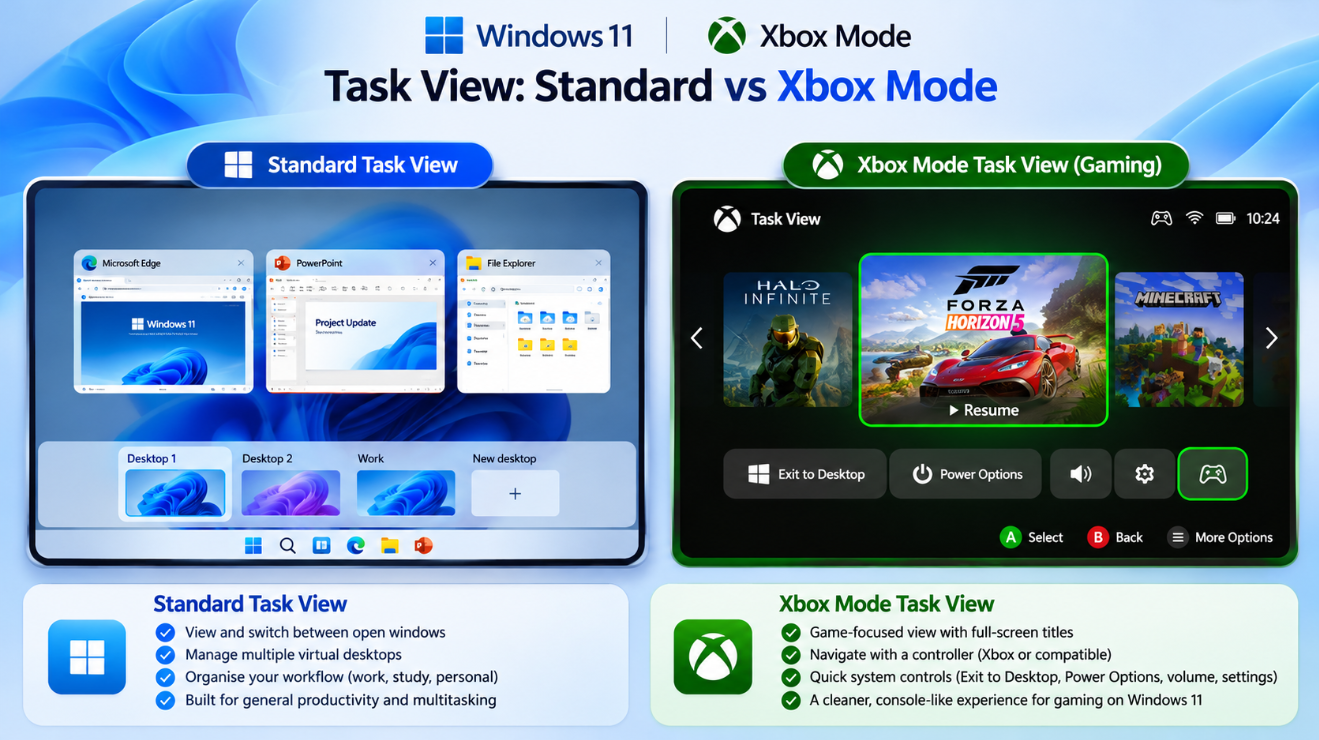
Normal Task View
Designed for productivity and desktop multitasking.
It focuses on open windows and virtual desktops.
Gaming Task View
Designed for controller-first navigation.
It focuses on games, open apps and quick system actions while Xbox Mode is active.
The new navigation bar strengthens that distinction by adding Exit to Desktop and Power Options directly to the gaming interface.
Frequently Asked Questions
What is Windows 11 Gaming Task View?
It is the Xbox Mode version of Task View, optimized for switching between games and applications with a controller.
What changed in Gaming Task View?
Microsoft added a new navigation bar with direct access to Exit to Desktop and Power Options.
How do I open Gaming Task View?
You can use Windows + Tab, a supported Xbox-controller interaction or, on touch devices, swipe upward from the bottom.
Can I close a game from Task View with a controller?
Yes. Microsoft says you can highlight an item and press X to close it.
How do I switch apps with a controller?
Use the left stick, LB/RB or other supported controller navigation, then press A to bring an app to the foreground.
How do I leave Xbox Mode?
You can select Exit to Desktop from Gaming Task View, use Game Bar or press Windows + F11.
Does Xbox Mode replace the Windows desktop?
No. It is optional, and you can return to the normal desktop whenever you want.
Is the refreshed Gaming Task View still Insider-only?
No. Microsoft included it in the October 28 preview update for Windows 11 25H2/26H2, and those improvements are incorporated into the November 10, 2026 cumulative update.
Final Thoughts
The Windows 11 Gaming Task View is becoming much more useful as Xbox Mode evolves.
Instead of simply adapting the normal desktop Task View for gaming, Microsoft is turning it into a proper controller-friendly system switcher.
The biggest new additions are simple but important:
Exit to Desktop
and:
Power Options
Both are now directly accessible from the refreshed navigation bar.
Combined with controller-based app switching, full-screen applications and the ability to return to the normal Windows desktop whenever needed, Xbox Mode makes Windows 11 more practical for handhelds, living-room PCs and anyone who prefers gaming with a controller.
And unlike when Microsoft first previewed the redesigned Task View in October, the change is now being delivered through normal Windows 11 updates for supported 25H2 and 26H2 PCs.
Building or upgrading a Windows gaming PC? Browse our Windows 11 keys and choose the edition that fits your system.