
Software Activation Updates
Windows 11 Screen Tint: A New Way to Make the Display More Comfortable
Nov
Bright white screens can become uncomfortable after hours of working, browsing, or reading.
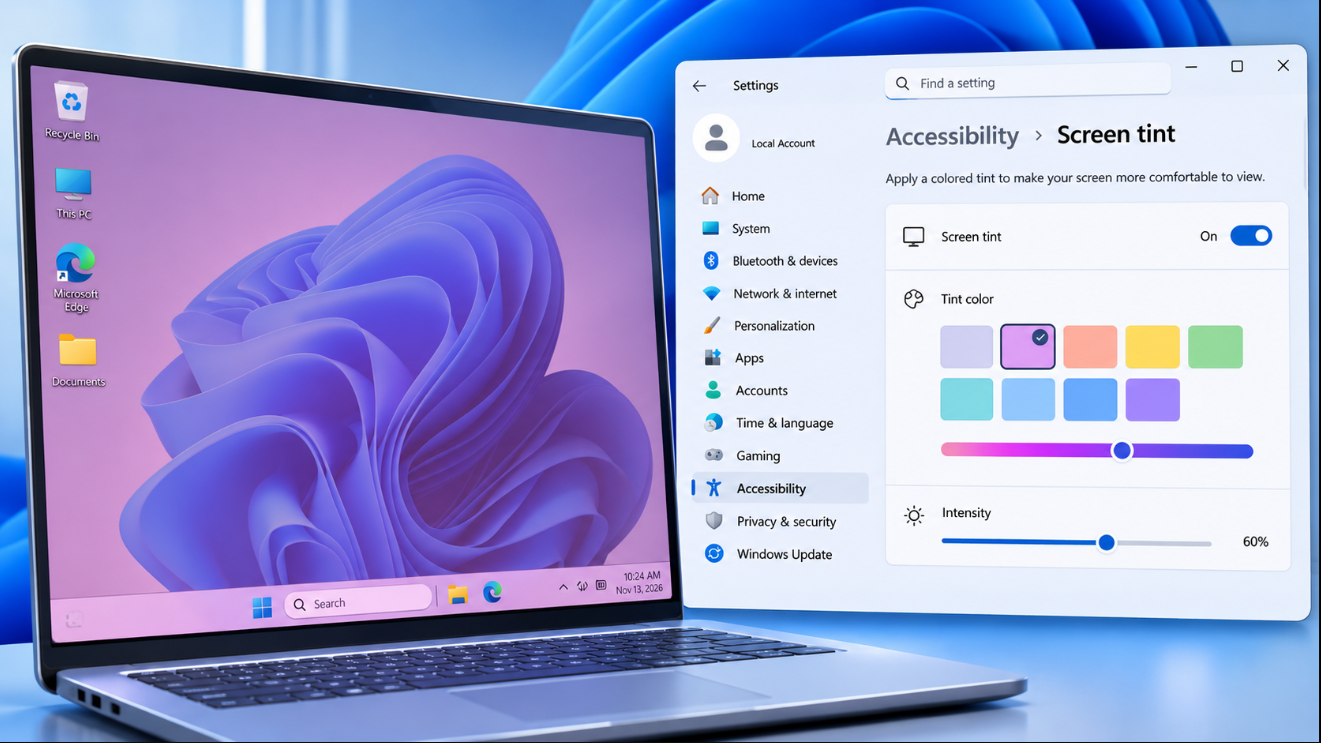
Microsoft is addressing that with Windows 11 Screen Tint, a new accessibility feature that places a customisable colour overlay across the entire display.
Instead of simply lowering brightness or making the screen warmer, Screen Tint changes the overall appearance of the display using a colour you choose. You can select from preset colours, create a custom tint, and adjust its strength until the screen feels more comfortable.
Microsoft says the feature is intended for people who find standard bright or saturated displays harsh, including users who experience light sensitivity or visual discomfort during long sessions.
What Is Windows 11 Screen Tint?
Windows 11 Screen Tint is a system-wide colour overlay.
When you turn it on, Windows applies the selected tint across the entire screen rather than changing only one application.
For example, instead of a bright white background appearing completely white, you could give the entire display a subtle:
warm beige tint,
soft blue tint,
green tint,
or another colour that feels easier to look at.
Microsoft describes the feature as a way to soften the intensity of bright displays while still allowing you to use Windows normally.
It does not reduce your monitor’s actual brightness in the same way as the brightness slider.
Instead, it changes the colour appearance of what is being displayed.
How to Turn On Screen Tint in Windows 11
Open:
Settings → Accessibility → Screen Tint
You can also press:
Windows key + U
to open Accessibility settings directly.
Then select Screen Tint under the Vision section and turn the feature on.
From there, Windows lets you choose the colour and adjust how strongly the overlay affects the display.
You Can Choose From Six Preset Colours
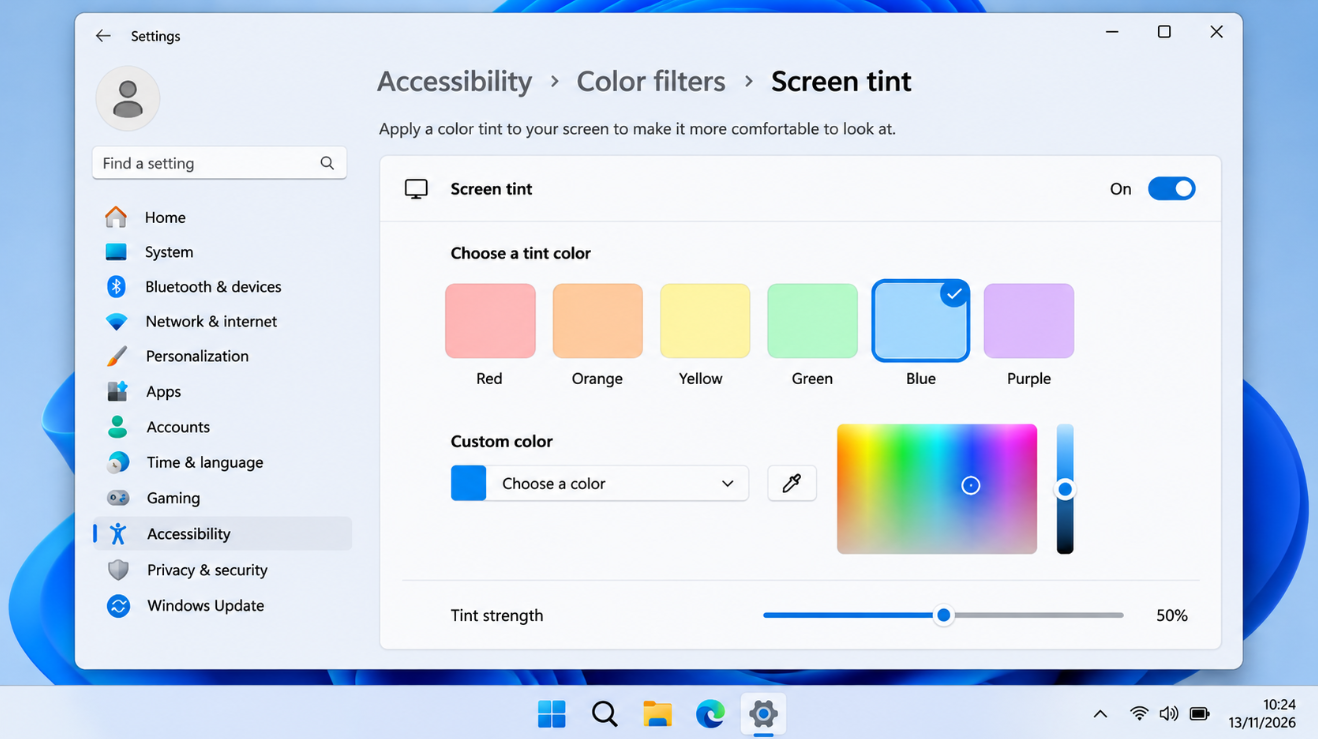
Microsoft currently provides six preset tint colours.
Each appears as a colour block inside the Screen Tint settings.
Select one and Windows immediately applies that colour across the display.
The best choice is personal.
Some users may prefer a warmer colour because bright white backgrounds feel harsh.
Others may find a subtle cool or neutral tint more comfortable.
The important point is that Windows does not force everyone to use the same colour.
You Can Create Your Own Screen Tint
If the six presets do not suit you, select the custom colour option.
Microsoft provides a colour picker that allows you to create your own tint rather than being limited to the presets.
That means you can choose a very subtle off-white colour or something considerably more noticeable.
This makes Screen Tint more flexible than a simple on/off accessibility filter.
Adjust the Screen Tint Strength
The colour itself is only half of the setting.
Windows also provides a Tint strength slider.
At the lower end, the colour appears as a subtle wash over the screen.
Increase the strength and the tint becomes much more noticeable.
Microsoft notes that the exact visual intensity can vary depending on your display hardware.
For most users, starting with a relatively weak tint probably makes the most sense.
You can then increase it gradually until the display feels comfortable without changing colours more than necessary.
Windows 11 Screen Tint vs Night Light
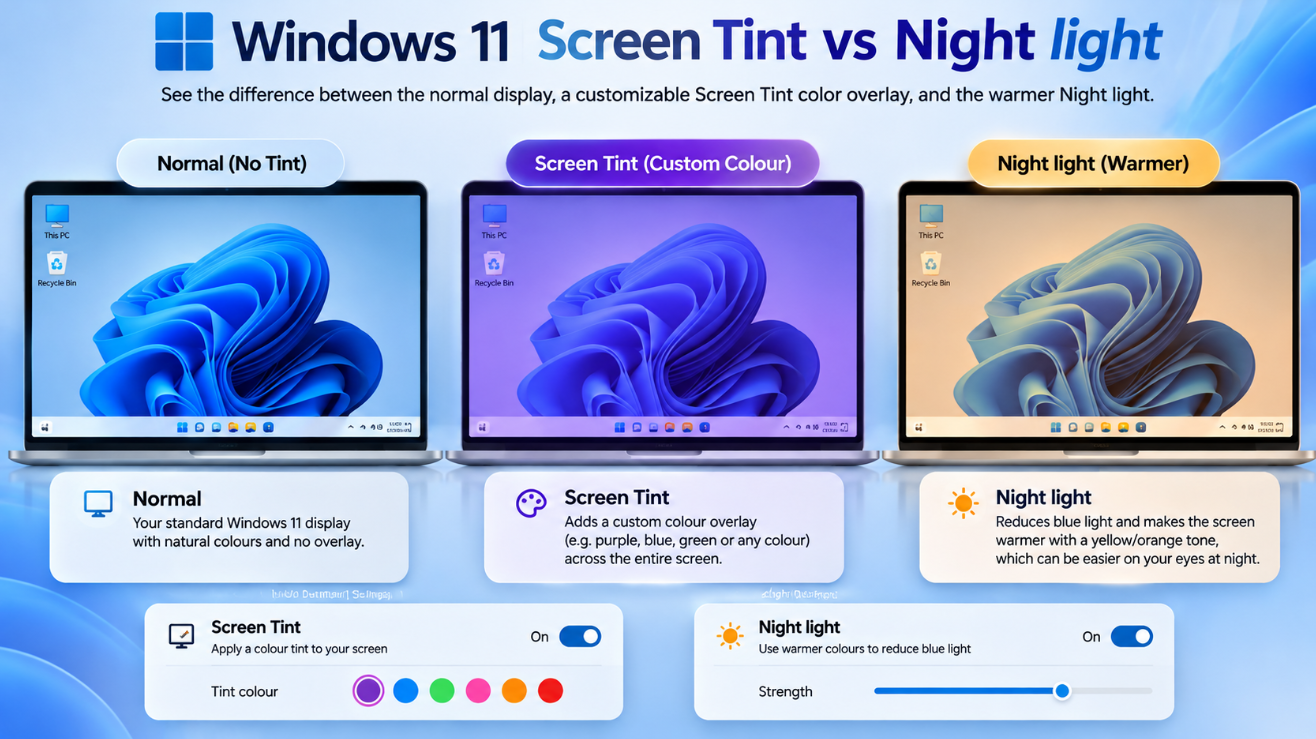
These two features sound similar, but Microsoft designed them for different purposes.
Night light mainly changes the colour temperature of the display.
It makes the screen warmer by reducing the blue-toned appearance of bright whites.
Microsoft positions Night light primarily as an evening feature because blue light late at night can interfere with normal sleep cues.
Screen Tint, on the other hand, applies a colour overlay to soften the overall visual intensity of the screen.
Microsoft describes it as useful throughout the day when bright or saturated displays feel uncomfortable.
The difference is easiest to remember like this:
| Feature | Main Purpose |
|---|---|
| Screen Tint | Soften the overall appearance of a bright display |
| Night light | Make the display warmer, particularly in the evening |
| Brightness | Change how much light the display produces |
Can You Use Screen Tint and Night Light Together?
Yes.
Microsoft specifically says Screen Tint and Night light can be enabled at the same time.
That is because the two features perform different adjustments.
Night light changes the warmth of the display.
Screen Tint applies your chosen colour overlay.
For example, someone might use a subtle Screen Tint throughout the day and allow Night light to make the screen warmer automatically in the evening.
Screen Tint vs Windows Color Filters
This is where there is an important limitation.
Windows already includes Color Filters under:
Settings → Accessibility → Color filters
Those filters can change how Windows renders colours using options such as grayscale, inverted colours, and filters designed for certain colour-vision differences.
Screen Tint is not a replacement for those accessibility tools.
More importantly, Microsoft says Screen Tint and Color Filters cannot be active at the same time.
Turning on Screen Tint disables Color Filters.
Turning on Color Filters disables Screen Tint.
So if you depend on a particular Windows colour filter, Microsoft recommends leaving Screen Tint off.
Screen Tint vs Lowering Your Brightness
Lowering brightness and using Screen Tint also produce different results.
Brightness changes the physical intensity of the display.
If the screen is producing too much light in a dark room, reducing brightness is usually the most direct solution.
Screen Tint changes the colours displayed on screen.
You could therefore use:
lower brightness + Screen Tint
if you want both less light and a softer colour appearance.
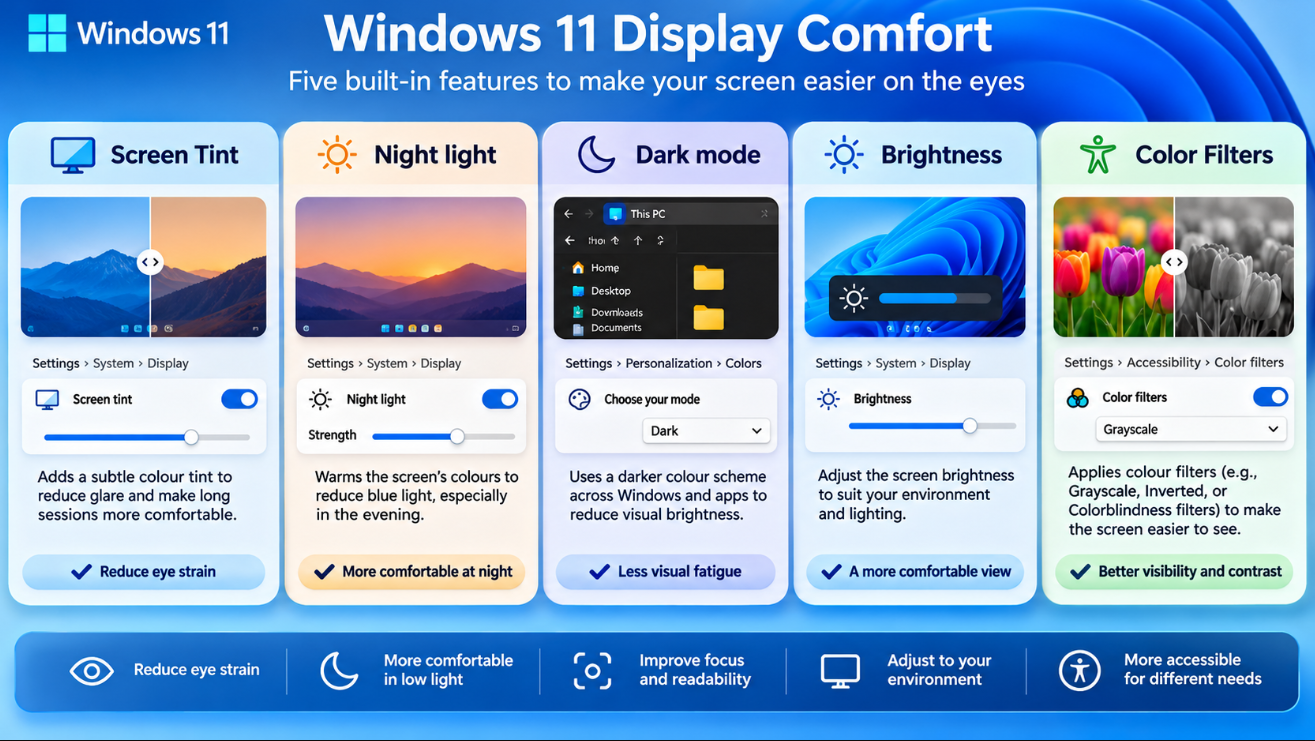
Microsoft includes brightness, Screen Tint, Night light, Color Filters, Dark mode, and Contrast themes as separate tools because each solves a different display-comfort problem.
Is Screen Tint the Same as Dark Mode?
No.
Dark mode changes supported Windows interfaces and applications from bright backgrounds to darker ones.
Screen Tint affects the entire display.
That means it can also affect content that does not support dark mode.
For example, a website with a white background may stay white in Dark mode if the website itself does not change.
With Screen Tint enabled, the same page can still receive the selected colour overlay because the tint operates at the Windows display level.
The two features can therefore complement each other.
Does Screen Tint Affect Photos and Videos?
Yes.
Because Screen Tint covers the full display, it changes the way photos, videos, websites, applications, and the Windows interface appear while it is enabled.
That is important if you perform colour-sensitive work.
For example, if you are:
editing photographs,
colour grading video,
designing graphics,
checking brand colours,
or calibrating a display,
you may want to turn Screen Tint off temporarily.
Otherwise, the overlay can make displayed colours look different from their original values.
Screen Tint is designed for visual comfort, not colour accuracy.
Will Screen Tint Change Your Actual Files?
No.
The feature changes how content looks on your display.
It does not permanently modify:
photos,
videos,
documents,
websites,
or other files.
If you edit and save a normal image while Screen Tint is enabled, the tint itself is not automatically written into the image.
However, because you are seeing altered colours while editing, colour-sensitive adjustments could still be affected by what you see.
Is Screen Tint Useful for Long Work Sessions?
That is one of the scenarios Microsoft specifically mentions.
The company says Screen Tint is intended to soften screens that can feel harsh during long periods of use.
For someone spending hours in:
Word,
Excel,
a web browser,
email,
or other bright applications,
a subtle tint may make large white backgrounds feel less intense.
This is especially relevant if Dark mode is not suitable for your workflow or if some applications continue showing bright content.
Does Screen Tint Reduce Eye Strain?
Microsoft describes Screen Tint as helping reduce visual discomfort and making bright displays easier to view.
However, it is better to think of it as a comfort setting, not a medical treatment.
If you regularly experience significant eye pain, headaches, vision problems, or unusual sensitivity to light, changing a Windows setting should not replace professional medical advice.
For ordinary display comfort, though, Screen Tint gives Windows users another option beyond simply reducing brightness.
Can Screen Tint Improve Readability?
For some users, yes.
Microsoft’s 2026 Windows update documentation describes Screen Tint as a feature that can help reduce eye strain and improve readability.
A less intense background can make long blocks of text easier to look at for people who dislike very bright white screens.
However, the strongest tint is not necessarily the best.
Too much colour can reduce contrast or make certain content more difficult to distinguish.
A subtle tint is a better starting point.
Can Screen Tint Turn On Automatically?
Microsoft’s 2026 Windows servicing documentation says Screen Tint can be configured using preset options, intensity controls, and an automatic option.
The exact controls available can depend on the Windows build currently installed on your PC.
Microsoft’s dedicated Screen Tint support page currently focuses primarily on selecting a colour and adjusting tint strength.
If your PC shows additional automation controls, you can use them directly from the Screen Tint settings page.
Which Windows Versions Support Screen Tint?
Microsoft began testing Screen Tint with Windows Insiders in May 2026.
It then expanded through Windows 11 servicing updates for releases including 24H2, 25H2, and 26H1 during 2026.
Microsoft now has a dedicated Windows support page for Screen Tint and includes it in its current Windows 11 accessibility guidance, so it is no longer simply an experimental concept.
Windows 11 version 26H2, also known as the Windows 11 2026 Update, includes features that Microsoft introduced gradually through earlier 24H2 and 25H2 monthly updates.
Why Don’t I Have Screen Tint?
If you open:
Settings → Accessibility
and cannot find Screen Tint, first update Windows.
Open:
Settings → Windows Update → Check for updates
and install available updates.
Microsoft often introduces Windows features through gradual rollouts, meaning two PCs running similar versions can receive a feature at different times.
If you are still on an older Windows 11 build, upgrading to a current supported release may also be necessary.
Does Screen Tint Work on Multiple Monitors?
Microsoft describes Screen Tint as applying across the display experience, although the visible strength can vary depending on display hardware.
If you use monitors with very different:
brightness levels,
panel technologies,
colour profiles,
or calibration,
the same tint may not look identical on every screen.
That does not necessarily mean the feature is malfunctioning.
Different displays can render the same colours differently.
Screen Tint, Night Light or Dark Mode: Which Should You Use?
There is no single best setting.
Use Screen Tint if bright or saturated content feels harsh and you want a custom colour overlay.
Use Night light if you primarily want a warmer display in the evening.
Use Dark mode if you prefer dark application backgrounds.
Use Brightness if the display itself is simply producing too much light.
And use Color Filters if you rely on Windows’ specialised colour-vision or inversion filters.
These settings solve different problems and, with the exception of Screen Tint and Color Filters, several can be combined.
Frequently Asked Questions
What does Windows 11 Screen Tint do?
It applies a single colour overlay across the entire Windows display to soften bright or highly saturated content.
Where is Screen Tint in Windows 11?
Open:
Settings → Accessibility → Screen Tint
or press Windows key + U and select Screen Tint under Vision.
How many Screen Tint colours are available?
Microsoft provides six preset colours plus a custom colour picker.
Can I change how strong the tint is?
Yes. Use the Tint strength slider to make the overlay subtle or considerably stronger.
Is Screen Tint the same as Night light?
No. Night light makes the display warmer, while Screen Tint applies a custom colour overlay designed to soften the overall screen appearance.
Can Screen Tint and Night light work together?
Yes. Microsoft says both can be enabled at the same time.
Can Screen Tint and Color Filters work together?
No. Enabling one disables the other.
Does Screen Tint permanently change photos?
No. It changes how the screen displays content rather than editing the underlying files.
Why don’t I see Screen Tint?
Your Windows installation may need a newer update, or the feature may not yet have reached your device through Microsoft’s gradual rollout.
Final Thoughts
Windows 11 Screen Tint adds another useful display-comfort option to Microsoft’s accessibility tools.
Instead of only making the screen darker or warmer, it lets you apply a colour of your choice across the entire display and control exactly how strong that overlay appears.
It is particularly useful for people who find bright white or heavily saturated screens uncomfortable during long work sessions.
The important distinctions are simple:
Screen Tint changes the overall colour overlay.
Night light makes the display warmer.
Brightness changes how much light the display produces.
Color Filters provide specialised colour transformations and cannot be used at the same time as Screen Tint.
If you spend hours looking at a Windows display every day, Screen Tint is worth experimenting with. Start with a subtle colour and low strength, then adjust it until the screen feels comfortable without making colours unnecessarily distorted.
Setting up a new PC or moving to a supported Windows release? Browse our Windows 11 keys and choose the edition that fits your system.