
Instructions
The Real Cost of Staying on Windows 10 in 2026
Jun
Windows 10 was one of Microsoft’s most successful operating systems. Its familiar interface, broad hardware support and reliable performance encouraged many users to keep it for years.
However, the situation changed on 14 October 2025, when standard Windows 10 support ended.
Windows 10 computers did not suddenly stop working on that date. Users can still turn them on, run installed applications, access files and browse the internet. The real issue is what happens over time when an operating system no longer receives normal security updates, feature improvements or technical support.
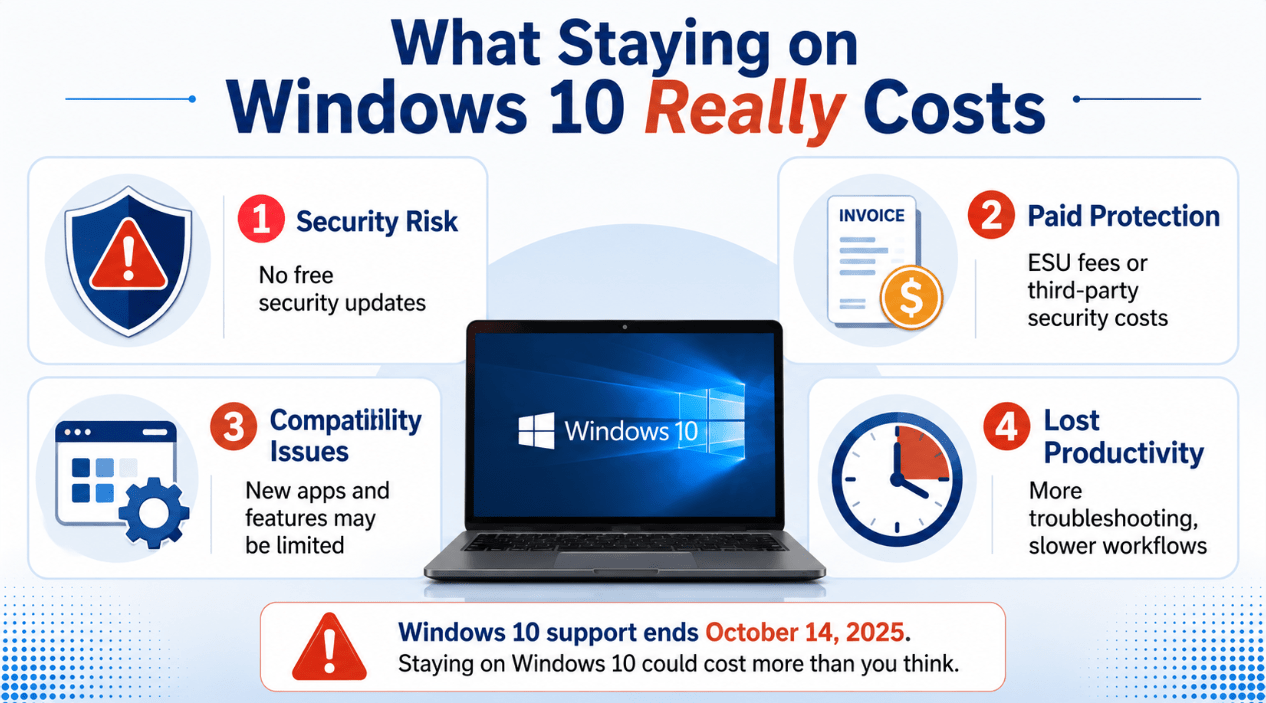
The cost of staying on Windows 10 in 2026 is therefore not limited to the price of an upgrade. It can include paid security updates, additional IT work, software compatibility problems, downtime and delayed hardware replacement.
For some users, remaining on Windows 10 temporarily may be reasonable. For many others, upgrading to Windows 11 is now the safer and more economical long-term decision.
Ready to move to a currently supported operating system? Browse our Windows 11 product keys and choose the correct edition for your compatible PC.
What Changed After Windows 10 Support Ended?
Microsoft ended normal support for Windows 10 on 14 October 2025.
That means Microsoft no longer provides the following to normal, unenrolled Windows 10 installations:
- Regular security updates
- Reliability fixes
- Feature updates
- New Windows features
- Normal technical support
- General operating system improvements
The computer itself continues to function. End of support does not deactivate Windows, delete files or prevent installed programs from opening.
The difference is that newly discovered operating system vulnerabilities may no longer receive standard security patches.
This risk may seem small immediately after support ends. However, the gap between a supported and unsupported operating system generally becomes more important as time passes.
New software is designed around current systems. Hardware manufacturers focus driver development on supported platforms. Cybersecurity protections continue evolving, while the older operating system remains largely unchanged.
Will Windows 10 Still Work in 2026?
Yes. Windows 10 still works in 2026.
You can continue to:
- Start the computer
- Use installed desktop programs
- Access local files
- Connect printers and accessories
- Browse websites
- Send email
- Play compatible games
- Use compatible Office applications
However, “still works” is not the same as “remains fully supported”.
A car can continue driving after its warranty and scheduled service period have ended. That does not mean the cost and risk of maintaining it remain unchanged.
The same principle applies to Windows 10. The operating system may appear normal during everyday use, while the technical and security risks increase in the background.
The Security Cost of Staying on Windows 10
The biggest cost is increased security exposure.
Unpatched Windows Vulnerabilities
Cybersecurity researchers regularly discover vulnerabilities in operating systems and built-in components.
On a supported version of Windows, Microsoft can investigate these problems and distribute fixes through Windows Update.
A Windows 10 computer without Extended Security Updates may not receive fixes for new Windows vulnerabilities discovered after the end-of-support date.
That can leave the system more exposed to:
- Malware
- Ransomware
- Account theft
- Data theft
- Unauthorised access
- Malicious websites
- Network-based attacks
- Exploits targeting outdated components
Antivirus software remains useful, but it cannot completely replace operating system security updates.
An antivirus application may identify a malicious file or suspicious behaviour. It cannot necessarily repair a vulnerability inside the Windows operating system itself.
The Cost of a Security Incident
Security costs are not limited to repairing the computer.
A serious incident may involve:
- Lost files
- Compromised passwords
- Stolen customer data
- Interrupted business operations
- Recovery services
- Professional IT support
- Reinstalling Windows and applications
- Restoring backups
- Notifying affected customers
- Replacing compromised equipment
For a home user, this may mean losing valuable photographs or personal documents.
For a business, one compromised computer can affect shared drives, cloud accounts, customer information and other devices on the network.
The upgrade cost should therefore be compared with the possible cost of recovering from an avoidable incident.
Security Requirements from Other Organisations
Some businesses work with clients, payment providers, insurers or regulators that expect supported operating systems.
Continuing to use Windows 10 may create problems with:
- Cyber insurance requirements
- Security audits
- Client contracts
- Industry compliance
- Internal IT policies
- Payment processing standards
- Remote access rules
The exact requirements depend on the organisation and industry. However, an unsupported operating system is harder to justify during a security review.
The Cost of Windows 10 Extended Security Updates
Microsoft offers an Extended Security Updates programme for users who need more time before upgrading.
Consumer Extended Security Updates
Eligible personal Windows 10 devices can enrol in the Consumer ESU programme.
The programme provides critical and important security updates until 13 October 2026.
Microsoft offers consumer enrolment through options that may include:
- Enrolment at no additional cost when PC settings are synced
- Redeeming 1,000 Microsoft Rewards points
- A one-time payment of $30 or the local currency equivalent
Availability and enrolment options may vary by region.
Consumer ESU supports eligible Windows 10 version 22H2 devices used for personal purposes. It does not provide new features, general product improvements or full Windows 10 technical support.
Most importantly, it is a temporary extension rather than a permanent solution.
Commercial Extended Security Updates
Businesses and organisations have a separate commercial ESU programme.
Microsoft lists the first commercial year at $61 per device, with the price doubling in each following year. Organisations can receive security updates for up to three years after the end of normal Windows 10 support.
That produces a potential per-device cost of:
| ESU year | Listed cost per commercial device |
|---|---|
| Year One | $61 |
| Year Two | $122 |
| Year Three | $244 |
| Three-year total | $427 |
Prices may vary by region, licensing agreement and deployment scenario.
An organisation with 50 devices could therefore face a substantial security-update expense while still operating an ageing platform.
ESU can be valuable when migration cannot be completed immediately, but it should normally be treated as time purchased for transition.
What ESU Does Not Include
Extended Security Updates are limited.
They do not normally include:
- New Windows features
- Design changes
- General non-security improvements
- Full technical support
- Performance upgrades
- Guaranteed support from third-party software companies
Paying for ESU helps reduce security exposure, but it does not turn Windows 10 back into a fully supported modern platform.
Software Compatibility Can Become More Expensive
Applications do not necessarily stop working on the same day that Windows support ends.
Compatibility usually changes gradually.
Software developers may initially continue supporting Windows 10. Later, new application versions may require Windows 11 or may be tested only on currently supported systems.
This can create several costs.
Being Unable to Install New Versions
You may eventually find that a new version of an application requires Windows 11.
Your choices may then be to:
- Keep using an older application version
- Delay access to new features
- Find alternative software
- Upgrade Windows
- Replace the computer
Delaying the operating system upgrade may simply move the same decision into the future, when the migration becomes more urgent.
Missing Application Updates
Older application versions may also stop receiving:
- Security updates
- Bug fixes
- Compatibility improvements
- New file-format support
- Performance improvements
- Customer support
The cost becomes greater when several important applications reach this point at different times.
Browser and Online Service Support
Modern browsers are central to banking, shopping, email, cloud storage and business platforms.
When browser support eventually changes, users may experience:
- Website warnings
- Missing features
- Failed sign-ins
- Poor performance
- Video or audio problems
- Reduced security
- Incompatible web applications
This may not happen immediately, but it becomes more likely the longer an unsupported operating system remains in use.
Driver and Peripheral Problems
New printers, graphics cards, scanners, webcams and specialist devices may focus on Windows 11 drivers.
A device may technically connect to Windows 10 but lack:
- A fully supported driver
- The latest management software
- Advanced features
- Future firmware compatibility
- Manufacturer troubleshooting support
The result can be additional setup time or the need to keep older hardware simply because it still supports Windows 10.
The Productivity Cost of Staying on Windows 10
Direct payments are easy to measure. Lost time is harder to see, but it can cost more.
More Time Spent Troubleshooting
An unsupported setup may require more time to resolve:
- Driver problems
- Application errors
- Failed installations
- Browser compatibility issues
- Security warnings
- Network problems
- Older software conflicts
A home user loses personal time. A business pays employees or IT professionals for the same delay.
Delayed Access to New Features
Windows 11 continues receiving improvements designed for newer workflows and hardware.
Remaining on Windows 10 can mean missing:
- Current security capabilities
- New accessibility tools
- Updated window management
- Better support for newer processors
- Improvements for modern displays
- New productivity features
- Current gaming technologies
- Features introduced in future applications
Not every new feature is essential. The cost appears when an unavailable feature could have saved time or improved a repeated task.
Increased Downtime Risk
Older computers often have several ageing components at once:
- The operating system
- Storage drive
- Battery
- Cooling system
- Processor
- Drivers
- Installed applications
A failure may therefore require more than a quick Windows repair.
The business cost of one unavailable computer may include:
- Missed deadlines
- Delayed customer replies
- Interrupted sales
- Rescheduled work
- Emergency IT support
- Lost employee hours
The Cost of Delaying Hardware Replacement
Some Windows 10 computers cannot officially upgrade to Windows 11 because they do not meet the hardware requirements.
Windows 11 requires, among other things:
- A compatible 64-bit processor
- At least 4 GB of memory
- At least 64 GB of storage
- UEFI firmware
- Secure Boot capability
- TPM 2.0
- Compatible graphics hardware
When a computer fails the compatibility check, staying on Windows 10 may seem like the cheapest solution.
However, delaying replacement can create a larger future expense.
Emergency Replacement Costs More
A planned replacement allows time to:
- Compare computers
- Wait for a suitable offer
- Back up files
- Check application compatibility
- Prepare installation media
- Move data carefully
- Schedule downtime
An emergency replacement after hardware failure provides fewer choices and more pressure.
Migration Becomes More Complicated
The longer migration is delayed, the more files, settings and applications may need to be transferred.
Old software installers and licence information may also become difficult to locate.
Older Hardware Uses More Time
Even when it still works, an ageing computer may have:
- Slow startup
- Limited memory
- Poor multitasking
- A mechanical hard drive
- Reduced battery life
- Slow Wi-Fi
- Limited display support
- No support for modern security features
The cost is measured in minutes lost every day.
Ten minutes of avoidable delay during each working day becomes more than 40 hours over a year.
When Staying on Windows 10 May Be Reasonable
Moving immediately is not practical for every user.
Temporarily remaining on Windows 10 may be reasonable when:
- Essential specialist software does not support Windows 11
- A required device has no Windows 11 driver
- The PC cannot meet the Windows 11 requirements
- Replacement hardware is already planned
- A business migration is actively in progress
- The computer is isolated from sensitive networks
- The user has enrolled in an appropriate ESU programme
- The system performs one limited, controlled task
The important word is temporarily.
A sensible temporary plan should include:
- Extended Security Updates where eligible
- Current backups
- Supported antivirus protection
- Limited administrator access
- Updated applications
- A migration deadline
- A replacement or upgrade budget
Staying on Windows 10 without a transition plan is more risky than using it briefly as part of a controlled migration.
When You Should Upgrade as Soon as Possible
Upgrading should be prioritised when the computer is used for:
- Online banking
- Business payments
- Customer information
- Sensitive personal files
- Remote business access
- Shared company networks
- Medical or financial records
- School or university accounts
- Password management
- Daily professional work
It is also sensible to upgrade when the current PC already meets Windows 11 requirements.
In that situation, remaining on Windows 10 may create security and compatibility disadvantages without avoiding a hardware expense.
How to Prepare for Windows 11
1. Check Compatibility
Use Windows Update or PC Health Check to determine whether the current computer meets the requirements.
2. Confirm the Windows Edition
Check whether you currently use Windows 10 Home or Pro:
Settings > System > About
A normal in-place upgrade should move to the equivalent Windows 11 edition.
3. Back Up Important Files
Back up:
- Documents
- Photographs
- Videos
- Browser bookmarks
- Email archives
- Application data
- Licence information
- Password recovery codes
Use an external drive, cloud storage or both.
4. Check Essential Applications
Confirm that specialist programs, printers and accessories support Windows 11.
5. Install Current Updates
Install pending Windows and application updates before beginning the migration.
6. Record Your Activation Status
Open:
Settings > Update & Security > Activation
Confirm that Windows is activated before upgrading.
7. Plan for Downtime
Do not begin an important operating-system upgrade immediately before a deadline or during critical business hours.
8. Choose the Correct Licence
Windows 11 Home is designed for normal personal use.
Windows 11 Pro adds business-oriented features such as:
- BitLocker device encryption
- Remote Desktop hosting
- Hyper-V
- Windows Sandbox
- Group Policy
- Domain and Microsoft Entra joining
Explore our Windows 11 Home keys and Windows 11 Pro keys to compare available options.
Windows 10 Migration Checklist
Use this checklist before deciding to remain on Windows 10:
- Does the PC support Windows 11?
- Is Windows 10 enrolled in ESU?
- Are important files backed up?
- Is antivirus protection current?
- Do essential applications still support Windows 10?
- Do hardware manufacturers still provide compatible drivers?
- Does the computer store sensitive information?
- Does a client or employer require a supported system?
- Is replacement hardware budgeted?
- Is there a firm migration date?
When several answers are “no”, continuing to use Windows 10 becomes harder to justify.
Still using Windows 10?
Check whether your computer supports Windows 11, back up your files and plan your move before security and compatibility risks become more expensive.
Browse our range of Windows 11 product keys, including Windows 11 Home for personal use and Windows 11 Pro for advanced and business features.