
Instructions
Middle-Click in File Explorer: A Small Windows 11 Trick
Sep
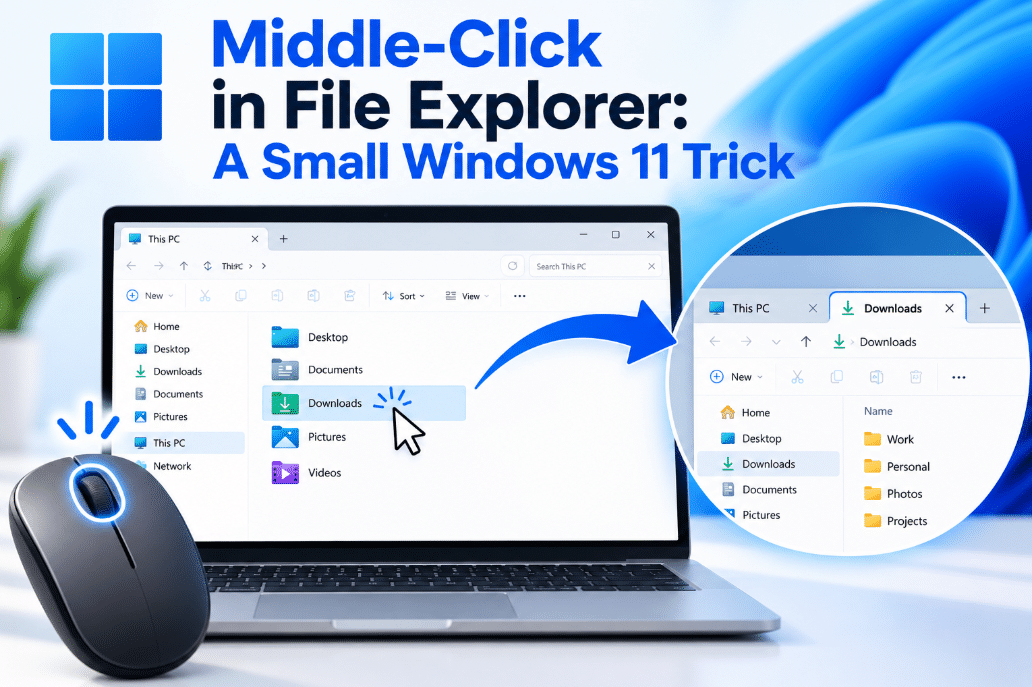
Windows 11 File Explorer has tabs, but there is a small shortcut many users still overlook: middle-click in File Explorer.
Just like middle-clicking a link in a web browser opens it in a new tab, middle-clicking supported folders in File Explorer can open them in a separate tab.
It is a small feature, but it can make browsing folders much faster.
What Does Middle-Click Do in File Explorer?
When you middle-click a folder with your mouse wheel, Windows can open that folder in a new File Explorer tab instead of replacing the folder you are currently viewing.
For example, imagine you are inside:
Documents
and want to open both Work and Personal.
Instead of opening Work, going back, and then opening Personal, you can middle-click each folder.
You end up with:
Documents | Work | Personal
open as separate tabs in the same File Explorer window.
Microsoft originally added middle-click support alongside File Explorer tabs and has continued expanding where the shortcut works.
Where Can You Use Middle-Click?
Depending on your Windows 11 version and current updates, middle-click can work in several places in File Explorer.
These include:
- Folders in the main File Explorer window
- Folders in the navigation pane
- Folders shown on the Home page
- Folder locations in the address bar
Microsoft expanded support in 2026 to include the Address Bar and File Explorer Home, making the behavior more consistent throughout File Explorer.
How to Use It
Using the shortcut is simple.
- Open File Explorer with Windows + E.
- Find a folder you want to open.
- Press the mouse wheel down instead of left-clicking.
- The folder should open in a new tab.
You can then switch between tabs just like you would in a web browser.
Why Is This Useful?
Middle-click becomes particularly useful when you are working with several folders at once.
For example, you might need to:
- Copy files between folders
- Compare two folders
- Organize downloads
- Move photos between locations
- Work across several project folders
- Keep Downloads open while browsing Documents
Opening each location in its own tab reduces the amount of back-and-forth navigation.
Middle-Click vs Right-Click
You can also open folders in new tabs through File Explorer’s menus, but middle-click is usually faster.
Instead of:
Right-click → Open in new tab
you simply:
Middle-click the folder
For users who already middle-click browser links, the shortcut feels very natural.
What If Middle-Click Does Nothing?
First, make sure your mouse has a working middle button.
On most mice, pressing the scroll wheel itself acts as the middle-click button.
You should also make sure Windows 11 is up to date because Microsoft has gradually expanded middle-click functionality through Windows updates.
If it works in one part of File Explorer but not another, the feature may depend on your Windows build or the latest updates installed on your device.
Does It Open a New Window?
Normally, middle-clicking a folder opens it in a new tab, not another File Explorer window.
This is useful because you can keep several locations organized inside one window instead of filling your desktop with multiple Explorer windows.
File Explorer tabs are designed to provide browser-style navigation while keeping file management in one place.
A Useful Browser-Style Habit
If you already use middle-click when browsing the web, try using the same habit in File Explorer.
Instead of constantly opening a folder and then pressing Back, middle-click folders you know you will need later.
You can then close tabs when you are finished with them.
It is particularly handy when organizing a large collection of files or moving content between several locations.
Final Thoughts
Middle-click in File Explorer is one of those small Windows 11 tricks that can make everyday navigation noticeably quicker.
Press the mouse wheel on a folder, and Windows can open it in a new tab while leaving your current location open.
It takes only a moment to learn, and once you start using it, File Explorer can feel much closer to the tabbed browsing experience you already use on the web.
Need Windows 11 for your PC? Explore our Windows 11 keys and choose the right edition for your computer today.